Vælg en organisation
Salesforce Field Service: Cards Not Visible on Work Order Line Item (WOLI) Overview Tab — Related Lists Missing from Page Layout
Udgivelsesdato: May 17, 2026
Beskrivelse
In Salesforce Field Service (SFS), the Work Order Line Item (WOLI) Overview tab displays information in cards — discrete visual sections for different kinds of related data. When expected cards do not appear, it is because the corresponding related lists are not added to the WOLI page layout.
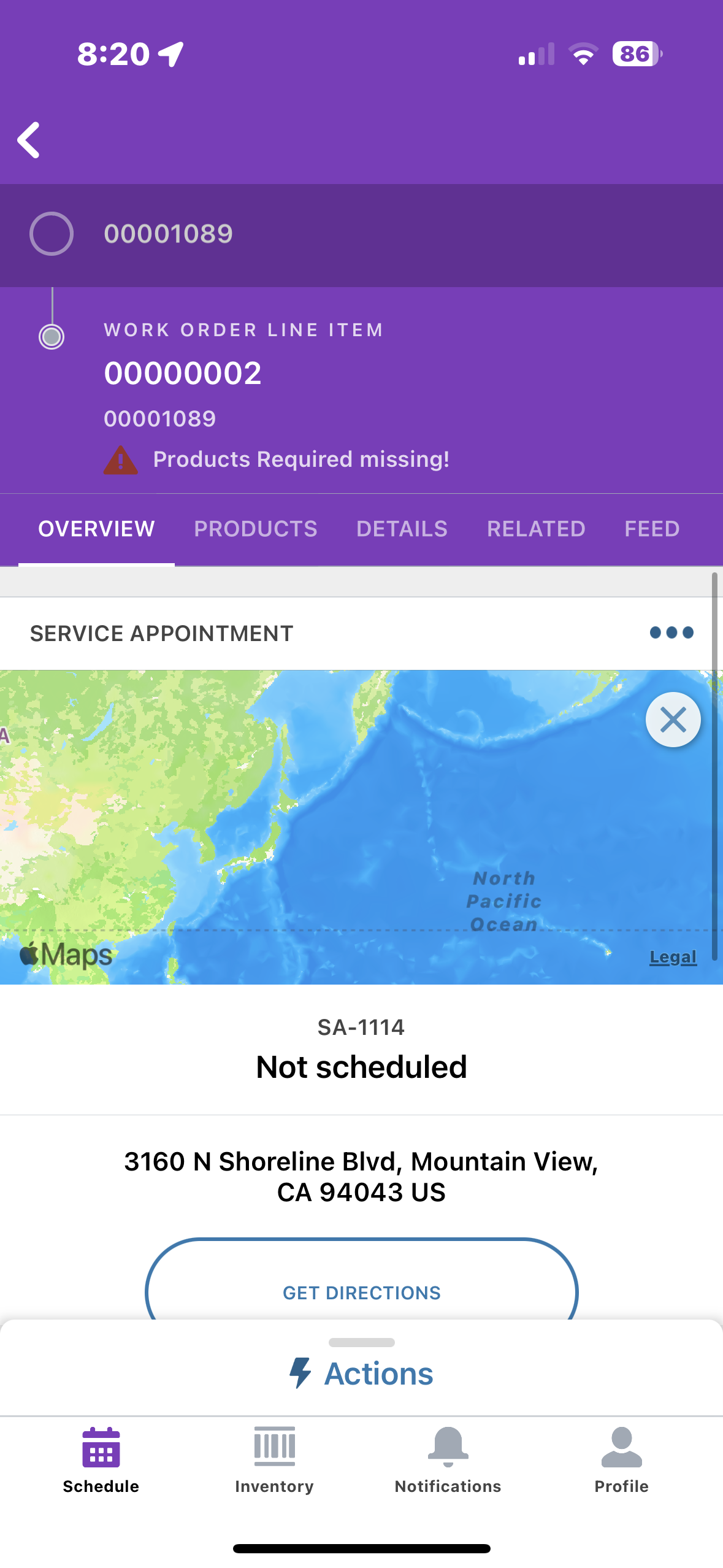
Screenshot description: The WOLI Overview tab showing available card slots including Asset Service History, Event Insights, Knowledge, Service Appointment, Service Report, and Work Order Line Item — with some cards visible and others absent when related lists are not configured in the page layout.
The following cards can be added to the Work Order Line Item overview screen:
- Asset Service History
- Event Insights
- Knowledge
- Service Appointment
- Service Report
- Work Order Line Item
These cards correspond to related lists on the WOLI object. If a related list is not added to the WOLI page layout, the corresponding card does not appear on the WOLI Overview tab. The same card logic applies to the Work Order (WO) Overview tab. See Work Order Overview Tab for reference.
Doc:
https://help.salesforce.com/s/articleView?id=sf.mfs_work_order_overview.htm&type=5
Løsning
Cards on the WOLI Overview tab are only visible when the matching related lists are included in the Work Order Line Item page layout.
Step 1: Add Required Fields and Related Lists to the WOLI Page Layout
- Go to Setup > Object Manager > Work Order Line Item.
- Click Page Layouts and open the relevant layout.
- Verify that the Asset field is added to the layout.
- Verify that the Service Report related list is added to the layout.
- Add any additional related lists for cards you want to display (for example, Service Appointment, Knowledge, Asset Service History).
- Click Save.
Step 2: Handle Multiple Record Types
If the org uses multiple WOLI record types, repeat the above steps for every page layout associated with each record type. Cards do not appear on Overview tabs for record types whose page layouts are missing the required fields or related lists.
Step 3: Confirm Data Exists for the Card to Appear
Some cards only appear when related records exist. For example, the Service Appointment card only displays when at least one Service Appointment is linked to the WOLI. Add the related record and then reload the Overview tab.
Yderligere ressourcer
Vidensartikelnummer
000396229
Løste denne artikel dit problem?
Giv os besked, så vi kan forbedre os!
