Valitse organisaatio
Customer Success Score: Overview
Julkaisupäivä: Jun 16, 2026
Kuvaus

|
• Customer Success Score Features • Related Tools • Feedback • Signals • Security Health Check • FAQs In this article, you'll discover what the Customer Success Score is and how to access actionable insights to get the most value out of your Salesforce investment. To learn more about the individual signals, check out the Signals article. For answers to commonly asked questions, visit the FAQ article. Customer Success Score Overview Introduction The Customer Success Score is a simple and comprehensive measure of your success with Salesforce and is accessible to Signature Success Plan customers through Salesforce Help. Get insight into your use of Salesforce products and features, the health of your implementations, and your engagements with learning resources.
The Customer Success Score is currently available for the following products: Agentforce
Commerce
CRM Analytics
Industries
Marketing
MuleSoft
Platform
Sales
Service
How to Access
The Customer Success Score appears in the navigation whenever you are logged in using an org that meets the eligibility requirements. 1. Log in to Salesforce Help using your Trailblazer.me account 2. Select My Success Plan in the main site navigation 3. Select Customer Success Score in the drop down
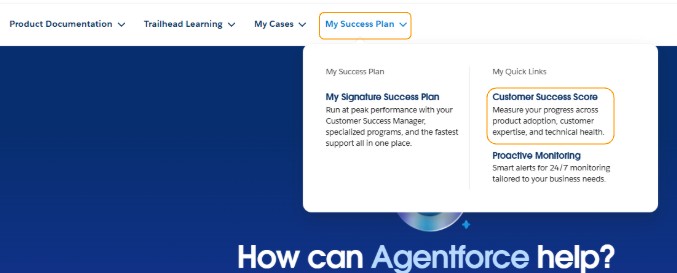 Direct access: You can also open the Customer Success Score by visiting the Customer Success Score Help page. Since the Customer Success Score is one per Org., if you have access to multiple orgs, or other clouds such as Commerce Cloud, MuleSoft or Tableau, use the org picker to select the correct one. For Commerce Cloud, select the realm. If you have Marketing Cloud, the Customer Success Score will be visible in your Help portal through your Marketing Cloud login.
Categories and Scores The Customer Success Score is made up of three categories:
These categories are made up of individual signals whose raw values show how you are progressing. 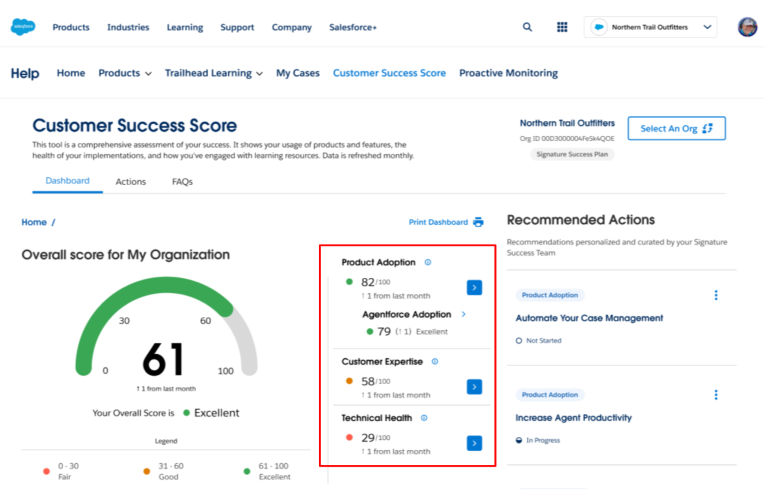 All scores are on a scale from zero to one hundred: • Excellent (61-100) • Good (31-60) • Fair (0-30) Your overall Customer Success Score is calculated based on a 5 to 2 to 3 ratio. • Product Adoption: 5 • Customer Expertise: 2 • Technical Health: 3 Because Technical Health is not currently available for Commerce Cloud, Marketing Cloud WhatsApp Business Messaging, or Tableau, the Customer Success Score is calculated based on a 5 to 2 ratio between Product Adoption and Customer Expertise. Score Benchmarks We use an absolute scoring model which generates signal scores based solely on your interactions with Salesforce products, services, and resources. This allows you to track detailed trends in underlying metrics and your own year-over-year performance, showing the true impact you are having on your Customer Success Score. Who to Contact About Your Customer Success Score If you are a Signature Success Plan customer and have questions about your Customer Success Score, contact your Account Executive or Customer Success Manager. They will connect you with the right resource. If you are a Premier Success Plan customer then you can request a Success Review through the help portal, and engage with a Success Guide. You may also reach out to your AE to help schedule a Success Review. Customer Success Score Features
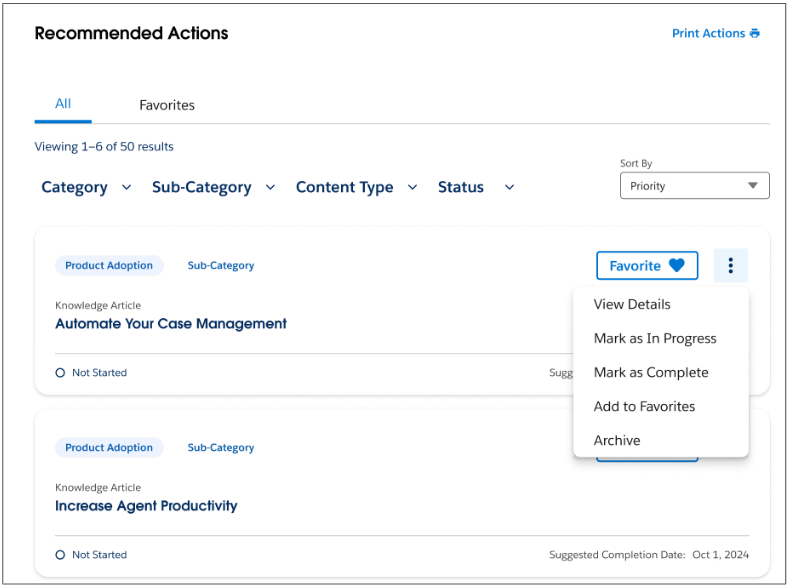
You can also use the filters to easily sort and filter your open and closed tasks by the corresponding Category, Subcategory/Product, Content Type, Status, and Sort by Date, or Priority. 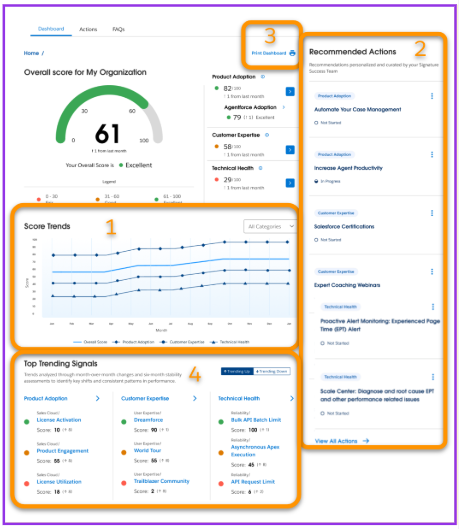 In the Dashboard tab, you can view Score Trends for your overall Customer Success Score (1), and each of the three categories. You can also view trend lines when viewing the individual categories, products or subcategories, and each individual signal. Trend lines demonstrate the score value over time. Score values range from 0 to 100, with 0 as Fair and 100 as Excellent.
To the right of the Dashboard are the Recommended Actions (2). By selecting a category, the recommendations will change dynamically, to reflect the category that you are viewing.
In any Dashboard screen you can click Print Dashboard (3) which will enable the printing of the data and graphs on the page you are viewing. It will not print the recommendations.
We also include Trending Signals (4), so you can see which signals have moved the most (up or down) since the last month.
Related Tools Proactive Monitoring (ProM) on Salesforce Help Proactive Monitoring (ProM) helps predict and prevent issues with 24/7 monitoring and early warnings, allowing customers to keep their business operations running smoothly. The Proactive Monitoring tab on Salesforce Help provides Signature Success Plan customers with on-demand analysis of performance metric trends and a view into alert configuration. With Proactive Monitoring on Salesforce Help, customers can:
Personalized System Status From Trust While the Technical Health of your org is primarily determined by the quality and management of your implementation, your org instance's status plays an important role. Access the Salesforce Trust system status for your org's instance both in real-time and for a rolling 30 days in the past or future. You can view incidents, performance degradation, planned maintenance, and when your instance will receive upcoming releases. Head to the Salesforce Trust site and select any Event ID to view all details of the event or incident. Scale Center Scale Center is a feature of your Salesforce org, designed to provide you with visibility into performance metrics needed to isolate issues, identify the root cause, and get remediation guidance. After reviewing your Technical Health scores in the Customer Success Score, navigate to Scale Center within your production org to get to the root cause of any issues in a matter of minutes. To view and analyze signals in Scale Center follow these steps: 1. Select Setup 2. In the Quick Find box, enter Scale Center 3. Select Scale Center 4. Turn on Enable Scale Center Event Monitoring Event Monitoring, part of the Shield suite of add-on products, gives key visibility into detailed security, performance, and usage data across Salesforce apps. After reviewing your Customer Success Score, use Event Monitoring data to dig deeper and proactively find and mitigate security threats, analyze user behavior, and understand application performance. Security Center Security Center is a native add-on product that gathers detailed metrics on configurations, authentication, user permissions, and activity, compiled in intuitive dashboards. After reviewing your Customer Success Score, set up Security Center alerts and security policies to simplify maintenance of your security posture. Security Health CheckAs an admin, you can use Health Check to identify and fix potential vulnerabilities in your security settings, all from a single page. A summary score shows how your org measures against a security baseline like the Salesforce Baseline Standard. Feedback Let us know what you think about the Customer Success Score experience on Salesforce Help. Select Share Feedback under My Account Team to provide your thoughts and tell us what features you’d like to see in the future. |
Knowledge-artikkelin numero
000396261
Ratkaisiko tämä artikkeli ongelmasi?
Anna palautetta, jotta voimme kehittyä!
