Seleccionar una organización
Validation Rule to prevent Opportunity Stage change unless the Amount > 0
Fecha de publicación: Aug 18, 2026
Descripción
Solución
This article explains how to create a Validation Rule on the Opportunity object so that a Stage change to "1. Discovery" is only allowed when the Amount field is greater than 0 and a custom date field (Initial_Meeting_Held__c) has a value.
Steps to Create the Validation Rule
Set Up the Rule
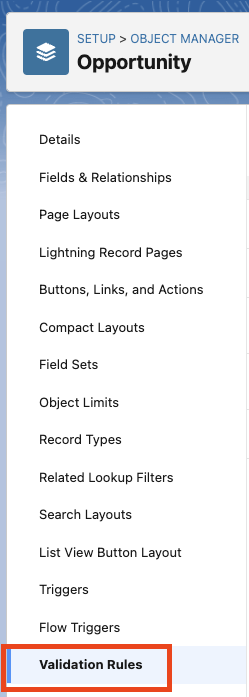
Step 1: From Setup, navigate to the Object Manager tab. In the Quick Find search box, search for the Opportunity object. Click on Opportunity to navigate to the Opportunity object's settings.

Step 2: Select Validation Rules from the left side of the page, and then click on the New button.

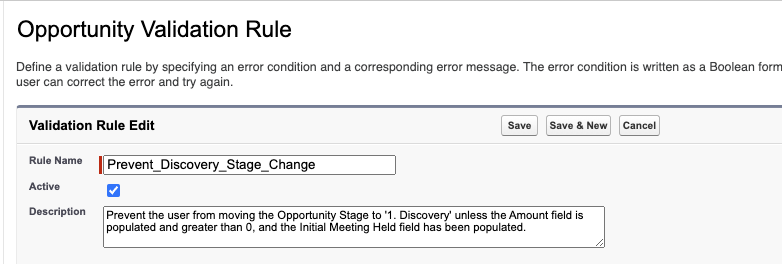
Step 3: Give the Validation Rule a useful Rule Name. Leave the Active checkbox selected if the rule should be active immediately after creation, or deselect it to activate later. Then add a good Description.
Build the Formula
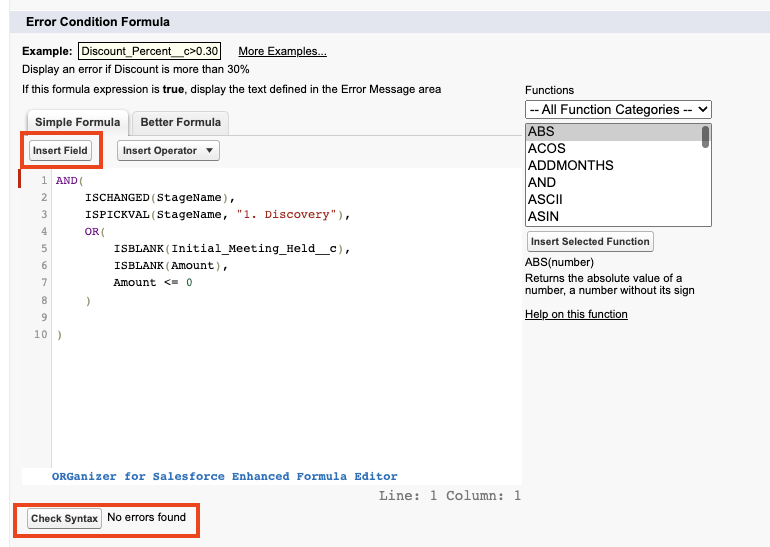
Step 4: Under Error Condition Formula, use the following syntax to create the logic for the Validation Rule. This formula triggers an error whenever a user tries to change the Stage to "1. Discovery" without a valid Amount and Initial Meeting Held date:
AND(
    ISCHANGED(StageName),
    ISPICKVAL(StageName, "1. Discovery"),
    OR(
    ISBLANK(Initial_Meeting_Held__c),
        ISBLANK(Amount),
        Amount <= 0
    )
)
Step 5: In the Error Condition Formula page, use the Insert Field button to identify and populate the fields to check against. In this example, we're evaluating the Amount field and a custom Date field called Initial_Meeting_Held__c — swap this out for the equivalent custom field in your org. Then use the Check Syntax button to confirm the formula has no errors.
Test the Rule
Step 6: Provide a useful Error Message and determine where the message should be displayed.
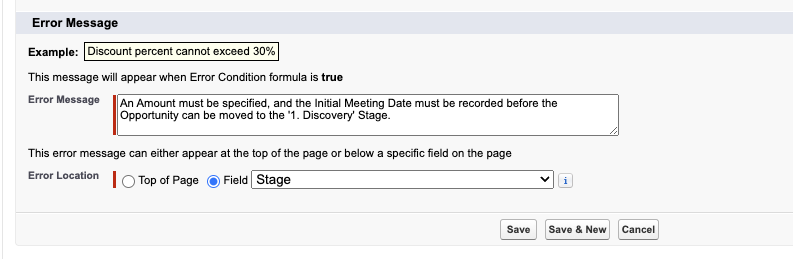
Step 7: Click Save to create the new Validation Rule.
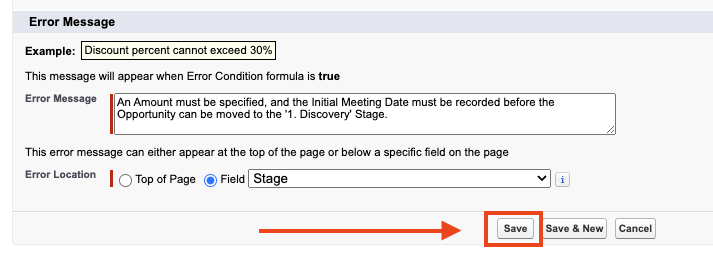
Step 8: Navigate to an Opportunity record and attempt to move the Stage to "1. Discovery" (or whichever Stage applies to your org), and confirm the error displays. Test all scenarios to ensure the rule works as intended.

Why This Approach Works
Why use ISCHANGED() when evaluating the Stage?
Using ISCHANGED() ensures the validation rule only fires when the Stage is actively being changed to the value that needs to be evaluated. Without this parameter, the Validation Rule could fire on unrelated changes to the record.
Why use an OR() block inside the outer AND() block?
This ensures the validation rule fires and blocks saving if any of the following are true when Stage changes to the evaluated value: Amount is blank, Amount is less than or equal to 0, or the custom Date field is blank. In other words, when Stage changes to the evaluated Stage, the Amount field must be greater than 0 and the custom Date field must have a value.
Written by: Zack Terry | Salesforce Answers Leader
Zack Terry is a Senior Salesforce Solution Architect at Fast Slow Motion, which aims to be a blessing to business leaders by helping them implement and maximize their use of the Salesforce platform. At the time of writing, Zack has worked in the Salesforce ecosystem for nearly a decade, holds 20 Salesforce Credentials, and has achieved the rank of "All-Star Ranger" on Trailhead. He regularly participates as an Answers Leader in the Salesforce Trailblazer Community.
Submissions reflect only the opinions of the user who made available the Submission and not the opinions of Salesforce, regardless of whether the user is affiliated with Salesforce, and may contain or constitute products, services, information, data, content and other materials made available by or on behalf of third parties ("Third Party Materials"). Salesforce neither controls nor endorses, nor is Salesforce responsible for, any Third Party Materials, including their accuracy, validity, timeliness, completeness, reliability, integrity, quality, legality, usefulness or safety, or any applicable intellectual property rights. Any Submissions made available through any message board or forum in response to posted questions, or that otherwise purports to answer any questions, including any questions about Salesforce or Programs, are made available for your general knowledge only and should never be relied upon as answers to your specific questions (even if an answer is marked as a "best" answer or with any similar qualifications). You should always contact Salesforce support for answers to your specific questions. Salesforce has no control over Submissions, and is not responsible for any use or misuse (including any distribution) by any third party of Submissions.
If you have questions, tap into the wisdom of our entire Trailblazer Community here: https://trailhead.salesforce.com/trailblazer-community/feed
Recursos adicionales
Número del artículo de conocimiento
000396271
¿Resolvió este artículo su problema?
¡Háganos saber cómo podemos mejorar!
