Välj en organisation
Salesforce Voice with Amazon Connect - Call Reconnect Workaround Solution
Publiceringsdatum: Apr 9, 2026
Beskrivning
Background
When an agent refreshes a web page during a call, the call between the agent and end user becomes disconnected. This is an expected behavior in the following Salesforce Voice (formerly Service Cloud Voice) telephony models:
- Salesforce Voice with Amazon Connect
- Salesforce Voice with Partner Telephony from Amazon Connect
This behavior impacts all types of calls, including inbound calls, outbound calls, call transfers, and callbacks.
This document introduces a workaround solution that, when implemented, automatically reconnects the audio whenever an agent refreshes a web page during a call.
Lösning
Solution
When an agent loses audio connection with an end user, the agent can transfer the call to a “Reconnect Audio” quick connect, which will transfer the call back to the same agent. When the transfer call shows as “Connected,” the agent can click “Leave Call” within phone widget. Then, the agent should close the voice call tab or click “All done” to exit ACW (After Conversation Work). Finally, the agent will receive the transfer. After picking up this call, the audio will be re-established.
Limitation
Please note the following limitations:
- Calls that are reconnected through this “Reconnect Audio” workaround solution are established transfer calls. Therefore, whenever a call is reconnected, Salesforce creates a transfer VoiceCall record and links it to the initial VoiceCall record object.
- If the affected agent receives other transfer calls (s) while the call reconnect is in progress, the agent will likely receive the other transfer call first.
- This is a customer implementation workaround solution and not a supported feature. It is possible that Amazon Connect may stop supporting this in the future.
Demo
To implement this workaround solution, the administrator should configure the following steps:
Reconnect a Call after a Web Page Refresh
The following steps show you how to configure Salesforce Voice and Amazon Connect to automatically reconnect a call after an agent refreshes a web page.
The following steps apply to all call types, including inbound calls, outbound calls, call transfers, and callbacks, but to keep it simple, we use the inbound flow as an example.
Step 1: Log in to Amazon Connect through Salesforce
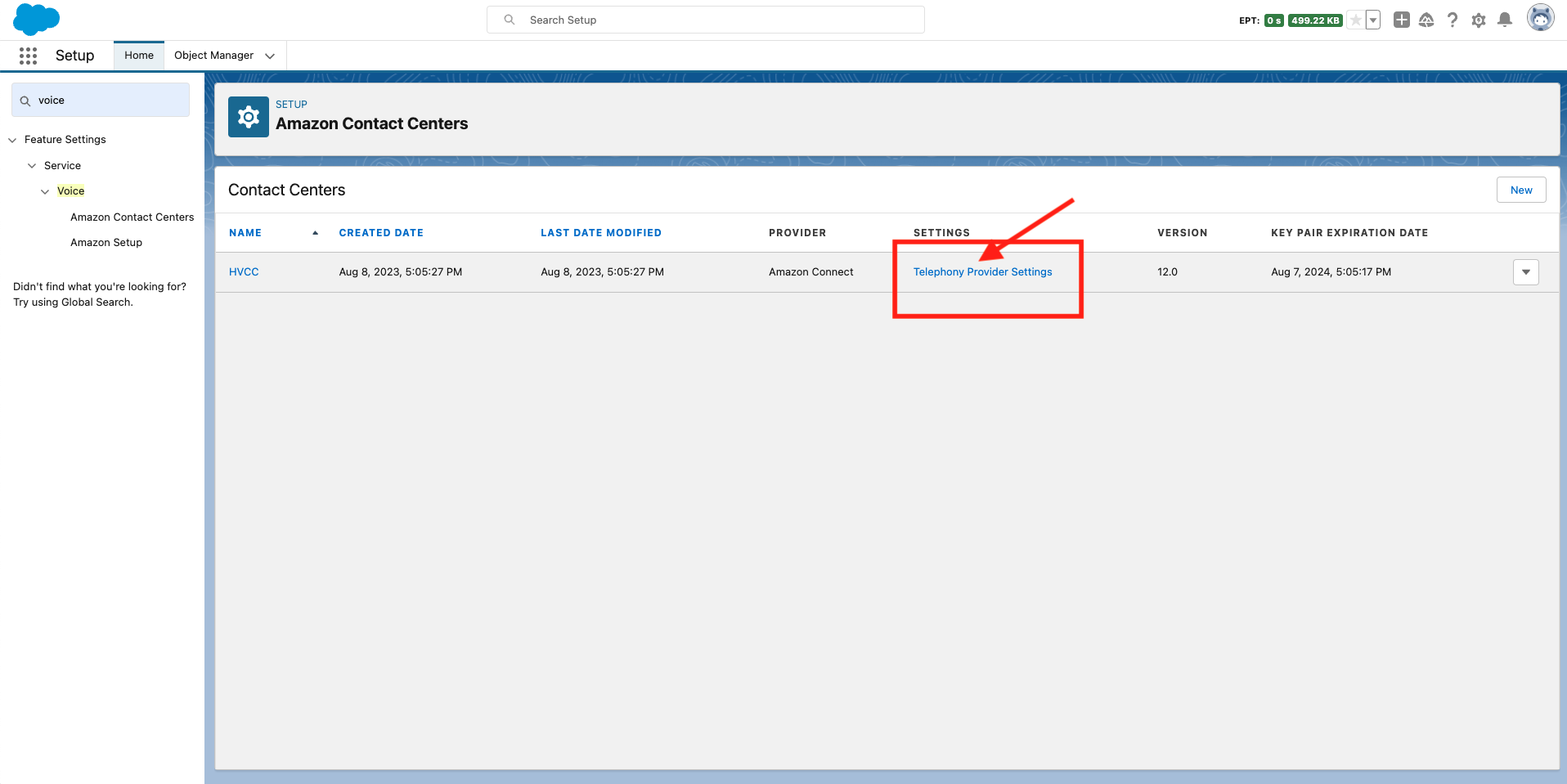
- From Setup, in the Quick Find box, enter Amazon Contact Centers, then select Amazon Contact Centers.
- Click Telephony Provider Settings next to the contact center you want to configure. You’ll be redirected and automatically logged. into Amazon Connect.
Step 2: Create the whisper flow
- Select Routing > Flows.
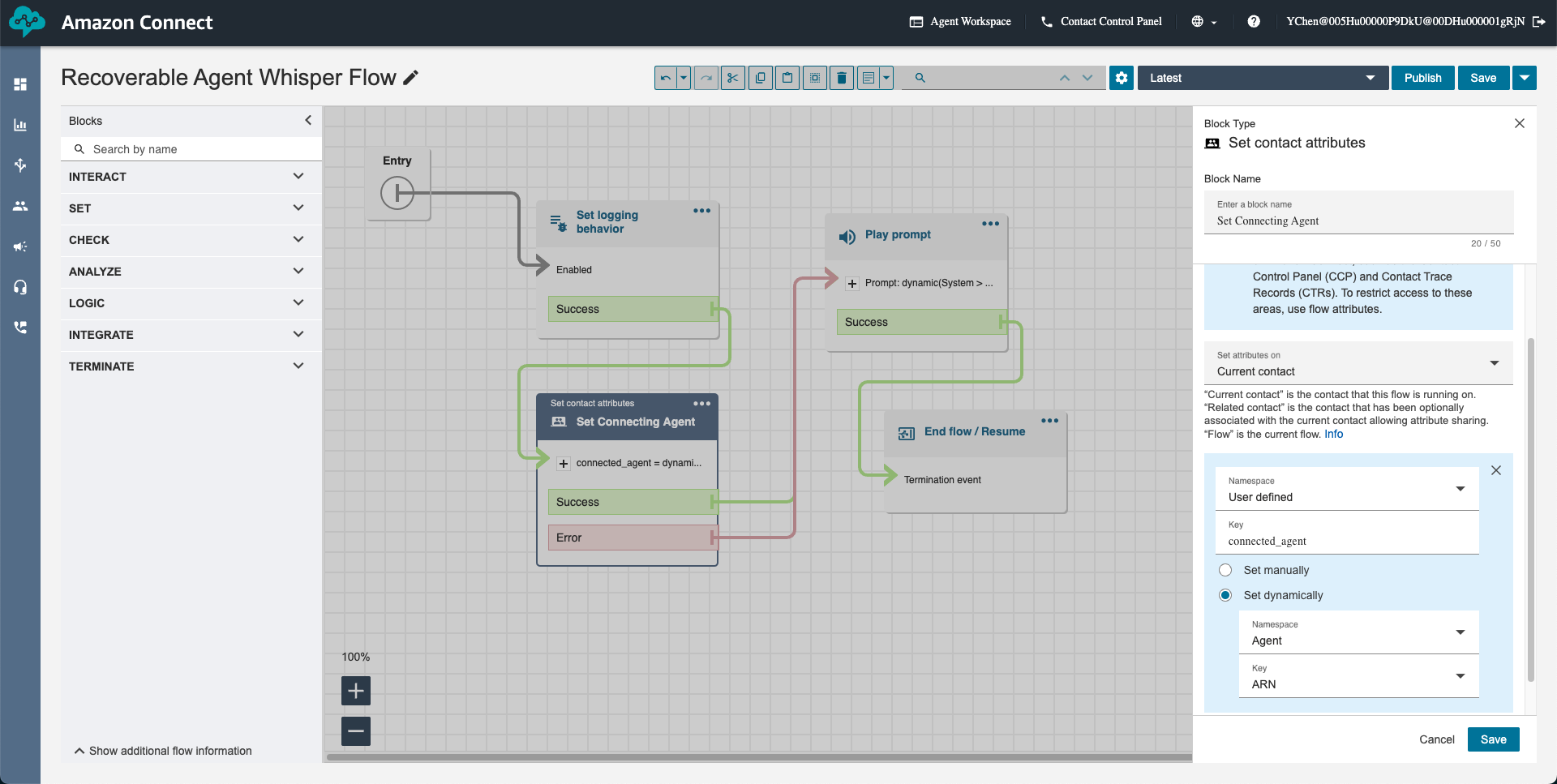
- Click Create flow to create a new flow and give it a name, such as “Recoverable Agent Whisper Flow.”
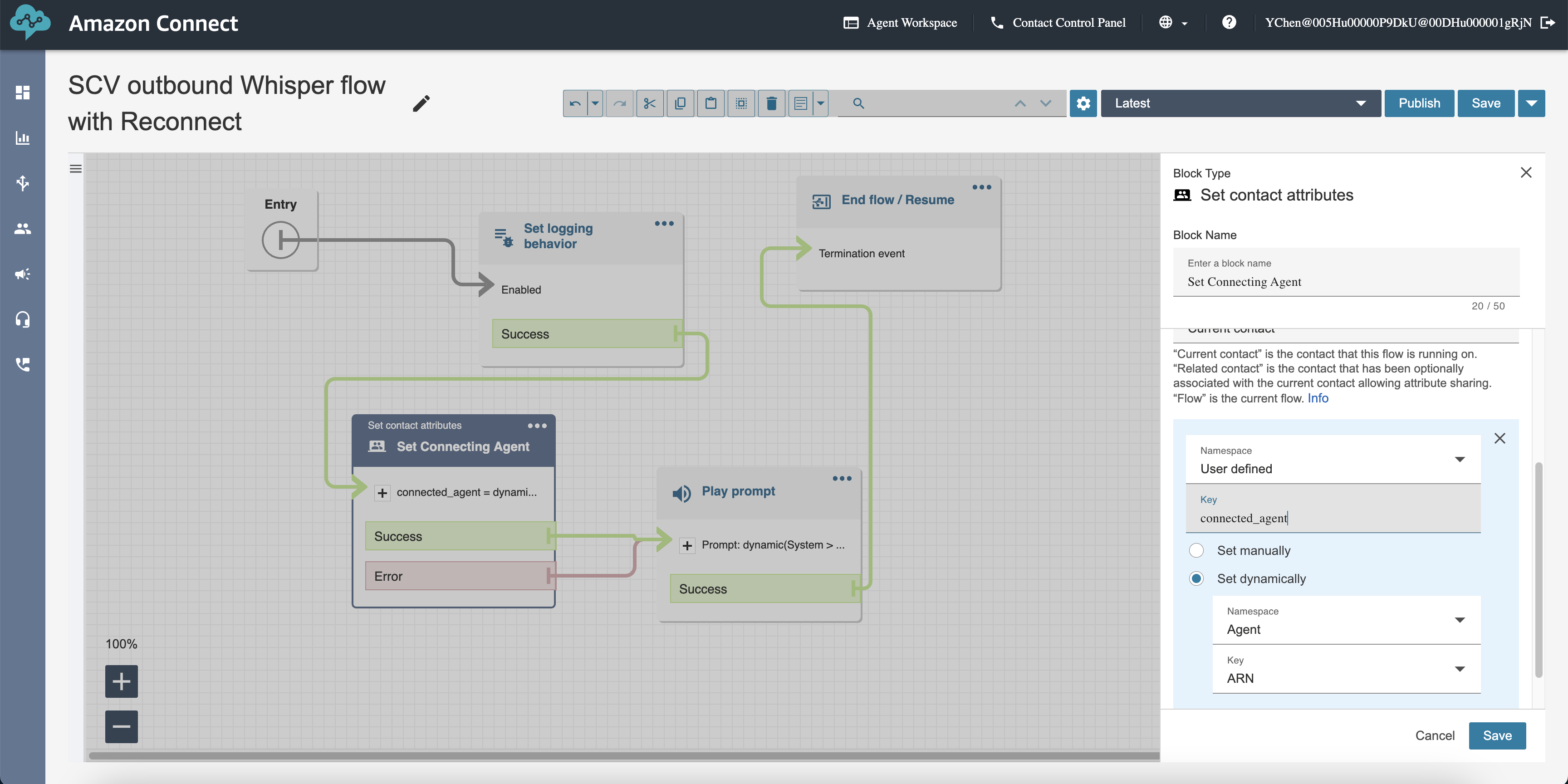
- In the new flow, add a Set contact attributes flow block with the following
- Set attributes on: Current contact
- Namespace: User defined
- to the connected agent ARN. For example., “connected_agent”>
- Select Set dynamically
- Namespace: Agent
- Key: ARN
- Select Set dynamically
- Save and publish the flow.
Step 3: Add the whisper flow to the inbound flow
- Select Routing > Flows.
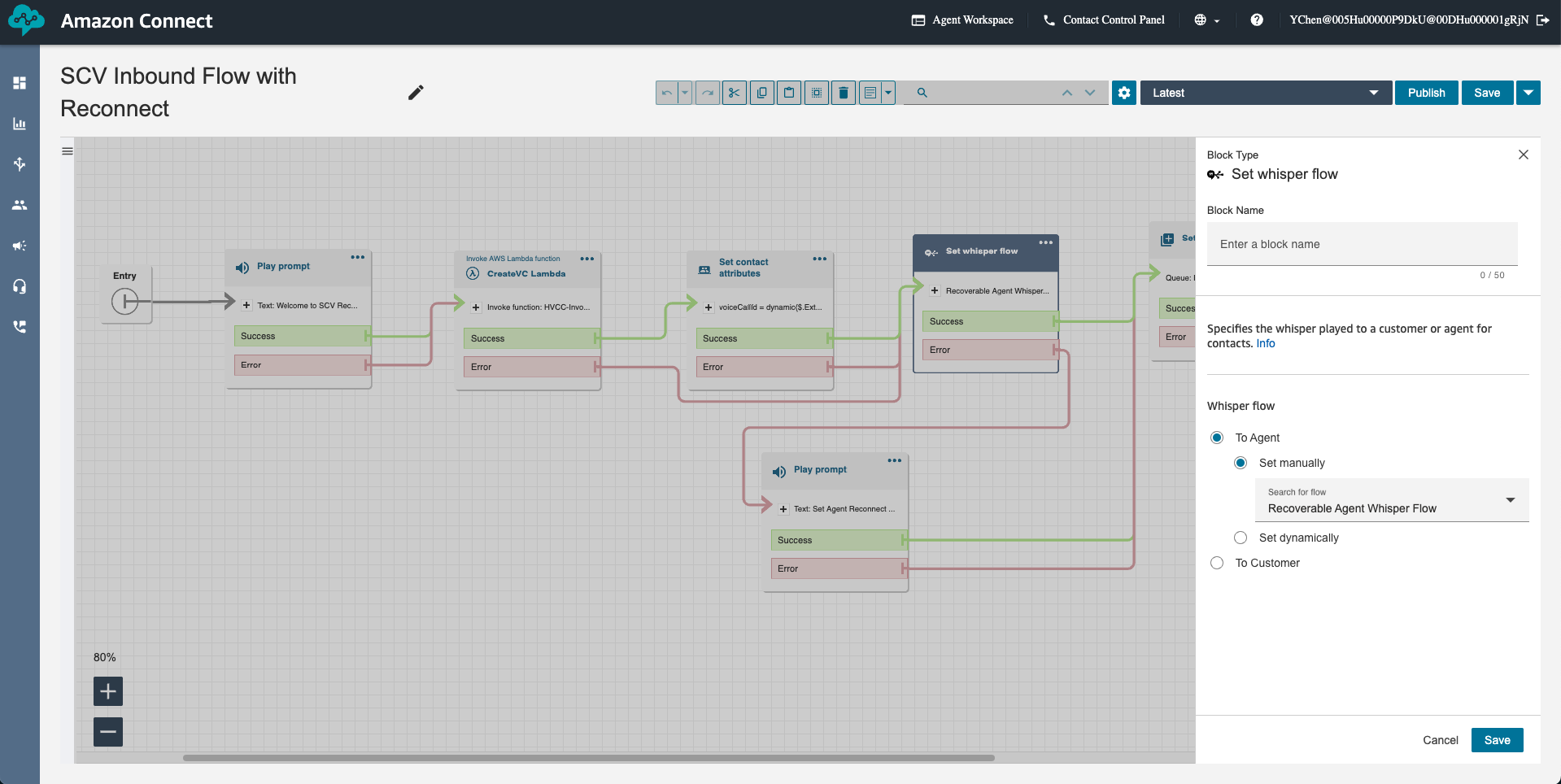
- Go to your inbound flow and add a Set whisper flow block with the following settings:
- Select To Agent
- Select Set manually
- Select Search for flow: <Name of the whisper flow you created in the step above. For example, “Recoverable Agent Whisper Flow”>
- Save the settings and flow.
Step 4: Create the “reconnect” transfer flow
- Select Routing > Flows.
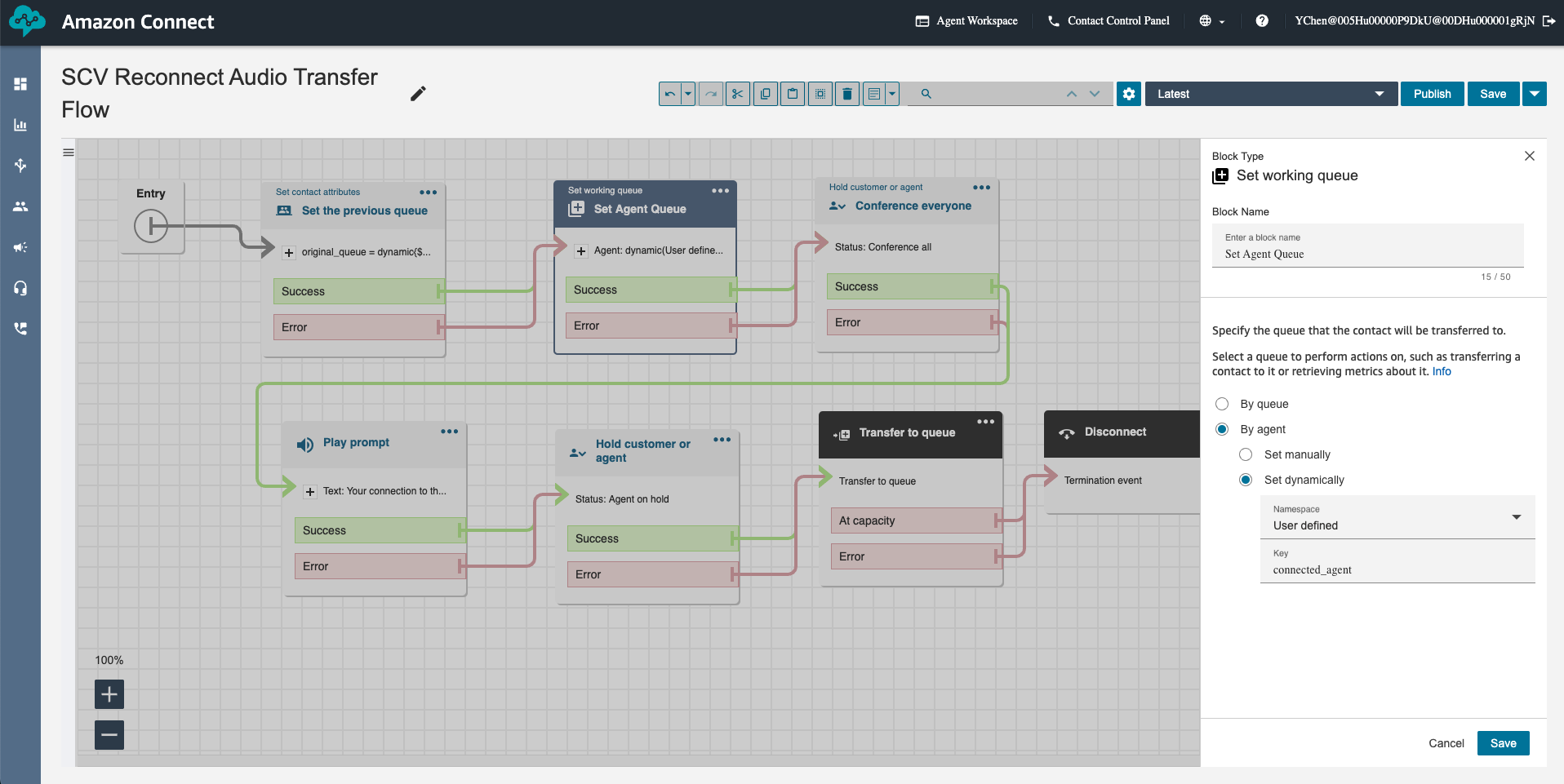
- Click Create flow and give the new flow a name. For example, “SCV Reconnect Audio Transfer”.
- Add a Set working queue flow block with the following settings:
- Select By agent
- Select Set dynamically
- Namespace: User defined
- Key: <Name that you gave to the connected agent ARN when you created the whisper flow. For example., “connected_agent”>
- Select Set dynamically
- Select By agent
- Add a Play prompt block to play an informative prompt to notify the end user that we’re reconnecting the call. For example, add a prompt to say, “Your connection to the agent was interrupted. We are reconnecting your call. Please hold while we transfer you back to the agent.”
Step 5: Create a quick connect and link it to the “reconnect transfer” flow
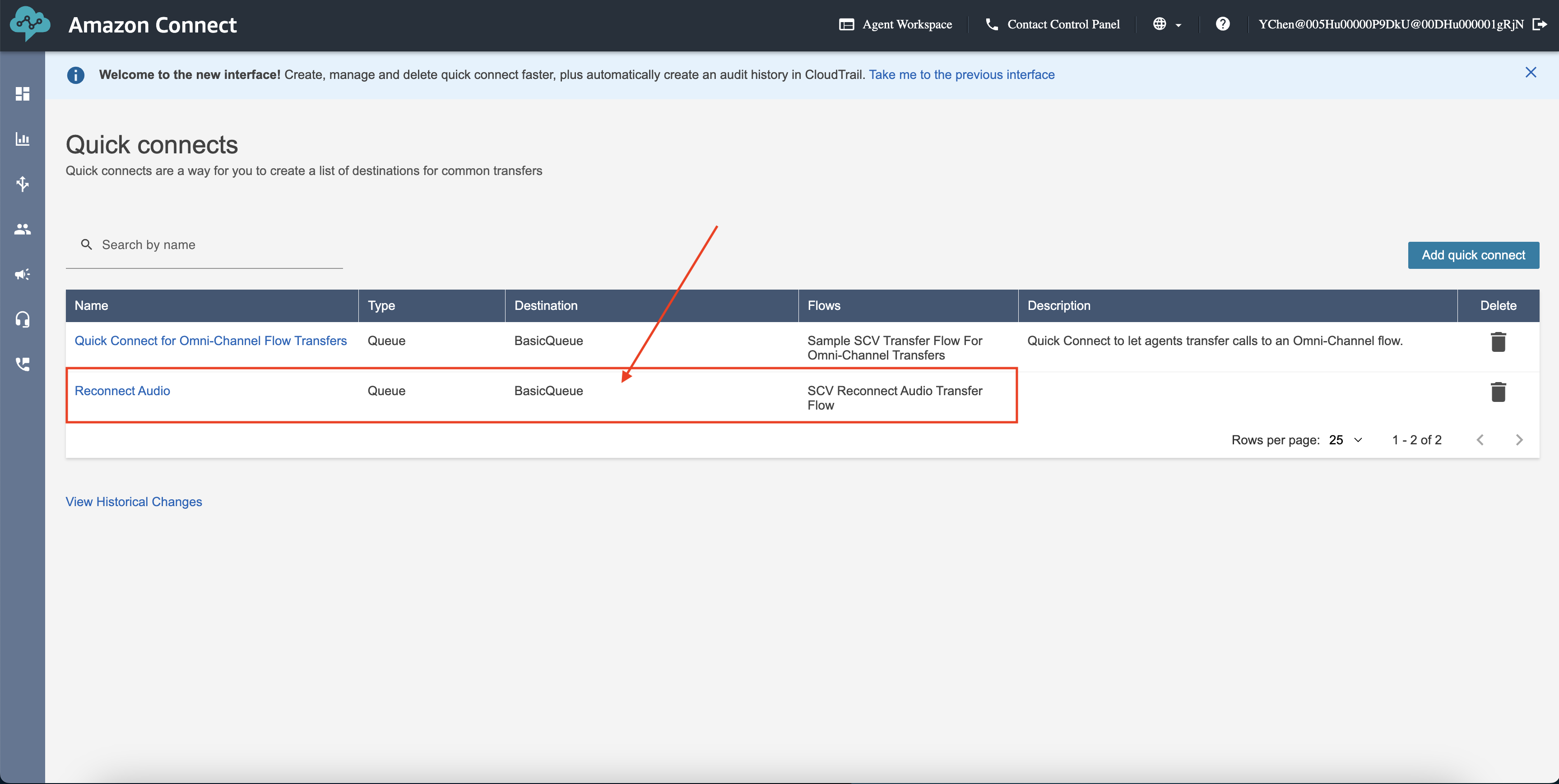
- From Amazon Connect, select Routing > Quick connects.
- Click Add quick connect.
- Give the quick connect a name. For example, “Reconnect Audio”.
- Add an optional description.
- Set the following fields:
- Type: Queue.
- Queue: BasicQueue.
- Flows: <Name of the reconnect” transfer flow you created in the step above. For example, “SCV Reconnect Audio Transfer”>
- Click Save.
Step 6: Add the quick connect to the queue
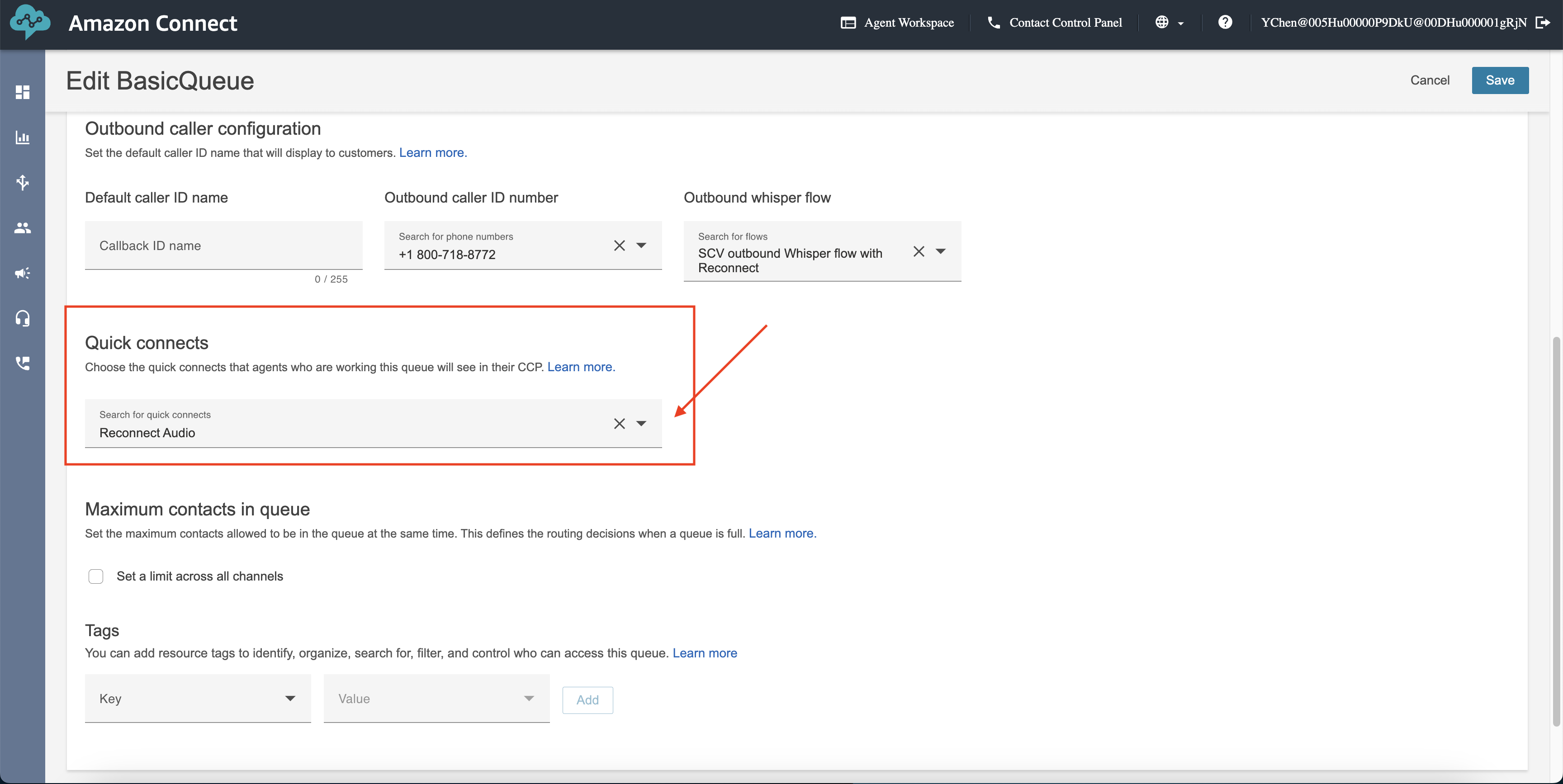
- Select Routing > Queues.
- Click BasicQueue.
- Under Quick connects, select the quick connect you created in the step above. For example, “Reconnect Audio“.
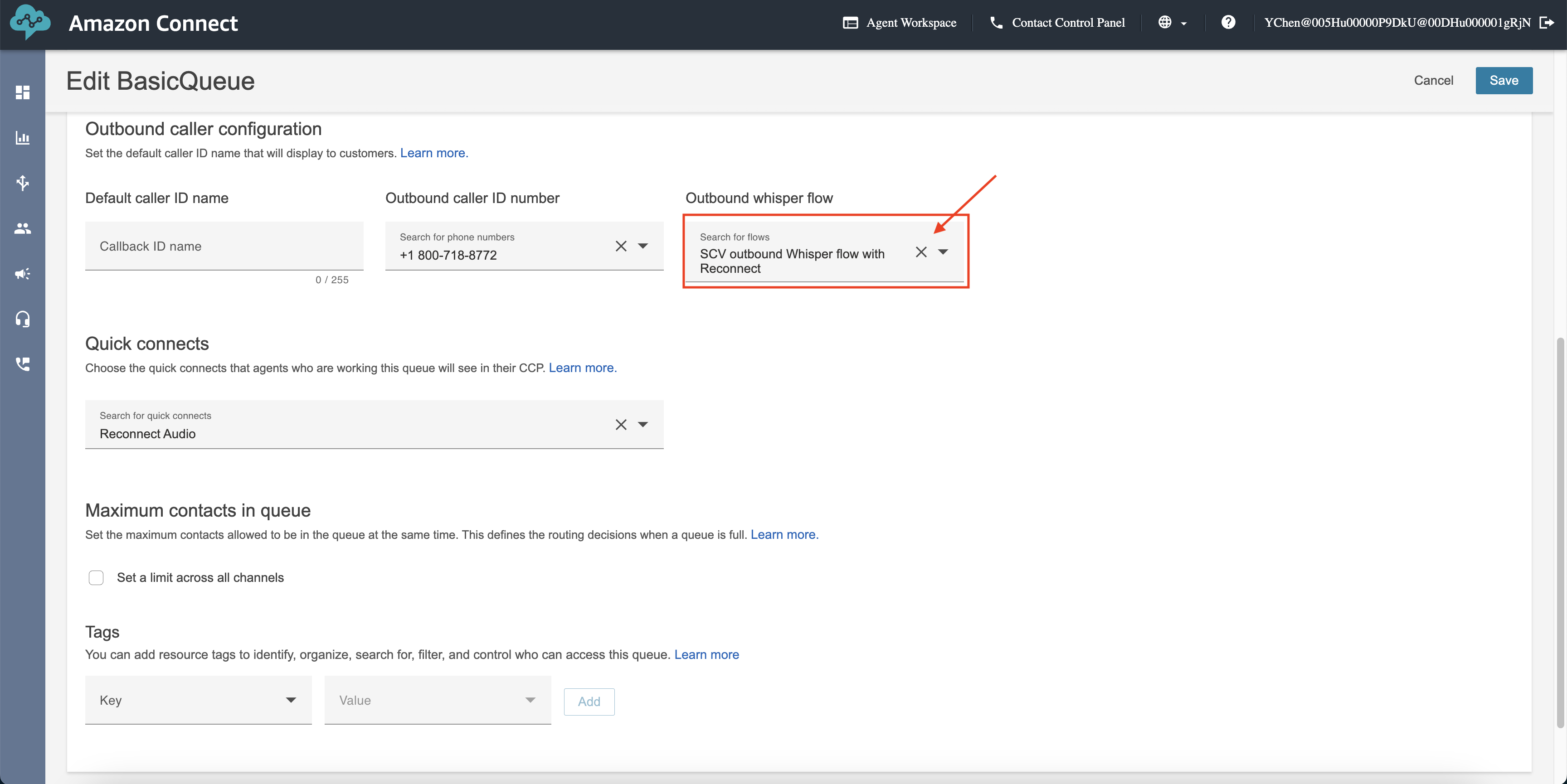
4. (Applies to outbound calls only.) In the Outbound whisper flow picklist, verify that the agent ARN will be set as part of the outbound whisper flow.
Knowledge-artikelnummer
000396280
Löste denna artikel ditt problem?
Berätta för oss vad vi kan förbättra!
