Velg en organisasjon
Use validation rule to restrict usage of certain picklist values in a picklist field on new records
Publiseringsdato: Apr 2, 2026
Beskrivelse
In Salesforce Platform, administrators may need to prevent users from selecting certain picklist values on new records while keeping those values visible for legacy records. This article covers two approaches: deactivating the picklist values (Approach 1, recommended) or using a Validation Rule with the ISNEW() and CASE() functions to block restricted values only on record creation (Approach 2).
Løsning
In order to fulfill the requirement, there are two approaches:
Approach 1:
To Deactivate picklist values (not Del/Delete) in a way that it prevents the values from displaying as options on new records, while allowing existing records to retain these inactive picklist values without deletion
Approach 2:
To use a Validation Rule to restrict the users to select the picklist values that are no longer needed while creating new records.
Note: In this approach, the values that are no longer needed are still going to display on new records but the user won't be able to save the record if they select those values while creating a new record.
For the existing records, users can still use the picklist values that we are restricting on the new records.
At the end of the article, the use-case where the existing records can also be restricted to use those selective picklist values along with the new records is shown.
The best practice is to follow the Approach 1 but in case, the admin decides to go for Approach 2 as the company wants to display all the picklist values on the record but restrict users to select them on new records as per the business needs, then the validation rule to restrict the usage of selective picklist values will be created as follows:
Step 1: Navigate to the upper right corner of the screen and click on the Gear icon and select Setup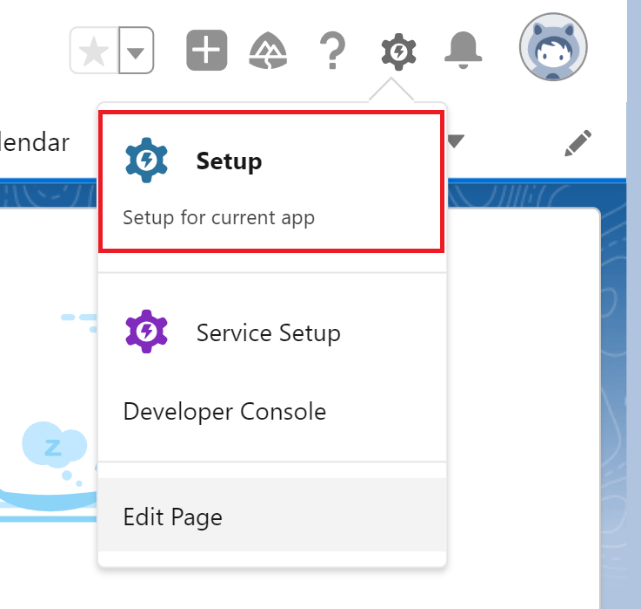
Step 2: Click on the Object Manager tab and select the Contact object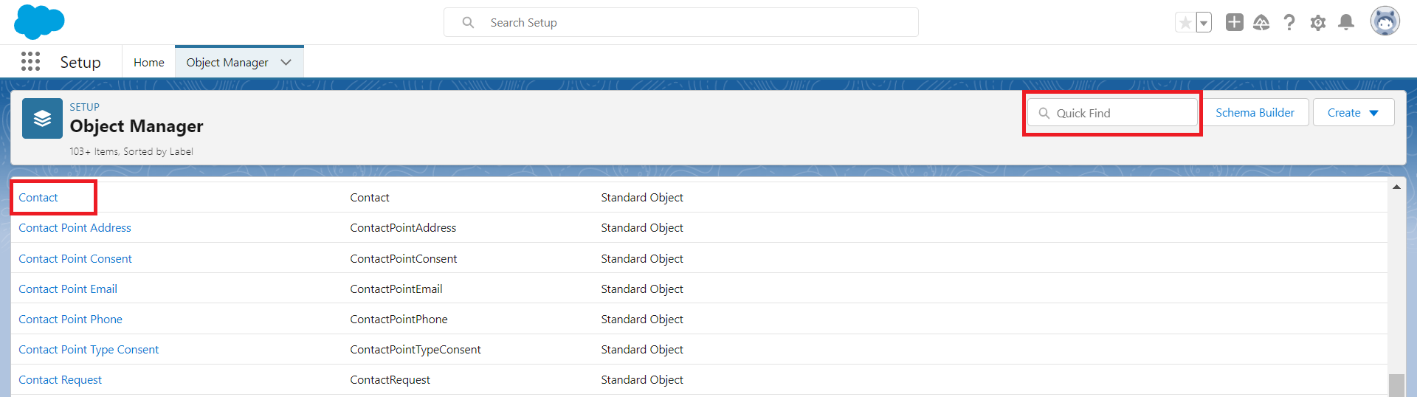
Note: In this article, the selection made for the Contact object is for the demonstration purpose of the use-case and we are assuming that the picklist field exists on the Contact object. We are going to create a Validation Rule on this Contact object.
You can select the object where your picklist field resides and create a validation rule there.
Step 3: Select Validation Rules option from the left-hand panel and click on the New button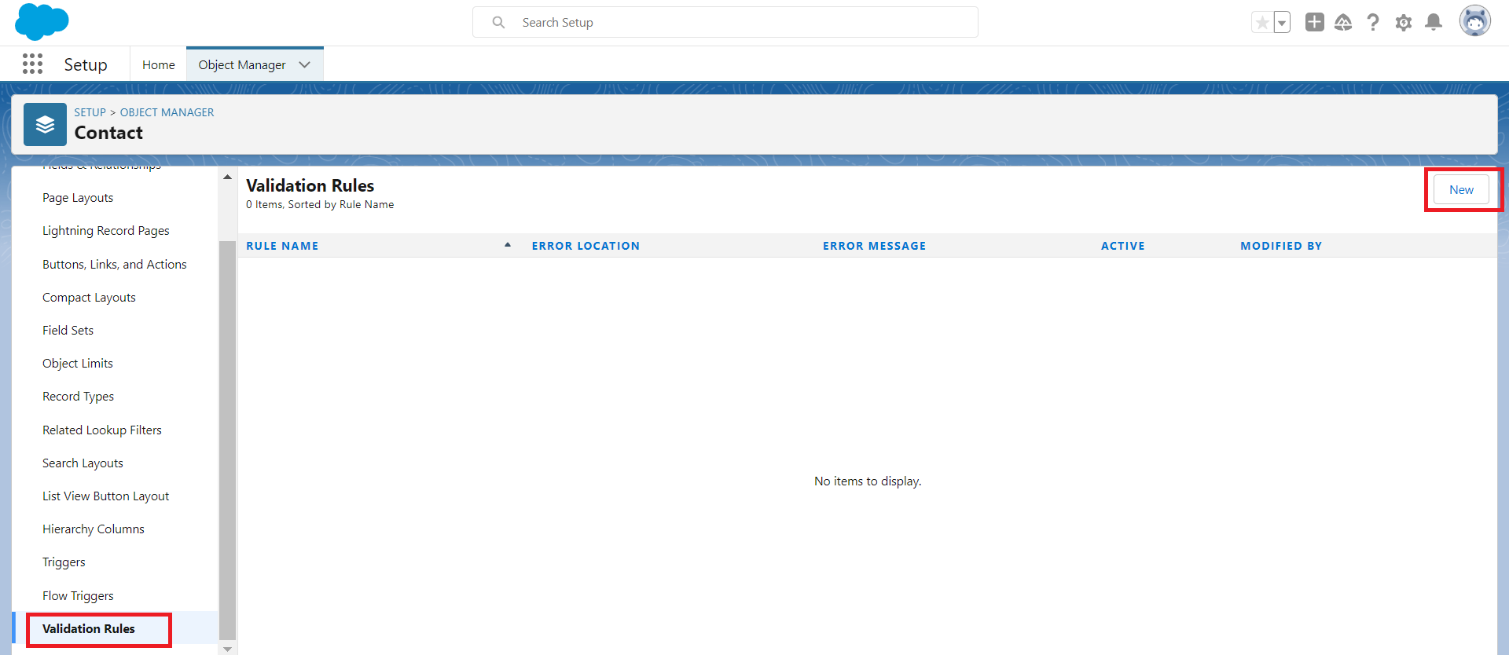
Step 4: From the Contact Validation Rule page:
a. First, provide the Rule Name for the validation rule
b. Check the Active checkbox so that the validation rule becomes active once it is created
c. As a best practice, add the Description to the validation rule
c. As a best practice, add the Description to the validation rule
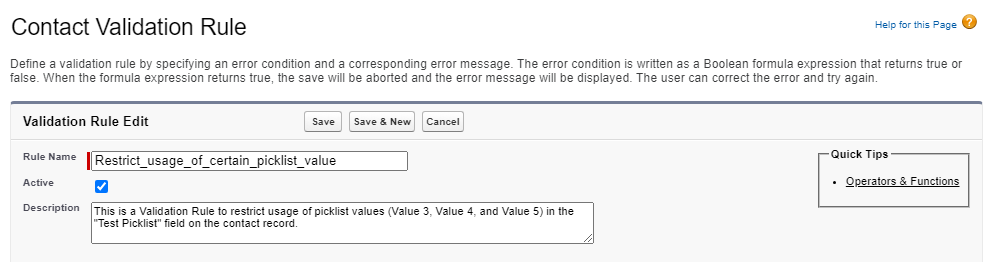
d. Enter the below mentioned formula in the Error Condition Formula editor
AND(ISNEW(),
CASE(Test_Picklist__c ,
"Value 3",1,
"Value 4",1,
"Value 5",1,0)=1)
Where:
Test_Picklist__c is the picklist field
Value 3, Value 4 and Value 5 are the picklist values we want to restrict users to select on the Test_Picklist__c field
e. Make sure to validate the syntax of the formula entered by clicking on the Check Syntax button
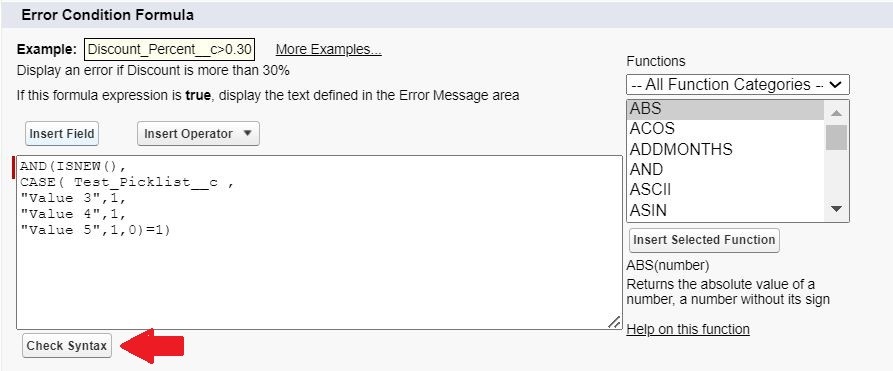
e. Make sure to validate the syntax of the formula entered by clicking on the Check Syntax button
f. Provide a useful Error Message and determine where the message should be displayed
g. Click Save to create the new Validation Rule
g. Click Save to create the new Validation Rule
Here is the final result:
Error message shows on the record when Validation Rule triggers
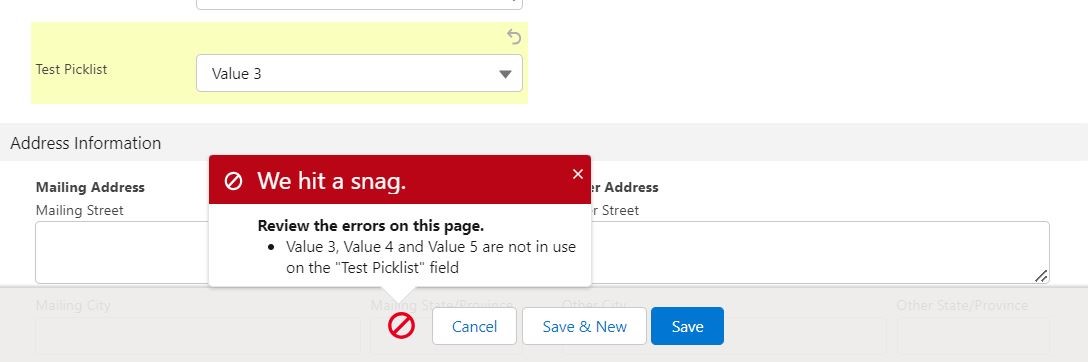
Note: In the scenario where the user wants to apply restriction of selective picklist values usage on both new as well as existing records, use the following formula:
CASE(Test_Picklist__c ,
"Value 3",1,
"Value 4",1,
"Value 5",1,0)=1
Where,
Test_Picklist__c is the picklist field
Value 3, Value 4 and Value 5 are the picklist values we want to restrict users to select on the Test_Picklist__c field
Flere ressurser
- Validation Rules
- Define Validation Rules
- Validation Rule Considerations
- Tips for Writing Validation Rules
- Examples of Validation Rules
- Deactivate, Reactivate, or Remove a Single Picklist Value
- Manage Inactive Picklist Values
- View Active and Inactive Picklist Values
- Keep Picklist Value for Historical Records but Unavailable for New Records
- Validation Rule to Restrict Number of Selections in a Multi-Picklist Field
- Validation Rule Not Firing When Converting Leads
Knowledge-artikkelnummer
000396340
Hjalp denne artikkelen med å løse problemet ditt?
La oss få vite det slik at vi kan forbedre!
