조직 선택
Overlapping of SAs when it is manually assigned on the same timeslot & resource where SAs are already scheduled by optimisation
게시 일자: May 17, 2026
상세 설명
n Salesforce Field Service (SFS), when the optimization engine (such as the scheduling optimizer) automatically schedules Service Appointments (SAs), and a dispatcher then manually assigns a new Service Appointment to the same time slot and resource, the system does not automatically resolve the resulting overlap.
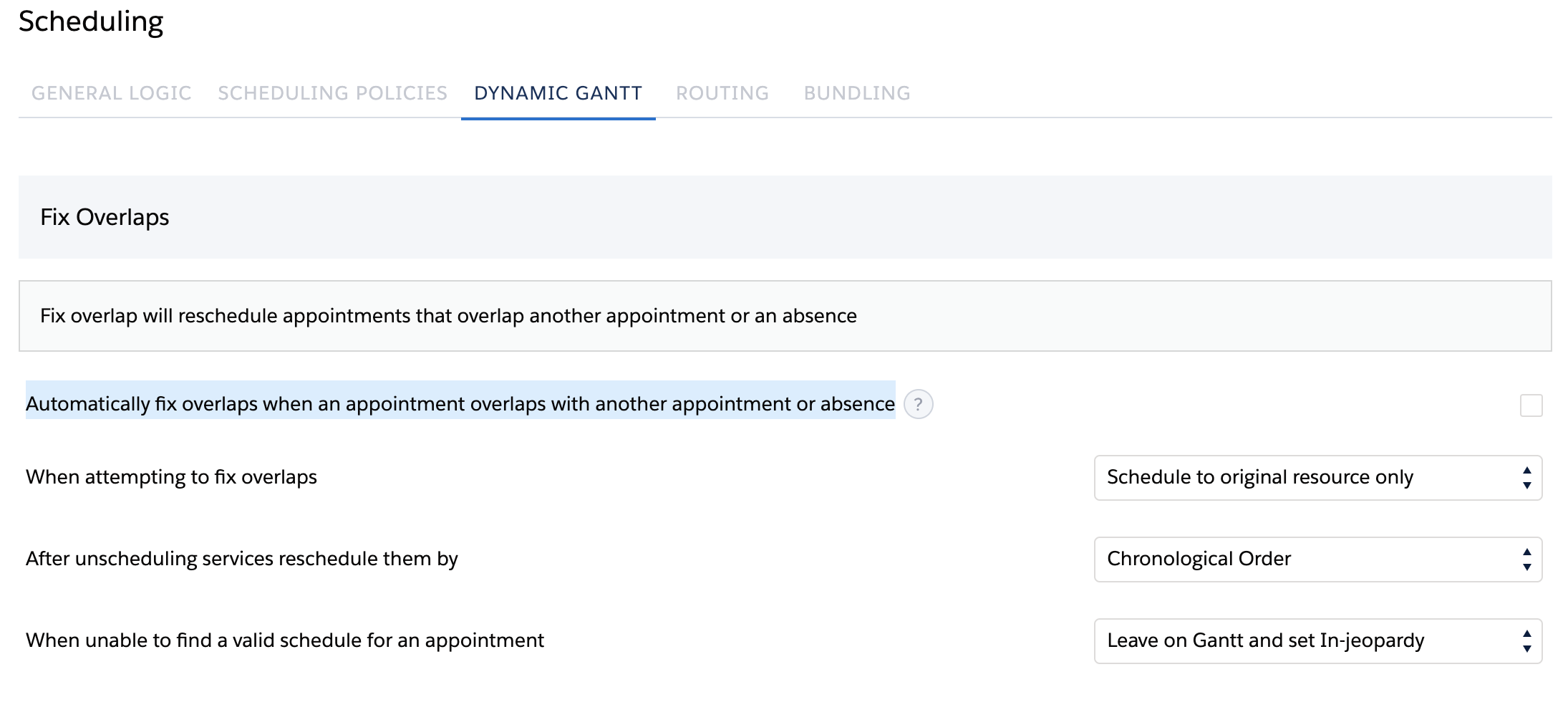
This behavior occurs when Enhanced Scheduling and Optimization (ESO) is not enabled. Even if the Scheduling Policy has the "Fix Overlap" option enabled, this setting alone does not prevent overlaps during manual assignments. The "Fix Overlap" setting must also be explicitly enabled in Salesforce Field Service Settings to take effect.
Below is the screenshot of the Field Service Settings page showing the Dynamic Gantt section with the Fix Overlap checkbox unchecked, illustrating the configuration state that allows overlapping Service Appointments.]
솔루션
To prevent Service Appointment (SA) overlaps when manually assigning appointments after automated scheduling in Salesforce Field Service, enable the Fix Overlap setting in Salesforce Field Service Settings:
- Go to Salesforce Field Service Settings.
- Navigate to the Scheduling section.
- Click on Dynamic Gantt.
- Enable the checkbox: "Automatically fix overlaps when an appointment overlaps with another appointment or absence."
- Click Save.
Once enabled, Salesforce Field Service will automatically adjust any manually assigned Service Appointment that overlaps with an existing appointment or resource absence, resolving the conflict without requiring dispatcher intervention.
추가 자원
Knowledge 기사 번호
000396584
이 기사를 통해 문제를 해결했습니까?
개선을 위한 의견을 보내주세요.
