Valitse organisaatio
Salesforce Platform Flow: Create Task When Opportunity Checkbox Is Checked
Julkaisupäivä: Aug 19, 2026
Kuvaus
Some companies want a Task automatically created for the Opportunity owner when a specific checkbox field is checked on an Opportunity record. This can be accomplished with a simple Record-Triggered Flow on the Opportunity object in Salesforce.
Ratkaisu
This solution shows how to use a Record-Triggered Flow on the Opportunity object to automatically create a Task when a checkbox field is checked — for example, notifying the Legal team when a "Legal Review Required" box is marked on an Opportunity.
Scenario: When a sales rep marks the "Legal Review Required" checkbox on an Opportunity, a Task is automatically created for the Legal team.
The breakdown of the Flow is as follows:
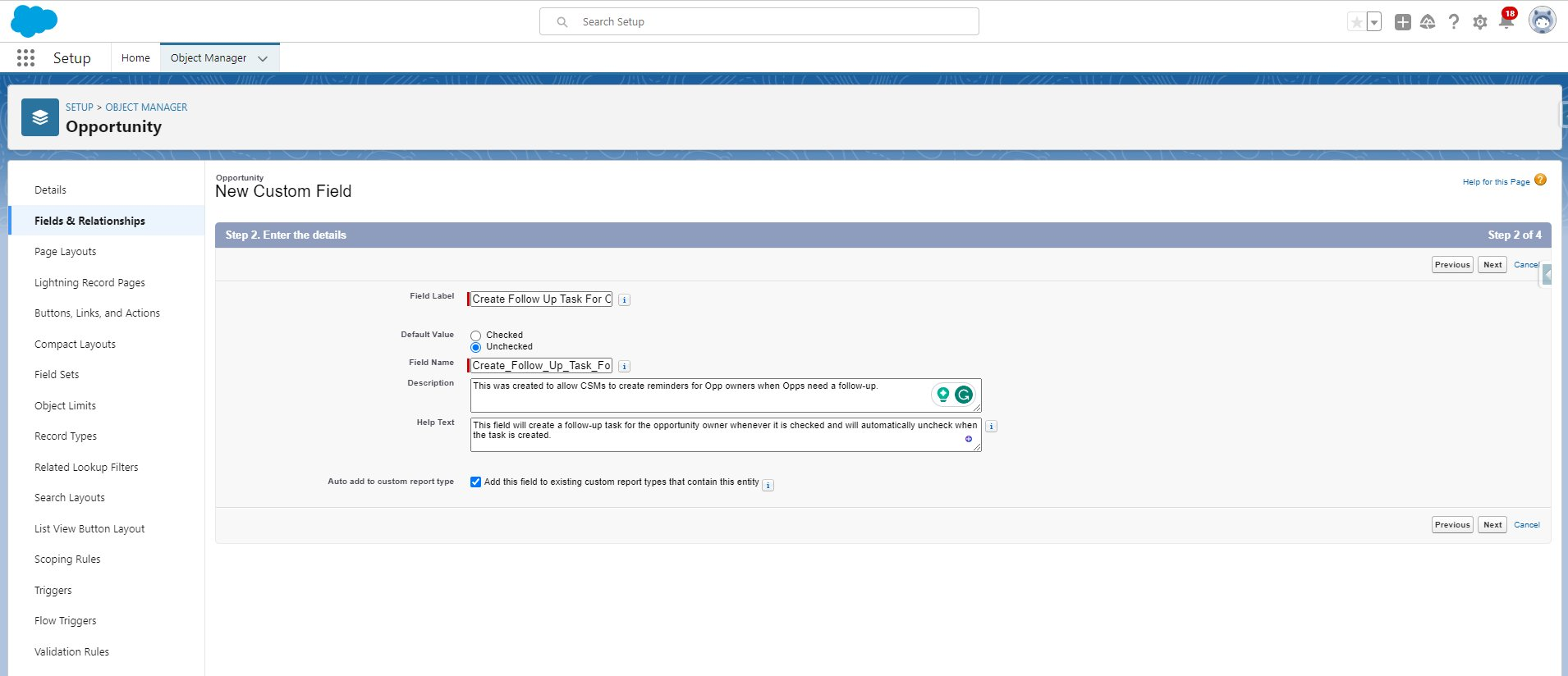
Create a Field
- Go to Setup.
- Navigate to the Opportunity object in Object Manager.
- Under Fields & Relationships, create a new field.
- Set the Data Type to Checkbox and name the field accordingly.
- Set the Default Value to Unchecked.
- Click Next, and select the Profiles to grant edit access to this field.
- Click Next again and select the page layouts that should include this field.
- Click Save.
Create a Flow
- In Setup, use Quick Find to search for Flows and select it.
- Click New Flow in the upper right corner.
- Choose Record-Triggered Flow, then click Create.
- Set the Object to Opportunity.
- Set the Flow to trigger when a record is updated.
- Set the Entry Condition Requirements to "All Conditions Are Met (AND)."
- Select the entry conditions shown below.

- Set "When to Run the Flow for Updated Records" to "Only when a record is updated to meet the condition requirements."
- Optimize the Flow for Actions and Related Records.
Create an Element: New Task Action
- Under the Start Element, click the + to add a new Element.
- Search for the New Task action.
- Give the action a meaningful Label and Description.
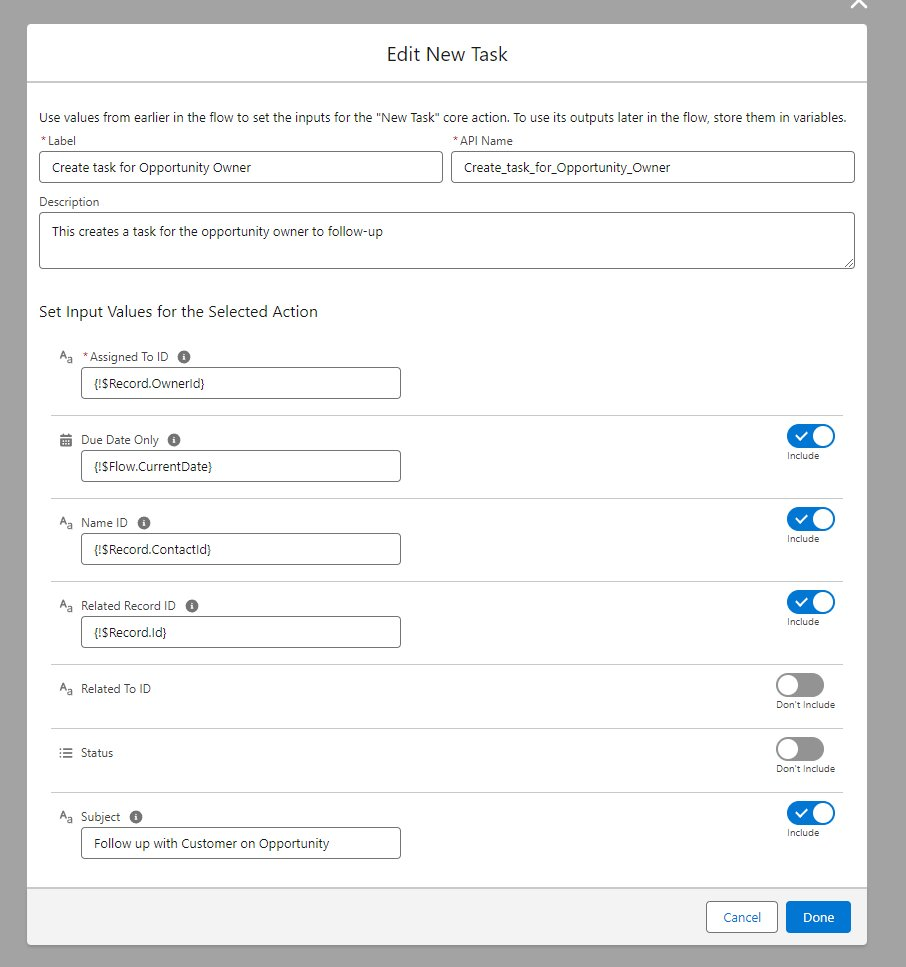
- Set the Assigned To ID to `{!$Record.OwnerId}`.
- Set the Due Date Only to `{!$Flow.CurrentDate}`.
- Set the Name ID to `{!$Record.ContactId}`.
- Set the Related Record ID to `{!$Record.Id}`.
- Set the Subject to anything desired for the Task.
- Click Done.
Create an Element: Update Triggering Record
- Under the Start Element, click the + to add a new Element.
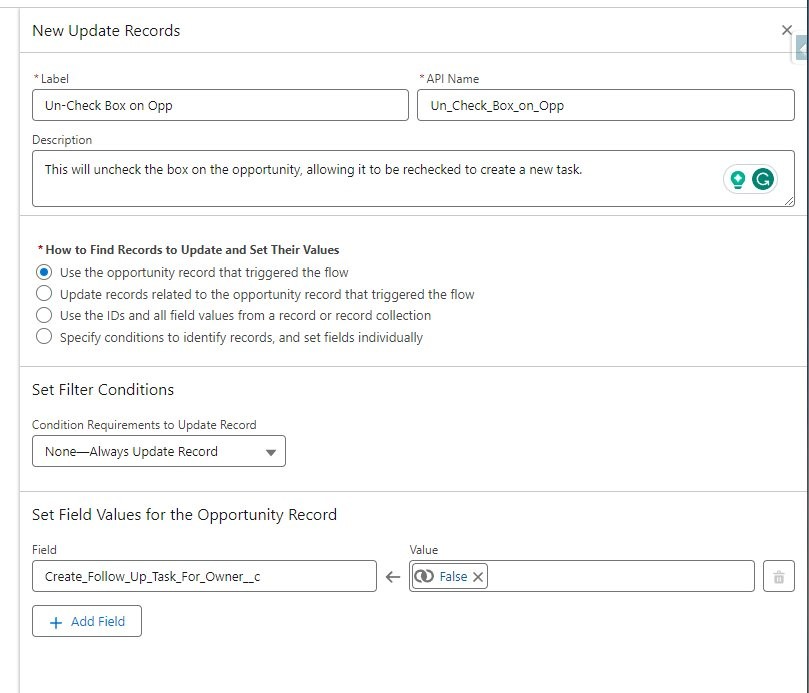
- Select the Update Triggering Record option.
- Set the Label to "Un-Check Box on Opp" and give the Element a meaningful Description.
- Set the field to update to the "Legal Review Required" checkbox, with its new value set to unchecked (False) — this resets the box so the Flow doesn't fire again for the same record.
Save and Activate the Flow
- Click Save at the top of the screen, and give the Flow a meaningful Name and Description.
- Click Debug and test the Flow as needed.
- Once tested, Activate the Flow.
Result
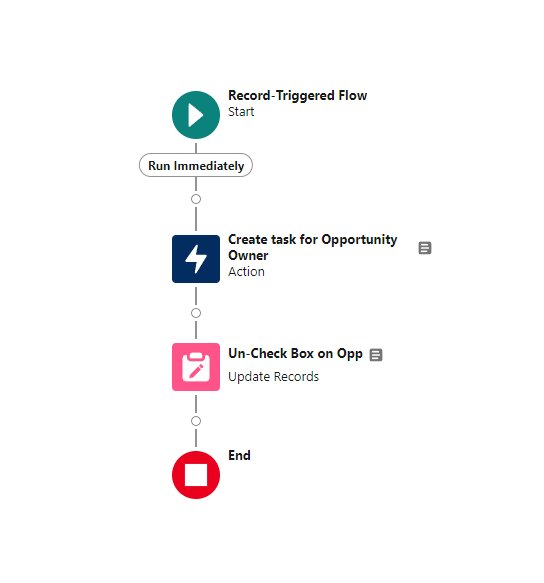
The completed Flow shows two Elements connected to a start element, with an end element at the bottom.
Lisäresurssit
Knowledge-artikkelin numero
000396746
Ratkaisiko tämä artikkeli ongelmasi?
Anna palautetta, jotta voimme kehittyä!
