Sélectionner une organisation
ECI Voice Connector: Setting Up Variable Phone Number Support for Aircall, Dialpad, and RingCentral
Date de publication: Jun 2, 2026
Description
The ECI (Einstein Conversation Insights) Voice Connector supports variable phone number identification for three CTI (Computer Telephony Integration) providers: Aircall, Dialpad, and RingCentral. After installing the Voice Connector package, three new custom fields are added to the Salesforce User object to store each provider's unique user identifier. This article explains the additional setup steps required to configure and enable variable phone number support after installation.
Résolution
User Fields Added After Installation
Upon installation of the ECI Voice Connector package, the following three new fields are added to the Salesforce User object:
- Aircall User Identifier — stores the unique identifier for the Aircall CTI account
- Dialpad User Identifier — stores the unique identifier for the Dialpad CTI account
• 3. RingCentral User Identifier — stores the unique identifier for the RingCentral CTI account
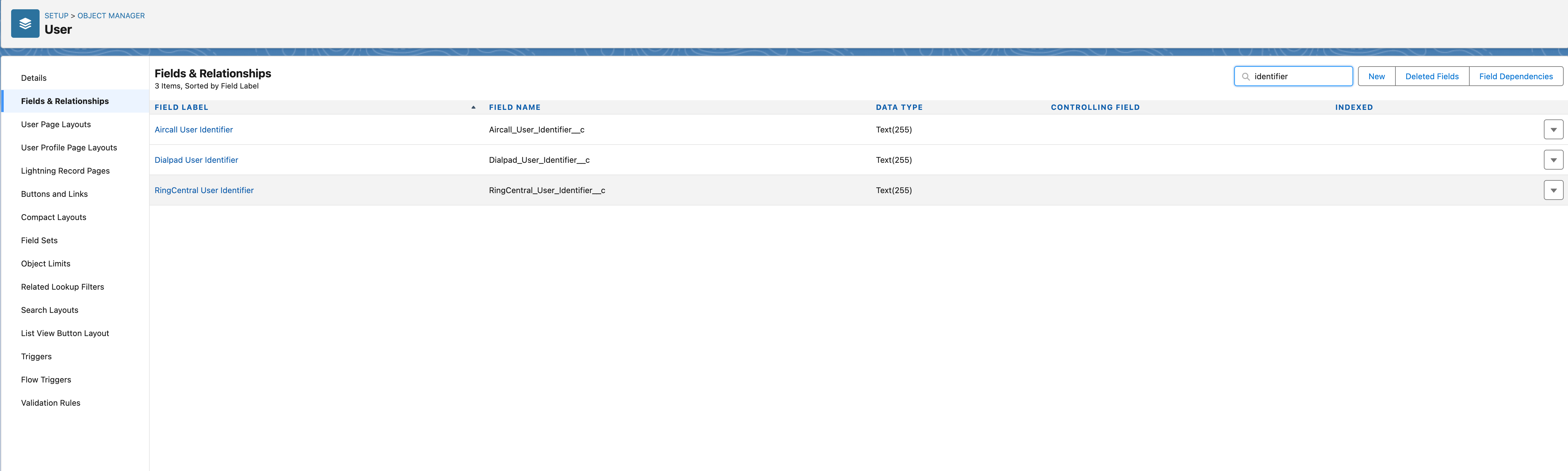
By default, these fields are not set as visible to any profile. An administrator must configure field-level security for each field:
- Navigate to each field in Setup
- Click Set Field-Level Security
- Check the visibility box for the relevant user profiles that need access
- Click Save
After setting field-level security, add these fields to the User page layout so that administrators can populate them.
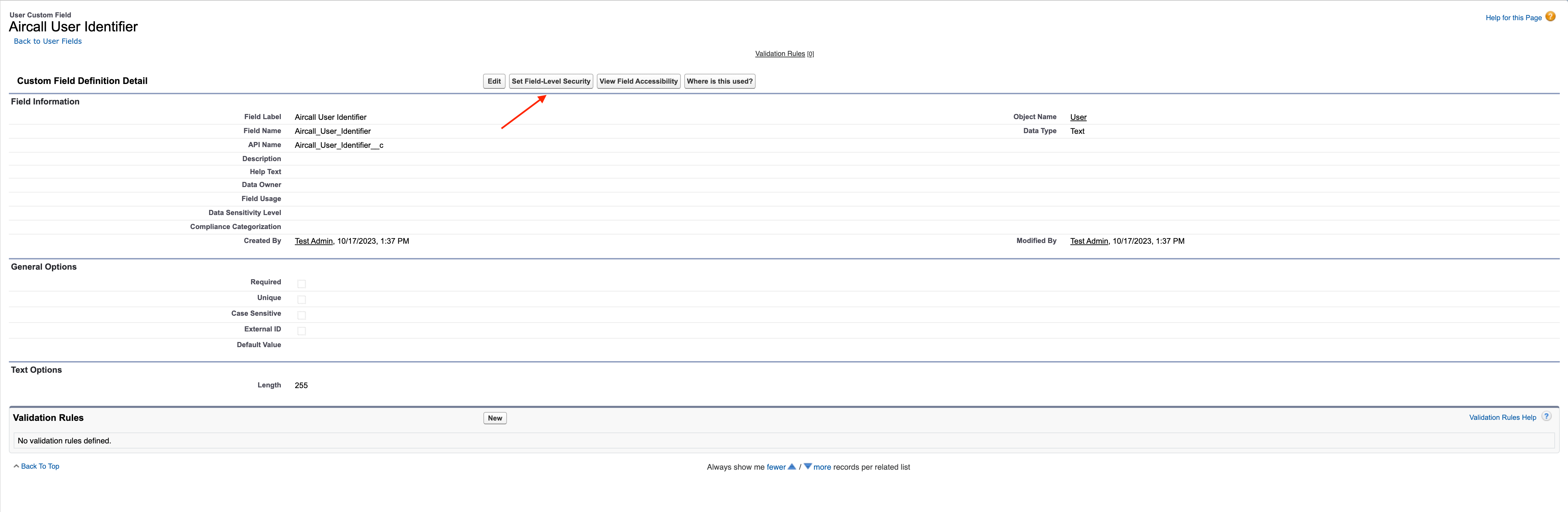
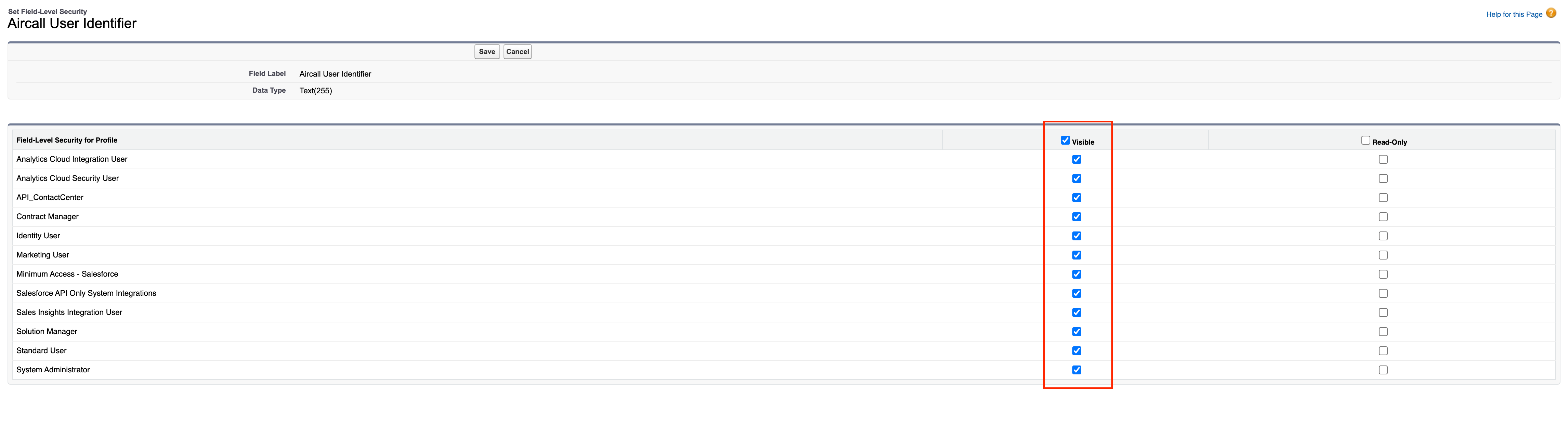
Each of these will have setup steps below on what information can be used to fill these fields with the correct information to match the user to their respective CTI account.
How to Access User Identifier Information
Aircall
For Aircall, the unique identifier for each user can be either the User ID (a numeric value) or the User Email address. Both are available on the user's Aircall profile page. Set one of these values in the Aircall User Identifier field on the corresponding Salesforce User record.
Example: The Aircall Unique Identifier can be set to either a numeric User ID (e.g., 931756) or the user's email address.
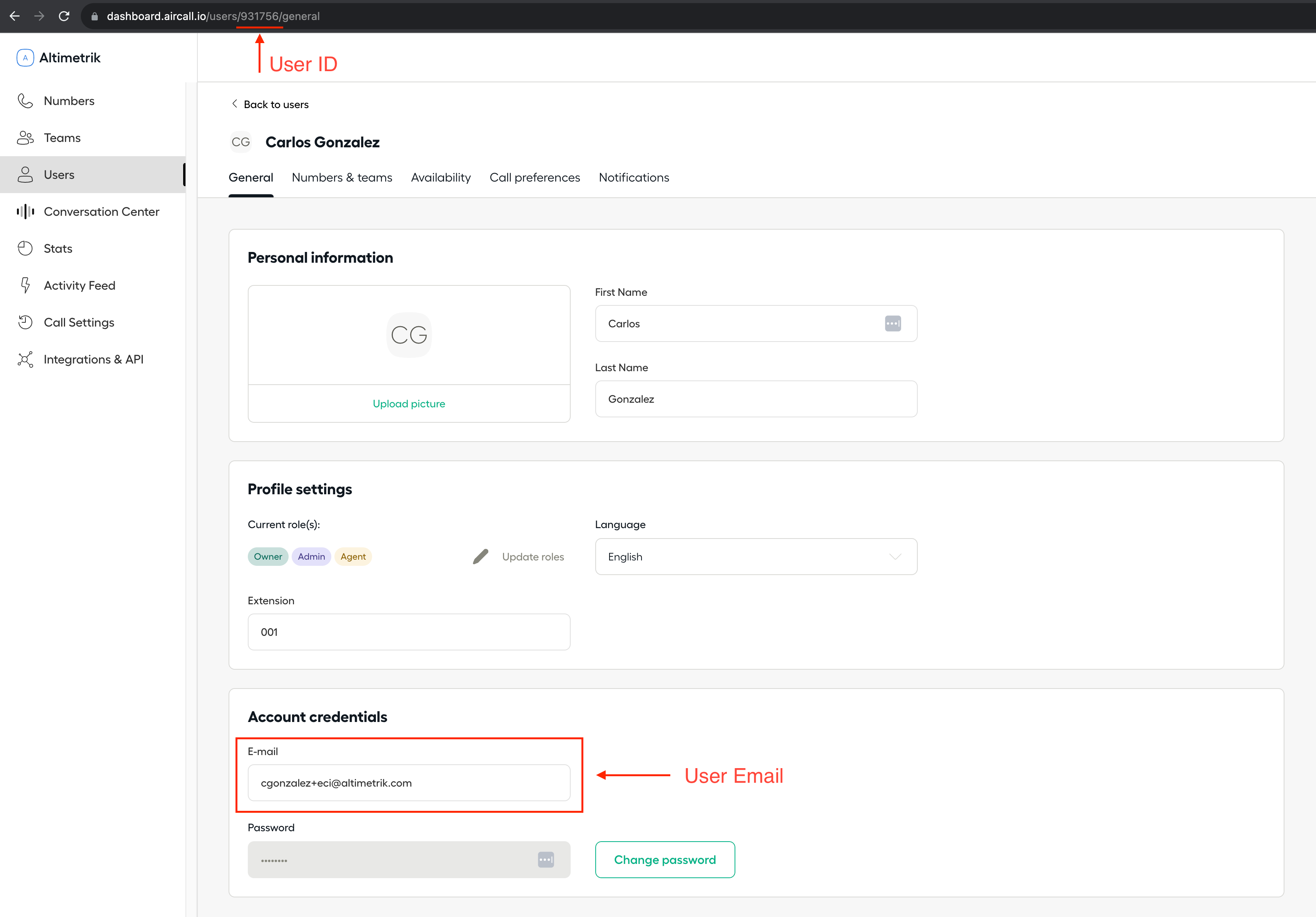
- Aircall Unique Identifier:
931756
or
- Aircall Unique Identifier:
cgonzalez+eci@altimetrik.com
Dialpad
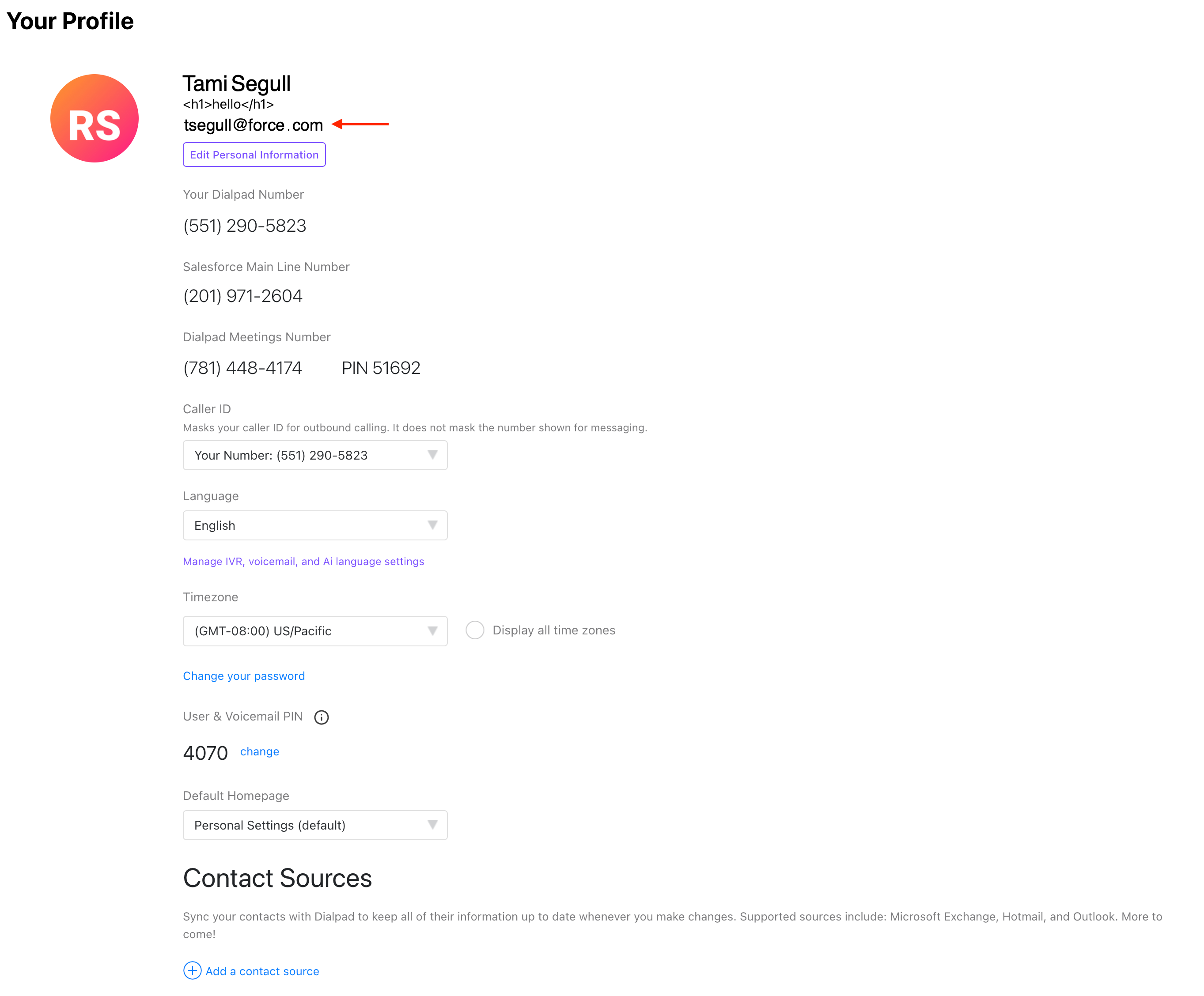
For Dialpad, the user identifier is the Dialpad User ID, which is obtained via the Dialpad API. If only the Dialpad dashboard is available, the user email address can also be used.
To retrieve the Dialpad User ID via API: make a GET request to `<REDACTED> The response returns a JSON array of user objects. For each user, locate the "id" field — this numeric value is the Dialpad User ID to use as the unique identifier. For example, a user might have an id value such as "5296465605984256".
To use the email instead: the user's email address is visible on the Dialpad user profile page in the Dialpad admin dashboard.
RingCentral
For RingCentral, the unique identifier is the user's Extension ID, which is available only through the RingCentral API:
- Navigate to the RingCentral API Reference
- In the left sidebar, open the Address Book section
- Select Get Company Directory Entries under Internal Contacts
- Click Sign in to try it out and authenticate with your RingCentral sandbox or production account
- Click Try it out to execute the API call
- In the response panel, expand the records array
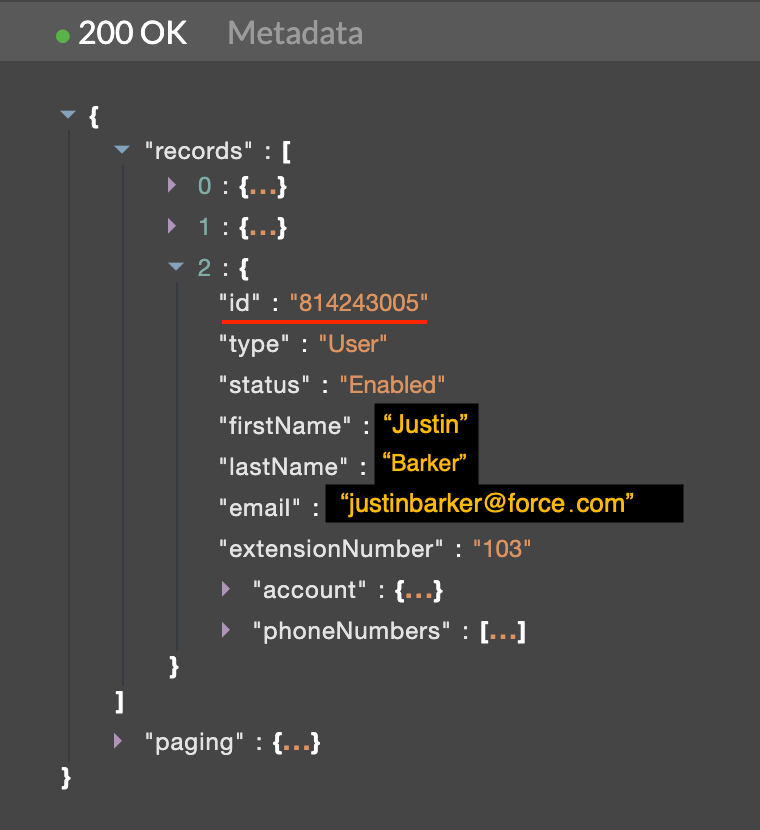
- Locate the user record for the person you want to map to Salesforce, and copy their "id" value
• 8. On the Salesforce User record, enter this ID value in the RingCentral User Identifier field
From this page:
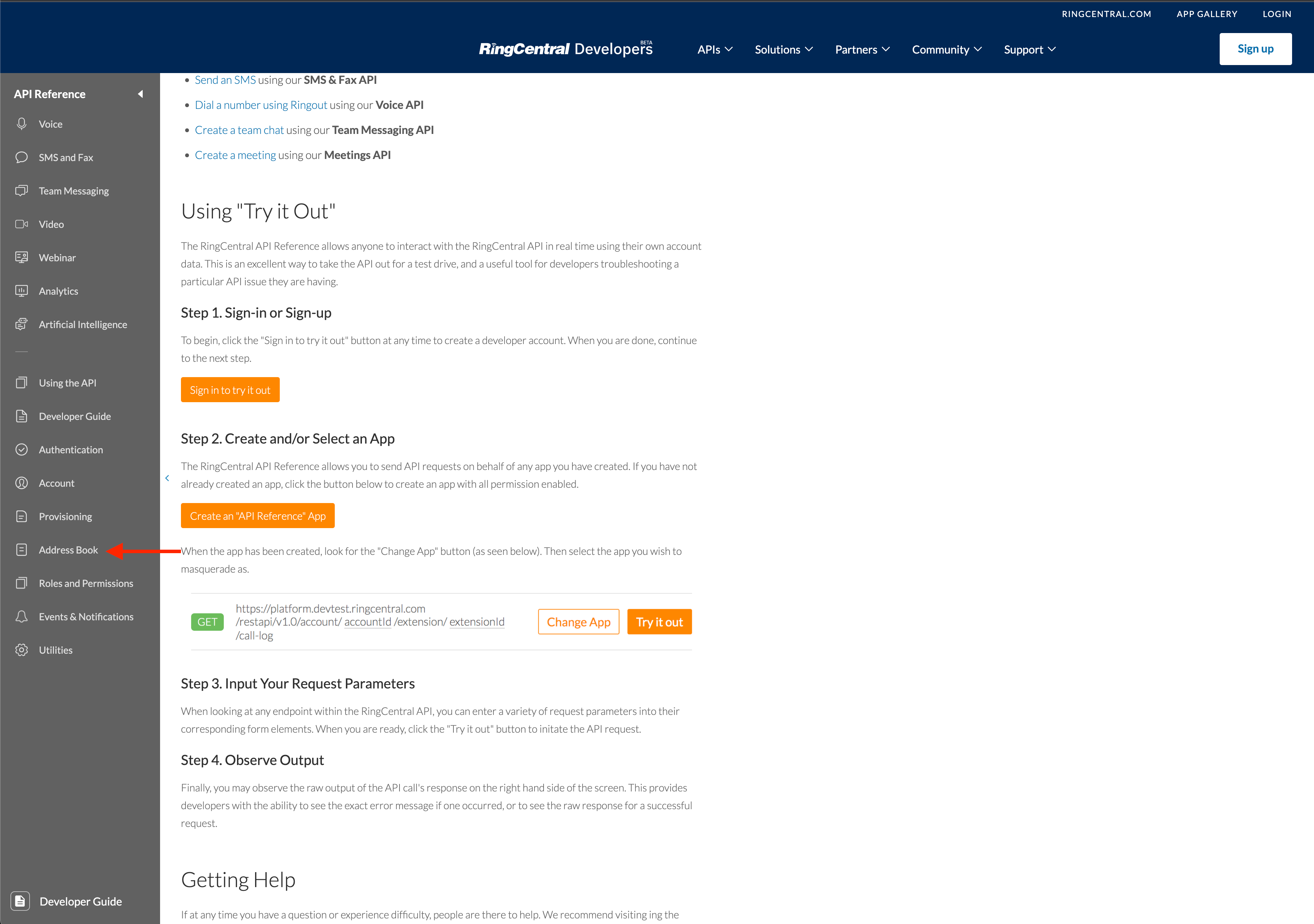
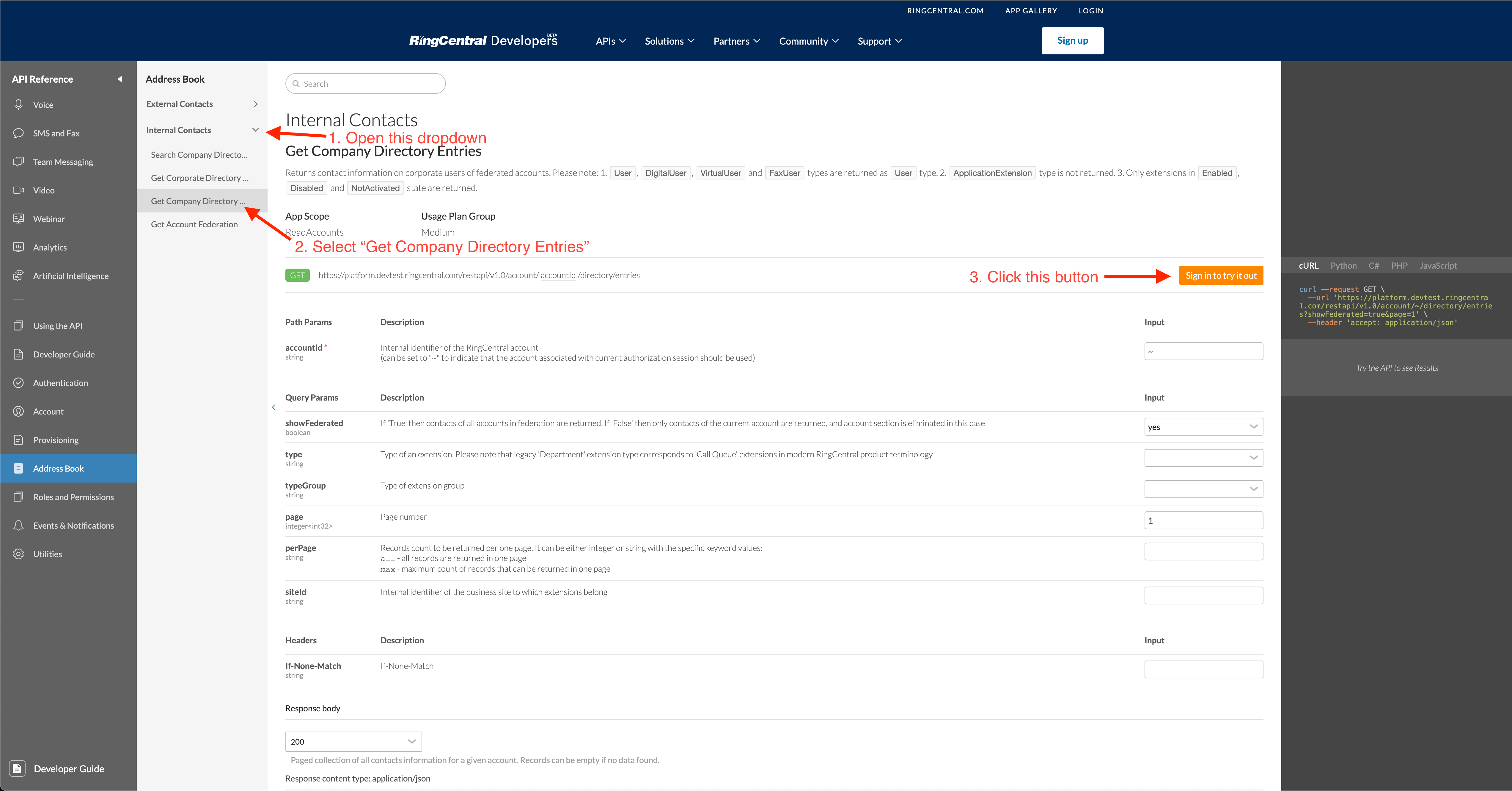
- Open the “Internal Contacts” dropdown
- Select “Get Company Directory Entries”
- This is the API endpoint where we will get all our call coaching users information from
- Click the “Sign in to try it out” button
The orange sign button will have you authenticate and then select an API Reference preference. Pick the one that matches your org’s situation. For my testing purposes it was “Sandbox”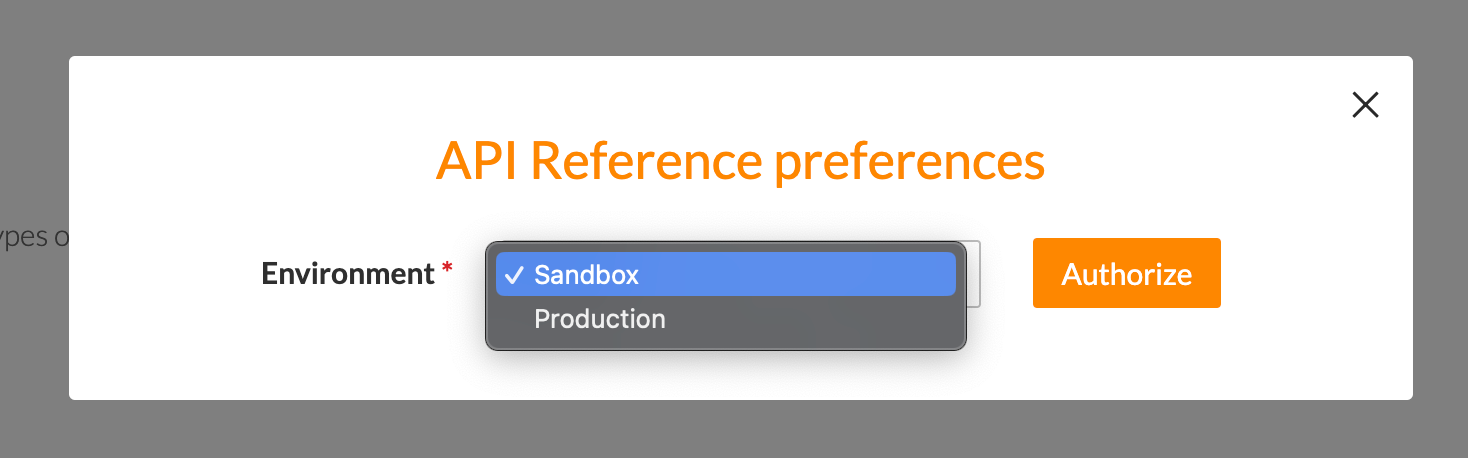
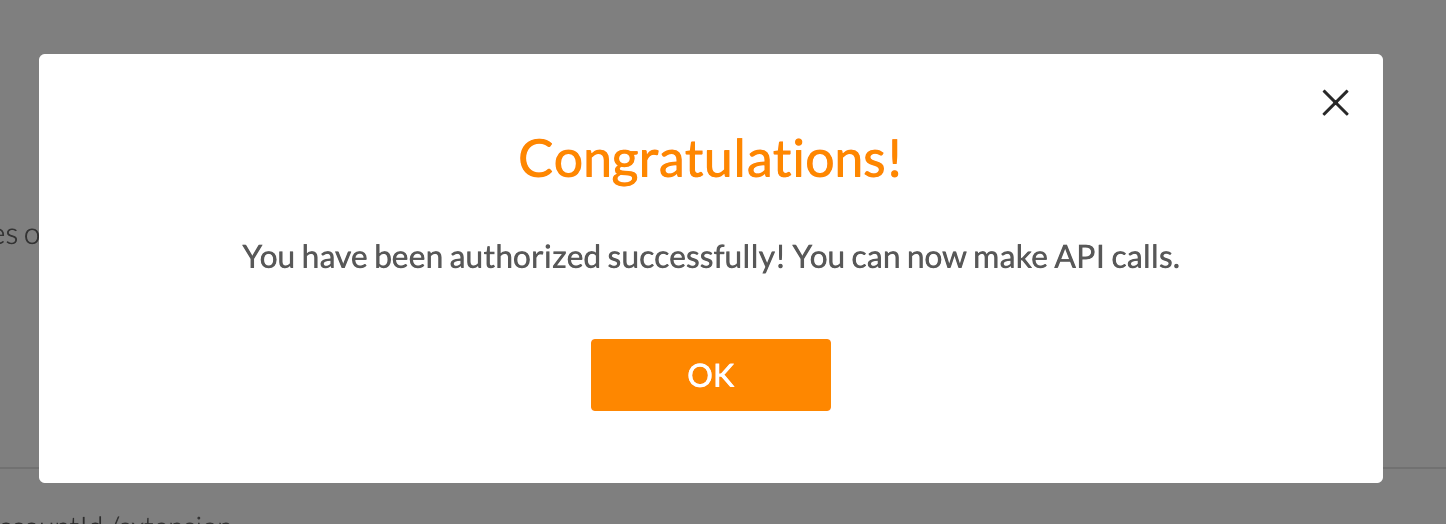
On the right hand side is where we’ll be viewing our data from the endpoint. It should ideally be a 200 OK meaning our request was successful. Click the dropdown arrow for "records" and we should see all the users that we have set up with RingCentral.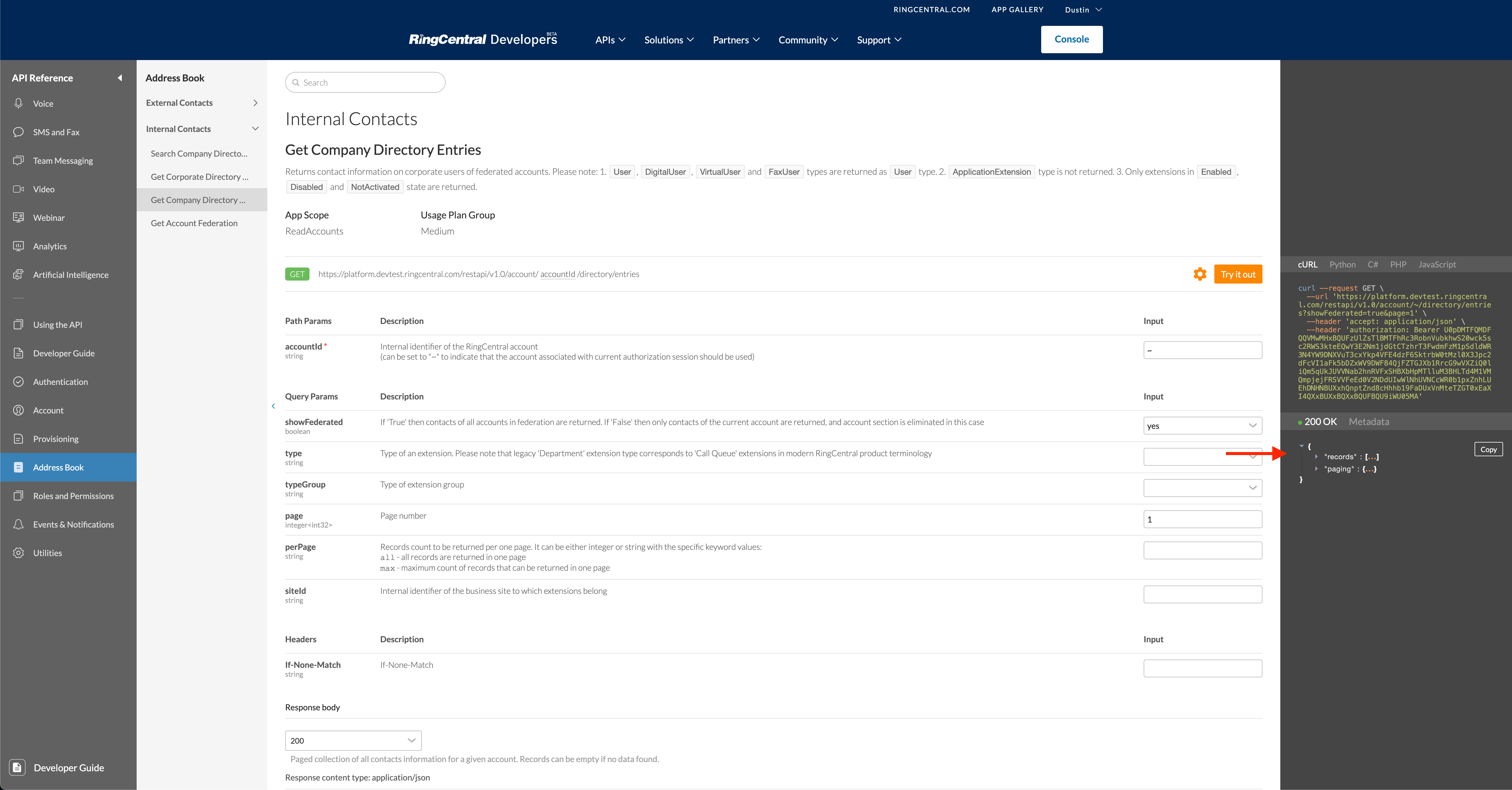
In the user’s information page set that id as the value for RingCentral Identifier and now the user should be correctly matched to their RingCentral account.

Numéro d’article de la base de connaissances
000396912
Cet article a-t-il résolu votre problème ?
Dites-nous ce que nous pouvons améliorer !
