Seleziona un'organizzazione
Salesforce Platform: How to Call Subflows from Record-Triggered Flows
Data pubblicazione: Aug 21, 2026
Descrizione
This knowledge article walks through how to invoke a Subflow from a Record-Triggered Flow, and how to pass and receive data between both Flows.
Subflows are a great way to maintain clean and reusable flow logic when you have multiple products triggering similar automation. Here's how they can help:
- Modularize Your Flows: Subflows allow you to split your main flow into smaller, reusable components. This keeps your automation organized and easier to maintain.
- Execution Context Control: You can run the main flow in User Mode while placing privileged operations in subflows to run in System Mode. For example, a flow creating a new opportunity can run in User Mode, while a subflow assigning ownership based on complex rules can run in System Mode.
- Avoid Duplication: Subflows help prevent duplicating elements across flows, making updates and maintenance more efficient.
Risoluzione
Case scenario: While there are many ways to manage flow automation, it’s generally recommended to have one Record-Triggered Flow per business process. In this example, we are going to have a Record-Triggered Flows fire based on the Product selected on a Case. The Record-Triggered Flow will serve as a container, and leverage Subflows to perform automated updates behind the scenes. Subflows can improve flow maintenance as they can be maintained independently of the Record-Triggered Flow, and they can prevent one Flow from becoming too large.
Step 1: Create the Autolaunched Flow
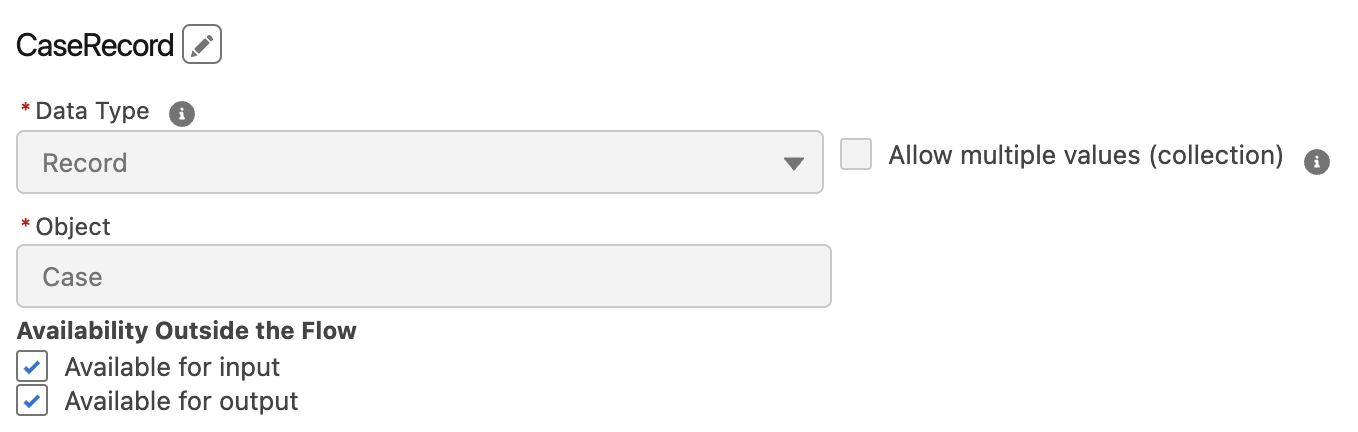
Unlike Record-Triggered Flows, Autolaunched Flows do not have entry criteria and do not have to be designated to a specific object. We will create a CaseRecord variable in this Flow. This Autolaunched Flow will be involved as our Subflow, and we will pass the case from the Record-Triggered Flow into this CaseRecord.
Note: Make sure to mark this variable as Available for Input and Available for Output
a. Available for input means that we can pass data into the Subflow
b. Available for output means that we can receive data back from the Subflow
Step 2: We will build out the logic we want in the Subflow
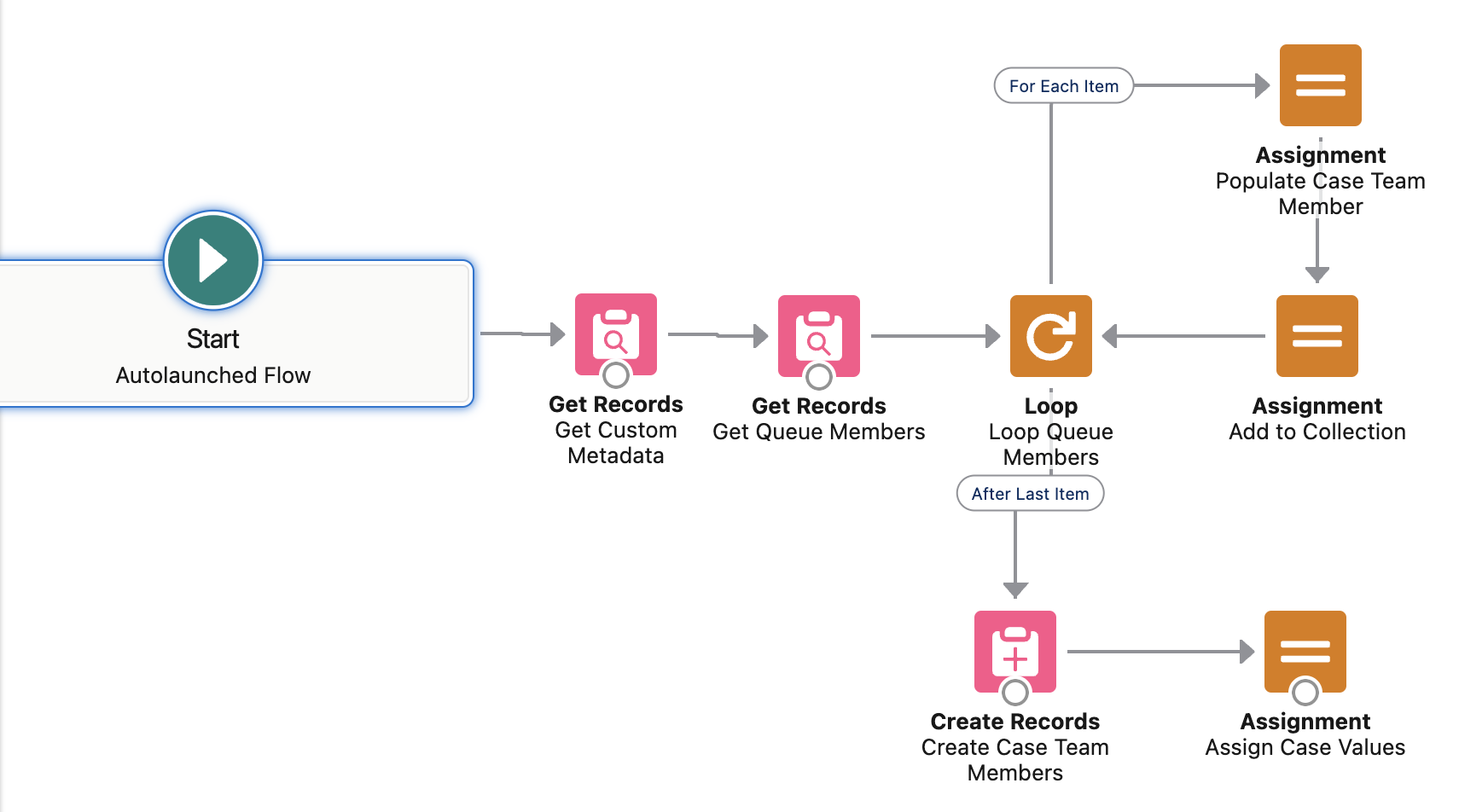
In this specific Subflow, we will be making a few manipulations:
a. We will be finding a custom metadata record that stores several Record IDs, such as which Queue of users will be supporting the case for the selected product. (This prevents us from hardcoding record ids directly in the Flow)
b. The Flow will find the appropriate Queue Members, loop through them, and added them as Case Team members
c. Finally, an Assignment Element will update several fields on the Case that was passed into the Flow
Step 3: Debug and test the Autolaunched Flow, and then Activate it when ready
Step 4: Create the Record-Triggered Flow
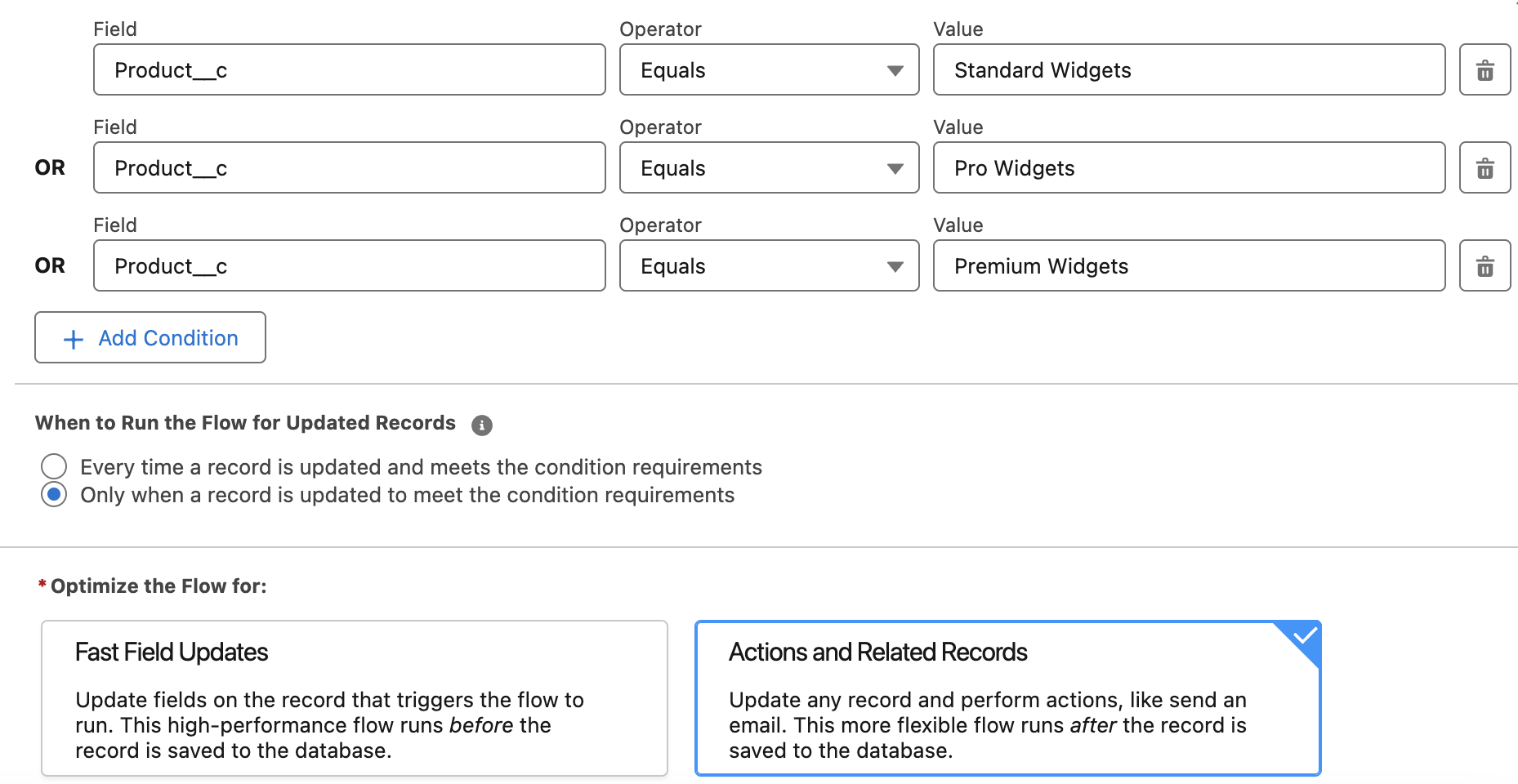
In our scenario, we want the Flow to fire when a Case is created with one of 3 products: Standard Widgets, Pro Widgets, or Premium Widgets.
Note: Make sure to optimize the Flow for Actions and Related Records as Subflows cannot be involved in Record-Triggered Flows optimized for Fast Field Updates.
Step 5: In the Record-Triggered Flow, we will now leverage Subflows
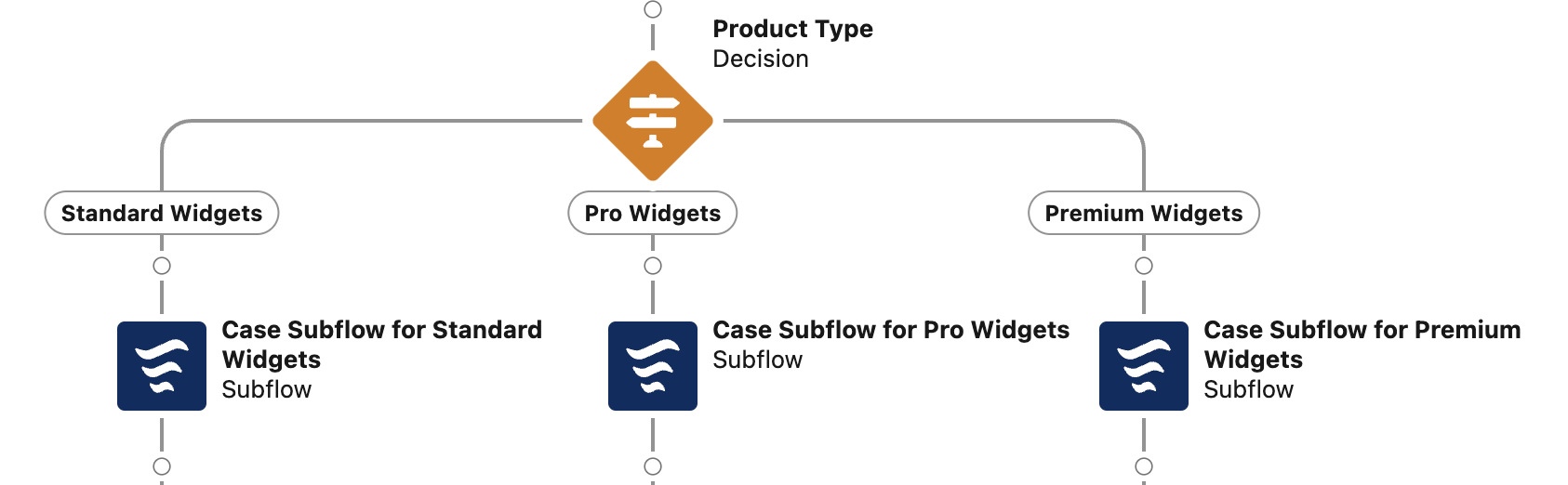
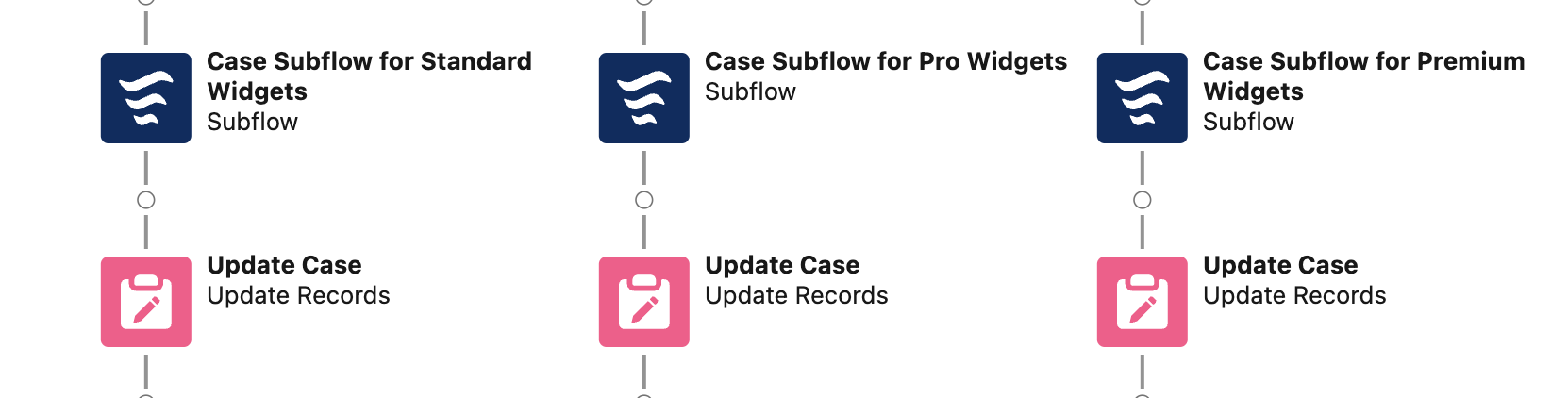
As you can see, a Decision Element routes the Flow to one of 3 Subflows, depending on which product was selected. Each of these Subflows contain their own set of logic, which allows the Record-Triggered Flow to remain simple and concise.
Step 6: Pass the Case Record into Each Subflow
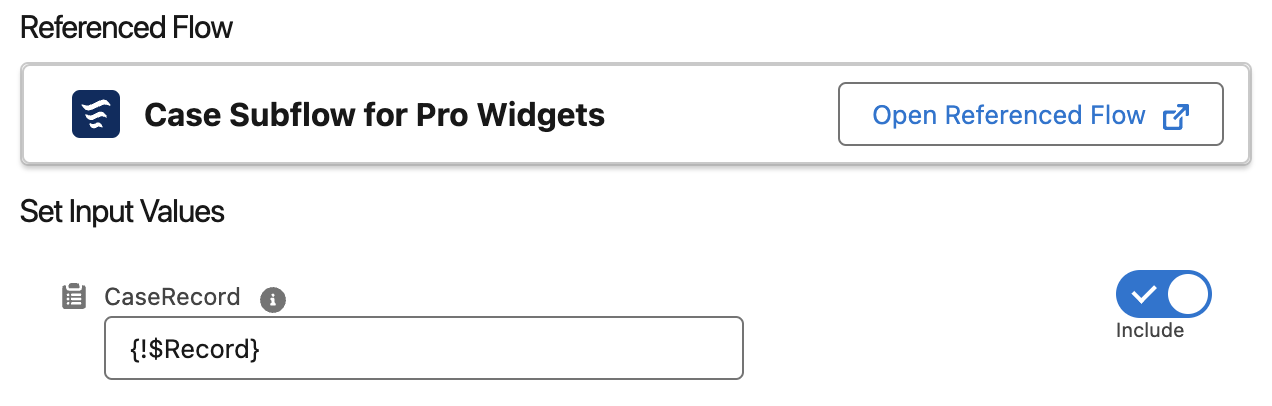
Within each Subflow Element, you can pass the Case record that triggered Flow into the Subflow through the CaseRecord variable that was established earlier
Notes:
- If the CaseRecord variable was not flagged as Available for input, this would not be available.
- In addition to passing record variables, you can also standard variables, record collections, and even the $Record.Prior variable which lets you see prior field values in the event an update triggered the record flow
Step 7: Use an Update Record Element
If you recall, in the Subflow we are using an Assignment Element to populate values in the CaseRecord variable, but those values have not yet been saved. Therefore, we need to use an Update Record Element in order to save the values in the CaseRecord variable. While the record update could occur in the Subflow, in this example, we show you can pass the data manipulated in the Subflow back into the record-triggered Flow.
In these Update Record Elements, we can select the Output CaseRecord from the appropriate Subflow.
For example, this particular Update Case Element would save the values in the CaseRecord variable passed back from the Case Subflow for Pro Widgets. (If the CaseRecord variable in this Subflow was not marked as Available for Output, we would not be able to reference it)
Note: Once data is passed back into the record-flow you could continue to make additional manipulations if desired. The passing of data to and from Subflows provides numerous possibilities
Conclusion:
Subflows provide admins a way to improve the maintenance of Flow automation. Record-triggered Flows can serve as a container, whereas complex operations can occur in a separate Subflow, with the results of those operations able to be passed back to the record-triggered Flow.
_____________________________________________
Written By: Mikey Brown | Salesforce Answers Leader
Mike Brown is a Senior Solution Architect and Trailblazer Mentor. He is passionate about sharing his knowledge and helping others sharpen and grow their Salesforce skills.
Submissions reflect only the opinions of the user who made available the Submission and not the opinions of Salesforce, regardless of whether the user is affiliated with Salesforce, and may contain or constitute products, services, information, data, content and other materials made available by or on behalf of third parties ("Third Party Materials). Salesforce neither controls nor endorses, nor is Salesforce responsible for, any Third Party Materials, including their accuracy, validity, timeliness, completeness, reliability, integrity, quality, legality, usefulness or safety, or any applicable intellectual property rights. Any Submissions made available through any message board or forum in response to posted questions, or that otherwise purports to answer any questions, including any questions about Salesforce or Programs, are made available for your general knowledge only and should never be relied upon as answers to your specific questions (even if an answer is marked as a “best” answer or with any similar qualifications). You should always contact Salesforce support for answers to your specific questions. Salesforce has no control over Submissions, and is not responsible for any use or misuse (including any distribution) by any third party of Submissions.
If you have questions, tap into the wisdom of our entire Trailblazer Community here: https://trailhead.salesforce.com/trailblazer-community/feed
Risorse aggiuntive
Numero articolo Knowledge
000396957
Questo articolo ha risolto il problema?
Facci sapere, così possiamo migliorare!
