Select An Org
Salesforce High Velocity Sales Flow Error: User Does Not Have Permission to Run Cadence
Publish Date: Mar 25, 2026
Description
When using Sales Engagement flows to add Person Account records to cadences, users may encounter one of two intermittent errors, even when they have the necessary permissions:
Error 1: "User does not have the permission to run a Cadence on the target"
Error 2: "You can only add leads, contacts, and person accounts to cadences"
These errors occur intermittently because of how the flow passes (or doesn't pass) required parameters to the Sales Engagement action.
Resolution
To avoid these errors you can try below:
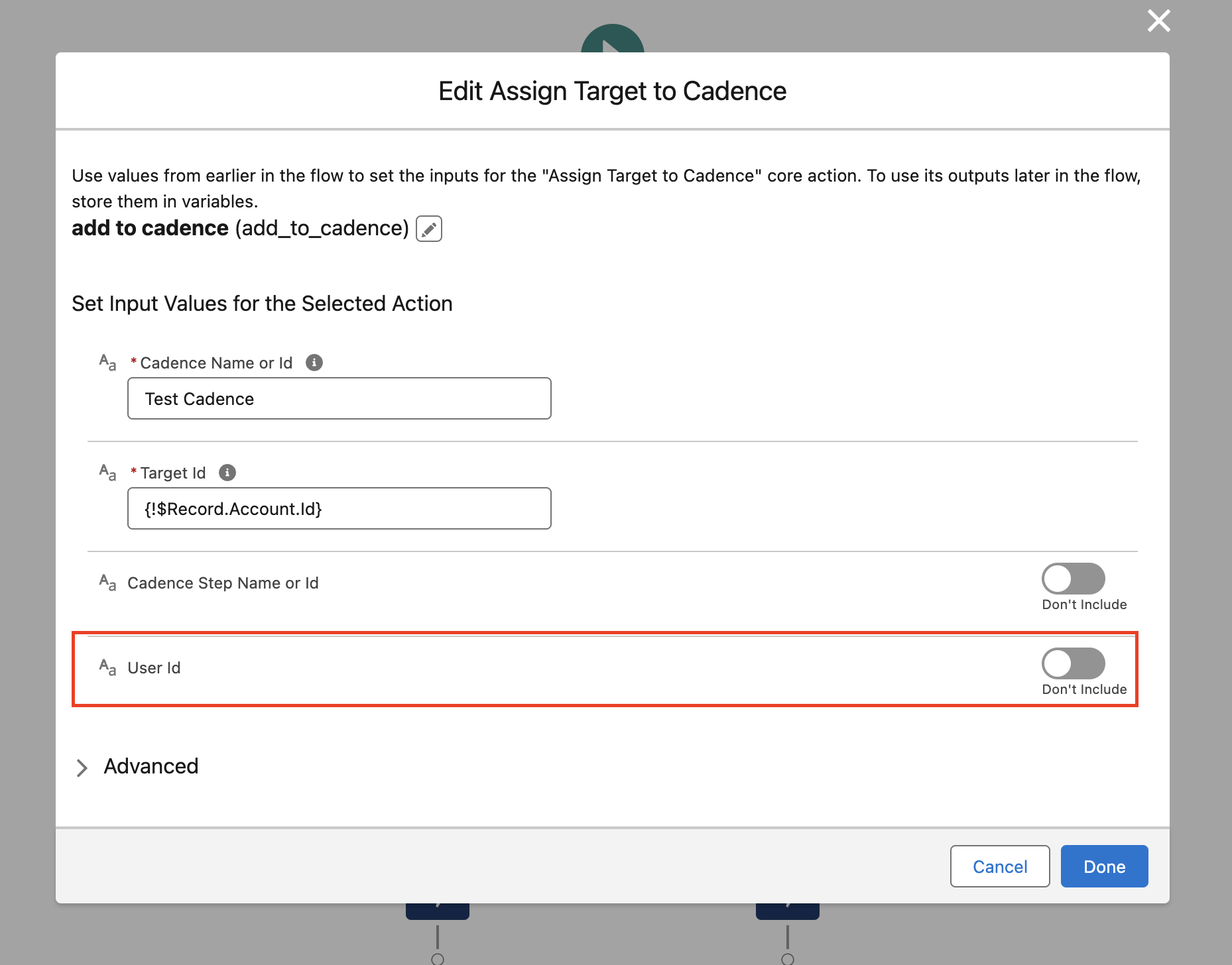
1. Pass the user-id parameter in the flow if you are getting this error “User does not have the permission to run a Cadence on the target”, which will prevent the user-id from being null.
Enable the User-Id “Don’t include” button and pass the User-Id.
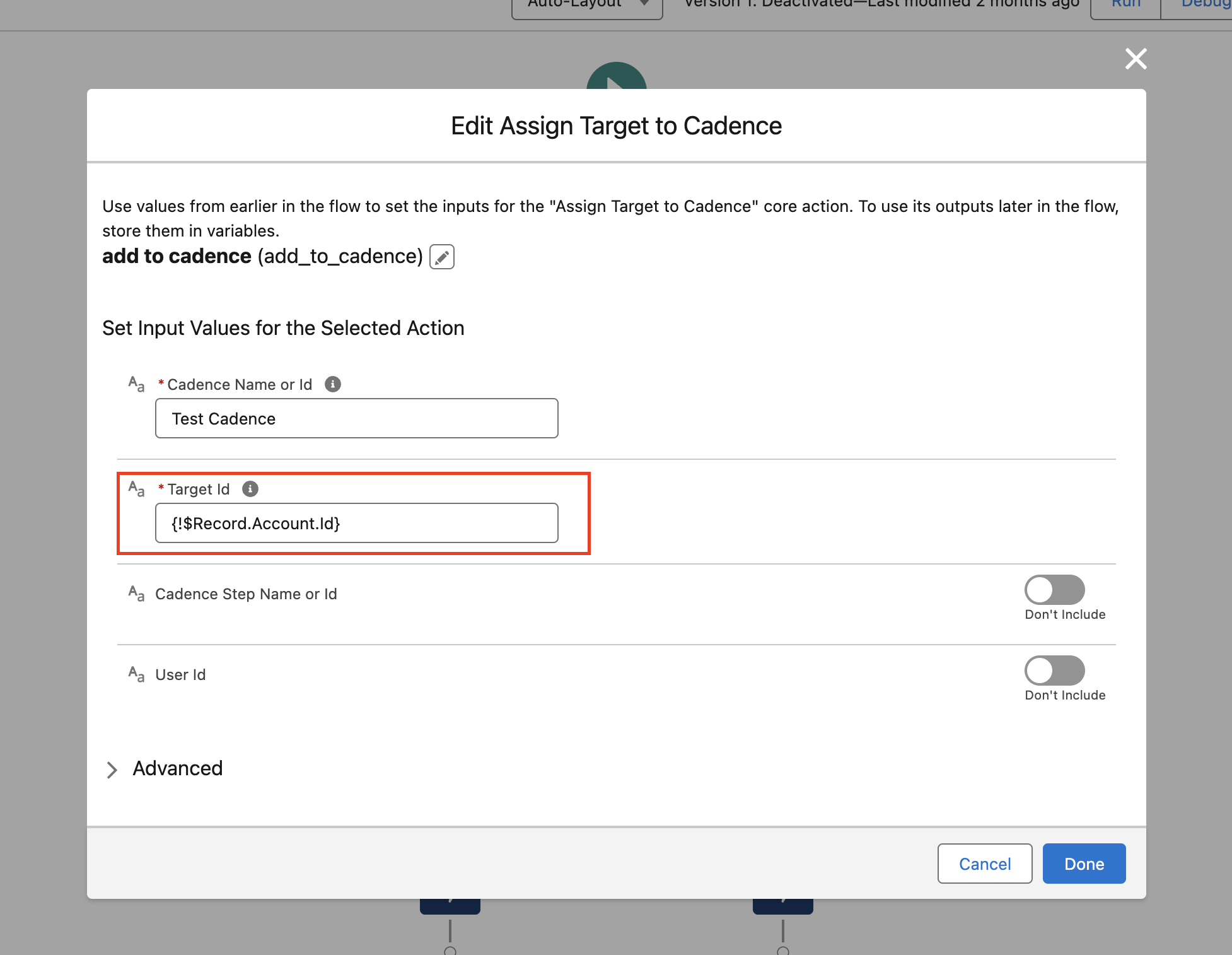
2. If you are getting an error “You can only add leads, contacts, and person accounts to cadences” while adding a person account ID to the cadence.
Please fetch the person's contact ID and pass it to the target ID directly instead of the person's account ID.
To fetch the contact ID associated with a person account in Salesforce, follow these steps:
1. Navigate to Setup:
- In Salesforce Classic: Go to Setup.
- In Lightning Experience: Click the gear icon and then Setup.
2. Access Report Types:
- In Classic: Go to Create > Report Types.
- In Lightning: Go to Feature Settings > Analytics > Reports & Dashboards > Report Types.
3. Edit the Report Type:
- Select the Report Type used for the report in question.
- In the section "Fields Available for Reports," select Edit Layout.
4. Add Contact ID Field:
- Select the Contact ID field from the appropriate object (e.g., Account).
- Click Edit Properties.
- In the "Display As" field, remove all text except for "Contact ID".
- Click Save.
5. Run the Report:
- Rerun the report to ensure the Contact ID field is displayed correctly.
Knowledge Article Number
000397003
Did this article solve your issue?
Let us know so we can improve!
