Select An Org
Data 360: Encountering a 400 Connection Failed Error When Establishing a Connection with the Mulesoft Connector for Data 360 (Formerly Data Cloud)
Publish Date: Oct 17, 2025
Description
The root cause of this issue lies in the authorization of the Principal user configured in the Salesforce Data 360 (Formerly Data Cloud) connector. The following points need to be verified:
1. Confirm that the Connected App has the required scopes assigned to it.
2. Authorize the Connected App from the browser prior to initiating a request from the connector.
3. Verify that the Audience URL is directed to https://login.salesforce.com instead of a Custom My Domain URL.
Resolution
Ensure that the Connected App includes the necessary scopes:
refresh_token
api
cdp_ingest_api (optional)
cdp_query_api (optional)
cdp_profile_api (optional)
cdp_segment_api (optional)
(Add or remove scopes as needed)
Construct the authorization URL using the following syntax, used for granting access:
https://{domain}.my.salesforce.com/services/oauth2/authorize?response_type=code&client_id={ConsumerKey}&scope={scopes}&redirect_uri={CallbackURL}
Obtain the values from the following sources:
{domain} -> Setup > My Domain > My Domain Details
{scopes} -> Add the scope api name separated by a space. Eg. refresh_token api cdp_ingest_api cdp_query_api cdp_profile_api. Ensure these scopes are assigned to the Connected App.
{CallbackURL} -> You can use https://localhost:8081/callback as an example. Ensure this value exactly matches the configuration in the Connected App.
Executing this URL in the browser should lead you to a page where user access to the Connected App can be granted. Upon granting access, the browser will redirect you to a URL containing values for the "code" parameter. If a value is present for "code," it confirms the successful authorization.
Mulesoft should now be able to successfully connect to Data 360.
Additional Resources
When integrating MuleSoft with Salesforce via a connected app, errors can arise due to incorrect scopes, failed connections, or authorization issues. The root cause of these issues usually lies in the configuration of the Salesforce Data 360 Connector and the authorization of the Principal user.
The following areas should be checked to resolve these errors:
- Connected App Scopes: Ensure the Connected App has the required scopes assigned.
- Authorization: The Connected App must be authorized from the browser before initiating a connection request.
- Audience URL: Ensure the Audience URL points to https://login.salesforce.com and not a custom My Domain URL.
The following three scenarios commonly result in authentication errors:
Scenario 1:
400 Connection Failed Error in MuleSoft Connector
Scenario 2:
Invalid authorization settings leading to error responses when testing connections using Postman.
Scenario 3:
Connection Failure after Authorizing the App
This guide offers step-by-step solutions to resolve these errors and re-authenticate the connected app for successful integration.
Resolution:
Scenario 1: 400 Connection Failed Error in MuleSoft Connector
The error message "400 Connection Failed" can occur due to misconfigured scopes or incorrect authorization. To resolve this:
- Verify Scopes:
Ensure the Connected App includes the following scopes. Adjust these scopes based on the requirements of your integration:
-
- refresh_token
- api
- cdp_ingest_api (optional)
- cdp_query_api (optional)
- cdp_profile_api (optional)
- cdp_segment_api (optional)
- Reauthorize the Connected App:
Construct the authorization URL with the following format:
https://{domain}.my.salesforce.com/services/oauth2/authorize?response_type=code&client_id={ConsumerKey}&scope={scopes}&redirect_uri={CallbackURL}
Details:
{domain}: Navigate to Setup > My Domain > My Domain Details to find your domain.
{scopes}: Add the scopes needed, separated by spaces, e.g., refresh_token api cdp_ingest_api.
{CallbackURL}: Ensure this matches the configuration in the Connected App, e.g., https://localhost:8081/callback.
- Execute the URL:
Open the authorization URL in a browser, which should prompt user access approval for the Connected App. Upon granting access, if a value is returned for the "code" parameter in the URL, authorization was successful. The Data 360 Connector should now be able to establish a connection.
Scenario 2: Invalid Grant Error in Postman Testing
After successfully completing the authentication steps, we recommend that customers use the Postman application to verify if the connected app configuration is successful. In case you encounter the following error response in the Postman call:
{
"error": "invalid_grant",
"error_description": "user hasn't approved this consumer"
}
Cause:
This error indicates that the connected app has not been properly authorized for use by the admin.
Solution:
To resolve this issue, modify the app’s permissions in Salesforce:
- Go to Setup > Manage Connected Apps.
- Click on the connected app.
- Click Edit Policies.
- Set Permitted Users to Admin-approved users are pre-authorized.
- In the same section "Manage Connected Apps" click on your connected app to see the policies
- Under Profiles, click Manage Profiles and select System Administrator.
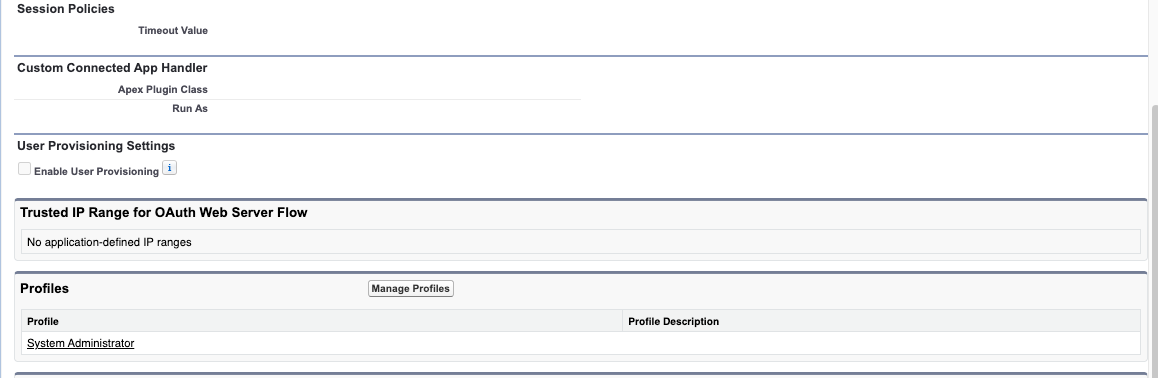
After successfully creating the Mulesoft connected app and assigning the necessary scopes, customers need to authorize the connected app by following the instructions in the article linked below:
Construct the authorization URL using the following syntax, used for granting access:
https://{domain}.my.salesforce.com/services/oauth2/authorize?response_type=code&client_id={ConsumerKey}&scope={scopes}&redirect_uri={CallbackURL}
Obtain the values from the following sources:
{domain}: Navigate to Setup > My Domain > My Domain Details to find your domain.
{scopes}: Add the scopes needed, separated by spaces, e.g., refresh_token api cdp_ingest_api.
{CallbackURL}: Ensure this matches the configuration in the Connected App, e.g., https://localhost:8081/callback.
- Execute the URL:
Open the authorization URL in a browser, which should prompt user access approval for the Connected App. Upon granting access, if a value is returned for the "code" parameter in the URL, authorization was successful. The Data 360 Connector should now be able to establish a connection.
Even after authorizing the connected app, customers may encounter the error:
Error Message:
"Test connection failed: Could not create connection. Reason: org.mule.runtime.api.connection.ConnectionException: Could not create connection."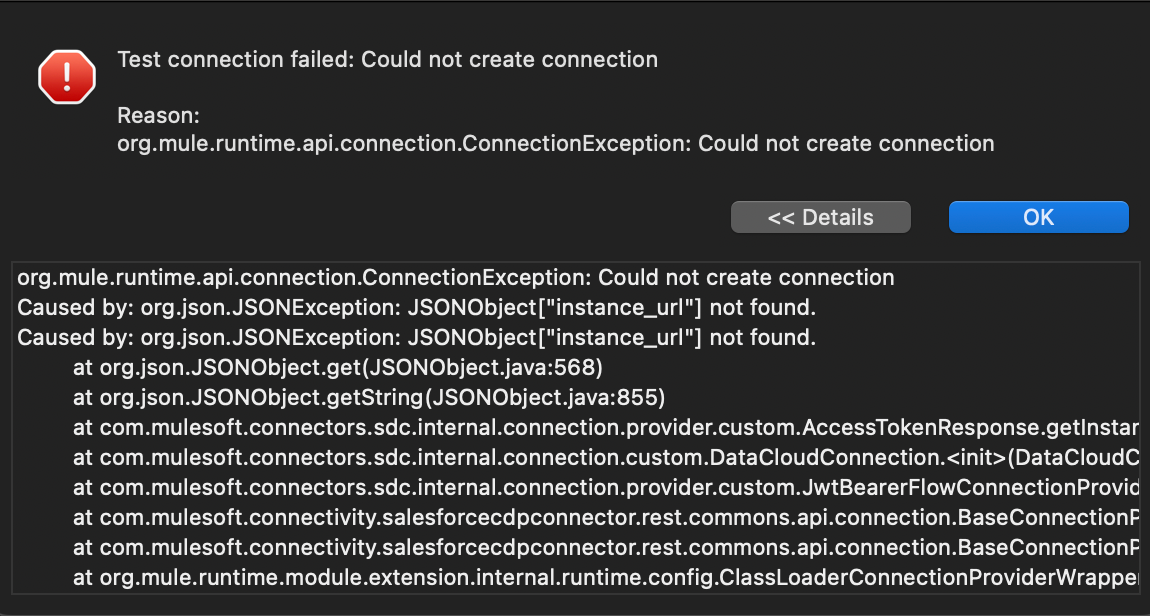
This error usually occurs due to incorrect scopes assigned during the initial connected app authorization.
Solution:
To resolve this issue, follow these steps to re-authenticate the connected app:
- Navigate to Setup in Salesforce.
- In the search bar, type "Connected" and select Connected Apps OAuth Usage.
- Locate the MuleSoft Integration API and click the number 1 next to it.
- In the Connected App User’s Usage screen, click Revoke All.
- Re-authenticate the connected app by editing and using the following URL, ensuring you replace <replace-with-your-instance-URL> with your actual Salesforce instance:
https://<replace-with-your-instance-URL>/services/oauth2/authorize?response_type=code&client_id=&redirect_uri=https://login.salesforce.com/services/oauth2/callback
Knowledge Article Number
000397084
Did this article solve your issue?
Let us know so we can improve!
