Organisation auswählen
Salesforce Lightning Dashboard Scroll Bar Behavior and How to Prevent It
Veröffentlichungsdatum: May 5, 2026
Beschreibung
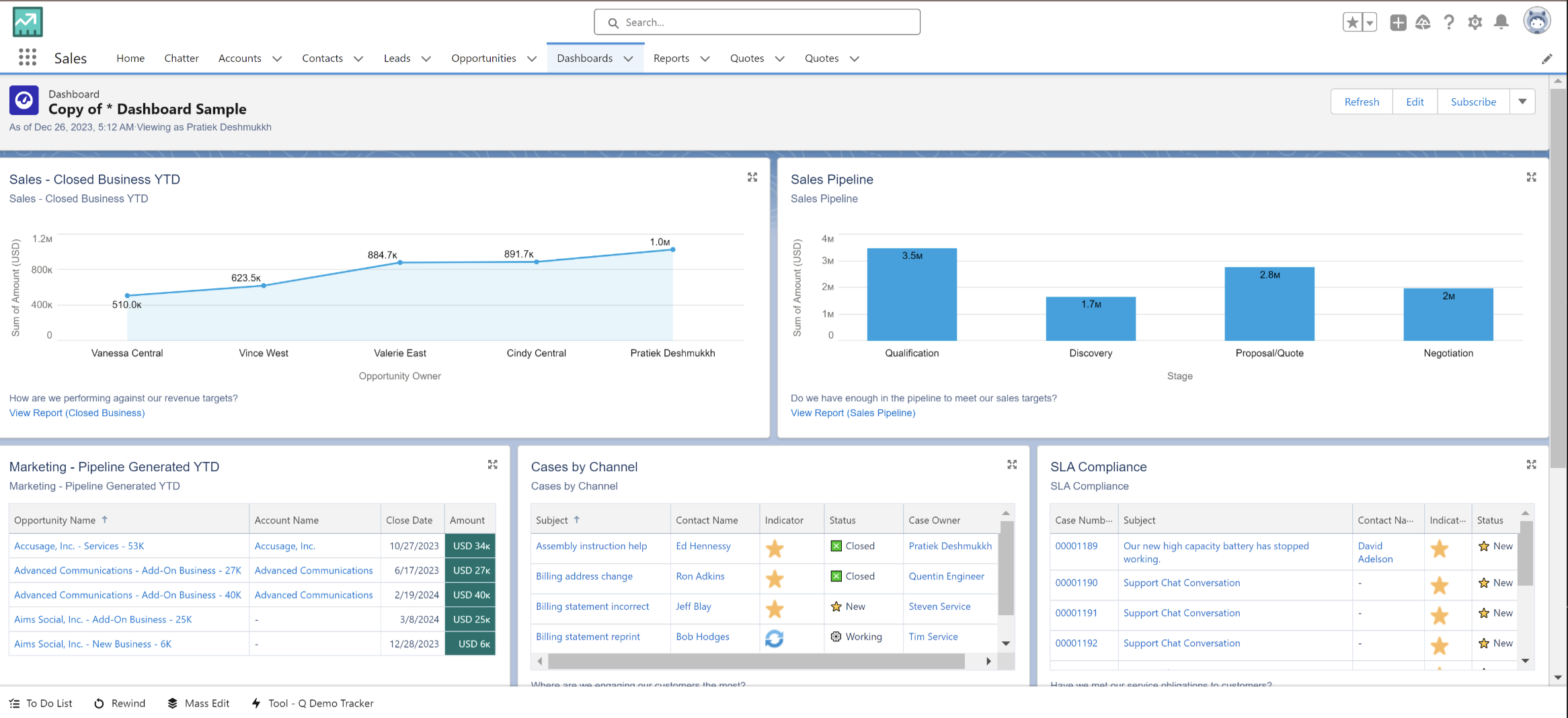
Scrollbars may appear even when the dashboard size is smaller than the screen, indicating content exceeding available space.
What does this help to resolve? What does this help to resolve?
When the dimensions of the dashboard content surpass the available screen space, scrollbars become visible for users to navigate through the content effectively. After scrollbars become visible, you have to increase the width or height of the window to the maximum width or height of the dashboard plus the width of the vertical scrollbar or height of the horizontal scrollbar.
Lösung
Scrollbar Prevention: Ensure the window size meets or exceeds the minimum dashboard dimensions to eliminate scrollbars.
If we don't want to see any scrollbars, make sure the window size is no less than the dashboard minimum size.
In the case where you see both horizontal scrollbar and vertical scrollbar and okay with the horizontal scrollbar but don't want the vertical scrollbar then you have to increase the windows height to the dashboard maximum height plus the height of the horizontal scrollbar. If you are okay with the vertical scrollbar but don't want the horizontal scrollbar, then you have to increase the dashboard component size or window width to the dashboard maximum width plus the width of the vertical scrollbar.
Optionally, Expand Dashboard Widgets to See a Larger Version in Lightning Experience:
Steps:
Optionally, Expand Dashboard Widgets to See a Larger Version in Lightning Experience:
Steps:
- Open a dashboard.
- Hover over a widget and click
 .
.
Zusätzliche Ressourcen
https://help.salesforce.com/s/articleView?id=sf.dashboards_expand_component.htm&type=5
Nummer des Knowledge-Artikels
000397148
Konnten Sie Ihr Problem mithilfe dieses Artikels lösen?
Geben Sie uns Feedback, damit wir uns verbessern können.
