Valitse organisaatio
Salesforce Field Service Pop-out Video Dashboard Error or Session Doesn't Start for Service Agent (Chrome & Edge)
Julkaisupäivä: Feb 26, 2026
Kuvaus
In Google Chrome or Microsoft Edge, when the Field Service Video Dashboard is configured to open in a new window by default, the dashboard flashes an error and the session doesn't start for the agent. The end user is able to connect to the session successfully. The issue is only on the agent-side.
Cause
Google Chrome & Microsoft Edge have begun the gradual rollout of an experimental feature, third-party storage partitioning:
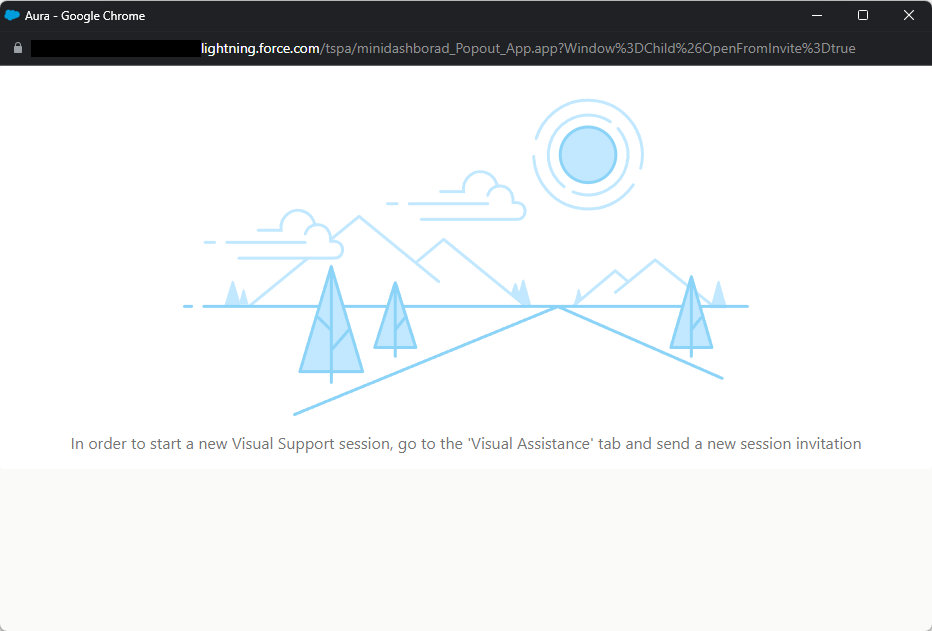
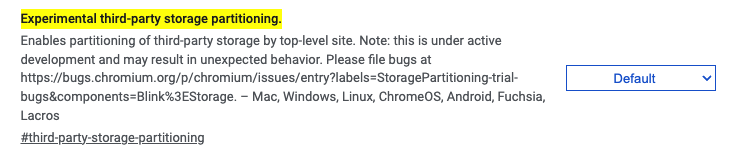
When enabled, this experimental feature impacts the browser storage necessary for the VRA video dashboard functionality, only when it’s configured to open in a new window by default. As a result, the agent side is unable to connect to the session successfully.
Ratkaisu
To resolve this issue where the video dashboard does not display for the Field Service agent in a new window, one of the following solutions should be implemented:
-
Turn off the feature for all users managed by Enterprise policies
-
To turn off the feature for specific top-level domains:
Block third-party storage partitioning for the origins where the client is embedded. For example, if the client is embedded in Salesforce, use the Salesforce URL domain that appears in the browser tab, for example, example-dev-ed.my.salesforce.com. For more information, see ThirdPartyStoragePartitioningBlockedForOrigins. -
To turn off the feature for all domains:
Block third-party storage partitioning for all domains. For more information, see DefaultThirdPartyStoragePartitioningSetting.
-
-
Turn off the feature for a single-user
-
If the third-party storage partitioning feature flag is on by default, you can disable it via the feature flag in Chrome or Edge. Search for
chrome://flags/#third-party-storage-partitioningin Chrome, oredge://flags/#third-party-storage-partitioningin Edge, and set the feature to “Disabled”. For more information, see Storage Partitioning.
-
-
Configure the Video Dashboard component on the Utility Bar or embedded in the record page
-
For adding the video dashboard component to the Utility Bar, refer to pages 39–40 of the VRA Installation & Configuration Manual
-
For embedding the video dashboard component in the object record page:
-
Navigate to the relevant object record page (for example, Case, Work Order)
-
Click the Setup Gear icon at the top-right corner of the screen
-
Click Edit Page
-
In the left-side menu, find the Visual Remote Assistant - Video Dashboard component
-
Drag & drop the component into the main page layout
-
Click Save
-
-
Knowledge-artikkelin numero
000676982
Ratkaisiko tämä artikkeli ongelmasi?
Anna palautetta, jotta voimme kehittyä!
