Seleziona un'organizzazione
Give Opportunity edit access to few people without changing Role Hierarchy or granting superior Profile access
Data pubblicazione: Aug 18, 2026
Descrizione
Risoluzione
Scenario: Let's assume that the Customer has a dedicated Team ("Tiger Team") who would like to manage a specific type of Opportunities on a need basis with the caveat that:
- The Role of Users part of the Tiger Team should not be changed to provide Edit access to Opportunities
- The Profile of Users part of the Tiger Team should not be changed to a superior profile that grants access like Modify All Records on the Opportunity object
To address the request, we follow a 3-step process:
Step 1: Identifying Tiger Team Members
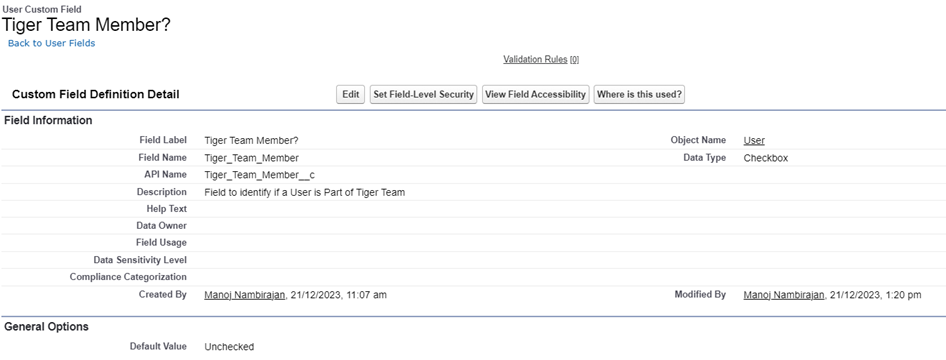
- Go to Setup > Object Manager > User object > Fields & Relationships
- Create a new Checkbox type field named "Tiger Team Member?" as per the screenshot
## Step 2: Sharing Rule to Grant Opportunity Access to Tiger Team
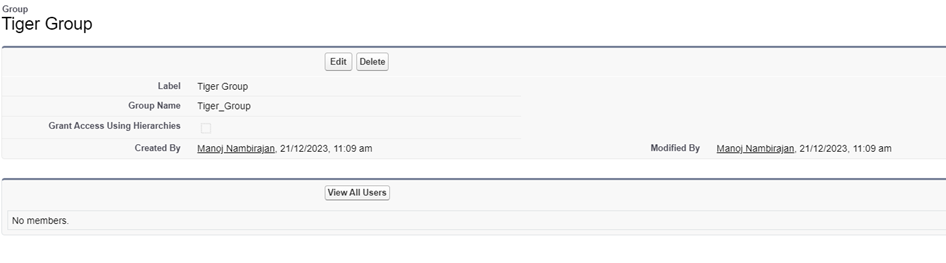
- Start by creating a Public Group named "Tiger Group"
- Go to Setup > Public Groups
- Per the screenshot, ensure the checkbox "Grant access using Hierarchies" is not enabled — this can help in situations where Tiger Team members are in different parts of the Role Hierarchy
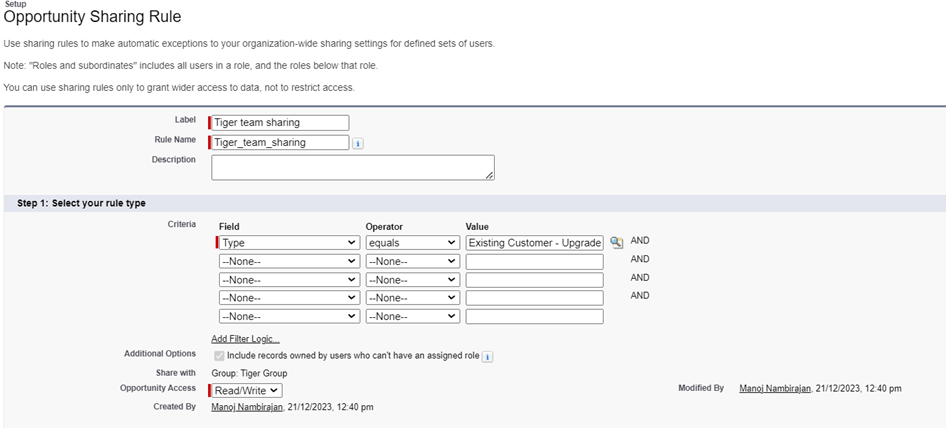
- Then, create a criteria-based Sharing Rule that opens up Opportunity access of a specific type (for example, "Existing Customer - Upgrade") to the Tiger Group
## Step 3: Flow Automation for Tiger Team Management
We then set up a Flow automation which automatically adds or removes Tiger Team members from the Public Group when the "Tiger Team Member?" field on a User record is checked or unchecked. This ensures proper data visibility for users and avoids any accidental exposure of data.
### Flow to Auto-Add a Tiger Team Member
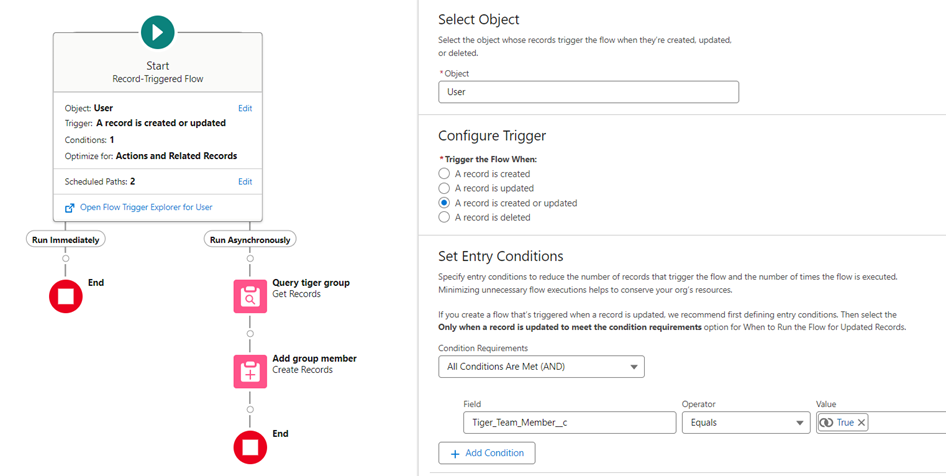
- Query the User object where "Tiger Team Member?" is set to true
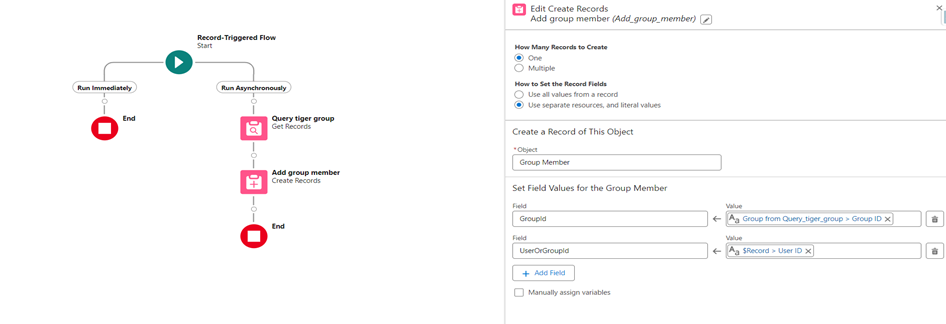
- Use an asynchronous path to query the Public Group named "Tiger Group" using a Get Records element, and add the Tiger Team member to the Public Group using a Create Records element
- The asynchronous Flow design here prevents a "Mixed DML error on setup Objects" error message
To add a Group Member, the Group ID and User or Group ID variables are passed as parameters in the Flow:
### Flow to Auto-Remove a Tiger Team Member
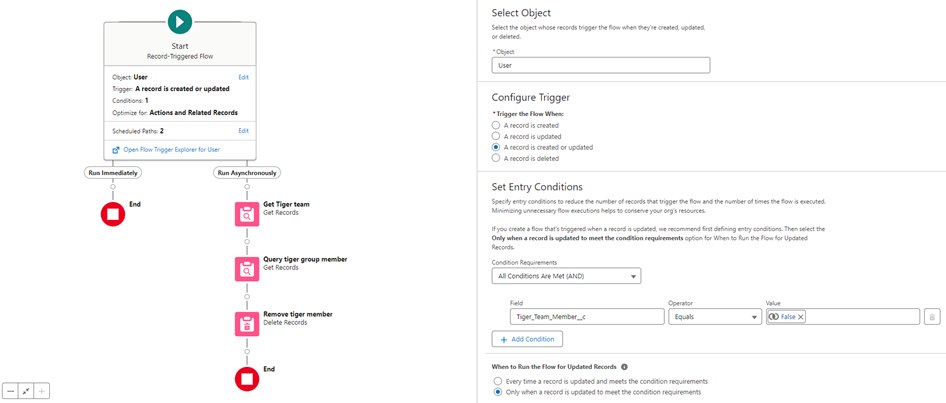
Overall design of this Flow:
- Query the User object when "Tiger Team Member?" is set to false
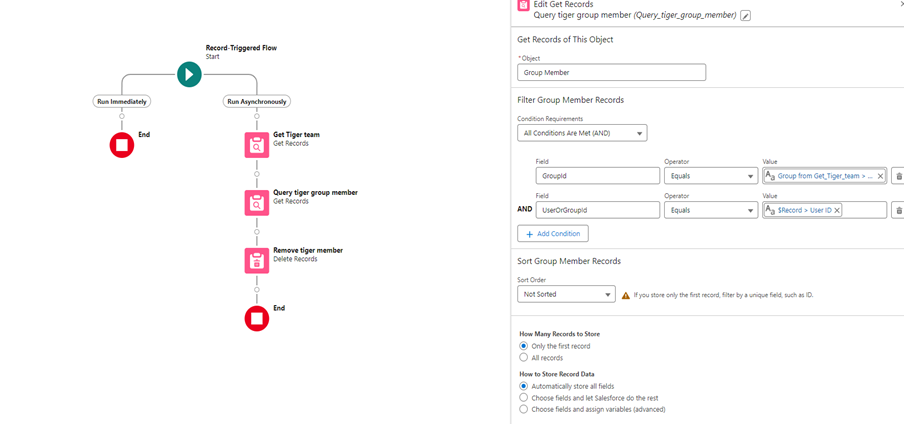
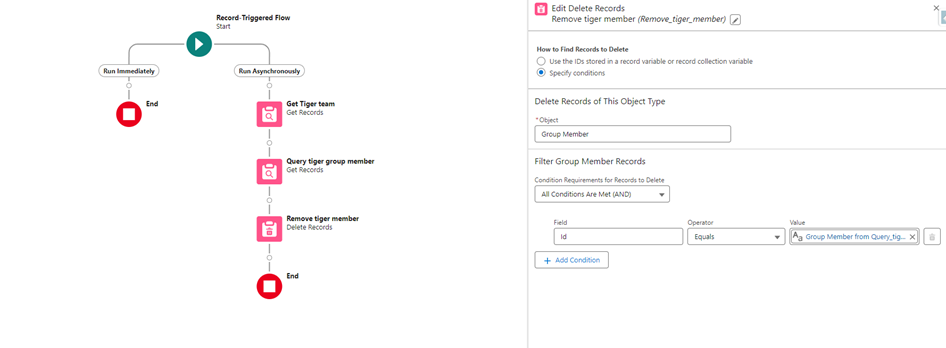
- Use an asynchronous path to query the Tiger Group's Group Member Id for the respective Tiger Team member using a Get Records element, then remove the Tiger Team member using a Delete Records element
Respective Flow screenshots:
With the above combination of Sharing Rule and automated Flow, you can provide specific team members access to Opportunity without modifying roles or providing superior profile access.
Note: The above flow designs can be optimized into a single flow as desired. The approach here is just an inference on the concept that can be used to automate this.
## About This Article
Written by: Manoj Nambirajan | Salesforce MVP. Manoj is a Salesforce Enterprise Architect at Dell Technologies with more than 15 years of experience in the Salesforce ecosystem. Manoj has exceptional leadership abilities and a flair for solving issues quickly. Accredited as a Salesforce MVP, Manoj has 17 Salesforce certifications and is among the Top 10 Answers leaders in the Trailblazer Community.
## Disclaimer
Submissions reflect only the opinions of the user who made available the Submission and not the opinions of Salesforce, regardless of whether the user is affiliated with Salesforce, and may contain or constitute products, services, information, data, content and other materials made available by or on behalf of third parties ("Third Party Materials"). Salesforce neither controls nor endorses, nor is Salesforce responsible for, any Third Party Materials, including their accuracy, validity, timeliness, completeness, reliability, integrity, quality, legality, usefulness or safety, or any applicable intellectual property rights. Any Submissions made available through any message board or forum in response to posted questions, or that otherwise purports to answer any questions, including any questions about Salesforce or Programs, are made available for your general knowledge only and should never be relied upon as answers to your specific questions (even if an answer is marked as a "best" answer or with any similar qualifications). You should always contact Salesforce support for answers to your specific questions. Salesforce has no control over Submissions, and is not responsible for any use or misuse (including any distribution) by any third party of Submissions.
If you have questions, tap into the wisdom of our entire Trailblazer Community here: https://trailhead.salesforce.com/trailblazer-community/feed
Risorse aggiuntive
Sharing Rule Considerations
Sharing with Public Groups vs. Personal Groups in Salesforce
Numero articolo Knowledge
000683671
Questo articolo ha risolto il problema?
Facci sapere, così possiamo migliorare!
