Valitse organisaatio
How to activate Session-Based Permission Sets without code
Julkaisupäivä: Aug 18, 2026
Kuvaus
Sometimes there are business requirements to temporarily give a user elevated access to do a certain task. This can be done with session based permission sets. This article goes over how to use a screen flow to activate a session based permission set without using code.
Ratkaisu
Step 1: Use a Screen Flow to Activate the Permission Set
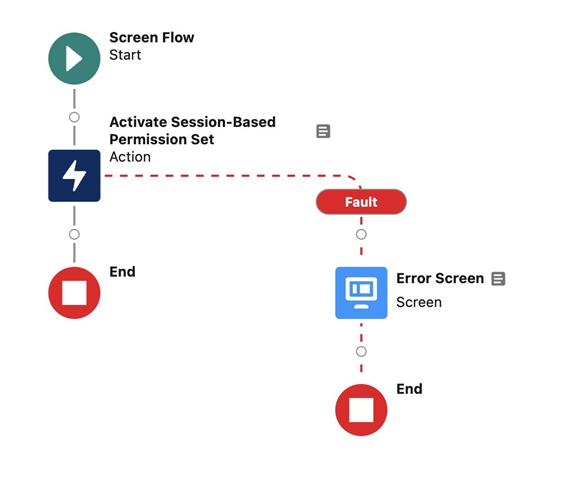
- In the Setup Quick Find search Flows and select it
- Click New Flow in the upper right corner
- Choose Screen Flow then click Create
- Under the Start element, click the + to add a new element
- Search for and select Activate Session-Based Permission Set
- Give the element a meaningful Label and Description
- For the Permission Set Name input, use the API name of the Permission Set
- Click Done
- Click on the element you just created then click Add Fault Path
- On the new fault path add a Screen element
- Give the element a meaningful Label and Description
- Add the Display Text component to the screen and name it Display Error
- In the display text add a message like:
`An Error Occured: {!$Flow.FaultMessage}`Be sure to include `{!$Flow.FaultMessage}` so the user knows what happened, then click Done - Click Save at the top of the screen. Give the Flow a meaningful Flow Label and Description
- Click Debug and test the Flow as needed
- Once tested you can Activate the Flow.
Step 2: Distribute the Screen Flow
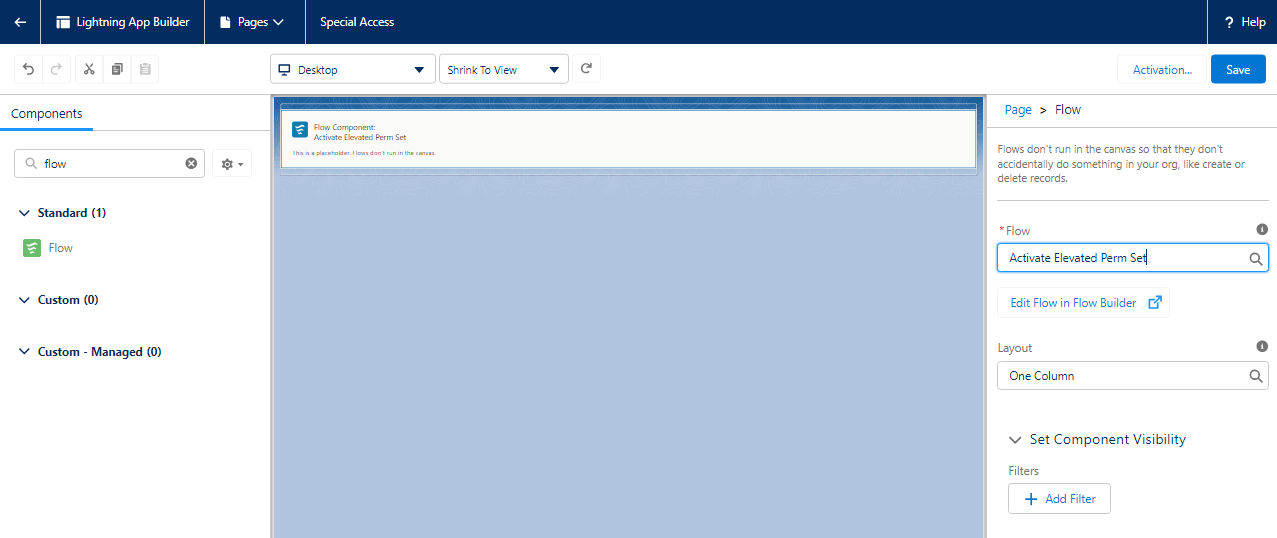
Note: You can also do a very similar thing to deactivate session based permission set licenses.
- In the Setup Quick Find search Lightning App Builder and select it
- Click New to create a new page
- Select the Type of App
- Add the Flow component to the page and select the name of the Flow you created
- Click Save then Activate in the popup modal
- Set the page icon and settings, which apps to add it to along with which profiles can access it, then click Save
Written By: Andrew Russo | Salesforce Answers Leader
Andrew Russo is an Accidental Archa-Admin-Eloper-Analyst at BACA Systems. He has been in the Salesforce ecosystem since 2017 and has immense platform knowledge. He empowers Trailblazers to become more proficient in their use of Salesforce.
Submissions reflect only the opinions of the user who made available the Submission and not the opinions of Salesforce, regardless of whether the user is affiliated with Salesforce, and may contain or constitute products, services, information, data, content and other materials made available by or on behalf of third parties ("Third Party Materials). Salesforce neither controls nor endorses, nor is Salesforce responsible for, any Third Party Materials, including their accuracy, validity, timeliness, completeness, reliability, integrity, quality, legality, usefulness or safety, or any applicable intellectual property rights. Any Submissions made available through any message board or forum in response to posted questions, or that otherwise purports to answer any questions, including any questions about Salesforce or Programs, are made available for your general knowledge only and should never be relied upon as answers to your specific questions (even if an answer is marked as a "best" answer or with any similar qualifications). You should always contact Salesforce support for answers to your specific questions. Salesforce has no control over Submissions, and is not responsible for any use or misuse (including any distribution) by any third party of Submissions.
If you have questions, tap into the wisdom of our entire Trailblazer Community here: https://trailhead.salesforce.com/trailblazer-community/feed
Lisäresurssit
Knowledge-artikkelin numero
000692557
Ratkaisiko tämä artikkeli ongelmasi?
Anna palautetta, jotta voimme kehittyä!
