Выбрать организацию
Map Lead Record Type to Account Record Type
Дата публикации: Aug 18, 2026
Описание
When a Lead is converted to an Account in Salesforce, the Lead's record type does not automatically map to the new Account's record type. Salesforce instead assigns the Account the default record type of the profile associated with the specified record owner during conversion, not the Lead's own record type.
Решение
This article explains how to make a converted Account inherit its record type from the original Lead's record type, since Salesforce does not do this automatically. Two workarounds are provided below — a field-mapping approach and a Flow-based approach — choose whichever fits your org's setup.
Note: This article assumes Lead record type names match Account record type names 1:1. If they don't match, the same concepts apply, but the Flow must be modified to fit your business requirements.
Workaround 1: Create Required Fields on Lead and Account and Set Conversion Mapping
Step 1: Create a Lead Custom Formula Field
- Set the Return Type to Text.
- Name the field (for example, Lead Record Type Name).
- Use this formula, which returns the API name of the Lead's record type as text:
RecordType.DeveloperName
- Select Treat blank fields as blanks.
- Optionally, leave the field on the page layout or make it hidden.
Step 2: Create an Account Custom Text Field
- Name the field (for example, Account Record Type (Lead Conversion)).
- Optionally, leave the field on the page layout or make it hidden.
Step 3: Set Up Lead Field Mapping
- Navigate to Setup > Object Manager > Lead > Fields & Relationships > Map Lead Fields.
- Map the new Lead Record Type Name field to the new Account Record Type (Lead Conversion) field on the Account.
Workaround 2: Use a Record-Triggered Flow on the Account Object to Set the Record Type
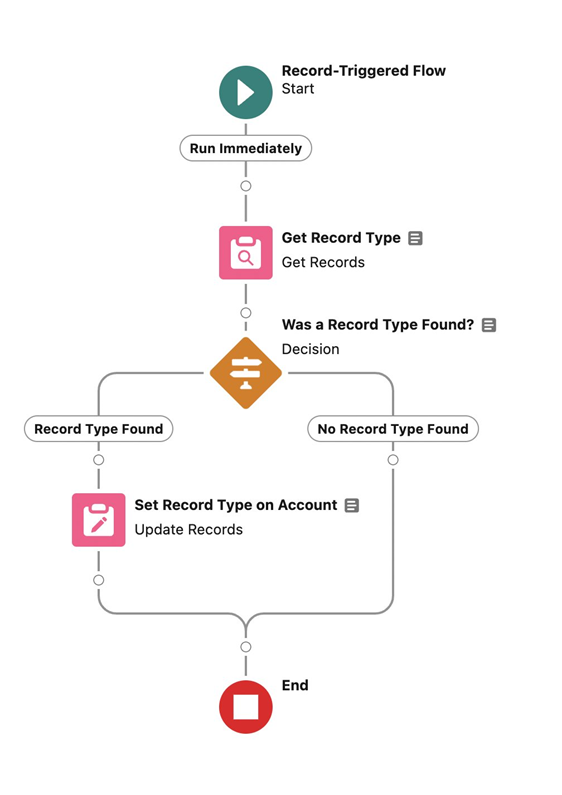
Step 1: Create the Flow
- In Setup, search Quick Find for Flows and select it.
- Click New Flow in the upper right corner.
- Choose Record-Triggered Flow, then click Create.
- Set the Object to Account.
- Set the trigger to A record is created.
- Set Condition Requirements to All Conditions Are Met (AND).
- Use this entry condition: Field = <Field you created on Account>, Operator = Is Null, Value = {!$GlobalConstant.False}
- Leave Optimize the Flow For set to Actions and Related Records.
Step 2: Add the Get Records Element
- Under the Start element, click + to add a new element.
- Add a Get Records element.
- Give it a meaningful label and description, like Get Record Type.
- Select Record Type as the object.
- Set Filter Record Type Records conditions to All Conditions Are Met (AND): SobjectType Equals Account; DeveloperName Equals {!$Record.Account_Record_type_Lead_Conversion__c}
- Leave all other settings as-is.
Step 3: Add the Decision Element
- Under the Get Records element, click + to add a new element.
- Select a Decision element.
- Give it a meaningful label and description.
- Name the new outcome Record Type Found.
- Set condition requirements to All Conditions Are Met (AND): {!Get_Record_Type} Is Null = {!$GlobalConstant.False}
- Rename the default outcome to No Record Type Found.
- Click Done.
Step 4: Add the Update Triggering Record Element
- Under the Record Type Found path, click + to add a new element.
- Select Update Triggering Record.
- Give it a meaningful label and description.
- Set the RecordTypeId field to equal {!Get_Record_Type.Id}.
Step 5–7: Save, Debug, and Activate
Click Save and give the Flow a meaningful label and description. Click Debug and test the Flow as needed. Once tested, Activate the Flow.
Note: This same approach can be used to update record types on Opportunity and Contact records.
Дополнительные ресурсы
Номер статьи базы знаний
000694751
Эта статья решила вашу проблему?
Оставьте свой отзыв, чтобы мы могли стать лучше!
