조직 선택
Missing Objects in Email Application Pane (Gmail/Outlook) Integration
게시 일자: Aug 18, 2026
상세 설명
Objects are missing in the drop-down menu in the Email Application Pane. Here's how to reproduce this:
- Go to Setup > Outlook Integration and Sync (or Gmail Integration and Sync)
- Edit the existing Email Application Pane, or create a new pane

- You will see there is an "Accounts, Opportunities, and More" standard component
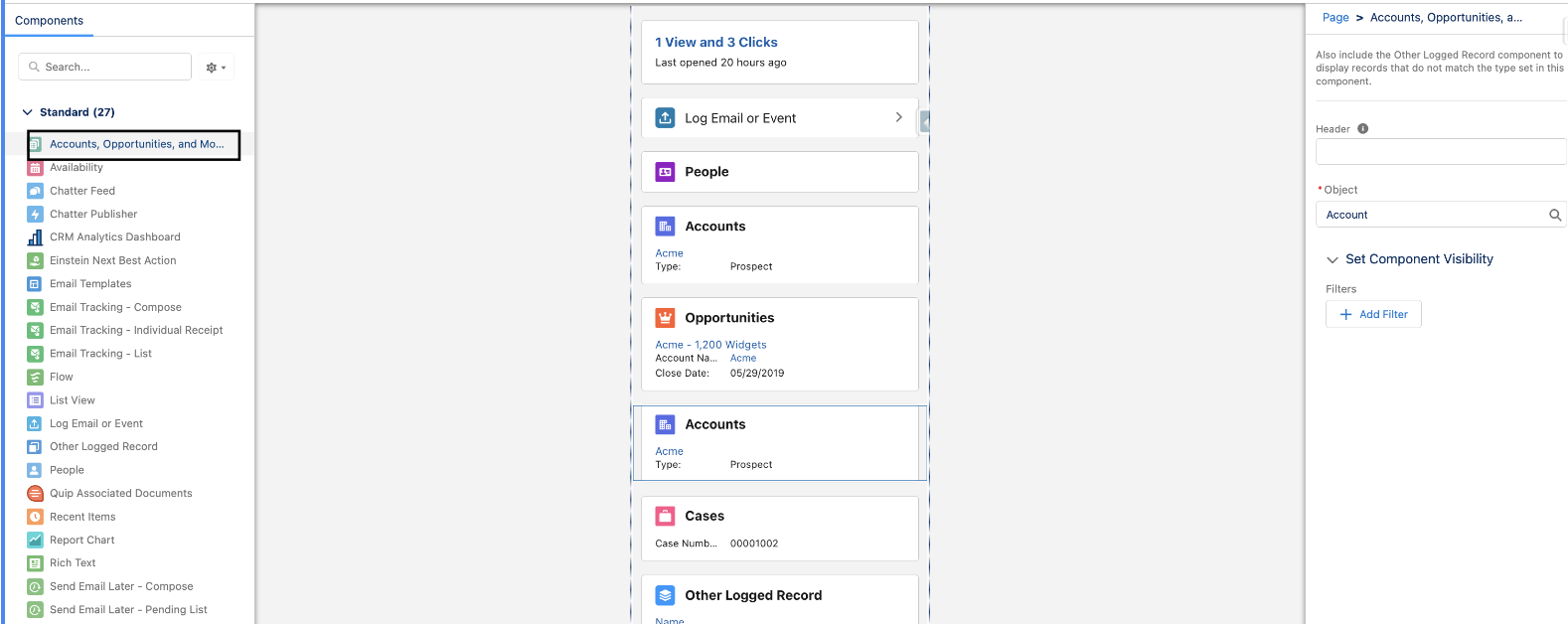
- Drag that into the related section and click on the Object dropdown on the right
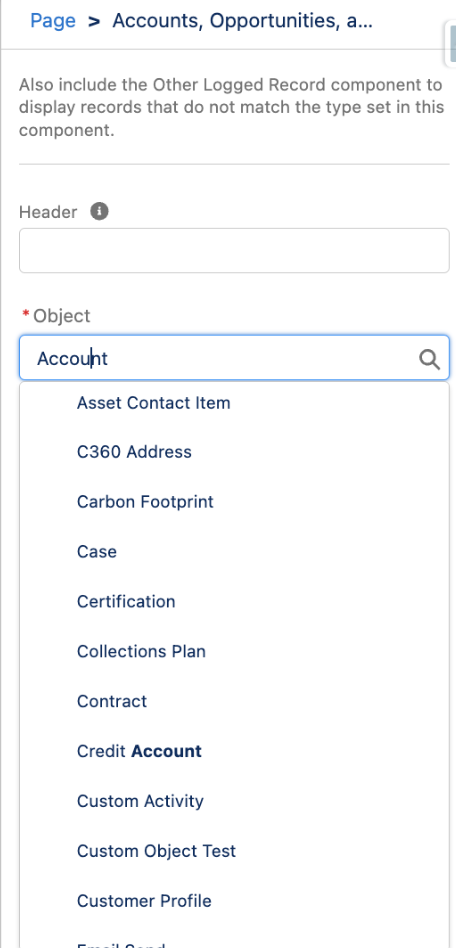
You can notice that some objects are missing here.
솔루션
## Why This Happens
The visibility of objects in the "Accounts, Opportunities, and More" standard component depends on the email field in the object. This standard component is used to relate the email you sent to the receiver in Outlook or Gmail with the Salesforce record, and to relate the email address, the object needs to have an email field to map the EmailMessage.
## How to Check if an Object Will Be Visible
- If the object has any field with the 'Email' datatype, then it will be visible in the Object dropdown
- If there is no email field, but there is a lookup on the object to another object that has an email field (such as Contact), then the object will also be visible in the Object dropdown
To check this, go to Object Manager, click on the object name, then Fields and Relationships, and check if there is any field present with the Email datatype.
Any one of the above two criteria needs to be satisfied for the object to be visible in the dropdown in the Email Application Pane.
추가 자원
Considerations for Customizing the Email Application Pane for Outlook and Gmail
Build Email Applications Panes for Outlook and Gmail
Missing Fields in Related Record Component
Knowledge 기사 번호
000744660
이 기사를 통해 문제를 해결했습니까?
개선을 위한 의견을 보내주세요.
