조직 선택
Pre and Post Updates/ Failed Updates Checklist- Salesforce Voice with Amazon Connect & Salesforce Voice with Partner Telephony from Amazon Connect
게시 일자: Jun 17, 2026
상세 설명
This article provides a pre-update and post-update checklist for Salesforce Voice (formerly Service Cloud Voice) customers using Amazon Connect or Partner Telephony from Amazon Connect. Following this checklist before and after a Salesforce release update helps prevent Production issues, such as broken Single Sign-On (SSO) configurations or missing Approved Origins in Amazon Connect. Approved Origins are the domain URLs configured in Amazon Connect that are allowed to interact with the Salesforce org.
Note: This checklist does not apply to Salesforce Voice with Partner Telephony from Amazon Connect implemented using the Import XML method.
솔루션
Pre-Update Checklist
-
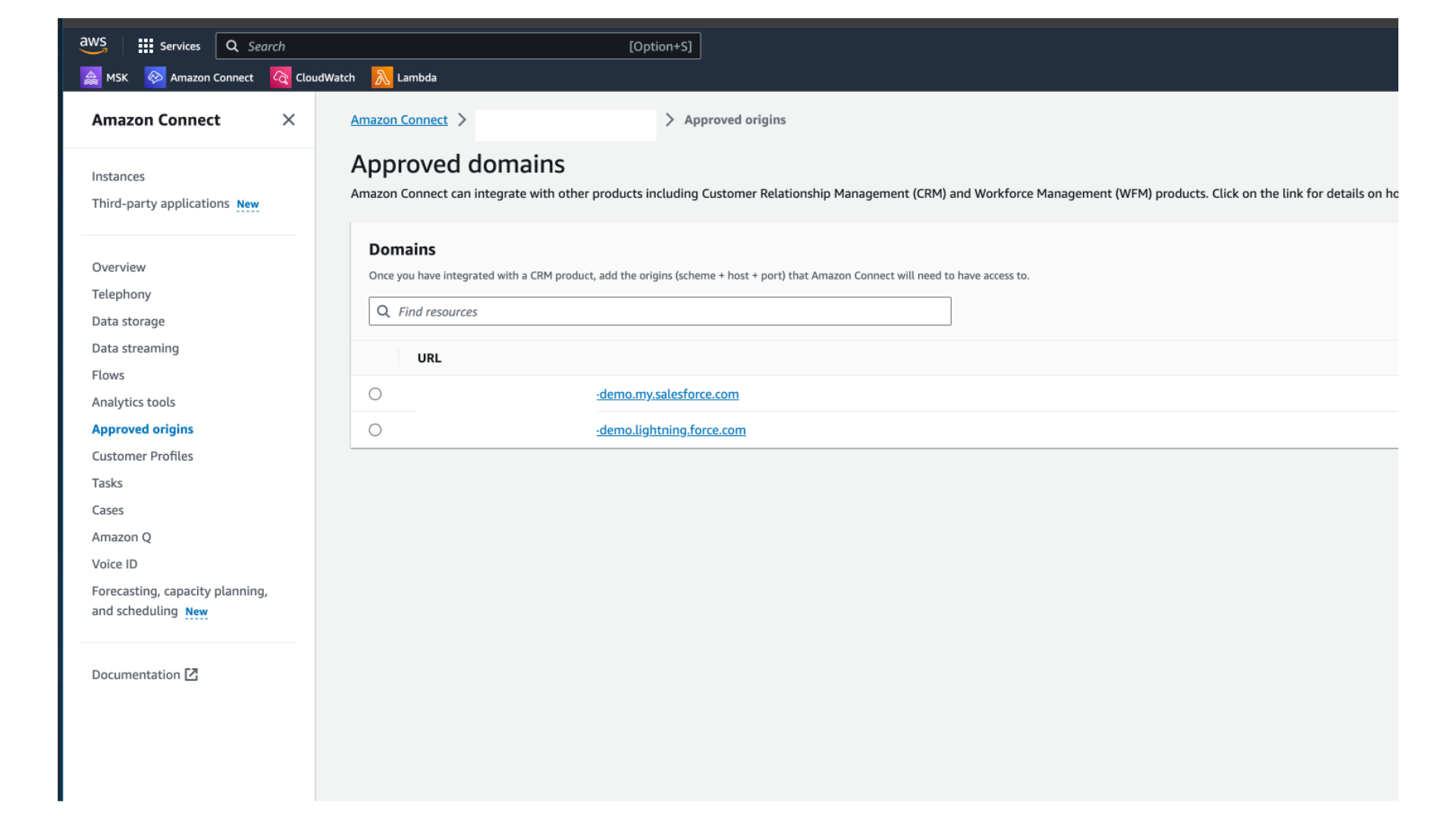
Back up the Approved Origins from Amazon Connect:
Navigate to your Amazon Connect instance settings and locate the Approved Origins configuration. Record all existing origin URLs so they can be restored if the update removes or resets them.
-
Verify SSO-connected app certificates:
Ensure that all SSO-connected apps in your Salesforce org have the most up-to-date security certificates before beginning the update. Expired or outdated certificates can cause SSO login failures after the update.
Post-Update Checklist (After Successful or Failed Update)
Complete the following steps immediately after a Salesforce release update, whether the update succeeded or failed.
- Review the Approved Origins in Amazon Connect:
After the update, return to your Amazon Connect instance and verify that the Approved Origins match the values you backed up in the pre-update step. If any Origins are missing, add them back manually.
If issues persist after completing the post-update checklist, raise a case with the Salesforce Support team for further investigation.
Knowledge 기사 번호
000979032
이 기사를 통해 문제를 해결했습니까?
개선을 위한 의견을 보내주세요.
