Välj en organisation
How to Publish Documentation and Assign Asset Icon on Exchange Through Maven
Publiceringsdatum: Jul 29, 2025
Steg
GOAL
While publishing an asset on Exchange through Maven, you want to publish the documentation of the asset, as well as assign an icon to the asset.
PROCEDURE
Below are the steps to achieve this functionality:
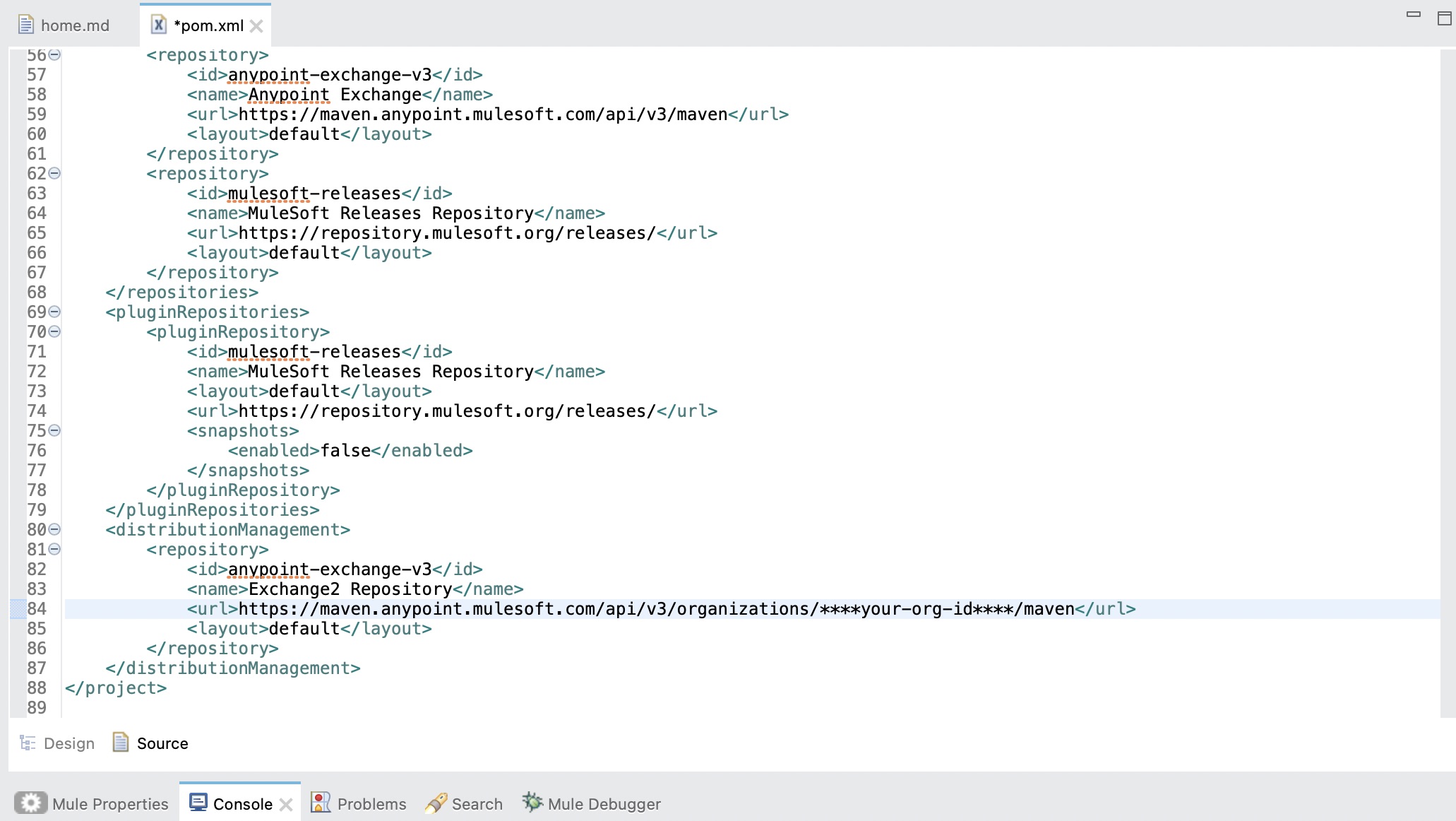
1. To configure your pom.xml and settings.xml please follow the documentation: Publish assets through Maven . However, please make sure that to upload documentation and icons, Maven facade API version v3 should be used since that is the only version supporting the required functionality. Therefore, the Maven URL in use should be:
<url>https://maven.anypoint.mulesoft.com/api/v3/organizations/ORGANIZATION_ID/maven</url>
2. Inside the project folder, go to Exchange-docs > Home.md
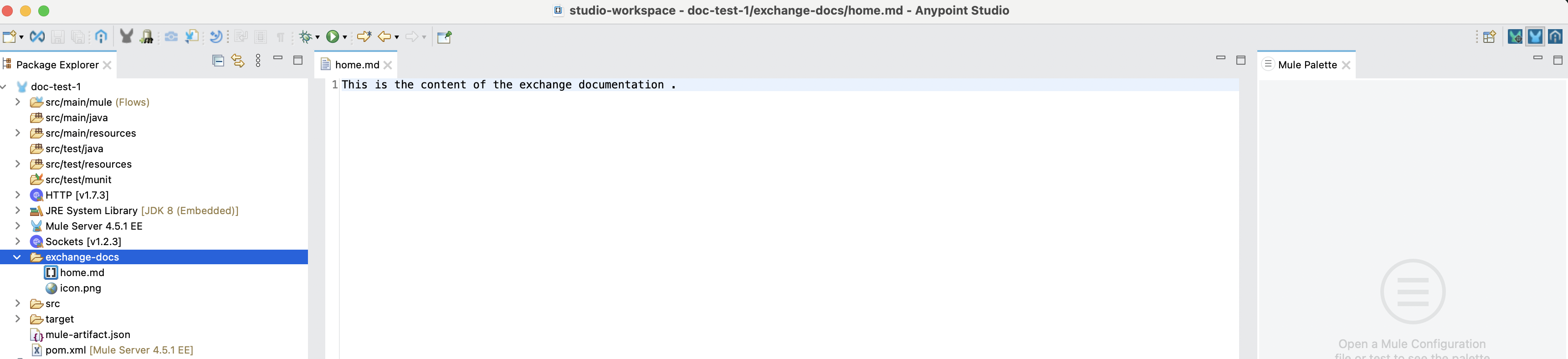
4. Assign an icon to your project by adding an image (.jpg, .png, .bmp) with the name icon (for example, icon.png) before publishing your project for the first time. The icon.png file should be kept outside the Exchange-docs folder
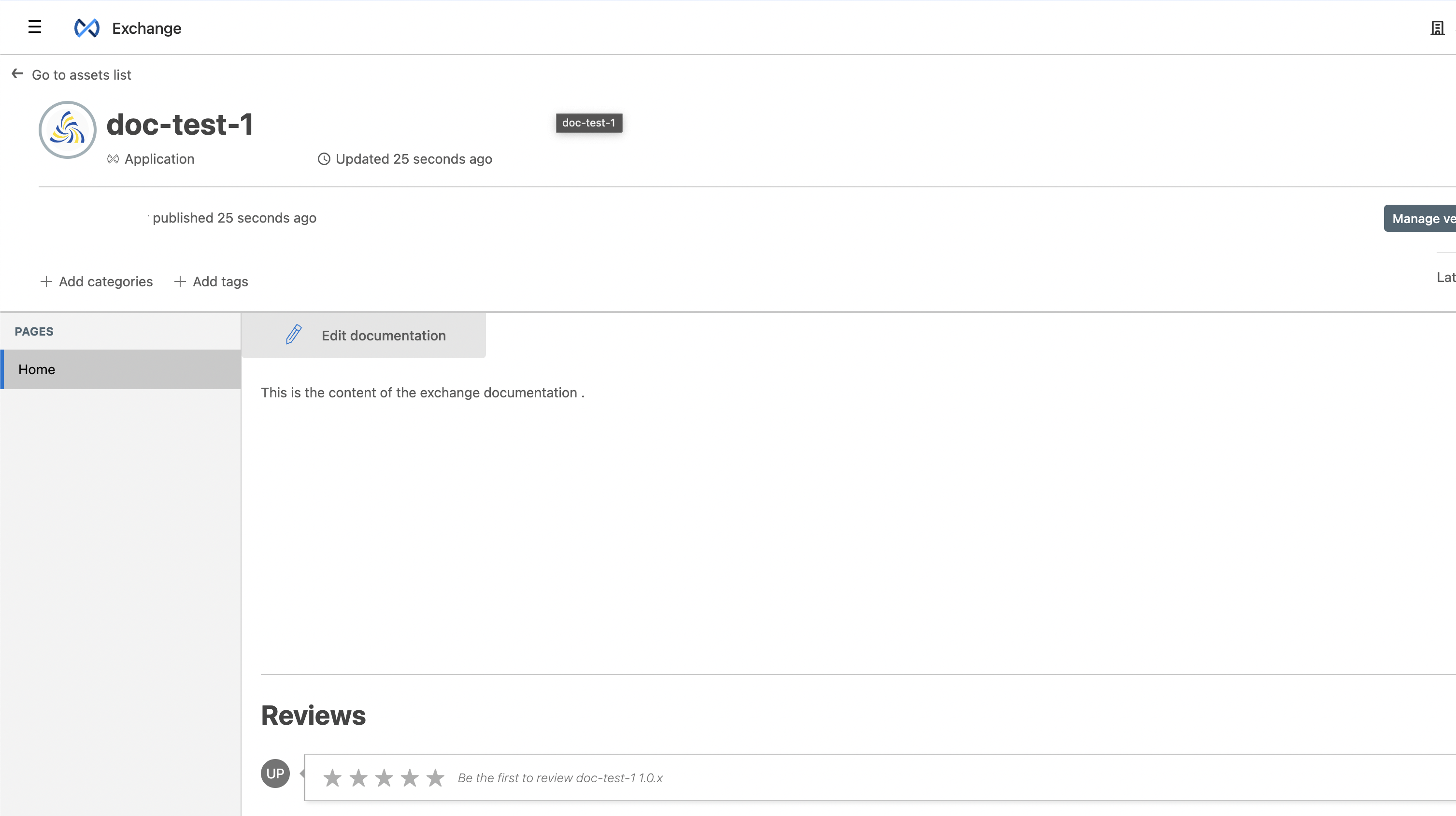
5. Publish your asset to Exchange. The documentation and icon should be visible.
In case there are issues while using Maven Facade API version 3 for publishing custom policy, please refer to KB: Error When Deploying Mule-Policy to Anypoint Exchange Using Maven Facade V3
Note: Currently the PCE doesn't support Maven Facade API version 3, therefore it is not possible to publish documentation and icons through Maven for PCE. However, users can leverage Exchange API to do the same. Please refer to the Mulesoft documentation for the steps.
Knowledge-artikelnummer
001114224
Löste denna artikel ditt problem?
Berätta för oss vad vi kan förbättra!
