Velg en organisasjon
How to use Enterprise Maven Repository Credentials With settings.xml and pom.xml Example
Publiseringsdato: Dec 10, 2025
Oppgave
Configure your Enterprise Maven Repository credentials with embedded Maven to allow you to reference and use dependencies only available from the Enterprise Repository. Please be advised that this is only applicable for customers with an Enterprise license. This also reminds you to update your pom.xml after updating your settings.xml file.
Trinn
Once you receive your Enterprise Maven credentials, you will need to update your settings.xml and pom.xml files. The settings.xml file can usually be found in the $USER_HOME/.m2/ directory on your machine. Updating your settings.xml file will allow you to connect with and fetch resources from the Enterprise Maven Repository. If you have a Maven installation on your machine, then you may simply add to, or create this settings.xml file, which should be picked up automatically. If however, you see issues with this, you can reference this manually within Studio so that the embedded Maven installation can connect to this repository. All steps are below.
The below steps are for a Commercial Cloud setup. For GovCloud, we recommend using this article as a supplement to the steps below. For PCE, please use this article.
Steps:
1. Find or create a settings.xml file by copying and pasting the below settings.xml template into a text editor. If you don't know how to find your settings.xml file, please view this article:
Where is my settings.xml file?
(For extra information, reference our Maven documentation)
2. In your settings.xml, make the following changes:
- In the <servers> tag, replace "yourNexusID" and "yourMuleNexusPassword" with the credentials provided to you by MuleSoft Support (make a ticket to request your Nexus Credentials). This is your login to the MuleRepository.
- In the <servers> tag, replace "yourAnypointPlatformUserName" and "yourAnypointPlatformPassword" with your Anypoint Platform credentials, to access Exchange Repository
- The Exchange repository is where our connectors are and where you upload custom policies, REST APIs, your apps, your artifacts, etc.
- The Nexus repository is the maven repository to build your Mule app. The Nexus repository is necessary for Mule to get libraries it needs to build Mule apps, for example, a java library.
- If you have a proxy, add <proxy> tags under <settings> from the top
- Template:
<?xml version="1.0" encoding="UTF-8" standalone="no"?>
<settings xmlns="http://maven.apache.org/SETTINGS/1.0.0"
  xmlns:xsi="http://www.w3.org/2001/XMLSchema-instance" xsi:schemaLocation="http://maven.apache.org/SETTINGS/1.0.0 https://maven.apache.org/xsd/settings-1.0.0.xsd">

  <servers>
    <server>
      <id>anypoint-exchange-v3</id>
      <username>yourAnypointPlatformUserName</username>
      <password>yourAnypointPlatformPassword</password>
    </server>

    <server>
      <id>MuleRepository</id>
      <username>yourMuleNexusID</username>
      <password>yourMuleNexusPassword</password>
    </server>
  </servers>

  <pluginGroups>
    <pluginGroup>org.mule.tools</pluginGroup>
  </pluginGroups>

  <profiles>
    <profile>
      <id>mule-extra-repos</id>
      <activation>
        <activeByDefault>true</activeByDefault>
      </activation>

      <repositories>
        <repository>
          <id>mule-public</id>
          <url>https://repository.mulesoft.org/nexus/content/repositories/public</url>
        </repository>
      </repositories>

      <pluginRepositories>
        <pluginRepository>
          <id>mule-public</id>
          <url>https://repository.mulesoft.org/nexus/content/repositories/public</url>
        </pluginRepository>
      </pluginRepositories>
    </profile>

    <profile>
      <id>Mule</id>
      <activation>
        <activeByDefault>true</activeByDefault>
      </activation>

      <repositories>
        <repository>
          <id>MuleRepository</id>
          <name>MuleRepository</name>
          <url>https://repository.mulesoft.org/nexus-ee/content/repositories/releases-ee/</url>
          <layout>default</layout>
          <releases>
            <enabled>true</enabled>
          </releases>
          <snapshots>
            <enabled>true</enabled>
          </snapshots>
        </repository>

         <repository>
          <id>MuleRepositoryPublic</id>
          <name>MuleRepositoryPublic</name>
          <url>https://repository.mulesoft.org/nexus/content/repositories/public</url>
          <layout>default</layout>
          <releases>
            <enabled>true</enabled>
          </releases>
          <snapshots>
            <enabled>true</enabled>
          </snapshots>
        </repository>
      </repositories>

    </profile>
  </profiles>
</settings>
3. Make sure your MuleRepository password is correct by going to https://repository.mulesoft.org/nexus-ee/#browse/browse. Then click on the user login icon on the right uppper cornder and provide Username and Password configured in the settings.xml.
<server>
<id>MuleRepository</id>
<username>yourNexusID</username>
<password>yourMuleNexusPassword</password>
</server>
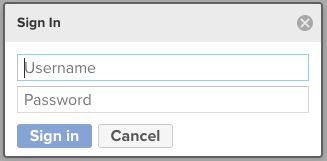
If it is not correct, please check with your Anypoint organization administrator and write to support if you need a new one
4. Save the changes to your settings.xml file and ensure this is saved to a known path, e.g. ${user.home}/.m2/settings.xml (Anypoint Studio automatically detects and populates the IDs if you use this path).
5. (Optional) If you saved your user settings.xml file in another location, you can point to Anypoint Studio to use it by following the steps described here.
6. (Optional) You can use your own Maven installation and override the Maven bundled in Anypoint Studio by following the steps described here.
7. Check your pom.xml file:
- Copy/paste the below and use it as a template
- Replace <name>REPLACEME</name>
- If you have a unique configuration, add it in <configuration></configuration>
- Check your mule.maven.plugin version
- What is in the <id> section of <repositories> <repository> <id> of your pom.xml? In the below template, you can see it says <id>PrivateExchangeRepository</id>
- Go to your settings.xml file
- In your settings.xml, make sure <id>PrivateExchangeRepository</id> is listed in <servers> <server> <id>PrivateExchangeRepository</id>
- To see how to list it, check the example settings.xml above
- Maven will check the username and password in your settings.xml, so it is important that they have the same name
<?xml version="1.0" encoding="UTF-8"?>
<project xmlns="http://maven.apache.org/POM/4.0.0" xmlns:xsi="http://www.w3.org/2001/XMLSchema-instance"
    xsi:schemaLocation="http://maven.apache.org/POM/4.0.0 http://maven.apache.org/maven-v4_0_0.xsd">
    <modelVersion>4.0.0</modelVersion>
    <!-- Replace ORGANIZATION_ID -->
    <groupId>ORGANIZATION_ID</groupId>
    <!-- Replace PROJECT-NAME -->
    <artifactId>PROJECT-NAME</artifactId>
    <version>1.0.0-SNAPSHOT</version>
    <packaging>mule-application</packaging>
    <!-- Replace PROJECT-NAME -->
    <name>PROJECT-NAME</name>

    <properties>
      <project.build.sourceEncoding>UTF-8</project.build.sourceEncoding>
      <project.reporting.outputEncoding>UTF-8</project.reporting.outputEncoding>
      <app.runtime>4.4.0</app.runtime>
      <mule.maven.plugin.version>3.8.7</mule.maven.plugin.version>
  </properties>

  <build>
      <plugins>
         <plugin>
            <groupId>org.apache.maven.plugins</groupId>
            <artifactId>maven-clean-plugin</artifactId>
            <version>3.0.0</version>
        </plugin>
        <plugin>
            <groupId>org.mule.tools.maven</groupId>
            <artifactId>mule-maven-plugin</artifactId>
            <version>${mule.maven.plugin.version}</version>
            <extensions>true</extensions>
            <configuration>
            </configuration>
        </plugin>
    </plugins>
</build>

<dependencies>
    <dependency>
        <groupId>org.mule.connectors</groupId>
        <artifactId>mule-http-connector</artifactId>
        <version>1.7.1</version>
        <classifier>mule-plugin</classifier>
    </dependency>
    <dependency>
        <groupId>org.mule.connectors</groupId>
        <artifactId>mule-sockets-connector</artifactId>
        <version>1.2.2</version>
        <classifier>mule-plugin</classifier>
    </dependency>
</dependencies>

<repositories>
  <repository>
    <id>anypoint-exchange-v3</id>
    <name>Anypoint Exchange</name>
    <url>https://maven.anypoint.mulesoft.com/api/v3/maven</url>
    <layout>default</layout>
  </repository>
  <repository>
    <id>mulesoft-releases</id>
    <name>MuleSoft Releases Repository</name>
    <url>https://repository.mulesoft.org/releases/</url>
    <layout>default</layout>
  </repository>
  <!-- Replace ORGANIZATION_ID -->
  <repository>
	<id>PrivateExchangeRepository</id>
	<name>Private Exchange repository</name>
    <url>https://maven.anypoint.mulesoft.com/api/v3/organizations/ORGANIZATION_ID/maven</url>
	<layout>default</layout>
  </repository>
</repositories>

<pluginRepositories>
    <pluginRepository>
        <id>mulesoft-releases</id>
        <name>MuleSoft Releases Repository</name>
        <layout>default</layout>
        <url>https://repository.mulesoft.org/releases/</url>
        <snapshots>
            <enabled>false</enabled>
        </snapshots>
    </pluginRepository>
</pluginRepositories>

<distributionManagement>
    <!-- Replace ORGANIZATION_ID -->
    <repository>
        <id>PrivateExchangeRepository</id>
        <name>Private Exchange repository</name>
        <url>https://maven.anypoint.mulesoft.com/api/v3/organizations/ORGANIZATION_ID/maven</url>
        <layout>default</layout>
     </repository>
</distributionManagement>

</project>
8. To see if it works: Right click on your project -> properties -> resources -> copy the project location -> open a command prompt -> cd into the location -> run: mvn clean deploy -X
The -X command enables debug logs and will show what Maven is doing behind the scenes, such as HTTP payload requests, headers, and responses.
9. Please check the permissions attached to the credentials in settings.xml. A lot of times, the credentials do not have the permission required. Also, please check the organization ID in your pom.xml. If you use a different organization ID for which you do not have roles assigned, then you will get a 401 error.
10. If the above steps do not work, please review your <repository> entries. If you're seeing the below error, then please try step 4 again:
[ERROR] Failed to execute goal org.mule.tools:mule-project-archetype:3.9.0:create (default-cli) on project abc-defg-api: Error creating from archetype: Error attempting to download archetype: Could not transfer artifact org.mule.tools:mule-project-archetype:jar:4 from/to MuleRepository (https://repository.mulesoft.org/nexus-ee/content/repositories/releases-ee/): Unauthorized (401)
If step 4 succeeds, then the credentials are correct in your settings.xml and pom.xml files. For other similar errors, please check your private repository access with your administrator.
11. For GovCloud, we recommend using this article as a supplement:
Step by step publishing Mule 4 custom policy to GovCloud Exchange
12. For PCE, please use this article:
How To Setup Maven on PCE
13. If you're using SSO because you want everything to be centralized and controlled with one piece of software, we recommend using this article to update your settings.xml (please ignore that is says "Mule 3.9", it works for all versions):
https://docs.mulesoft.com/exchange/to-publish-assets-maven#publish-and-consume-federated-assets
To get your token (the token is only valid for a short period of time and needs to be changed often):
https://docs.mulesoft.com/access-management/saml-bearer-token
14. If it does not work, please submit a support case with the output of step 9 and your pom.xml and settings.xml files.
15. Please note that Maven is required for Mule 4 and Anypoint Studio 7.x
16. We also recommend looking at this example repo.
Knowledge-artikkelnummer
001114523
Hjalp denne artikkelen med å løse problemet ditt?
La oss få vite det slik at vi kan forbedre!
