选择组织
如何通过 settings.xml 和 pom.xml 示例使用 Enterprise Maven 存储库凭据
发布日期: Dec 10, 2025
任务
目标
使用嵌入式 Maven 配置您的 Enterprise Maven 存储库凭据,以允许您引用和使用仅在 Enterprise 存储库中可用的依赖项。请注意,这仅适用于拥有 Enterprise 许可证的客户。这也提醒您在更新 settings.xml 文件后更新 pom.xml。
步数
收到 Enterprise Maven 凭据后,您需要更新 settings.xml 和 pom.xml 文件。settings.xml 文件通常位于您机器上的 $USER_HOME/.m2/ directory 中。更新 settings.xml 文件后,将允许您连接到 Enterprise Maven 存储库并从中获取资源。如果您的机器上安装了 maven,那么您可以简单地添加或创建该 settings.xml 文件,它应该会被自动拾取。但是,如果您发现这方面的问题,您可以在 Studio 中手动引用它,以便嵌入式 Maven 安装可以连接到这个存储库。所有步骤如下。
以下步骤适用于 Commercial Cloud 设置。 对于 GovCloud,我们建议使用本文作为以下步骤的补充。 对于 PCE,请使用本文。
步骤:
1.通过将下面的 settings.xml 模板复制并粘贴到文本编辑器中,查找或创建 settings.xml 文件。如果您不知道如何找到 settings.xml 文件,请查看这篇文章:
settings.xml 文件位于何处?
(有关更多信息,请参考我们的 Maven 文档)
2.在 settings.xml 中,进行以下更改:
- 在标记中,将“yourNexusID”和“yourMuleNexusPassword”替换为 MuleSoft 支持部门提供给您的凭证(制作一个请求 Nexus 凭证的票证)。这是您的 MuleRepository 登录。
- 在标记中,用您的 Anypoint 平台凭据替换“yourAnypointPlatformUserName”和“yourAnypointPlatformPassword”,以访问 Exchange 存储库
- Exchange 存储库是我们的连接器所在的地方,也是您上传自定义政策、REST API、您的应用程序、工件等的地方。
- Nexus 存储库是用于构建 Mule 应用程序的 maven 存储库。Mule 必须使用 Nexus 存储库,它可以获得构建 Mule 应用程序所需的库,例如 java 库。
- 如果您有代理,请在顶部的下添加标签
- 模板:
<?xml version="1.0" encoding="UTF-8" standalone="no"?><settings xmlns="http://maven.apache.org/SETTINGS/1.0.0" xmlns:xsi="http://www.w3.org/2001/XMLSchema-instance" xsi:schemaLocation="http://maven.apache.org/SETTINGS/1.0.0 https://maven.apache.org/xsd/settings-1.0.0.xsd"> <servers> <server> <id>anypoint-exchange-v3</id> <username>yourAnypointPlatformUserName</username> <password>yourAnypointPlatformPassword</password> </server> <server> <id>MuleRepository</id> <username>yourMuleNexusID</username> <password>yourMuleNexusPassword</password> </server> </servers> <pluginGroups> <pluginGroup>org.mule.tools</pluginGroup> </pluginGroups> <profiles> <profile> <id>mule-extra-repos</id> <activation> <activeByDefault>true</activeByDefault> </activation> <repositories> <repository> <id>mule-public</id> <url>https://repository.mulesoft.org/nexus/content/repositories/public</url> </repository> </repositories> <pluginRepositories> <pluginRepository> <id>mule-public</id> <url>https://repository.mulesoft.org/nexus/content/repositories/public</url> </pluginRepository> </pluginRepositories> </profile> <profile> <id>Mule</id> <activation> <activeByDefault>true</activeByDefault> </activation> <repositories> <repository> <id>MuleRepository</id> <name>MuleRepository</name> <url>https://repository.mulesoft.org/nexus-ee/content/repositories/releases-ee/</url> <layout>default</layout> <releases> <enabled>true</enabled> </releases> <snapshots> <enabled>true</enabled> </snapshots> </repository> <repository> <id>MuleRepositoryPublic</id> <name>MuleRepositoryPublic</name> <url>https://repository.mulesoft.org/nexus/content/repositories/public</url> <layout>default</layout> <releases> <enabled>true</enabled> </releases> <snapshots> <enabled>true</enabled> </snapshots> </repository> </repositories> </profile> </profiles></settings>
3.请在任何浏览器中转至 https://repository.mulesoft.org/nexus-ee/content/repositories/releases-ee,并在 settings.xml 文件的此部分中的 MuleRepository 下输入用户名和密码,以确保您的 MuleRepository 密码正确:
MuleRepository
yourNexusID
yourMuleNexusPassword
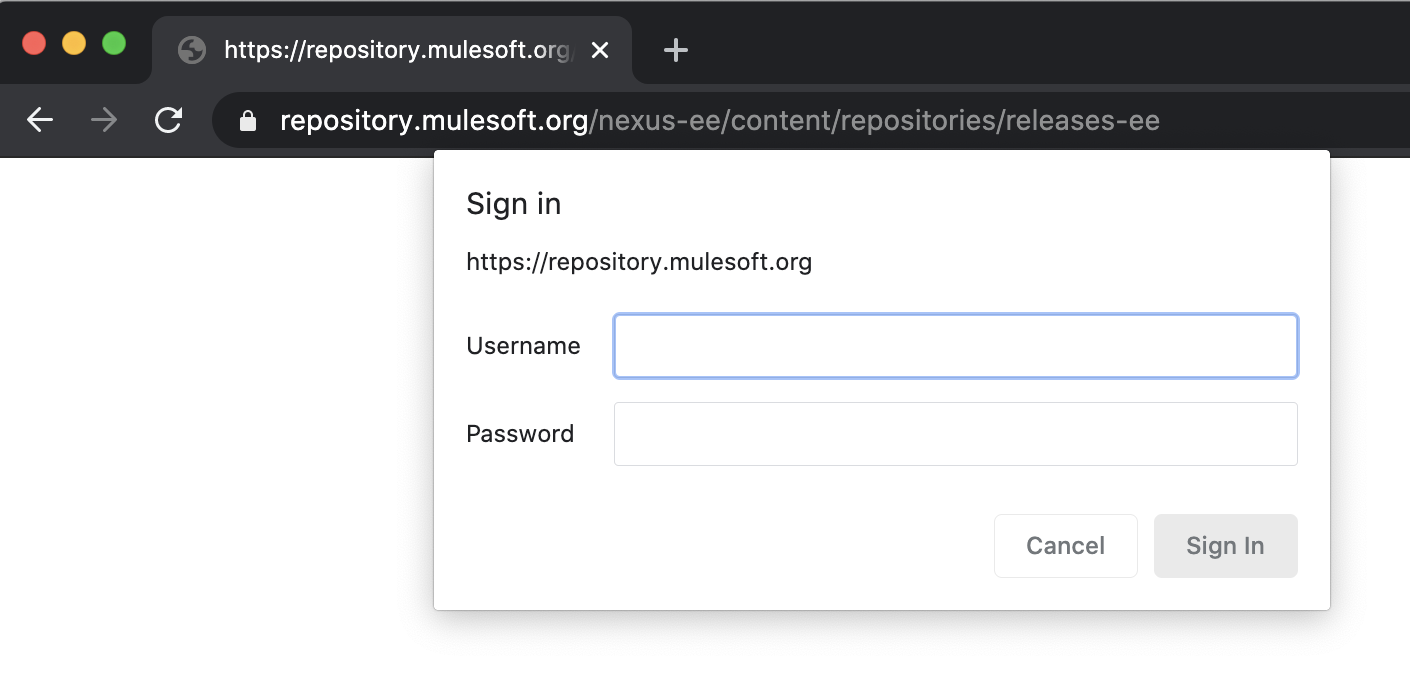
如果不正确,请咨询您的 Anypoint 组织管理员,如果您需要新的密码,请向支持部门致函
4.将更改保存到 settings.xml 文件,并确保将其保存到已知路径,例如 ${user.home}/.m2/settings.xml(如果您使用此路径,Anypoint Studio 会自动检测并填充 ID)。
5.(可选)如果您将用户 settings.xml 文件保存在另一个位置,您可以按照此处描述的步骤指向 Anypoint Studio 以使用它。
6.(可选)您可以使用自己的 Maven 安装,并按照此处描述的步骤覆盖 Anypoint Studio 中捆绑的 Maven。
7.检查 pom.xml 文件:
- 复制/粘贴以下内容,并将其用作模板
- 替换 REPLACEME
- 如果您有唯一的配置,请在中添加它
- 检查 mule.maven.plugin 版本
- pom.xml 的 的部分是什么?在下面的模板中,您可以看到它写着PrivateExchangeRepository
- 转到您的 settings.xml 文件
- 在 settings.xml 中,确保PrivateExchangeRepository列在 PrivateExchangeRepository中
- 要查看如何列出它,请查看上面的示例 settings.xml
- Maven 将检查 settings.xml 中的用户名和密码,因此它们具有相同的名称非常重要
4.0.0 ORGANIZATION_ID PROJECT-NAME 1.0.0-SNAPSHOT mule-application PROJECT-NAME UTF-8 UTF-8 4.4.0 3.8.7 org.apache.maven.plugins maven-clean-plugin 3.0.0 org.mule.tools.maven mule-maven-plugin ${mule.maven.plugin.version} true org.mule.connectors mule-http-connector 1.7.1 mule-plugin org.mule.connectors mule-sockets-connector 1.2.2 mule-plugin anypoint-exchange-v3 Anypoint Exchange https://maven.anypoint.mulesoft.com/api/v3/maven default mulesoft-releases MuleSoft Releases Repository https://repository.mulesoft.org/releases/ default PrivateExchangeRepository Private Exchange repository https://maven.anypoint.mulesoft.com/api/v3/organizations/ORGANIZATION_ID/maven default mulesoft-releases MuleSoft Releases Repository default https://repository.mulesoft.org/releases/ false PrivateExchangeRepository Private Exchange repository https://maven.anypoint.mulesoft.com/api/v3/organizations/ORGANIZATION_ID/maven default
8.要查看它是否正常:右键单击您的项目->属性->资源->复制项目位置->打开命令提示符-> cd 到位置->运行:mvn clean deploy -X
-X 命令启用调试日志,并将显示 maven 在幕后执行的操作,例如 HTTP 有效负载请求、标头和响应。
9.请检查 settings.xml 中附加到凭据的权限。很多时候,凭据没有所需的权限。还请检查 pom.xml 中的组织 ID。如果您使用未分配角色的不同组织 ID,则会出现401 错误。
10.如果以上步骤不起作用,请检查您的 条目。如果您看到以下错误,请再次尝试第 4 步:
[ERROR] Failed to execute goal org.mule.tools:mule-project-archetype:3.9.0:create (default-cli) on project abc-defg-api:Error creating from archetype:Error attempting to download archetype:Could not transfer artifact org.mule.tools:mule-project-archetype:jar:4 from/to MuleRepository (https://repository.mulesoft.org/nexus-ee/content/repositories/releases-ee/):Unauthorized (401)
如果第 4 步成功,那么 settings.xml 和 pom.xml 文件中的凭据正确。对于其他类似的错误,请向您的管理员咨询您的专用存储库访问权限。
11.对于 GovCloud,我们建议使用这篇文章作为补充:
逐步将 Mule 4 自定义政策发布到 GovCloud Exchange
12.对于 PCE,请使用这篇文章:
如何在 PCE 上设置 Maven
13.如果您正在使用 SSO,因为您希望通过一个软件集中和控制一切,我们建议使用这篇文章来更新您的 settings.xml(请忽略“Mule 3.9”,它适用于所有版本):
https://docs.mulesoft.com/exchange/to-publish-assets-maven#publish-and-consume-federated-assets
要获取您的令牌(令牌仅在短期内有效,需要经常更换):
https://docs.mulesoft.com/access-management/saml-bearer-token
14. 如果它不起作用,请提交支持个案,包括第 9 步中的输出以及您的 pom.xml 和 settings.xml 文件。
15.请注意,Mule 4 和 Anypoint Studio 7.x 需要 Maven
16.我们还建议您看一下这个示例存储库
知识文章编号
001114523
本文章是否解决您的问题?
请与我们共享您的想法,以便我们进行改进!
