조직 선택
How to create custom alerts per flow in an application deployed into CloudHub
게시 일자: Mar 2, 2024
과업
GOAL
Anypoint Runtime Manager allows to fire alerts per application. The aim of this article is to describe a step-by-step guide to trigger custom alerts for a specific flow inside your application.단계
1) Install and Configure the CloudHub Connector
We need to install and configure the CloudHub connector. There are specific versions of the connector for Mule 3 and Mule 4.
Once the module is installed, we need to make a Global Configuration for it. This configuration will define how we log into Anypoint Platform. It can be using Basic Authentication or by Inherited Token Authentication. Take into account that if you use Inherited Token Authentication, the token will be generated for the user that is deploying the app.
2) Create the custom notification inside the app
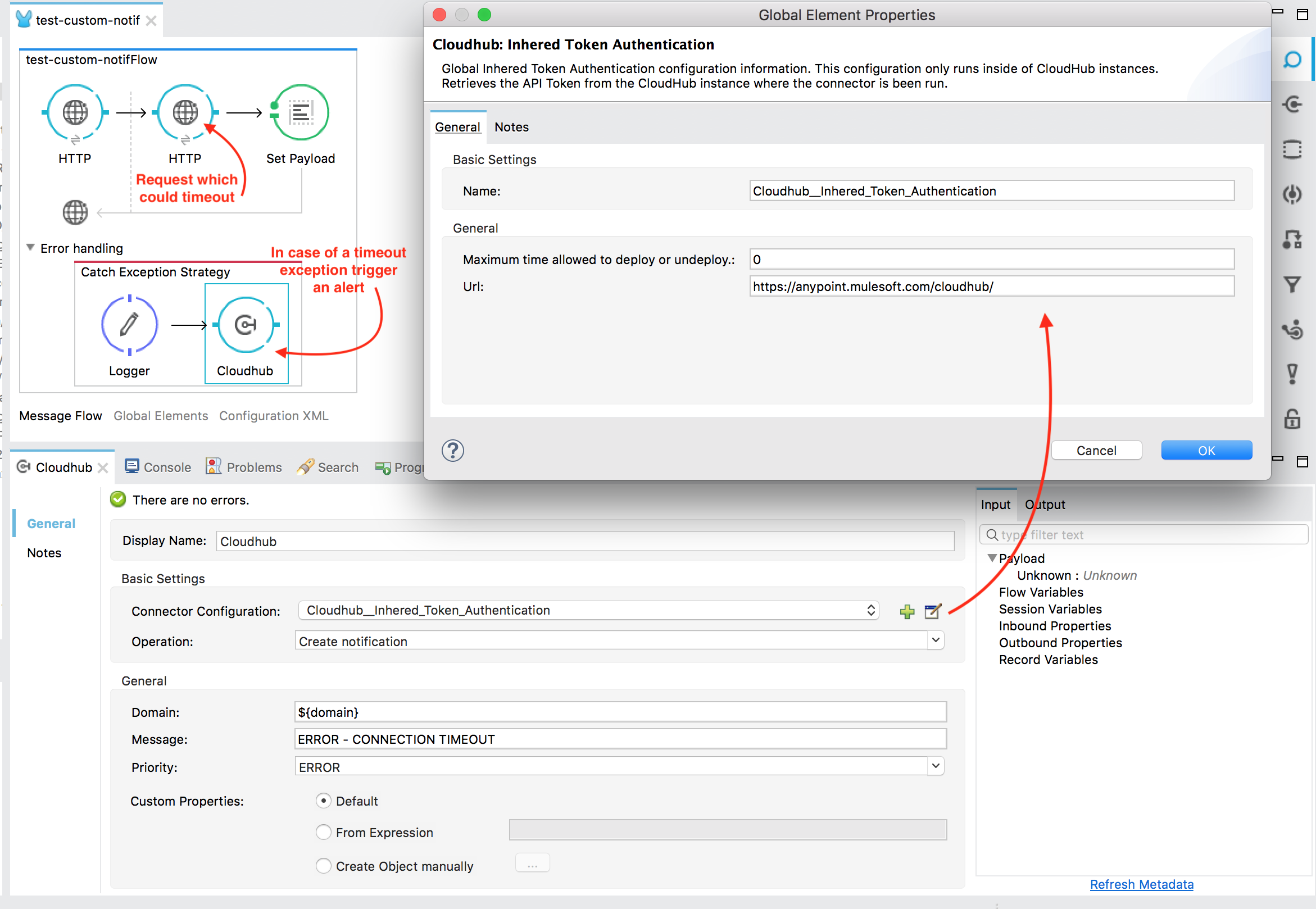
From the Mule Palette drag the CloudHub Connector inside the flow for which you want to trigger an alert. In this case, we are going to put it inside our Catch Exception Strategy, so an alert is raised when an exception occurs within this flow. More info can be found in the documentation.
Complete the connector configuration like this:
Connector Configuration: Reference the global config created in step 1
Operation: Create notification
Domain: ${domain} (dynamic value to retrieve the domain)
Message: The message you want to display in the alert
Priority: Error / Info / Warn
Our app will look something like this:
3) Bind the custom notification to an alert
Inside Anypoint Runtime Manager go to the Alerts tab and create a new one.
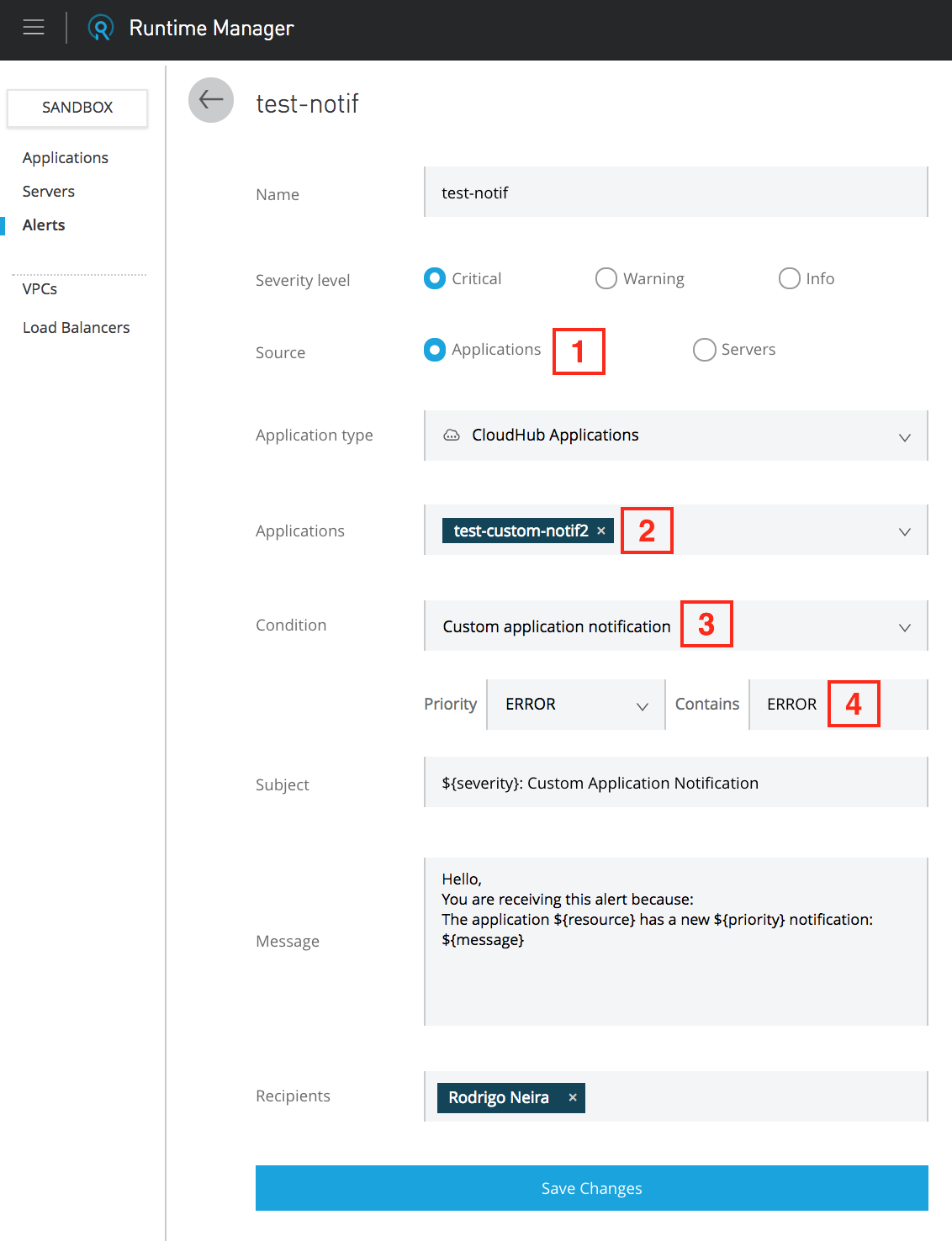
Take into account these points:
1- Select applications, as this alerts will be triggered for a specific flow in one of our apps.
2- Select the deployed app that contains the flow that will trigger a custom notification alert.
3- Ensure to select Custom application notification.
4- The string here should match a part of the message set in the CloudHub Connector.
Once all the above steps have been completed, we test our app. We can see that when the timeout occurs an Alert is raised:

Take into account that there are Rate Limits applied into Alerts.
Knowledge 기사 번호
001114549
이 기사를 통해 문제를 해결했습니까?
개선을 위한 의견을 보내주세요.
