Välj en organisation
How to invite a user to your Organization using Access Management API
Publiceringsdatum: Jul 25, 2025
Uppgift
GOAL
This article describes a step-by-step guide to invite a user to join an organization using the Access Management API.Note this is not applicable for SSO users. This creates an Anypoint User.
Steg
As specified in the documentation of the request, we need the following information to send the invitations:
- Authorization Bearer token <TOKEN>
- Organization ID <ORG_ID>
- Destination mail <MAIL>
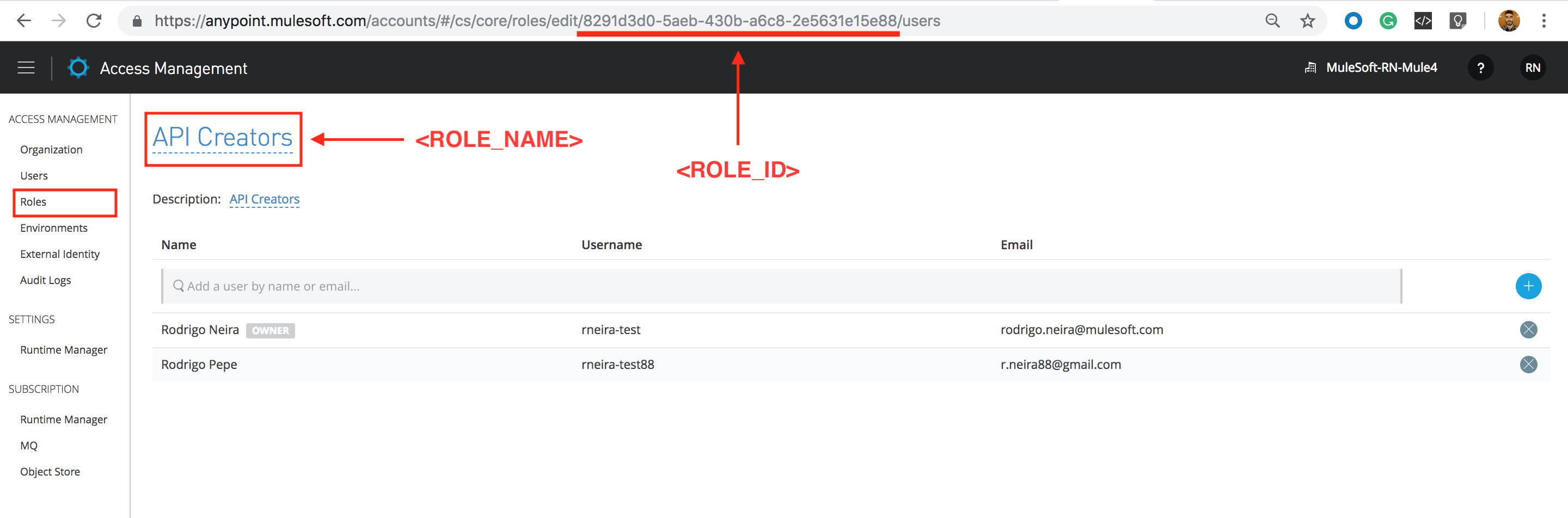
- Id <ROLE_ID> and name <ROLE_NAME> of the Role(s) to be assigned to the user we are inviting
1. Gathering all the information
- Follow these steps to retrieve your bearer token.
- Follow these steps to get the Organization ID.
- Here you will need the mail for whom you want to send the invite.
- In Access Management, go to roles and click to enter the details screen of the desired Role, from that screen you can retrieve the required information:
2. Filling the request
METHOD: POST
URL: https://anypoint.mulesoft.com/accounts/api/organizations/<ORG_ID>/invites
HEADER: Authorization: Bearer <TOKEN>
BODY:
[
{
"email": "<MAIL>",
"role_groups": [
{
"role_group_id": "<ROLE_ID>",
"name": "<ROLE_NAME>"
}
]
}
]
3. Full request / response example
REQUEST:curl --request POST \ --url https://anypoint.mulesoft.com/accounts/api/organizations/09907221-ebea-4196-9bdc-b1bbfd8f95a3/invites \ --header 'Accept: application/json' \ --header 'Authorization: Bearer <TOKEN>' \ --header 'Content-Type: application/json' \ --header 'Postman-Token: 58c396ee-e540-4e5c-b116-7d110023c15f' \ --header 'cache-control: no-cache' \ --data '[{"email": "rodrigo.neira@mulesoft.com", "role_groups": [{"role_group_id": "8291d3d0-5aeb-430b-a6c8-2e5631e15e88", "name": "API Creators"}]}]'
RESPONSE:
CODE: 200
BODY: []
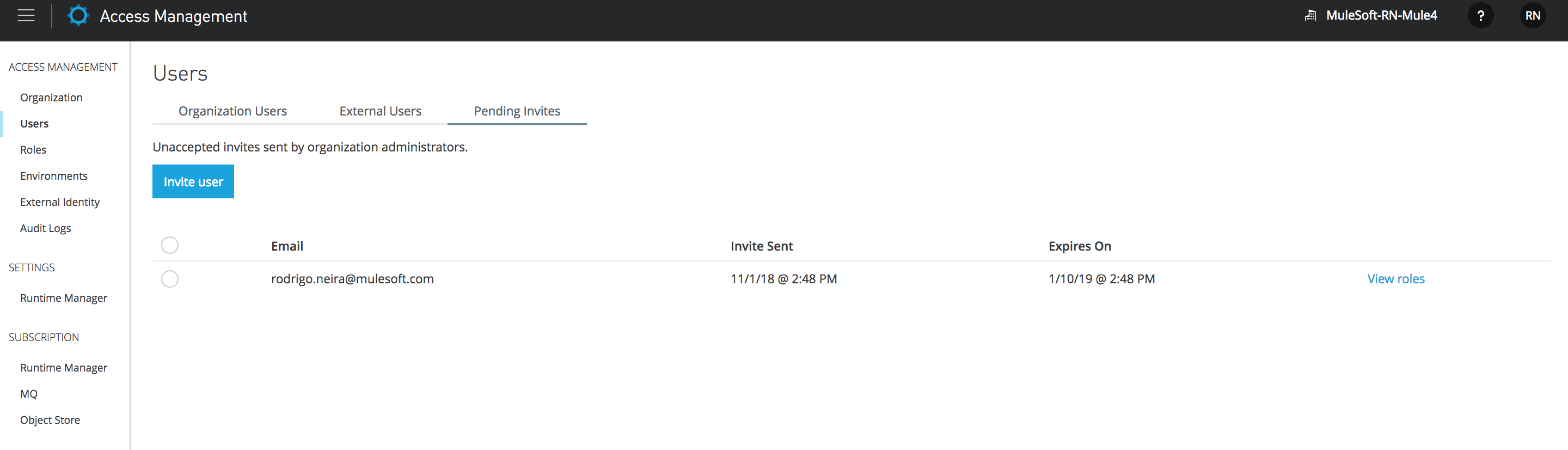
Once you receive the 200 reply this is done and you can go ahead and check the status in the invites tab inside Access Management / Users tab:
Knowledge-artikelnummer
001114559
Löste denna artikel ditt problem?
Berätta för oss vad vi kan förbättra!
