Select An Org
How to create SOAP proxy using API Manager?
Publish Date: Mar 2, 2024
Task
GOAL
The goal of this article is to explain the step by step procedure to create SOAP Proxy using API Manager.Prerequisites
The WSDL file which is used to create SOAP Proxy should meet the following prerequisites.
1. WSDL should have "Service Name", "Port Name", "Port Binding" and "Soap Address Location" defined like below.
<wsdl:service name="TshirtServicePortTypeService">
<wsdl:port binding="tns:TshirtServicePortTypeServiceSoapBinding" name="TshirtServicePortTypePort">
<soap:address location="http://tshirt-service.cloudhub.io/"/>
</wsdl:port>
</wsdl:service>
2. At the time of this Knowledge Article creation, due to a known limitation, the WSDL should contain the correct EndpointURL of the Web Service and this EndpointURL cannot be overridden while creating the proxy. From the above example the Web Service should be accessible using "http://tshirt-service.cloudhub.io/"
Steps
Upload WSDL to Exchange
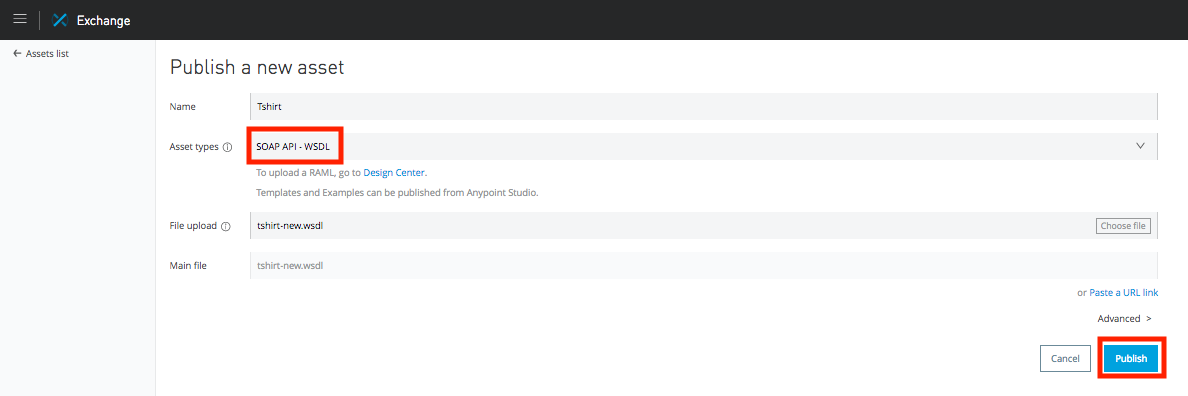
1. Login to Anypoint Exchange and upload the WSDL file as new asset by clicking "New Asset" button.
2. Add appropriate asset name, select "SOAP API - WSDL" as asset type, choose the WSDL file and click Publish.
Deploy SOAP Proxy using API Manager
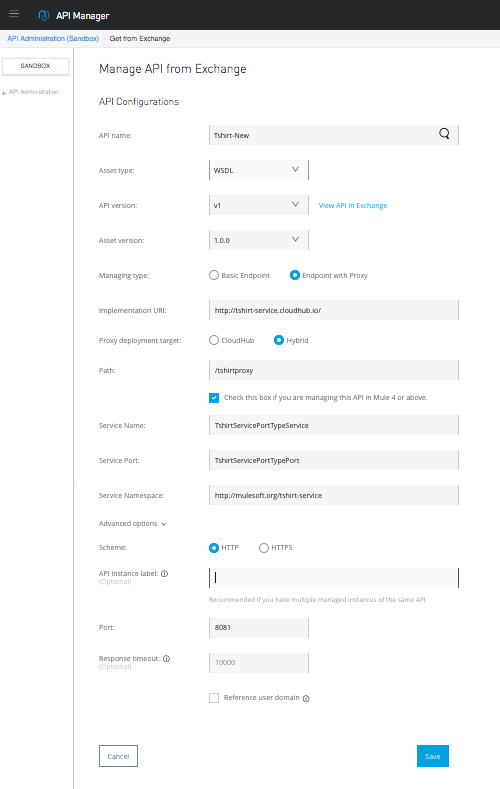
1. Login to Anypoint API Manager and click "Manage API" -> "Manage API from Exchange"
2. Search for WSDL asset you have uploaded in exchange and then select correct "Asset type", "API Version" and "Asset Version".
3. Select "Managing Type" as "Endpoint with Proxy".
4. Optionally put Implementation URI of your SOAP Web Service. Otherwise. the Implementation URI will be taken from the WSDL.
5. Select appropriate Proxy deployment target. Give "Path" to access the proxy service.
6. If you are planning host the proxy in Mule 4, then please check the box where it says "Check this box if you are managing this API in Mule 4 or above."
7. Update "Service Name", "Service Port" and "Service Namespace". Ex: For WSDL "http://tshirt-service.cloudhub.io/?wsdl", "Service Name" = "TshirtServicePortTypeService", "Service Port" = "TshirtServicePortTypePort" and "Service Namespace" = "http://mulesoft.org/tshirt-service"
8. In the "Advanced Options" update "API instance label" , "Port" for the proxy service and the "Response timeout".
How to test Proxy?
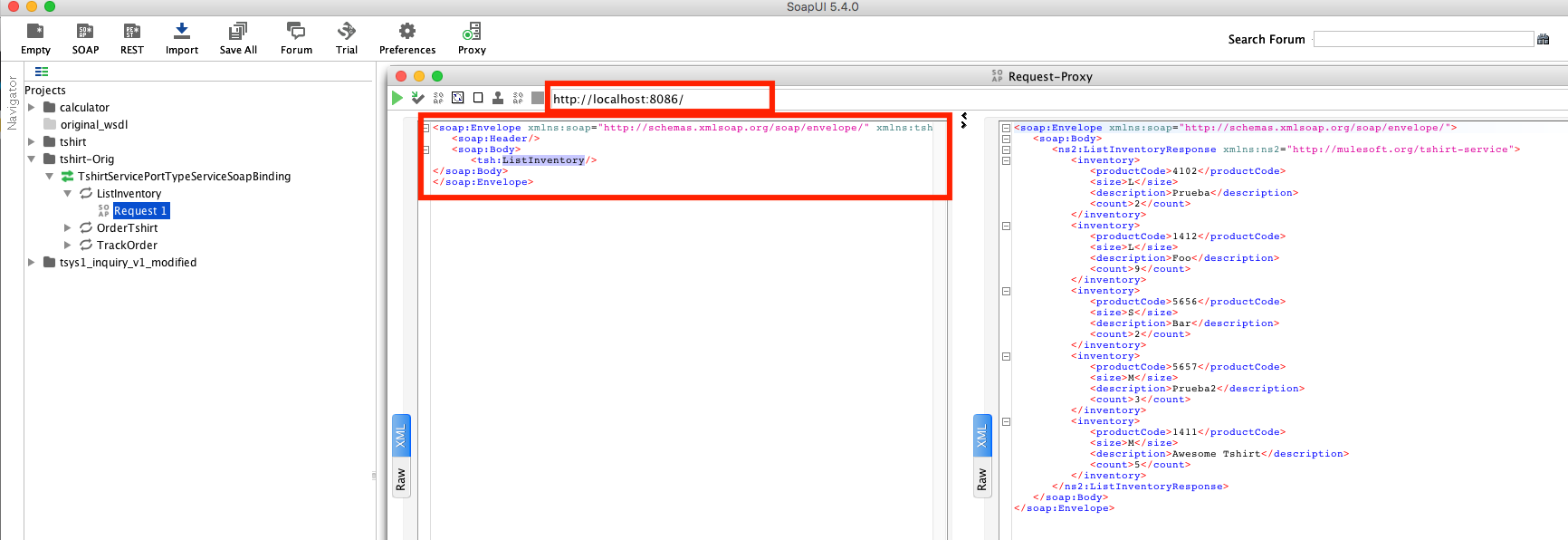
1. To test the proxy application you will use the WSDL file for your Original WebService and not WSDL for your proxy application. In this case create SOAPUI project using this WSDL http://tshirt-service.cloudhub.io/?wsdl
2. Create request for "ListInventory" operation. Update the endpoint to point to Proxy Service. In the below screenshot you can see that proxy is running in "http://localhost:8086/"
NOTE : During the proxy creation the EndpointURL of the WebService should be accessible from the server where proxy is getting deployed. Otherwise proxy will be created with blank soapAction. When tested, proxy service gives "The given SOAPAction does not match an operation" error.
Example WSDLs for SOAP Proxy Creation
http://tshirt-service.cloudhub.io/?wsdl
http://www.dneonline.com/calculator.asmx?wsdl
Knowledge Article Number
001114870
Did this article solve your issue?
Let us know so we can improve!
