Seleziona un'organizzazione
How to retrieve your company's certificate from Partner Manager
Data pubblicazione: Jul 22, 2025
Operazione
GOAL
As it is not implemented a feature to get the certificate uploaded to Partner Manager, this article explains how to obtain it.Fasi
These are the steps that to retrieve the certificate:
- Select "YOUR COMPANY" from the list of Trading partners
- Click Inspect > Network in Google Chrome or Inspect Element > Network in Firefox
- Click on the certificate link, check the network for the response that would be in below format
{
  "id": "00000000-0000-0000-0000-000000000000",
  "name": "<Name>",
  "certificateName": "<Cert_Name>",
  "certificateThumbprint": "<Thumb_Print>",
  "certificateExpiration": "<Expiration_Date>",
  "certificate": "<Certificate_Stored_Base64_Encoding>"
}
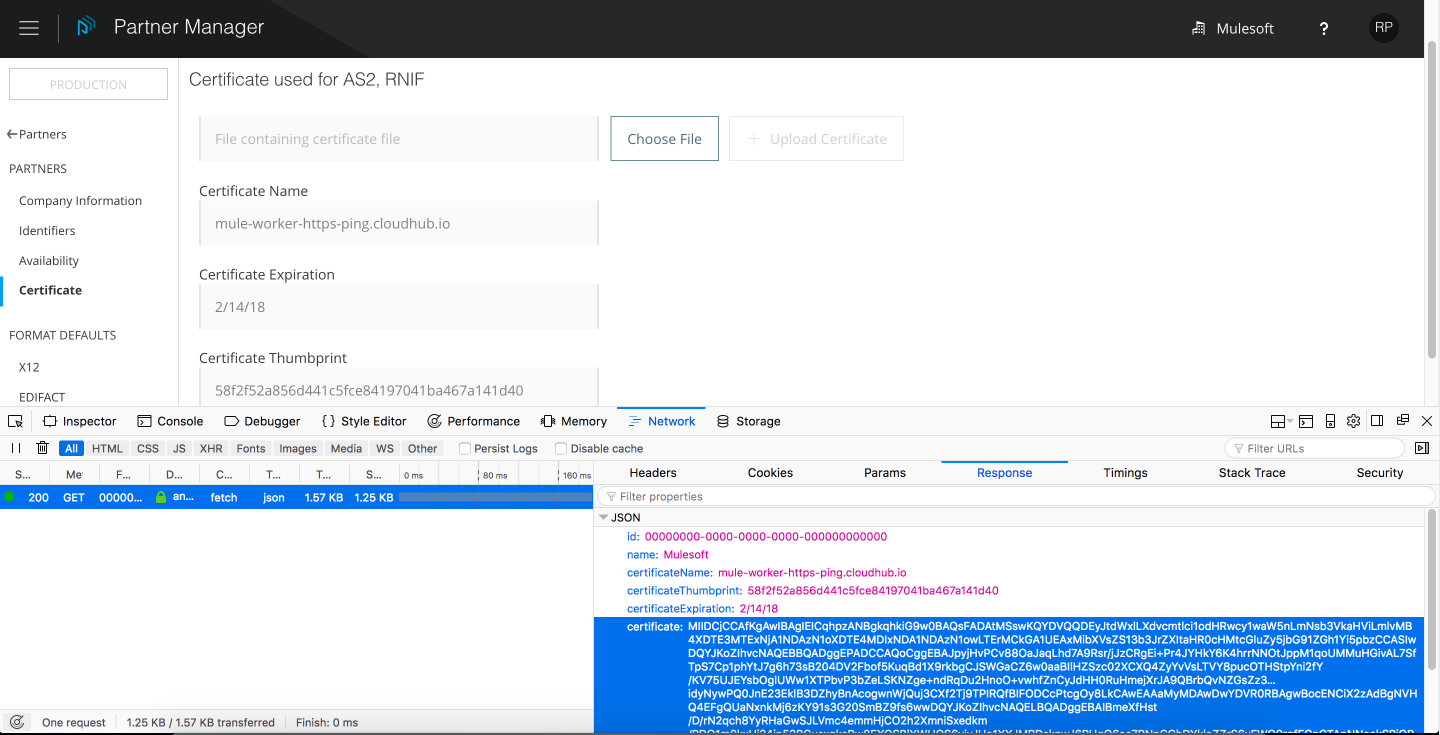
- Extract the content of "certificate" and save it in a file, e.g.,:-server.txt
- Convert the text contents of the file, for example executing the below command:
$ cat server.txt | base64 --decode > server.cer
If you don't have this feature installed then you can use other online tools to decode base64 encoded text
- Open server.cer that will have cert information.
Numero articolo Knowledge
001114903
Questo articolo ha risolto il problema?
Facci sapere, così possiamo migliorare!
