Velg en organisasjon
Anypoint Platform Single Sign-On (SSO) using OpenID Connect (OIDC) Troubleshooting Guide
Publiseringsdato: Mar 31, 2025
Oppgave
GOAL
Configuring OpenID Connect in Anypoint Platform External Identity to enable SSO is well documented in Configure OpenID Connect Identity Management. However, there are times authentication fails with "Unauthorized" error. This article gives some guidelines on troubleshooting this issue.Trinn
Make sure that redirect URL is configured on the IDP side after SSO is setup on Anypoint.
eg. https://<Base URL>/accounts/login/<Domain>/providers/<ProviderID>/redirect
Step 1, get OpenID Connect metadata document
OpenID Connect metadata document has the information of the URLs we need to configure OpenID Connect in the Anypoint Platform.
- For Microsoft Azure, please check here
- For PingFederate, please check here
- For Okta, please check here
- For OpenAM, please check here
Step 2, make sure all URLs are correct
Please make sure the following URLs:
- Base
- Client Registration (if dynamic registration is used)
- Authorize
- Token
- User Info
match the URLs from the metadata received from Step 1.
IMPORTANT:
When an authorization code is used to obtain an access token during user login, it cannot be reused in step 4 below to request another access token. Attempting to do so will result in the error: "OAuth2 Authorization code was already redeemed."
To prevent the authorization code from being redeemed during troubleshooting, you can temporarily modify the Token URL to an invalid one. However, ensure you evaluate the impact of this change on other users before proceeding.
Step 3, capture the Authorization code
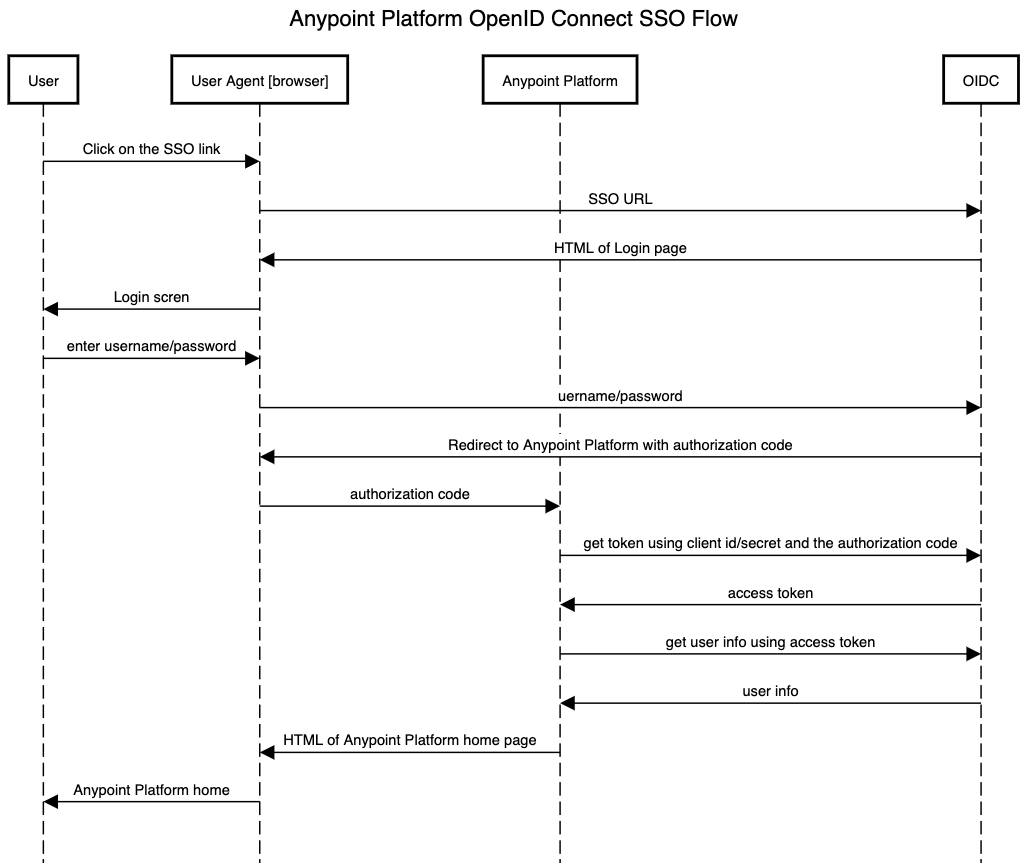
OpenID Connect based SSO is based on OAuth. After a user is authenticated, an authorization code is returned from IdP as a redirect to the Anypoint Platform. Please see the sequence diagram below:
To troubleshoot the "Unauthorized" issue, we need to capture the authorization code redirected to the Anypoint Platform. Please reference "How to retrieve HTTP archive files (HAR)" to capture the HAR file or the redirect call.
Open the HAR file and look for the OpenID Connect 302 redirect response:
"response": {
"status": 302,
"statusText": "Found",
extract the code from the location value. For example the following:
{
"name": "Location",
"value": "https://anypoint.mulesoft.com/accounts/login/your_domain/redirect?code=xxxx&session_state=xxxx"
},
The code is the query parameter in the redirect URL.
Step 4, use the code to try to get a token, together with the configured client id/secret
Anypoint Platform will use the received code to get an OAuth token. Please try simulating the call using curl or Postman to see if it works, like:
curl -v --user '<client_id>:<client_secret>' <token_URL> -X POST -F 'grant_type=authorization_code' -F 'redirect_uri=https://anypoint.mulesoft.com/accounts/login/<your_domain>/redirect' -F 'code=<authorization_code>'
For EU control plane, please execute the command below.
curl -v --user '<client_id>:<client_secret>' <token_URL> -X POST -F 'grant_type=authorization_code' -F 'redirect_uri=https://eu1.anypoint.mulesoft.com/accounts/login/<your_domain>/redirect' -F 'code=<authorization_code>'
Please replace:
- <client_id> and <client_secret> with the client id/secret configured in Anypoint Platform OIDC configuration page
- <token_URL> with the token URL from step 1 & 2
- <your_domain> with the domain for your Organization. Please see the documentation about the Anypoint Platform domain here
- <authorization_code> with the code from Step 3
if working, you will get the token like:
{"token_type":"Bearer","expires_in":"3599","ext_expires_in":"0","expires_on":"1527224212","not_before":"1527220312","resource":"xxxx","access_token":"YOUR_TOKEN"}
Be note that the token required is "access_token". It's been noticed that when setting up IDP with Azure B2C, Azure IDP returns "id_token" only without returning "access_token". The "access_token" is required to fetch "/userinfo" outlined in step5. To retrieve the "access_token" via Azure B2C, please configure the scopes properly as per the link (i.e., https://<your-tenant-name>.onmicrosoft.com/api/openid email profile)
If there's an error, please check with your IdP on the error.
Note, the client id/secret can be passed in as a basic authentication header or in the POST body. Anypoint Platform will check what's described in the metadata configuration (section "token_endpoint_auth_methods_supported") and pick a supported authentication method.
Step 5, get user info, use the token
Anypoint Platform will get the user info by making a call to the configured userinfo URL with the token received from Step 4.
Please try simulating the call using curl or Postman to see if it works, like:
curl -v -H 'Authorization: Bearer <Token>' <user_info_URL>
Please replace:
- <Token> with the token received from Step 4
- <user_info_URL> with the userinfo URL from step 1 & 2
If you are able to retrieve the userinfo via curl command above but still getting an issue with retrieving the userinfo, please ensure to have the user profile updated properly as per the document. Typically, the OpenID Connect userinfo endpoint provides a preferred_username claim that contains the authenticated user’s username.
If there's an error, please check with your IdP about the error.
Step 6, role Mapping
-
Check role mapping is done correctly.
For the role element, check if idp is sending role as below

"role": ["role1", "role2", "role3"]

and not as

"role":"[role1, role2, role3]"
Step 7, contact Support
If all above are checked while "Unauthorized" is still seen, please open a Support case with all artifacts from the above steps:
- OpenID Connect metadata document
- Captured HAR file
- Detailed request/response from curl or Postman calls to token and userinfo URL
With the above information, support will be able to complete further investigations into the possible reasons for the authentication failure.
Error Troubleshooting
if you run into the below errors please review this document and also your Ping configuration Configuring Anypoint Platform as a “Ping Identity” Service Provider (SP) using OIDC
1) 502 Bad Gateway The request could not be processed at this time
Knowledge-artikkelnummer
001114931
Hjalp denne artikkelen med å løse problemet ditt?
La oss få vite det slik at vi kan forbedre!
