組織を選択
Configuring Anypoint Platform as an Okta SAML Service Provider (SP)
公開日: Jul 18, 2025
タスク
GOAL
To offer general guidelines on how to configure the Anypoint Platform as a Service Provider for Okta using SAML.ステップ
Okta configuration:
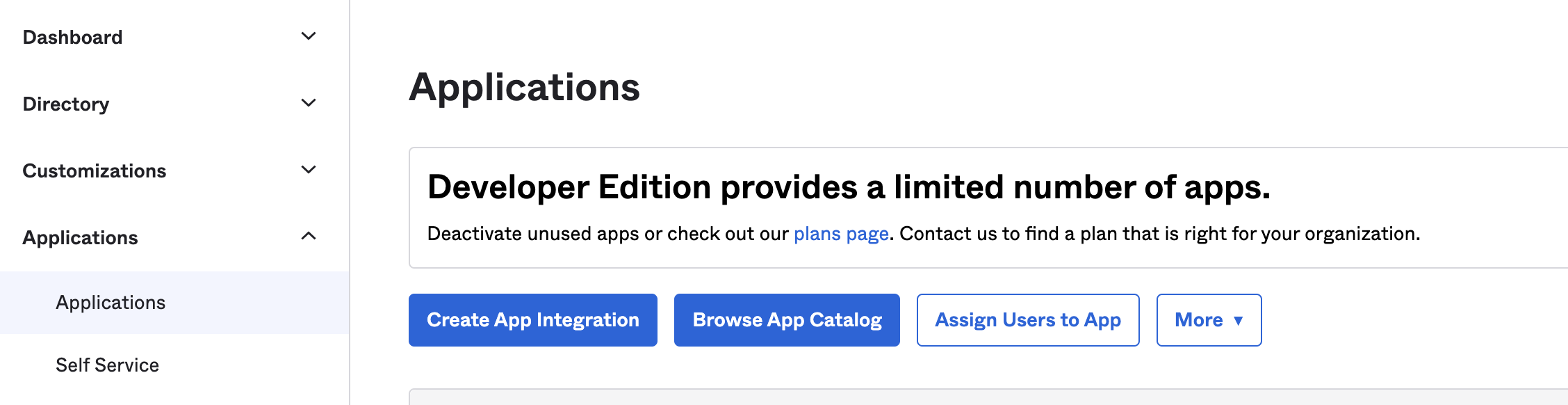
Step 1: Head over to Okta UI -> Applications -> Create App Integration.
(PS: please don't start with a default okta application please create a new one)
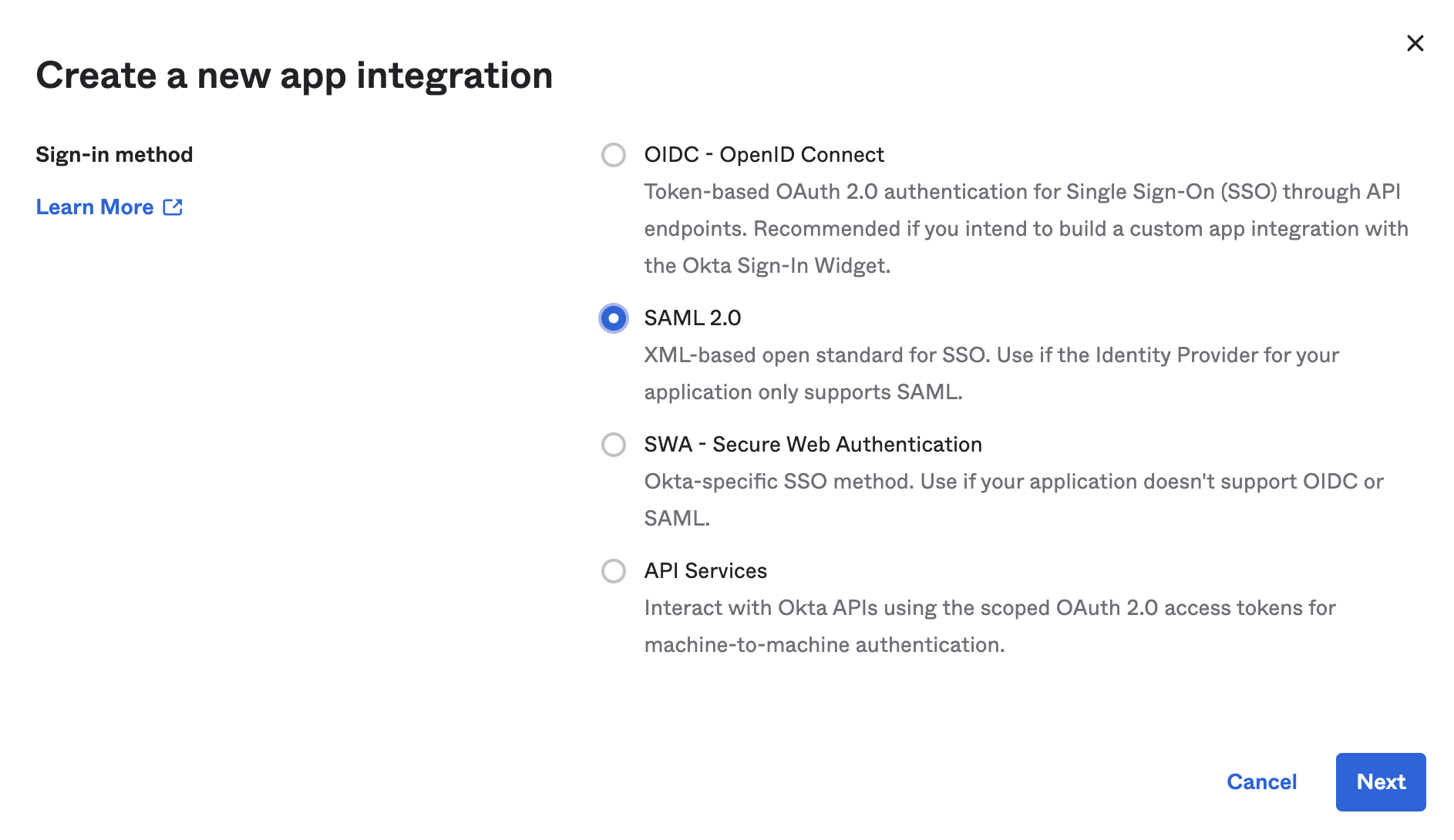
Step 2: Select SAML 2.0 for the New Application Integration
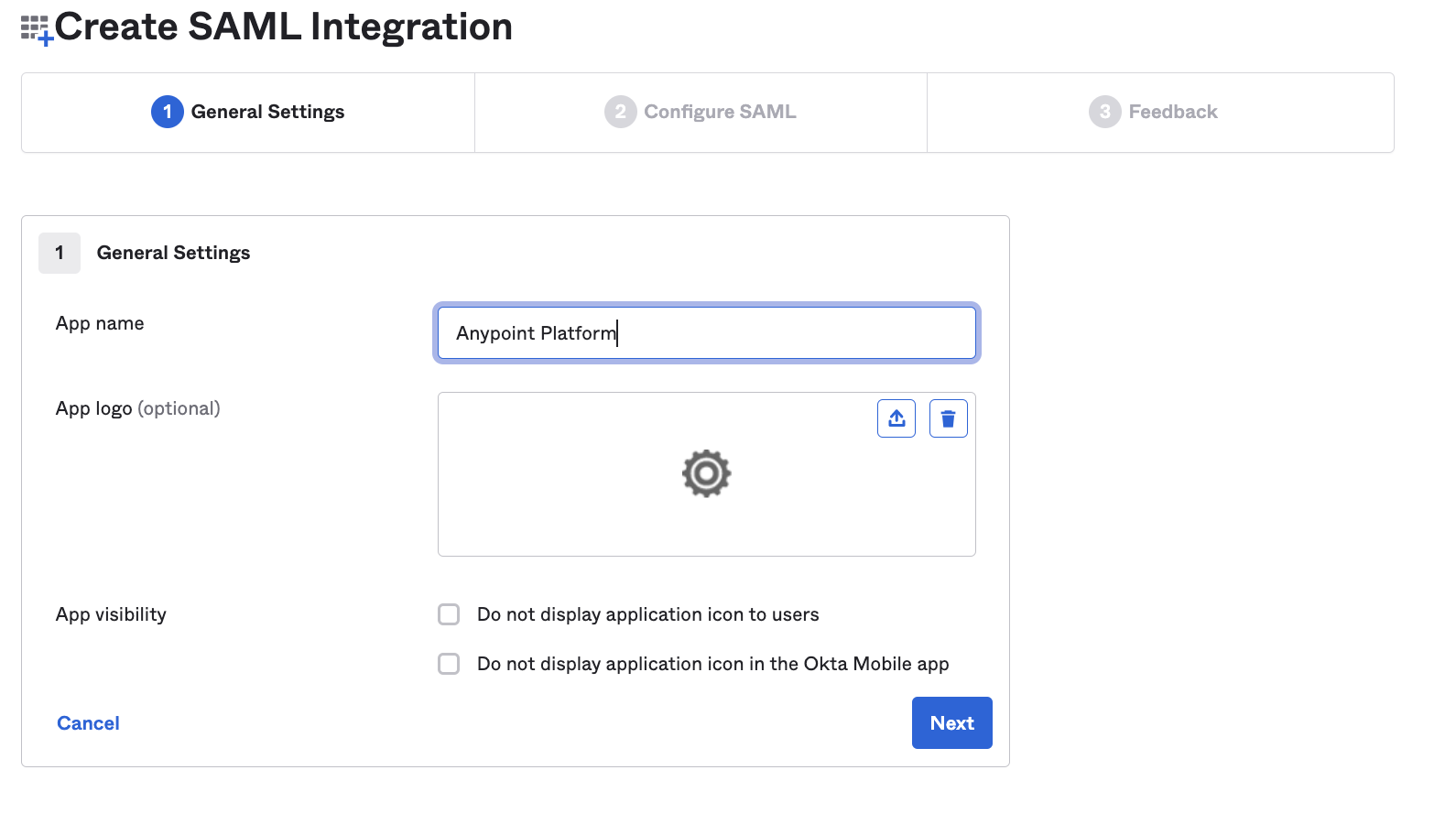
Step 3: Under General Settings, provide the name and a logo (optional)
Step 4: Under Configure SAML enter the following settings:
Single sign on URL: https://anypoint.mulesoft.com/accounts/login/:org-domain/providers/:providerId/receive-id
Note: Please update the :org-domain and :providerId as per the below URL:
https://docs.mulesoft.com/access-management/conf-saml-sso#prerequisites
Or
Once finished configured IDP, you will get the ACS URL in Anypoint Platform -> Access Management -> Identity Provider -> <Your SAML IDP Name> and can update the same in your Single Sign On URL (Please refer to the screenshot attached in Step 8).
Audience URI (SP Entity ID): {organisation-Id}.anypoint.mulesoft.com
Name ID format: Unspecified
Application username: Okta username
Step 5: For Attribute Statements enter the following information:
Attribute name: firstname
Attribute format: Unspecified
Attribute value: user.firstName
Attribute name: lastname
Attribute format: Unspecified
Attribute value: user.lastName
Attribute name: email
Attribute format: Unspecified
Attribute value: user.email
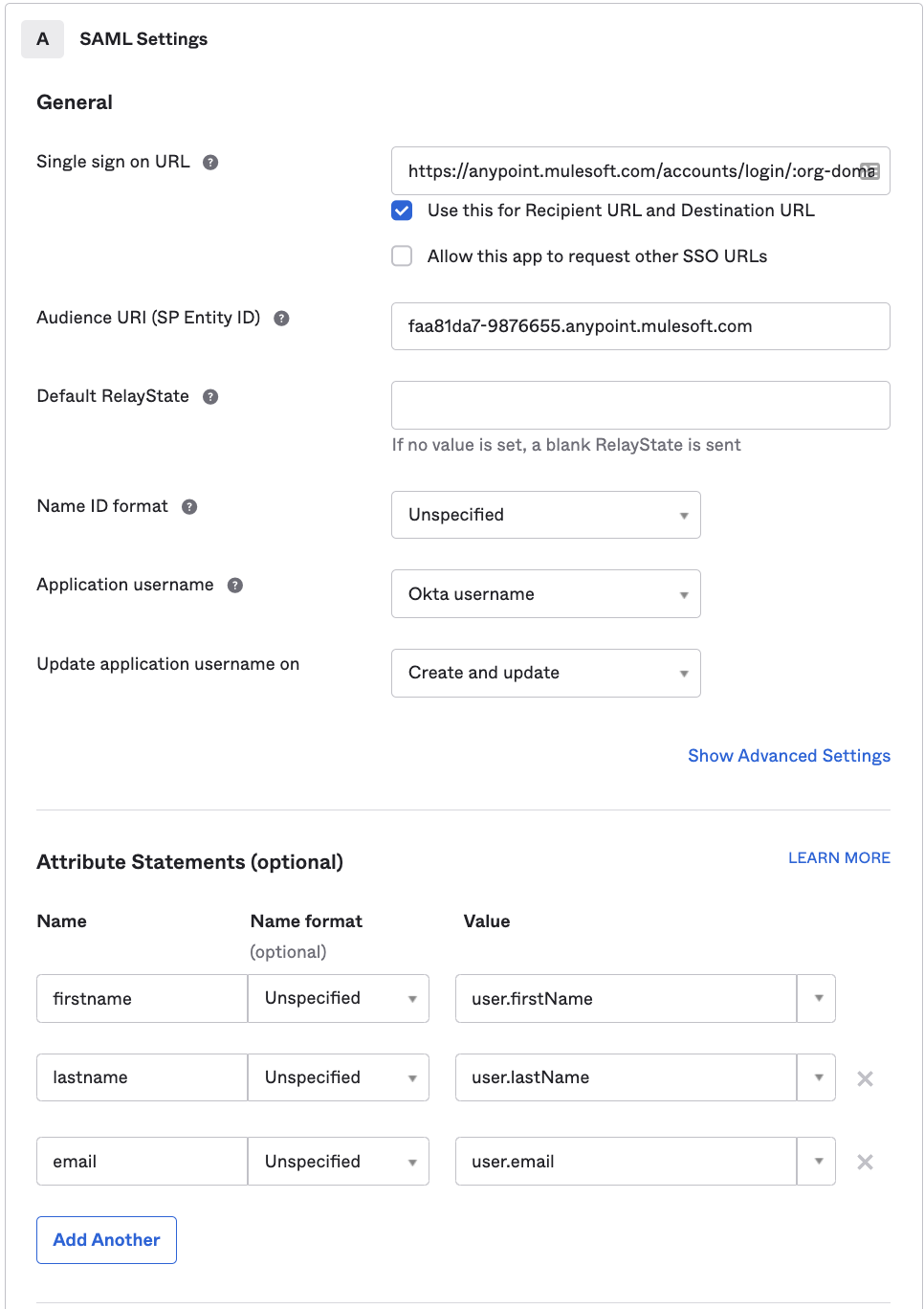
if using groups then make sure groups attributes and mapping are correctly configured
https://docs.mulesoft.com/access-management/map-users-roles-teams
Step 6: Hit Next until you're returned to the main Application page.
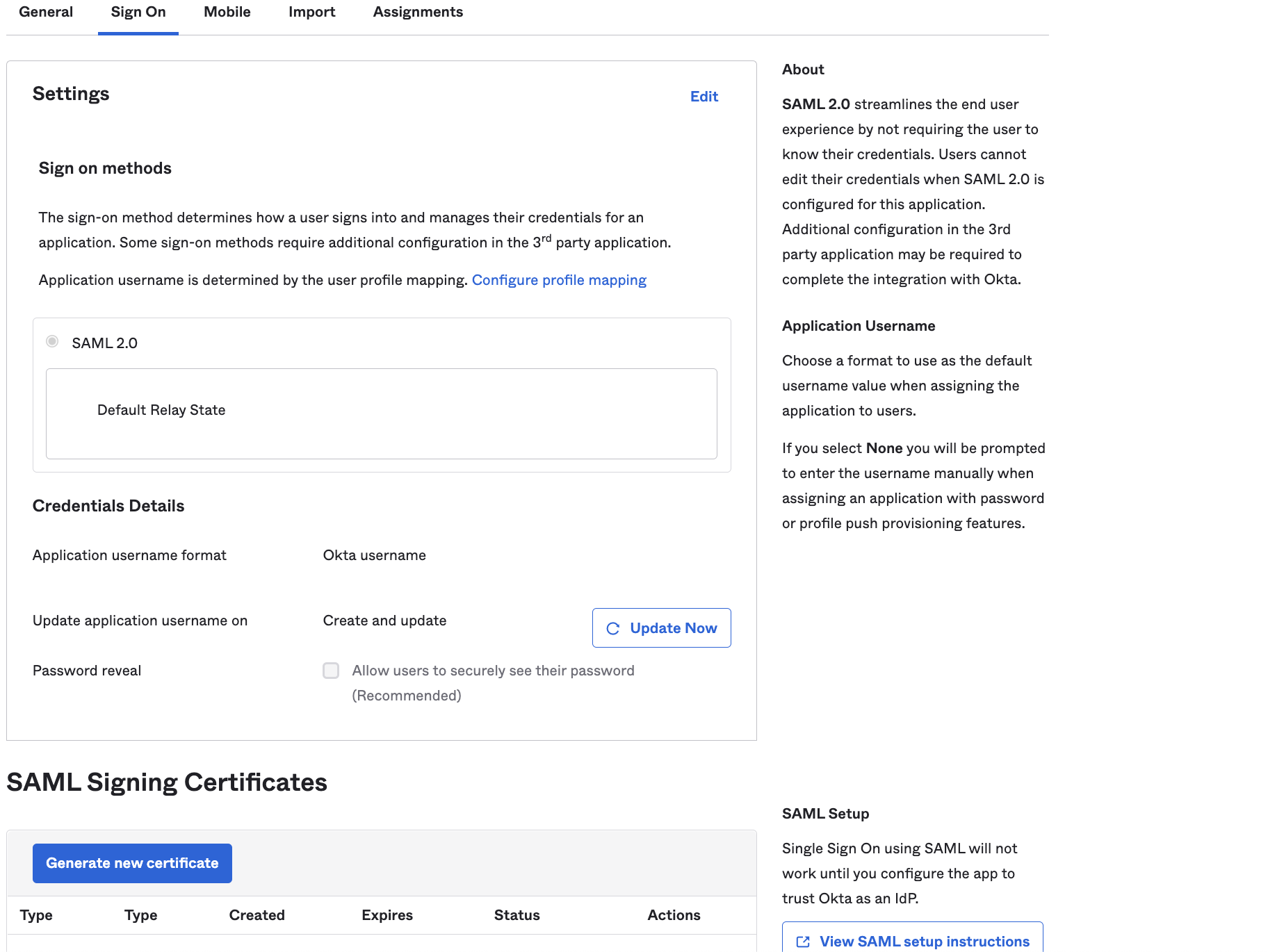
Step 7: Click on your Application Name -> Sign On, right-hand bottom you could find the View SAML Setup Instructions inside the Settings box.
Step 8: With this information, you will set up the Anypoint Platform.
Anypoint Platform configuration:
Documentation: https://docs.mulesoft.com/access-management/conf-saml-ssoComplete the required following fields on the Platform.
Sign On URL: This is the URL you'll be redirected to for IdP sign-on. For example: http://orgname.okta.com/app/{AppName}/{OrgID}/sso/saml
Sign Off URL: URL to send the Single Log-Out request to, so users both sign out of the Anypoint Platform and have their SAML user’s status set to signed out. For example:
http://orgname.okta.com/app/{AppName}/{AppID}/slo/saml
Issuer: Should match the issuer of the SAML assertion. For example: http://www.okta.com/{OrgID}
Public Key: Public key provided by the identity provider, used to sign the SAML assertion (x.509 Certificate).
Audience: The exact same arbitrary string value defined in Step 8. The typical value for this string is <organization>.anypoint.mulesoft.com.
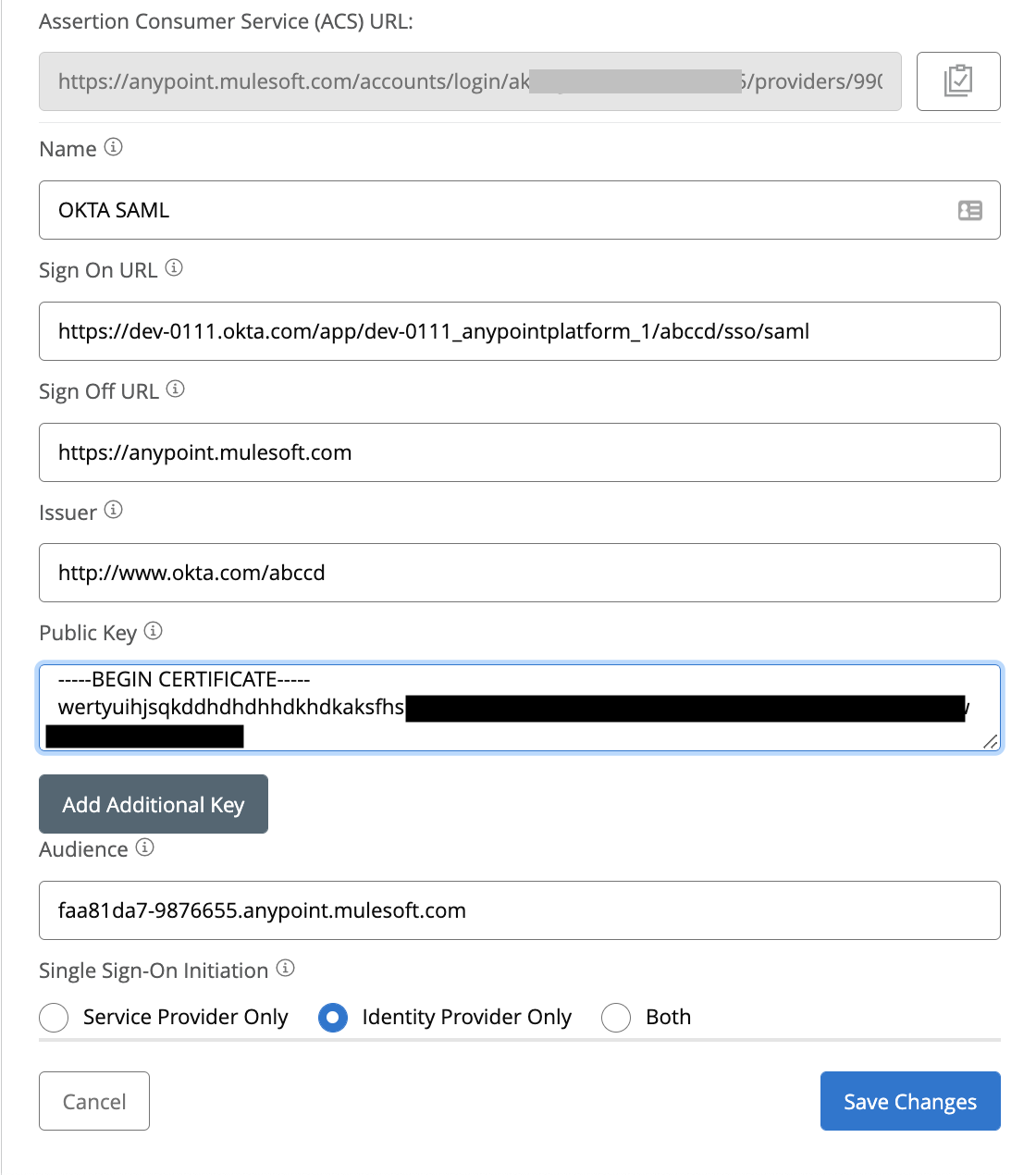
Note: After Saving the above Changes, please copy the ACS URL as shown above and update the Single Sign On URL (mentioned in Step 4) in OKTA-> Your Application-> General -> SAML Setings ->Edit -> Update Single Sign on URL .
Step 9: Assign the user to your application in Okta
Click on Assignment tab> click assign> select user
Then test if SSO is working
1) Go to the "My Apps" button on the top right and click your application. It should log you in
2) Test if you can login via domain url https://docs.mulesoft.com/access-management/test-external-identity-task
NOTES
If you wish to take advantage of using groups. MuleSoft supports sending user group information through the SAML assertion to assign users to corresponding Roles in MuleSoft. To take advantage of this functionality, users that you add to your MuleSoft application must belong to a group. Check this Okta link for further details.
ナレッジ記事番号
001114970
この記事で問題は解決されましたか?
ご意見をお待ちしております。
