Valitse organisaatio
Configuring Anypoint Platform as a Microsoft Entra ID (FKA Azure AD) Service Provider (SP) SAML based
Julkaisupäivä: Feb 24, 2026
Tehtävä
To offer general guidelines on how to configure the Anypoint Platform as a Service Provider (Relying Party Trust) for Microsoft Entra ID (formerly known as Azure AD).
Vaiheet
Important: This Knowledge Article only aims to provide basic guidelines for configuring the Anypoint Platform as a Service Provider in Microsoft Entra ID (formerly known as Azure AD). The contents of the article are to be used at your own risk and are provided as-is. For further information on configuring Microsoft Entra ID, please reach out to Microsoft Support.
Before starting: Bear in mind that the Relying Party Trust will need to be created manually as we do not provide a metadata file (nor is its use supported).
Microsoft Entra ID (formerly known as Azure AD) Configuration
Step 1: Open the Microsoft Entra admin center (entra.microsoft.com) and navigate to Microsoft Entra ID (formerly known as Azure Active Directory).
Step 2: Navigate to Applications > Enterprise applications. Click on All Applications and select + New Application.
Step 3: From the add application screen, select "Create your own application", then choose "Integrate any other application you don't find in the gallery (Non-gallery)" and give it an identifying name.
Step 4: Click on your newly created Enterprise application and head over to Single Sign On.
Step 5: Complete the following settings.
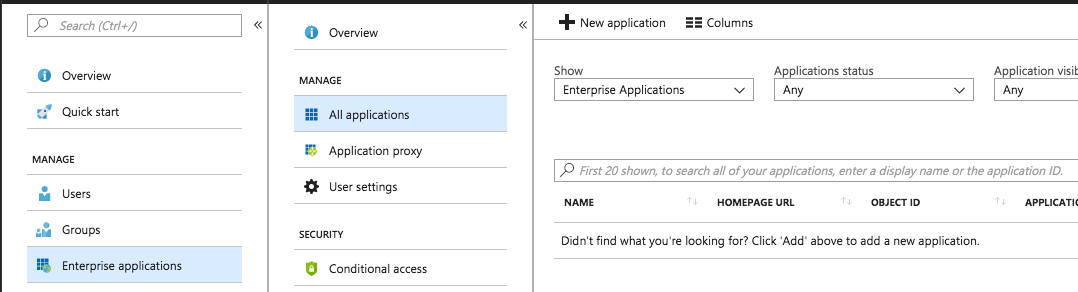
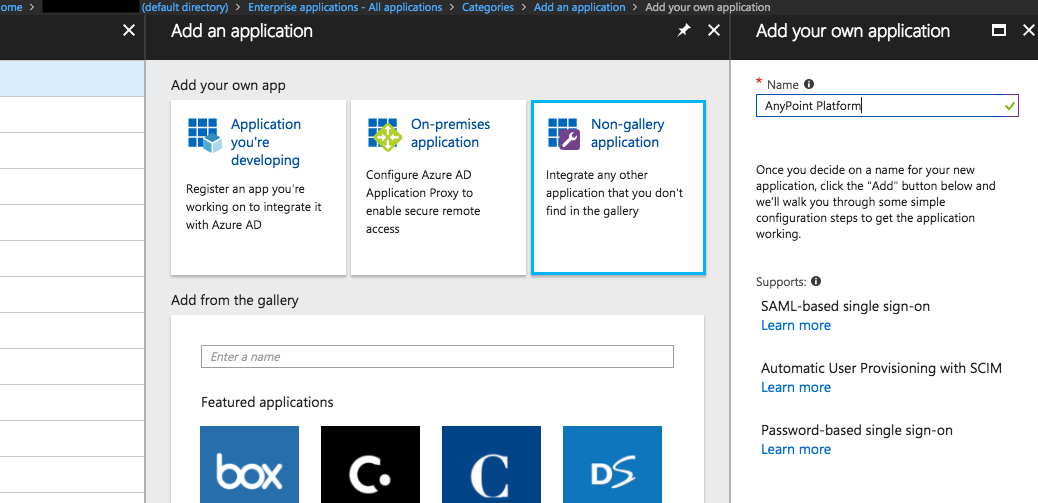
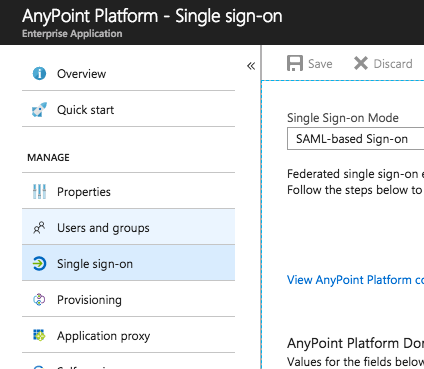
- Single Sign-on Mode: SAML-based Sign-on
- Identifier (Entity ID in the case of Azure): This is an arbitrary string that uniquely identifies your Anypoint Organization. The recommendation is to define it as <org-domain-name>.anypoint.mulesoft.com. (<org-domain-name>.gov.anypoint.mulesoft.com)
- Reply URL(Assertion Consumer Service (ACS) URL:): https://anypoint.mulesoft.com/accounts/login/org-domain/providers/providerId/receive-id (this URL is obtained from the SAML Identity Provider settings in your Anypoint account).
Note: This value provided by MuleSoft after setup at their end. - User Attributes may be customized or be left default.
Step 6: In the SAML Signing Certificate section, click Edit, then click New Certificate to create a new signing certificate. Once created, set its status to Active.
Once the certificate becomes active, you need to download it in Base64 format.
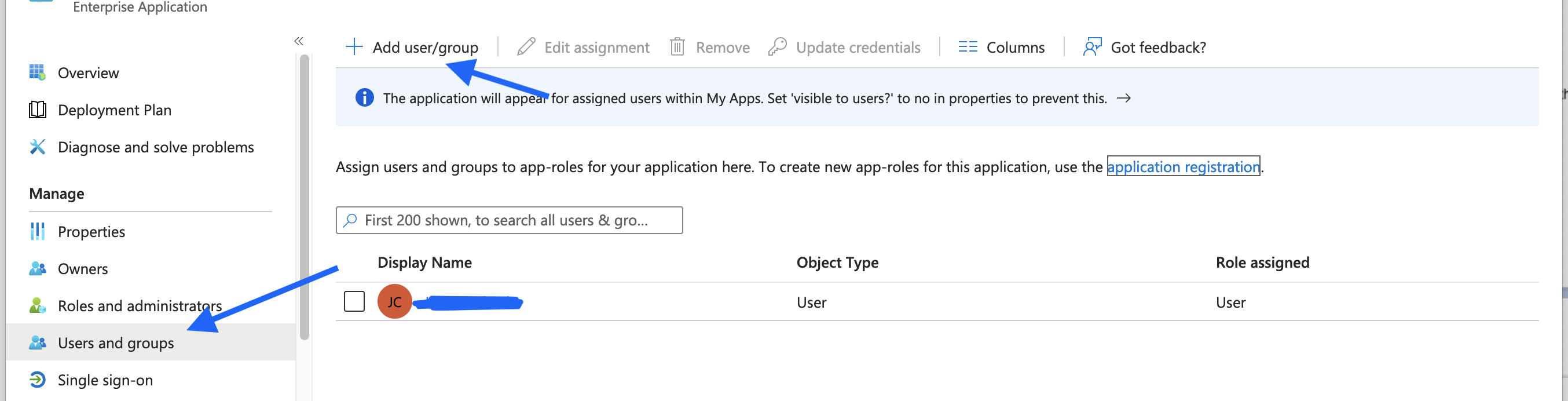
Step 7: Add users to your application.
Click on your newly created Enterprise application and head over to "Users and Group". Add a user
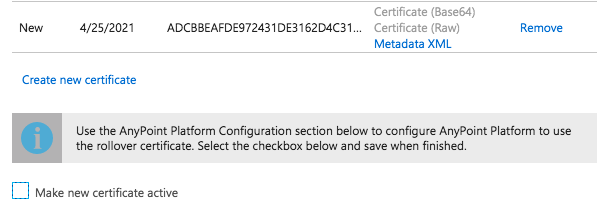
Step 8: Gathering the information to set up the Anypoint Platform.
When you download the metadata xml post setup that can be shared with MuleSoft Support. This has all the values required to do setup at their end. Or you can manually grab all the values as below.
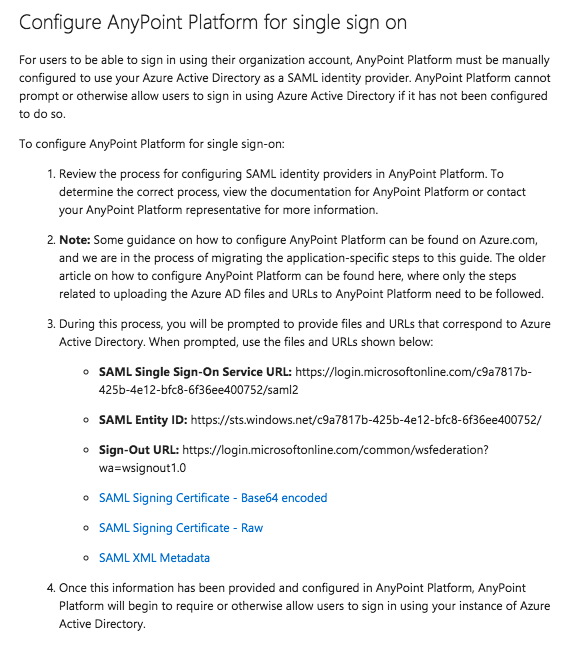
Expand the configuration instructions for Anypoint Platform on the Azure AD Portal. Out of these we'll take note of the SAML Entity ID and the Sign-Out URL.
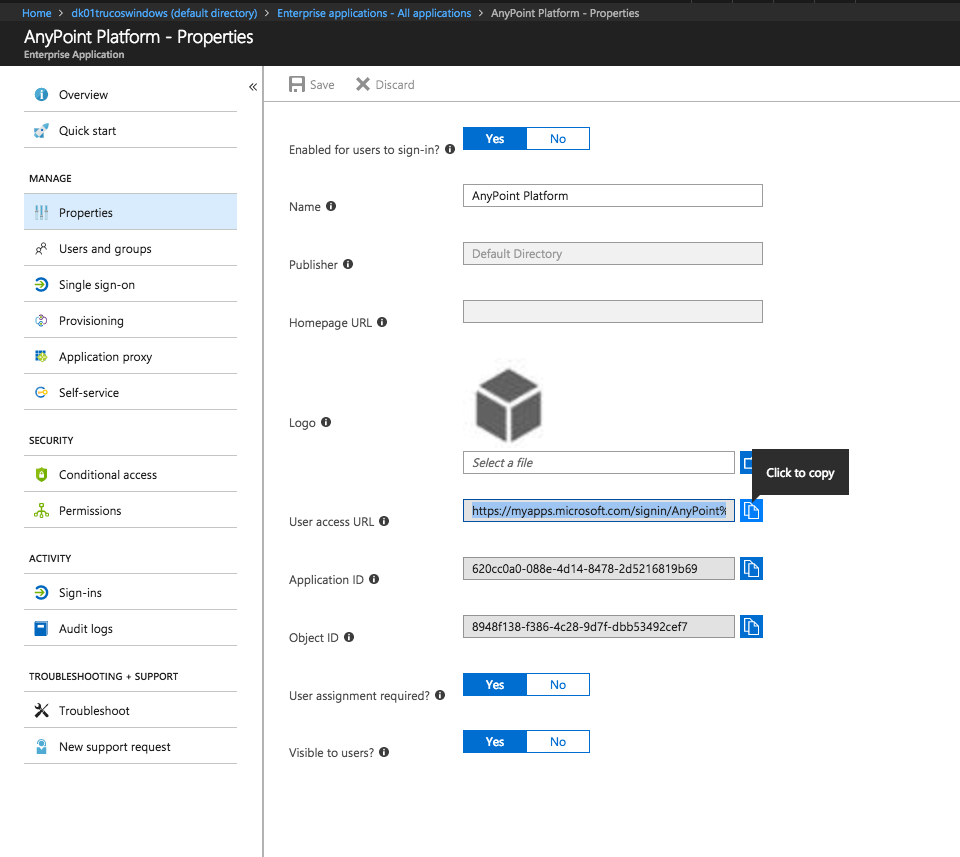
Go back to the Enterprise Application properties and take note of the User access URL:
Capture the payload of the SAML POST by attempting to authenticate from the User access URL to the Anypoint Platform.
Anypoint Platform configuration
Documentation: https://docs.mulesoft.com/access-management/conf-saml-sso
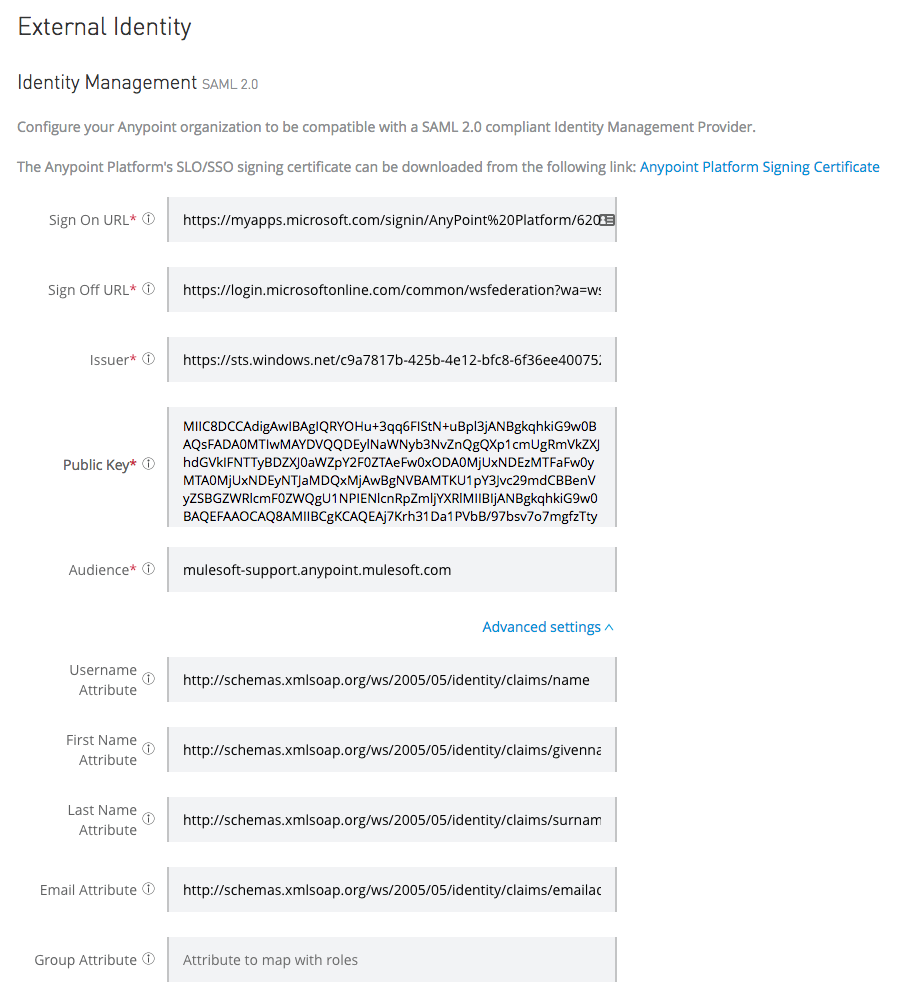
Complete the required following fields on the Platform. You can use the SAML XML you captured previously or Metadata provided by customers IDP:
- Sign On URL: This is the URL you'll be redirected to for IdP sign-on, the User access URL. For example:
https://myapps.microsoft.com/signin/[ApplicationName]/[ID]

(if this is the URL then IDP initiated should be set to true on Anypoint)
Note: please do NOT use URL like https://login.microsoftonline.com/c9a7817b-425b-4e12-bfc8-6f36ee400752/saml2 which is used when SP initiated SSO true.
- Sign Off URL: URL to send the Single Log-Out request to, so users both sign out of the Anypoint Platform and have their SAML user’s status set to signed out. For example:
https://login.microsoftonline.com/common/wsfederation?wa=wsignout1.0
- Issuer: The SAML Entity ID retrieved in Step 8. (IDP Metadata file has it as entityID, eg entityID="https://sts.windows.net/223232323-XXXX-eXXXXX">)
- Public Key: The public key created in Step 6, without the -----BEGIN CERTIFICATE----- and the -----END CERTIFICATE----- lines. Also, line breaks at the end of each line should be removed.
- Audience (entity ID in the case of Azure): The exact same arbitrary string value defined in Step 5 (Identifier). The typical value for this string is: <org-domain-name>.anypoint.mulesoft.com
- IMPORTANT: If you are using PCE, please select "Identity Provider Only" in the Single Sign-On Initiation options section.
Expand Advanced Settings, and fill out the following fields (check the XML SAML Assertion previously captured for the exact names of the mappings):
- Username Attribute: http://schemas.xmlsoap.org/ws/2005/05/identity/claims/name
- First Name Attribute: http://schemas.xmlsoap.org/ws/2005/05/identity/claims/givenname
- Last Name Attribute: http://schemas.xmlsoap.org/ws/2005/05/identity/claims/surname
- Email Attribute: http://schemas.xmlsoap.org/ws/2005/05/identity/claims/emailaddress
- Group Attribute: http://schemas.xmlsoap.org/ws/2005/05/identity/claims/groups
Save the changes and try to sign on from the Identity Provider, by navigating to > your new Enterprise application > Single Sign On > click the "Test this application"
or
Save the changes and try to sign on from the Identity Provider, by using the SSO URL as per the instructions in the documentation To Test External Identity.
When the setup is complete and users can login, you will need to configure the user permissions. You can assign permissions manually to the user after they login, or map Anypoint Platform Teams (recommended) or Roles (legacy option) to IdP groups via the "External IdP Groups" tab under the team or role. MuleSoft recommends using the Teams feature to manage user permissions. See below links for more details:

How to map Azure AD groups to Anypoint Platform Teams while performing SSO
Lisäresurssit
Other troubleshooting reference
Anypoint Platform Single Sign-On (SSO) using SAML Troubleshooting Guide
External identity migration - How to prevent duplicate users being created
Knowledge-artikkelin numero
001114976
Ratkaisiko tämä artikkeli ongelmasi?
Anna palautetta, jotta voimme kehittyä!
