Vælg en organisation
How to enable SSL debug logging in MuleSoft Products
Udgivelsesdato: Apr 14, 2026
Opgave
GOAL
To enable SSL debug logging in MuleSoft Products to investigate an issue related to TLS communications.Trin
Enabling SSL debug logging is useful in diagnosing HTTPS or TLS related connectivity issues. For Java based products like Mule Runtime, it is activated by setting the property 'javax.net.debug' to a specific level of detail.
Options
Option 1 (more common): Enable logging of SSL handshaking details (The handshake protocol is a series of messages exchanged over the record protocol)
javax.net.debug=ssl:handshake
Option 2 (less common): Enable dumping of all network traffic data
NOTE: This is VERY verbose and not necessary under normal circumstances.
javax.net.debug=all
A full list of options is as below:
all            turn on all debugging
ssl            turn on ssl debugging

The following can be used with ssl:

    record       enable per-record tracing
    handshake    print each handshake message
    keygen       print key generation data
    session      print session activity
    defaultctx   print default SSL initialization
    sslctx       print SSLContext tracing
    sessioncache print session cache tracing
    keymanager   print key manager tracing
    trustmanager print trust manager tracing
    pluggability print pluggability tracing

    handshake debugging can be widened with:
    data         hex dump of each handshake message
    verbose      verbose handshake message printing

    record debugging can be widened with:
    plaintext    hex dump of record plaintext
    packet       print raw SSL/TLS packets
Warning: Before implementing SSL debug logging, please be aware that SSL debug logging will introduce a performance impact for HTTPS (or other TLS) connections. This debug should only be enabled for the purpose of troubleshooting a specific issue and is never advised to be left enabled for extended periods. SSL debug logging produces a significant amount of log messages. It may inundate your log file if left enabled unattended.
Procedure to enable SSL handshake debug logging in different deployment targets:
Mule Runtime on Premise
SSL debug logging can be enabled in the wrapper.conf file located in the mule_home/conf directory
wrapper.java.additional.<n>=-Djavax.net.debug=ssl:handshake
where the n parameter is an integer in numerically increasing order of the parameters in the conf file.
Or set the following parameter on the Java start command.
-M-Djavax.net.debug=ssl:handshake
For example
./mule -M-Djavax.net.debug=ssl:handshake
CloudHub or Runtime Fabric
On the Properties tab of the application's Settings page, set javax.net.debug=ssl:handshake and click Apply Changes:
NOTE: You must also add the property forwardConsoleLogToAnypointMonitoring.enable=true
CloudHub:
Runtime Fabric:
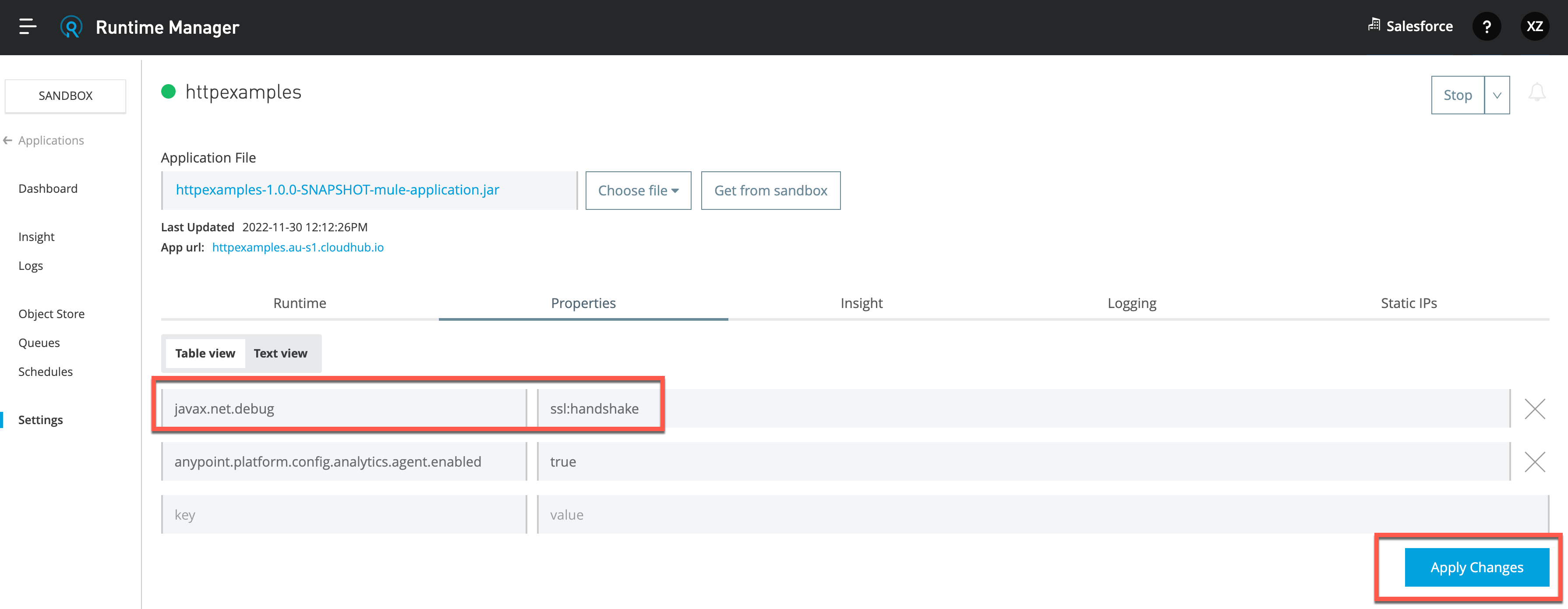
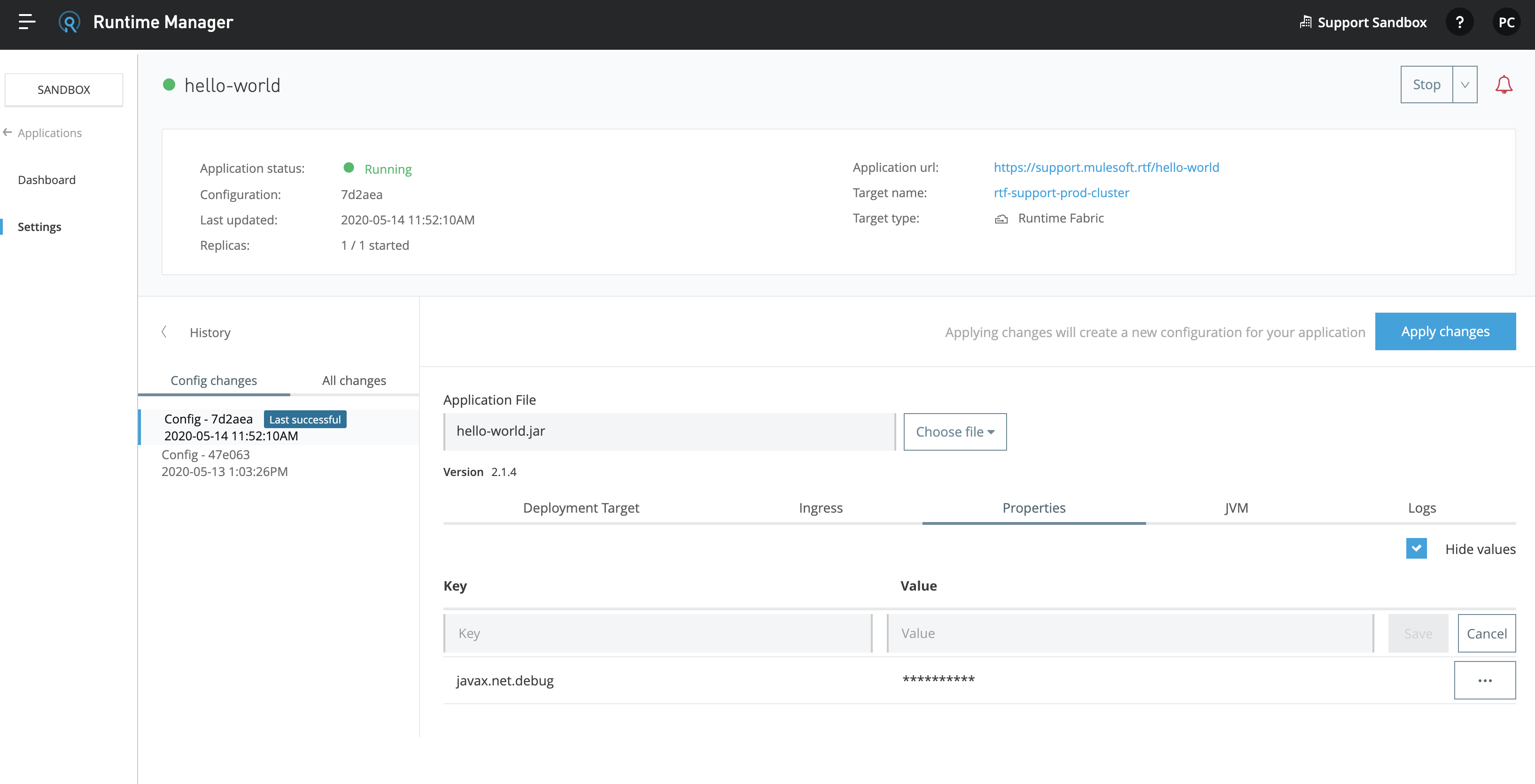
Enabling SSL debug logging in CloudHub is possible for all versions of Mule Runtime. However only in the latest versions of Runtime will the SSL debug log messages be written to the CloudHub Log file. If you are running an older version of Mule Runtime, you will need to work with Customer Support who can retrieve SSL debug logs for you. Please log a support ticket via the Help Center in this case.
Runtime Fabric Ingress Service
To enable SSL debug logging for the inbound connections to RTF, set the Ingress log level to DEBUG - this will print the SSL debug logs in the Ingress log. Keep in mind setting it to TRACE will not cause the SSL debug logs to show up.
Then retrieve Ingress logs according to How to extract log files from specific pods on Anypoint Private Cloud Edition or Runtime Fabric
Anypoint Studio 7.x
The debug parameter needs to be set as an argument in the runtime configuration for the application.
Menu: Run --> Run Configurations. Switch to VM Arguments Tab, and add -M-Djavax.net.debug=ssl:handshake
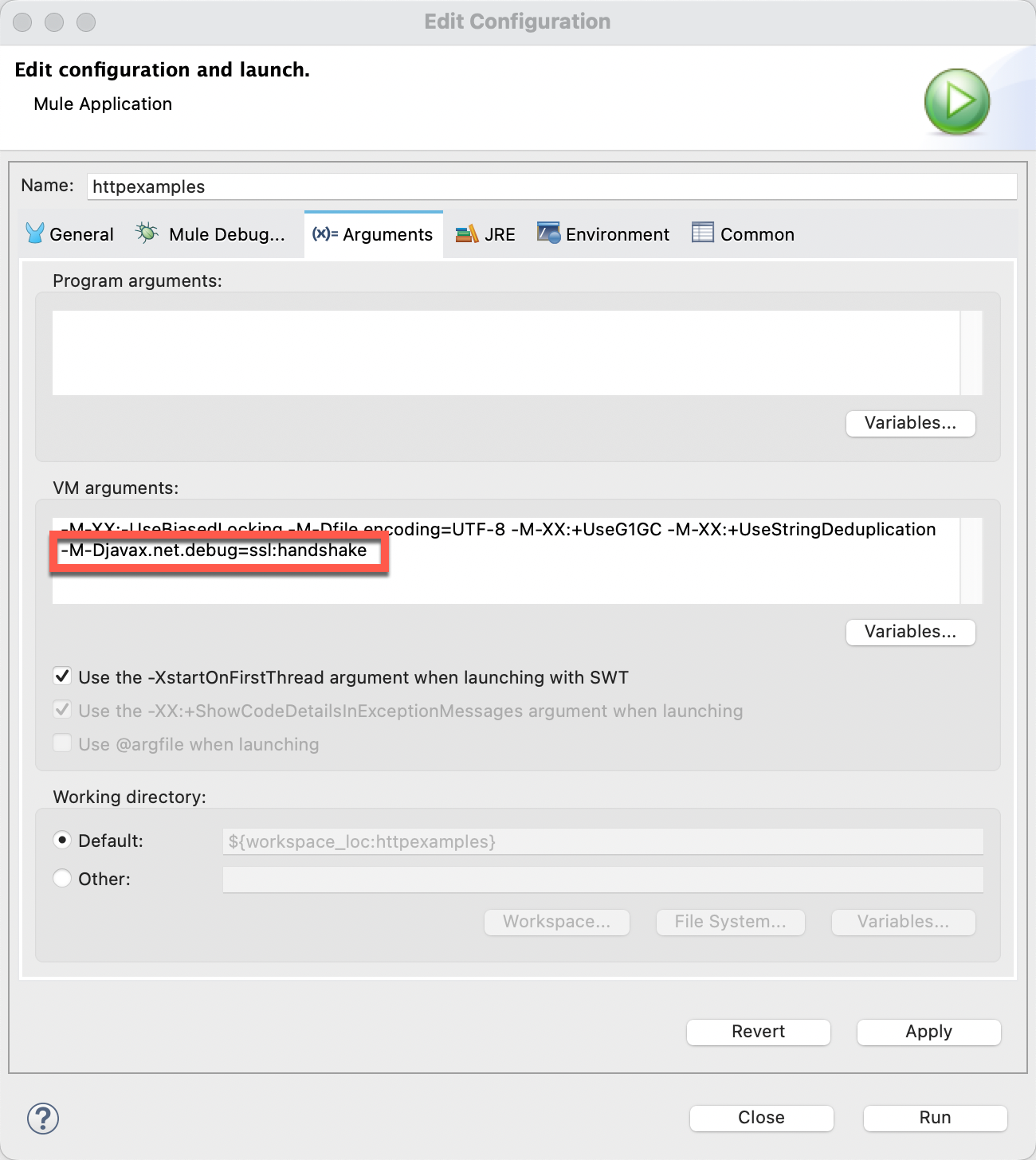
Anypoint Studio 6.x
In addition to the Anypoint Studio way, this debug can be set by setting the parameter in the mule-app.properties file for the application being debugged.
javax.net.debug=ssl:handshake
Additional notes
For interpretation of the SSL Debug log messages, this Oracle Java website contains a very useful tutorial to help explain how to read the SSL debug: https://docs.oracle.com/javase/8/docs/technotes/guides/security/jsse/ReadDebug.html
For some useful tools and services to help analyse SSL issues and SSL Servers, please see this Troubleshooting Tools for Analysing HTTPS/SSL Servers knowledge article.
In Bouncy Castle FIPS environments, the system property doesn't work, it is a limitation of Bouncy Castle library.
Vidensartikelnummer
001114992
Løste denne artikel dit problem?
Giv os besked, så vi kan forbedre os!
