Seleccionar una organización
How To Use Network Tools Application For Connectivity Test From CloudHub Virtual Private Cloud (VPC)
Fecha de publicación: Mar 17, 2026
Tarea
How to deploy Network Tools application to help customers test connectivity from a CloudHub Virtual Private Cloud (VPC).
Disclaimer: This application example is provided as a reference for your own usage and isn't to be considered a MuleSoft product; as such, this example should be considered a custom solution.
Custom solutions aren't supported in MuleSoft products.
Please report any issues at https://github.com/mulesoft-catalyst/mulesoft-net-tools/issues.
Pasos
In order to deploy the MuleSoft Network Tools application, perform the following:
- Download the application in the attachments section at the bottom of the page
- Follow the instructions below and replace the default credentials.
- Stop your net-tools app when you don't need it.
Prerequisite:
- You will need an Anypoint account to deploy your application. Talk to your organization admin to create one for you if you are a customer, or sign up for a trial account
- Before you go on with the next steps, please familiarize yourself with the below topics
- (Optional) Open the project and check for details
Deploy the application to CloudHub
-
Make sure the environment(s) are associated with the VPC. You can verify this by
- Log into to Anypoint Platform with your account
- navigate to Runtime Manager
- Click on VPCs
- Select the VPC from which you want to test the connectivity
- Make sure the environment you are going to deploy the application appears in the "Environments" tab of the VPC
-
Deploy to the CloudHub
- Switch to the environment and click the applications tab
- Click "Deploy applications"
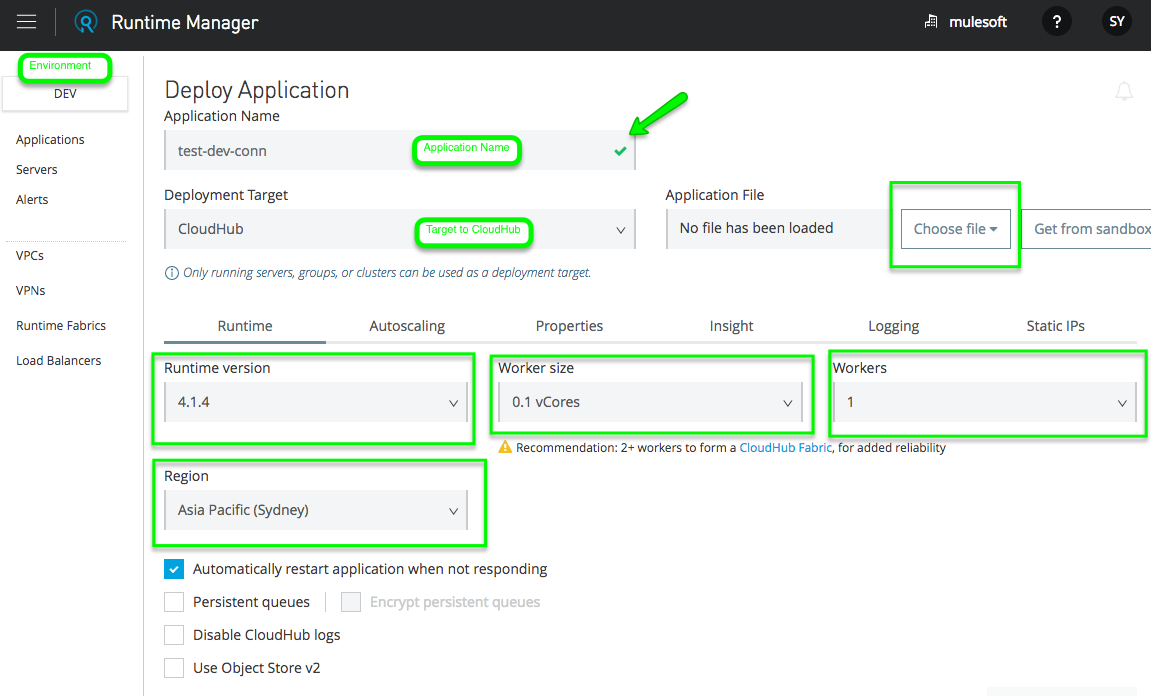
- Make sure it's in the right environment and in the same region as the VPC
- Name the application. Since the name is in a global naming space, please give it a unique name
- Deploy Target is CloudHub
- Choose the Runtime Version >= 4.4.0
- 0.1 vCore is enough for the test
- 1 worker
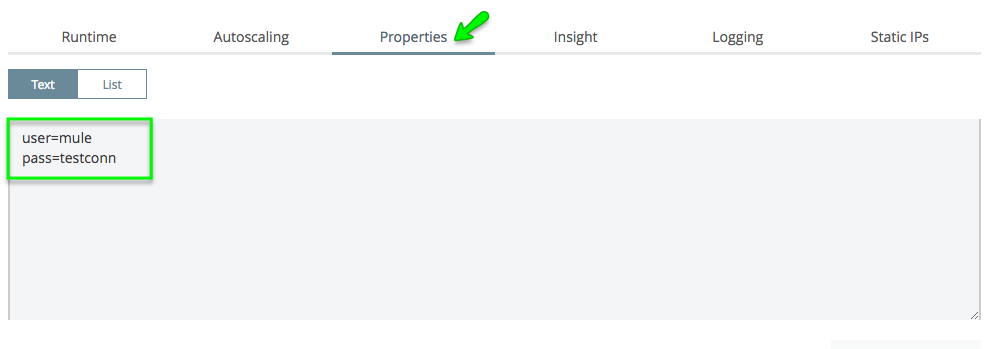
- Switch to the "Properties" tab. Specify the username and password here by "user=<your username> and pass=<your password>" otherwise you will be using the default one "vpc-tools:SomePass"
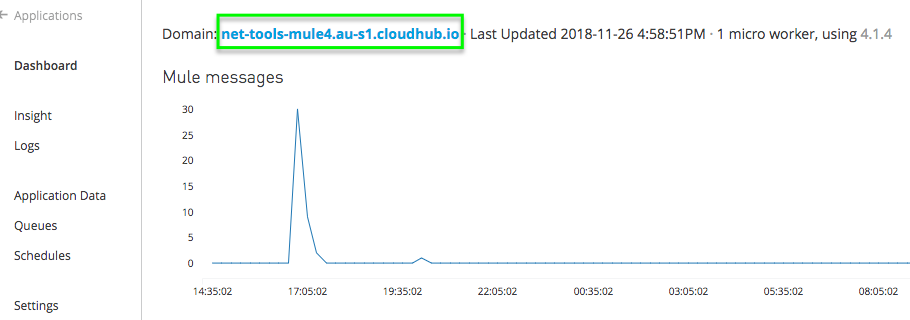
- When your application is fully deployed (it may take a few minutes), grab the Domain name from the console
- Put the Domain name in a browser and log in
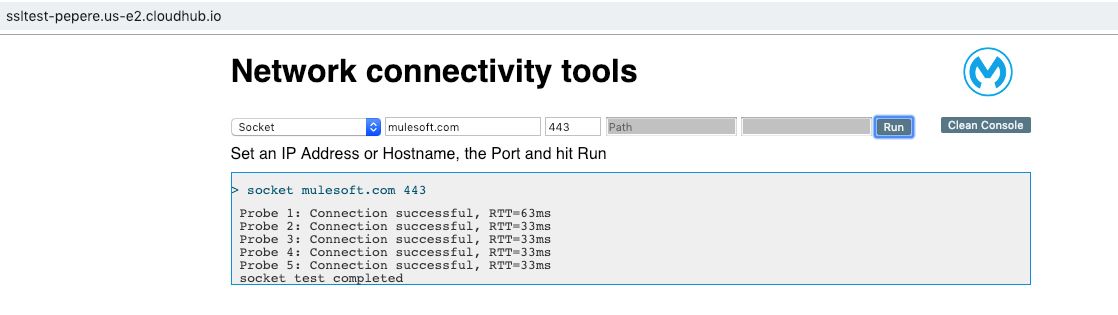
- Ready to test the connectivity
Test tools available in the network tools with CloudHub
Certificates
-
Ping (only available on Cloudhub 1)
Run the command "ping -c 4 <IP Address or Host>" on the network tools worker -
Traceroute
Run the command "traceroute -w 3 -q 1 -m 18 -n <IP Address or Host>" on the network tools worker -
Socket
Try to get a socket connection to <IP Address or Host> on <Port> with "socket.connect" method, equivalent to establishing a three-way TCP handshake connection. This is used to test TCP connectivity and measure TCP latency. It will run the test 5 times. -
DNS
Try to resolve the <IP address or Host> and return the IP. You can now specify a DNS server of your choice. This is useful to test if the DNS servers are reachable and work as expected before changing your VPC's default DNS servers. -
cURL
Run the command "curl -k -E -i -L <IP Address or Host>:<Port>/<Path>". Note that please add HTTP or HTTPS to the <IP Address or Host> and remove "/" at the beginning of <Path> -
Certificates
Establishes a TLS connection to a given TLS/SSL endpoint and pulls any certificates presented by the endpoint. -
Ciphers
This test runs several TLS connections against a given TLS/SSL endpoint changing the offered cipher suites to find out which ciphers are supported by the endpoint.
Known Issues/Functional Limitations with CloudHub 2.0
When using the Network tools in CloudHub 2.0 private spaces, the Ping command is not supported, as part of a security enhancement; Ping is now forbidden and errors may occur in the browser console:
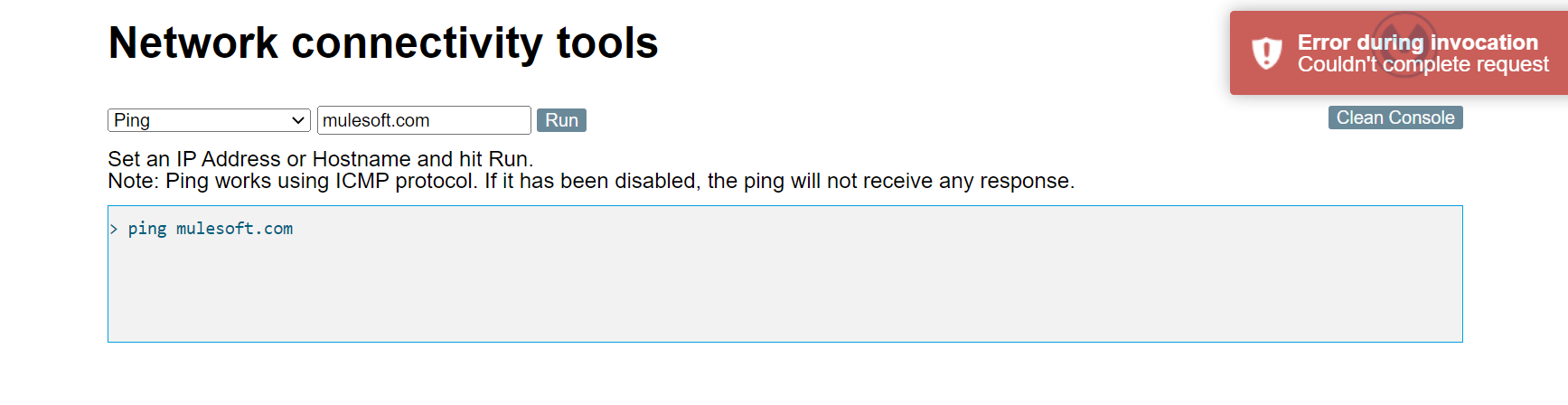
When using the Network tools using HTTP, the following errors may occur in the browser console:
Refused to execute script from 'https://${url}/js/jquery.min.js' because its MIME type ('text/html') is not executable, and strict MIME type checking is enabled.
Refused to execute script from 'https://${url}/js/toastr.min.js' because its MIME type ('text/html') is not executable, and strict MIME type checking is enabled.
Reference to this knowledge article Unable to Use Net Tools App Via Dedicated Load Balancer for details.
Recursos adicionales
For Cloudhub 1 or Cloudhub 2: Direct download link (Mule 4.6+ version) https://github.com/mulesoft-catalyst/mulesoft-net-tools/releases/download/v2.6.0/net-tools-api-2.6.0.jar
For Cloudhub 1 only: Direct download link (Legacy Mule 4 version) https://github.com/mulesoft-labs/net-tools-api/releases/download/v2.3.0/net-tools-v2.3.0.jar
Número del artículo de conocimiento
001115029
¿Resolvió este artículo su problema?
¡Háganos saber cómo podemos mejorar!
