Velg en organisasjon
How to Decrypt SSL Traffic in Wireshark with the RSA Private Key and non-DHE Cipher
Publiseringsdato: Mar 2, 2024
Trinn
CONTENTS
You need to see how the SSL traffic is sent to a Mule product and have ability to send the request via a non-DHE cipher (such as AES256-GCM-SHA384) and can upload the RSA private key in Wireshark to decrypt the traffic.Note that if a DHE cipher is used, this will not work. For our example, we will use the cipher AES256-GCM-SHA384.
For instance, In RTF ingress, you can specify the cipher AES256-GCM-SHA384 to be used via the TLS Context inside the Secrets Manager. link
STEPS TO FOLLOW
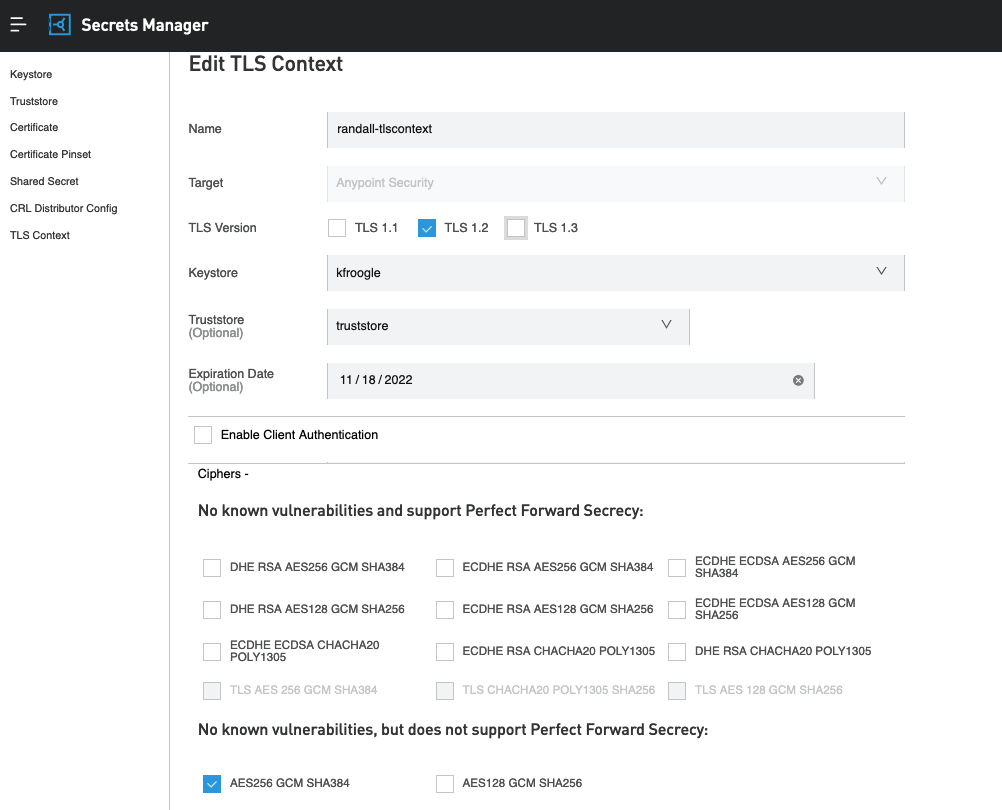
The following are steps for capturing the traffic on an ingress controller in RTF.1. Edit the TLS Context to only allow the cipher AES256-GCM-SHA384 and only allow TLSv1.2. Please beware that this method does not work with TLS 1.3 or DHE ciphers:
2. Please run a tcpdump of all traffic to your ingress controller. Here is a KB article: How to capture network traffic between two pods
sudo tcpdump -i any -s0 -vv -w /tmp/capture.pcap &
3. Send traffic to your Mule RTF via the following curl command. This will force TLSv1.2 and to use a certain cipher known to work with this method.
curl --tlsv1.2 --tls-max 1.2 --ciphers AES256-GCM-SHA384 -kv https://your-ingress.com/test-app
4. Stop the tcpdump.
sudo pkill tcpdump
Grab the file and download it to your local.
5. (optional) If you have the domain's key but need to convert it to RSA format, please run the following command. Otherwise, if you already have the key in RSA format, you can skip this step.
openssl rsa -in domain.key -out domain_rsa.key
6. Open Wireshark and open the file.
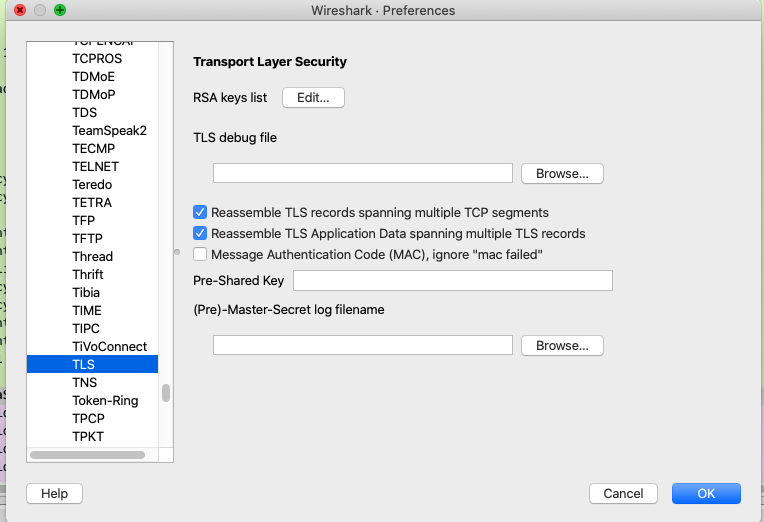
Go to Preferences -> Protocols -> TLS:
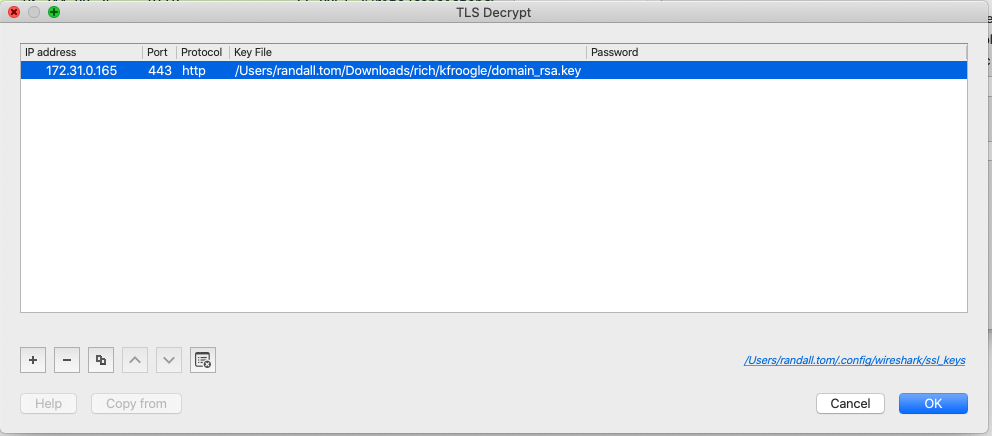
7. Click on "Edit" for the RSA keys list. You will notice the following box. Please click on "+" button on the bottom left of dialog box to add an entry.
You must ensure that the IP address listed here is the same IP address of your controller node's listening network interface. Also, ensure that the port is 443 with protocol "http". The key file is the exact path per step 5.
8. Once changes are saved, you can now see the decrypted HTTPS calls:
Previously, you would not see the "GET /sdgsdf" call, but now you can see the decrypted TLS payloads.

Knowledge-artikkelnummer
001115271
Hjalp denne artikkelen med å løse problemet ditt?
La oss få vite det slik at vi kan forbedre!
