Sélectionner une organisation
ARM Unexpected Application Status Troubleshooting Guide
Date de publication: Aug 6, 2025
Étapes
You are seeing unexpected Application Status on ARM(Anypoint Runtime Manager).
(If you are seeing unexpected "Server" status, please check KB: ARM Unexpected Server Status Troubleshooting Guide)
For example, the on-prem server is running fine, and applications are also working. So, the expected Application status on ARM UI is "Running" but seeing status like "Unknown" or "Stopped".
This article explains how to troubleshoot the issue.
Example)
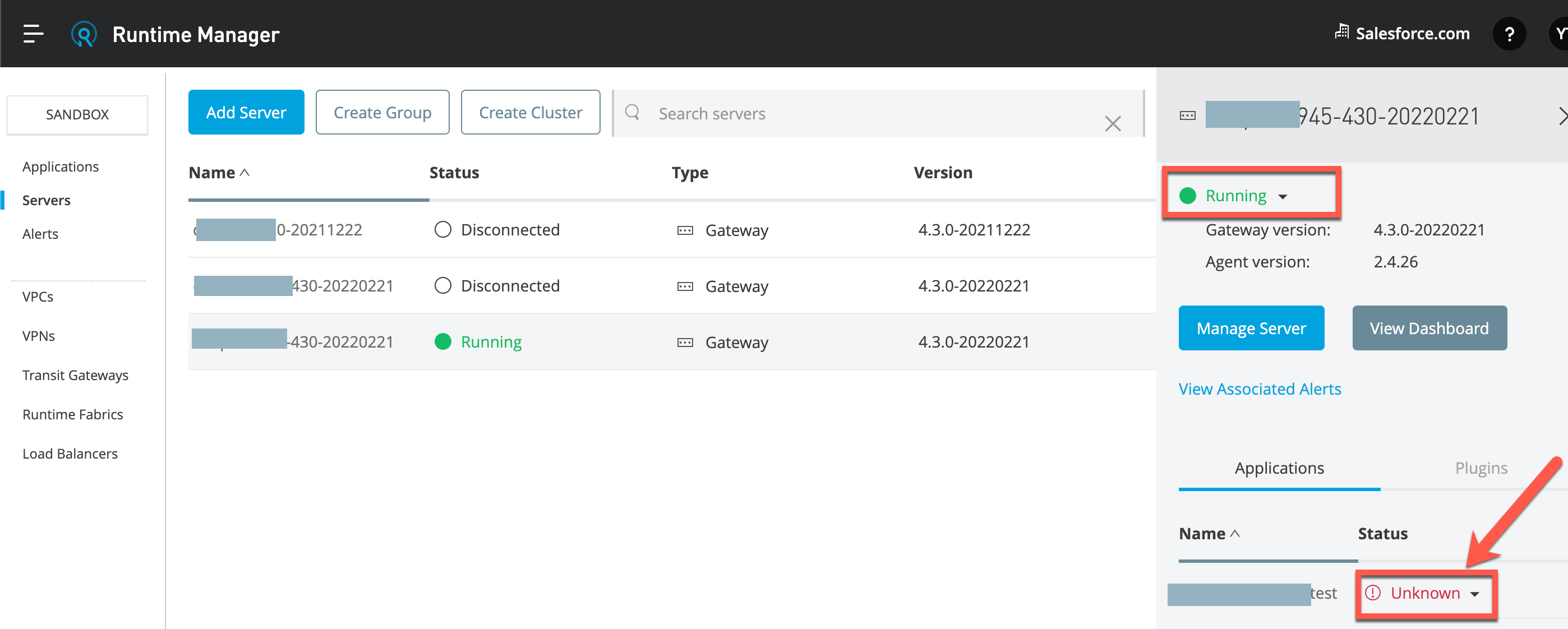
1. Understand the impact and overview
The unexpected Application status on ARM does NOT always impact the on-prem Application. That is because if the Runtime and Application are up and running locally(on the on-prem server) but its status on ARM UI is just unexpected, the impact is only you cannot control the app from ARU UI.
The unexpected Application Status on ARM indicates the app status what Agent(on-premise) understands and what ARM(our cloud platform) understands does not match.
Therefore, even though the on-prem Runtime and app are working, ARM does not understand it.
2. Check Known Issues
Before jumping into troubleshooting, check known issues here to find a quick solution.
- Check if Agent certificate is not expired, see KB: How to check Mule Agent certificate expiration date
- Check if Ports, IP Addresses, and Hostnames to Allow is not blocked
- Search for other KB by using your search keywords
If you do not find Known Issues for your scenario, search for other KB by using your search keywords KB Search Link
3. Try workarounds
This is optional.
If you need to try workarounds, follow the steps below.
3-1. Restart the on-premise Mule Runtime
This is to re-initiate the communication between Agent and ARM and see how it helps.
3-2. Restart Operating System(Linux, Windows)
This is to try to clear any OS related issue.
4. Upgrade modules
This is optional.
If possible, upgrade Agent to the latest version.
If possible, upgrade MuleRuntime to the latest patch version.
5. Find any reason for the miss communication between Agent and ARM
1) Check log files under $MULE_HOME/logs
This is to find if there is any communication error and/or application error.
2) Check config files under $MULE_HOME/conf
This is to check if the configuration files seem to be corrupted.
If you have other servers which is Running status on ARM UI, you can compare config files to see if there is any unexpected entries.
6. Enable verbose logging to get more hint
Enable verbose logging as below, then check the log output to find a further hint.
- KB: How to Enable Wire Logging for Mule Agent
- KB: How to Capture Network Traffic Between Two Systems Using Tcpdump/WinDump Tool
7. Create a Support case
If nothing helps, follow the KB What Information to Collect for Anypoint Runtime Manager case- Server Status and create a Support case for further troubleshooting.
Numéro d’article de la base de connaissances
001115664
Cet article a-t-il résolu votre problème ?
Dites-nous ce que nous pouvons améliorer !
