Valitse organisaatio
Anypoint VPN to Azure VPN with BGP
Julkaisupäivä: Oct 10, 2024
Tehtävä
GOAL
Create dynamic BGP VPN connection between Anypoint VPN to Azure VPN. This article will show you how to create High Availability (HA) VPN to Azure. This will require at least one Anypoint VPN (HA is optional which will require 2 AVPN) for each VPC.
In this setup, you'll create the following resources:
Azure
- One virtual network
- One virtual network gateway with active-active and BGP enabled
- Four local network gateways
- Four site-to-site connections
- At least 1 VPN for each VPC
Vaiheet
Please ensure that you already have an Azure VNet setup with a x.x.x.x/27 subnet reserved for the gateway subnet. We will use the following inside IP for tunnel configuration

Part 1: Azure - Create an active-active VPN gateway in Azure
Login to Azure Virtual network gateways - Create
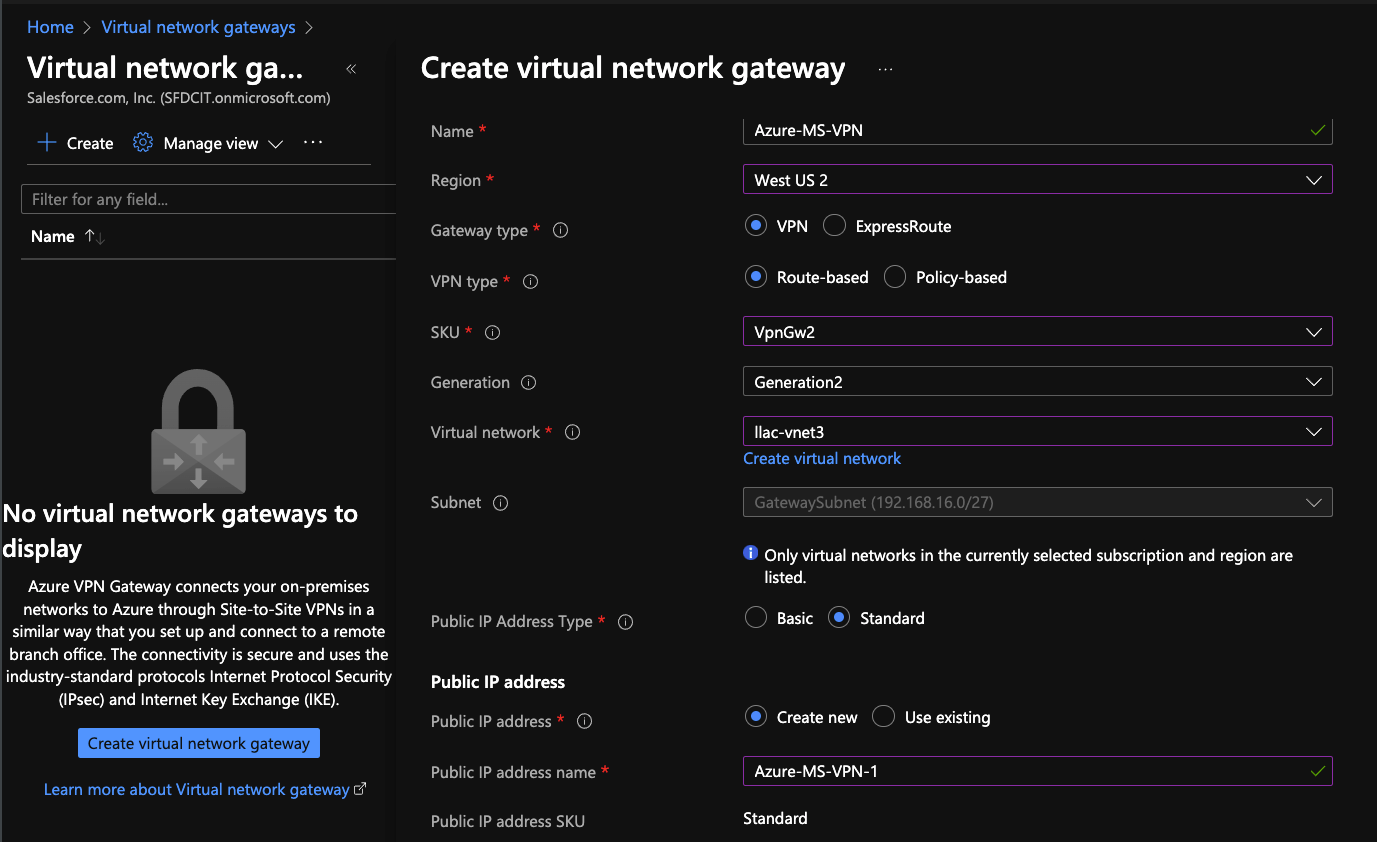
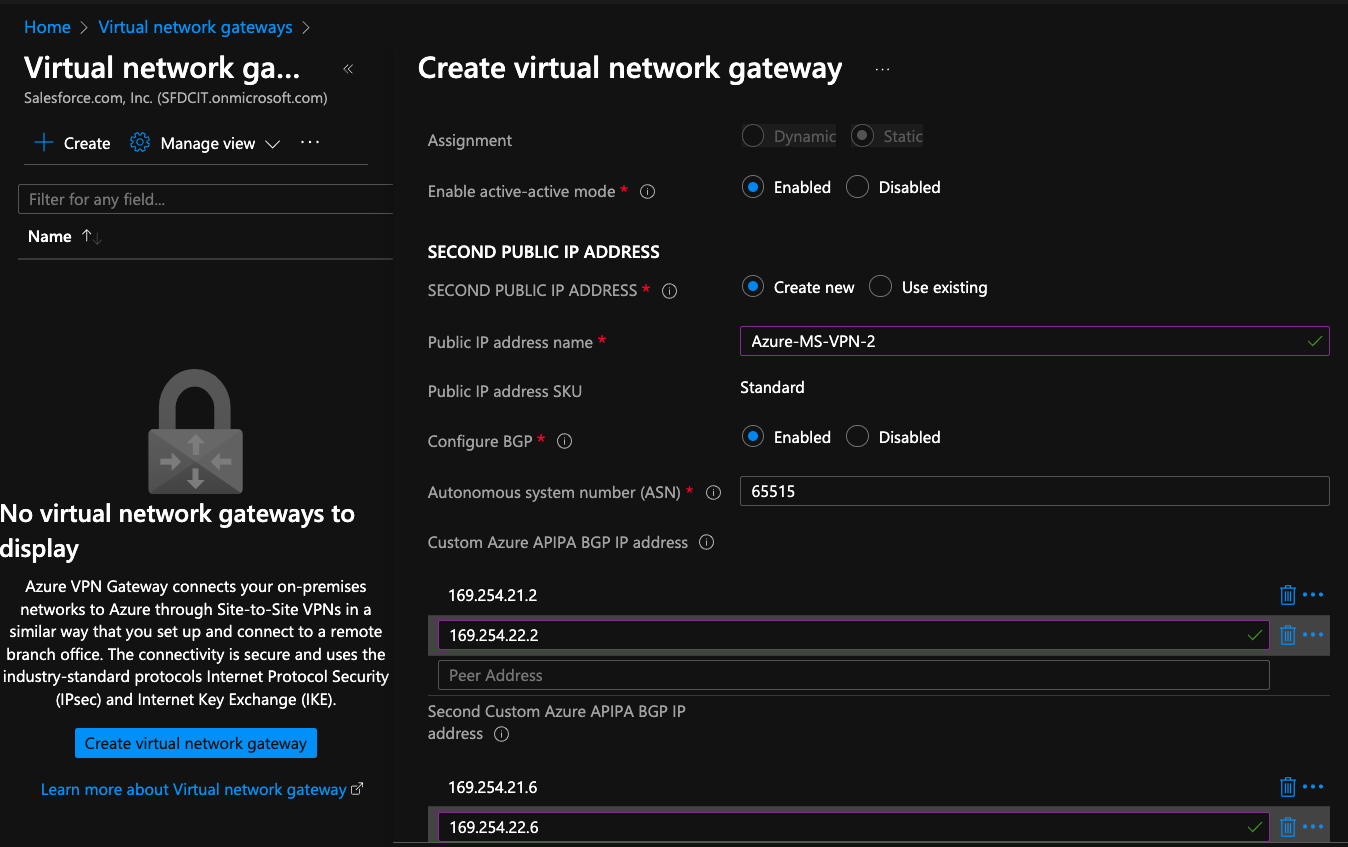
- Name: Azure-MS-VPN
- Gateway type: VPN
- VPN type: Route-based
- SKU: VpnGw2 (do not use Basic. We recommend minimum of Gw2)
- Generation: Generation2
- Virtual network: Select your VNet
- Public IP Address Type: Standard
- Public IP Address: Create new
- Public IP Address Name: Azure-MS-VPN-1
- Enable Active-Active Mode: Enable for HA VPN
- Second Public IP Address Name: Azure-MS-VPN-2
- Autonomous system number (ASN): Leave as default if you are not sure of the value
- Custom Azure APIPA BGP IP address: 169.254.21.2, 169.254.22.2
- Second Custom Azure APIPA BGP IP address: 169.254.21.6, 169.254.22.6
[Review + Create] - wait for Azure to create the VPN. Once it is created you should be able to click into it to view the new the new Azure VPN peer IP/s. Note both IP/s.
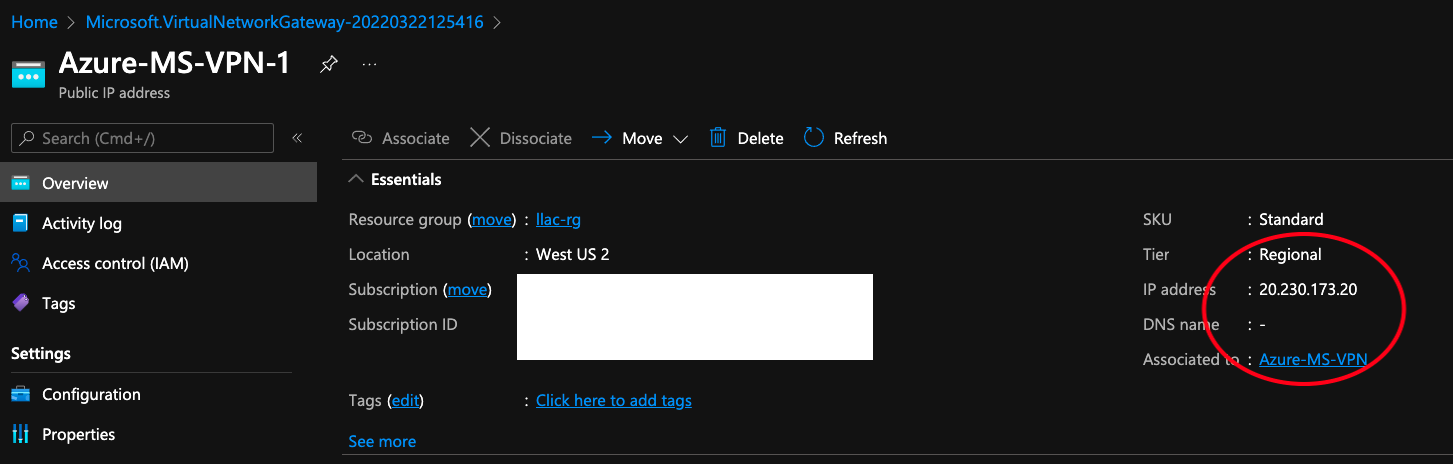
Part 2: Anypoint VPN - Create Anypoint VPN
Cloudhub 1.0: Login to Runtime Manager - VPN - Create VPN
Cloudhub 2.0: Login to Runtime Manager - Private Space - <name of your PS> - Create Connection - VPN - Enter name of VPN - Next
Create Second HA VPN (optional)
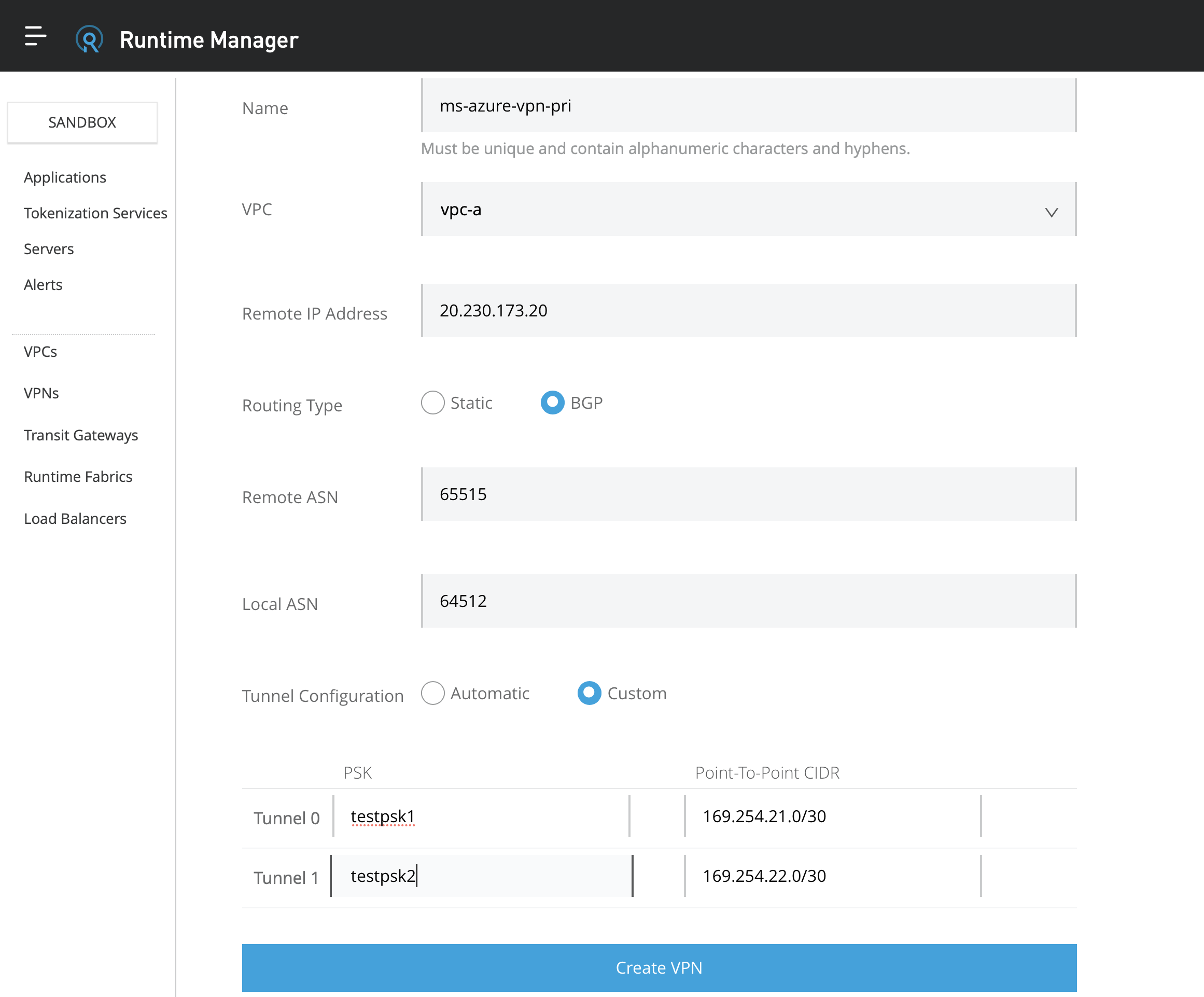
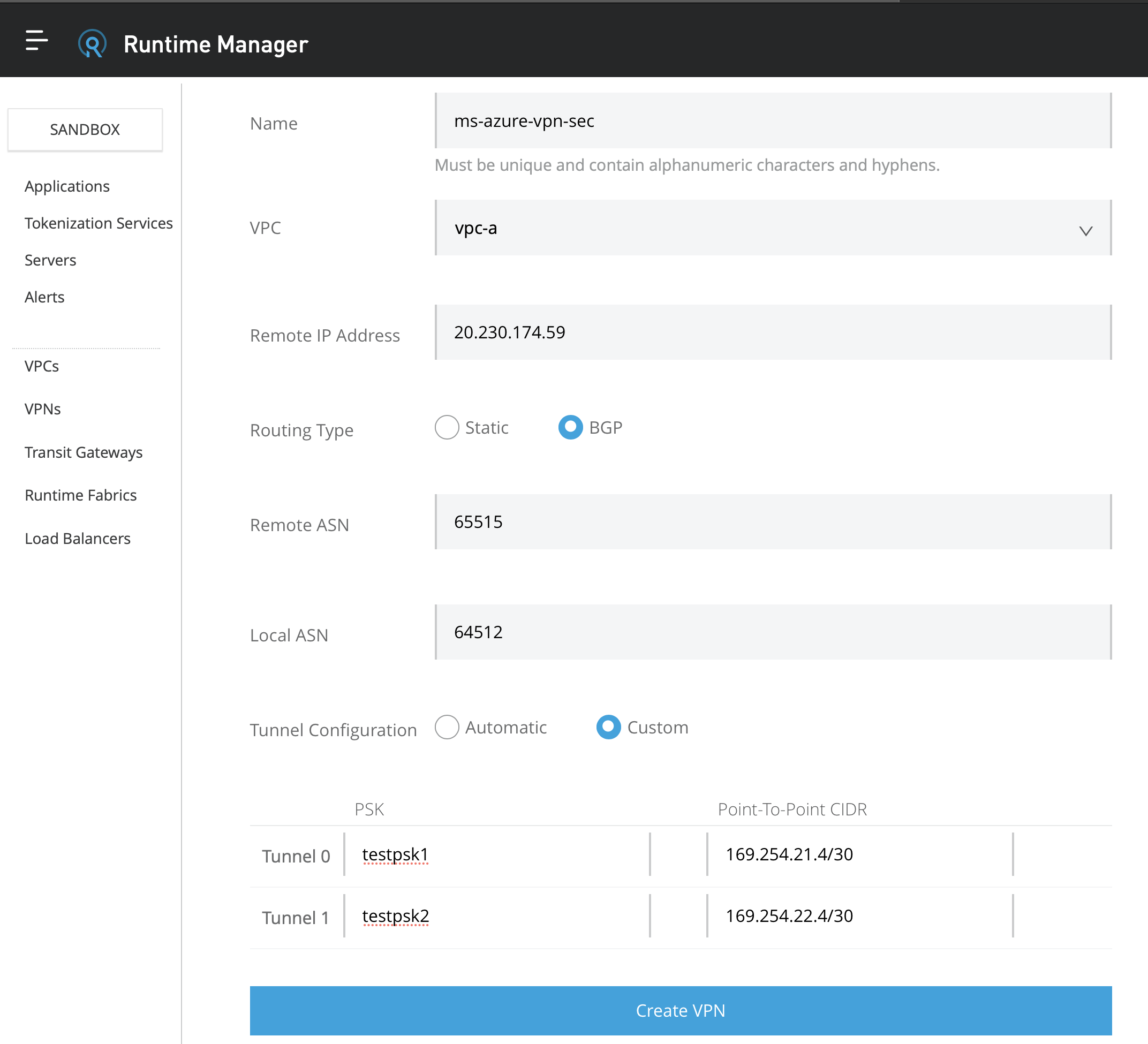
- Name: ms-azure-vpn-pri
- VPC: Select your VPC
- Remote IP Address: enter the IP from the Azure VPN page
- Routing Type: BGP
- Remote ASN: Enter the ASN that you entered from Azure VPN
- Local ASN: Leave as default 64512 if you are not sure of the value
- For Private Space (Cloudhub 2.0) IMPORTANT!!!: Make sure "Automatic Tunnel Initiation" is UNCHECK from the Advanced Options
- Tunnel Configuration: Custom
- PSK: Enter any PSK
- Point to Point CIDR: Enter the value of Inside BGP tunnel interface as shown
Create VPN
Part 3: Azure - Create Local Network Gateways
Navigate to Local Network Gateways - Create
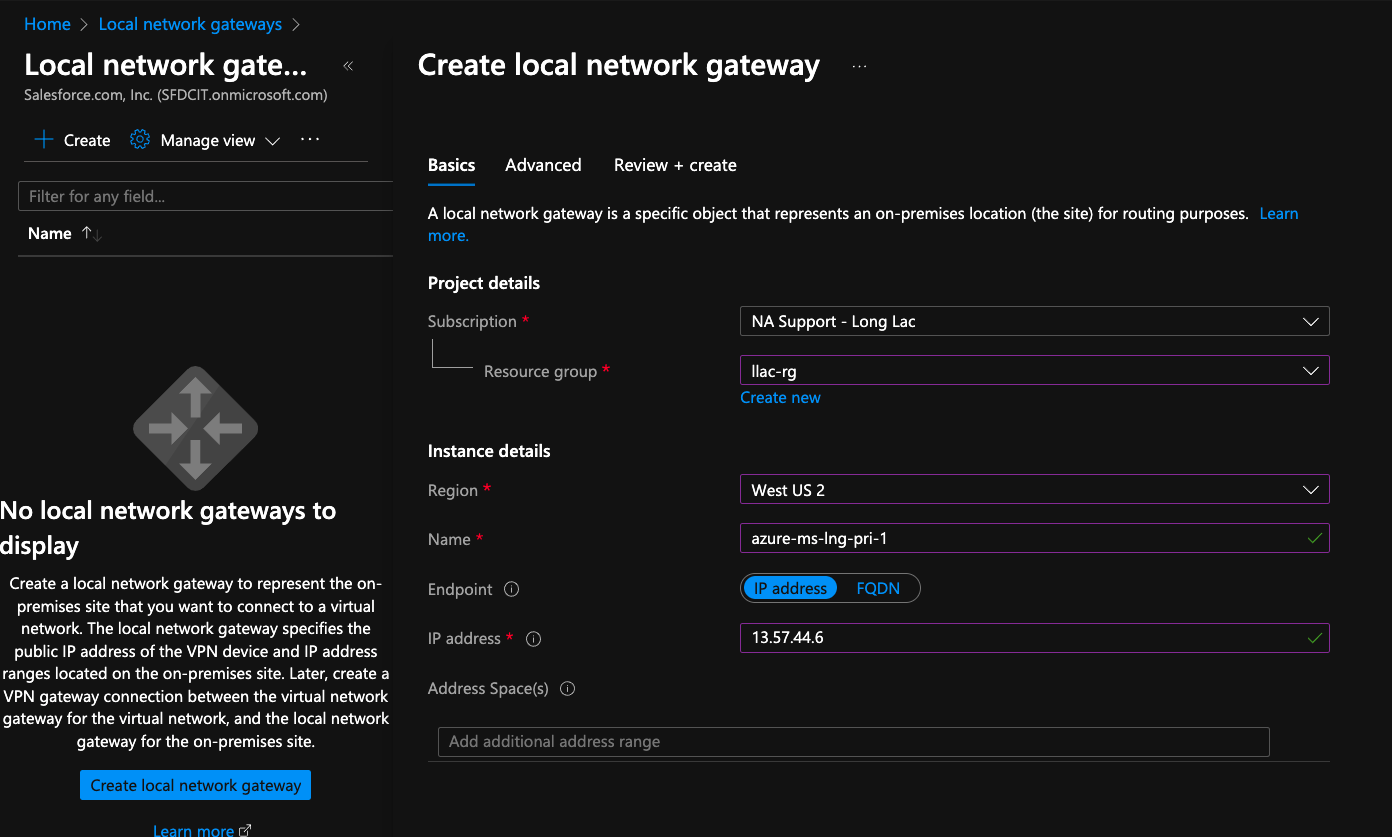
- Resource Group - select your resource group
- Name: azure-ms-lng-pri-1
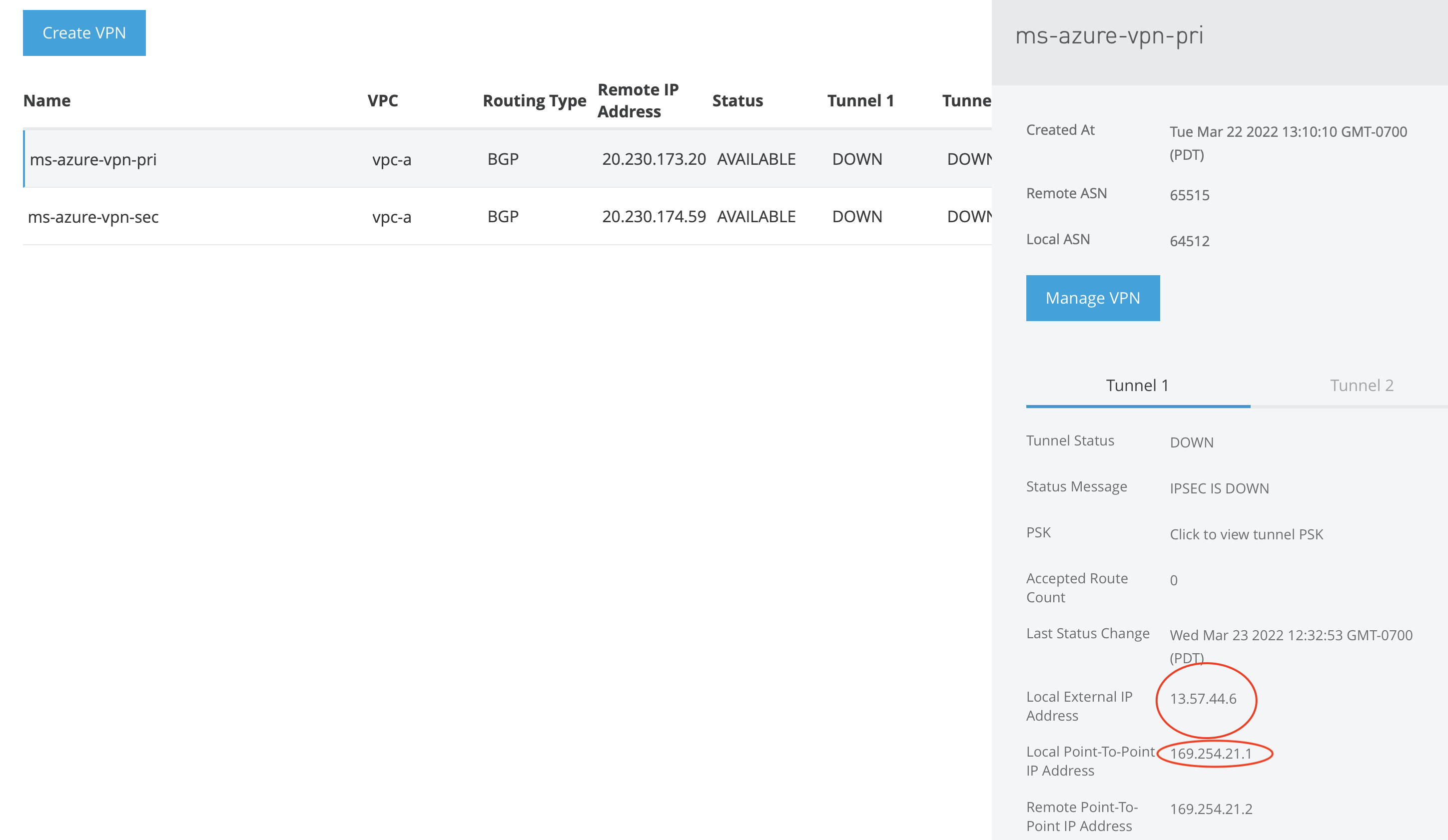
- IP address: Enter the IP from Anypoint VPN tunnel 1
- Address Spaces - Leave this blank
Click Advanced
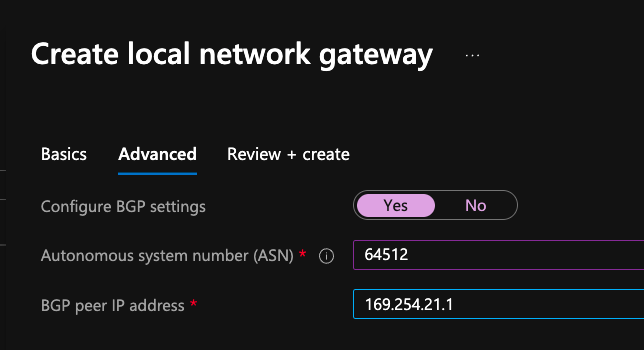
- Autonomous system number (ASN): 64512 or the value entered from Anypoint VPN
- BGP peer IP address: Enter the Inside IP from the Anypoint VPN primary tunnel 1 page labeled Local Point-To-Point IP Address (see screenshots)
- Click [Review + Create]
- Repeat this for the remaining tunnel. (Repeat 3 times for HA)
Part 4: Azure - Create the Connections
Navigate to [Virtual Network Gateway] - [Azure-MS-VPN] - [Add]
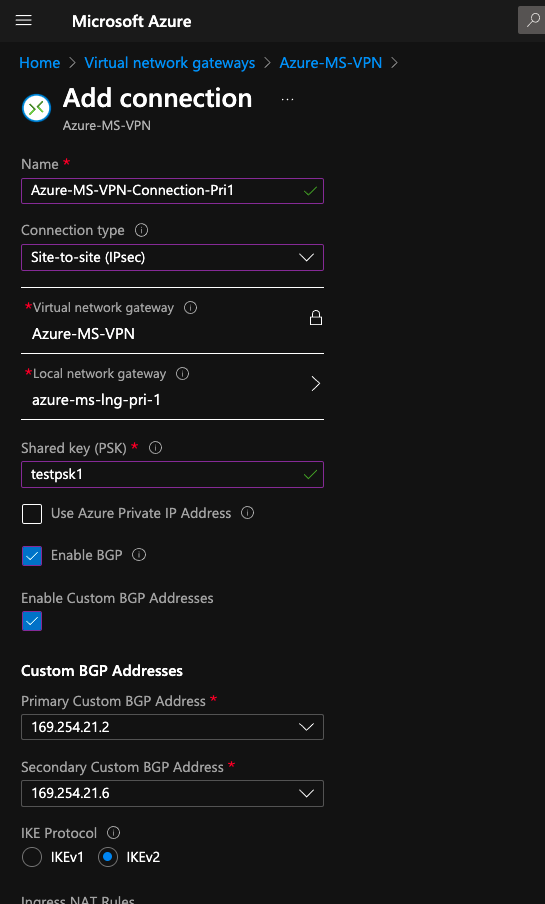
- Name: Azure-MS-VPN-Connection-Pri1
- Connection Type: Site-to-site(IPsec)
- Local network gateway: azure-ms-lng-pri-1
- Shared key (PSK): enter the PSK from Anypoint VPN page
- Tick - Enable BGP
- Tick - Custom BGP Addresses
- IKE Protocol: IKEv2
- Repeat for each tunnel/s
IMPORTANT - The Custom BGP Addresses must be selected accordingly. You may need to change the second tunnel on each VPN to match the following
Custom BGP Mapping

Part 5: Azure - Configure Policy
Click on [Azure-MS-VPN-Connection-Pri] - [Configuration] - [IPsec / IKE policy] - [Custom]
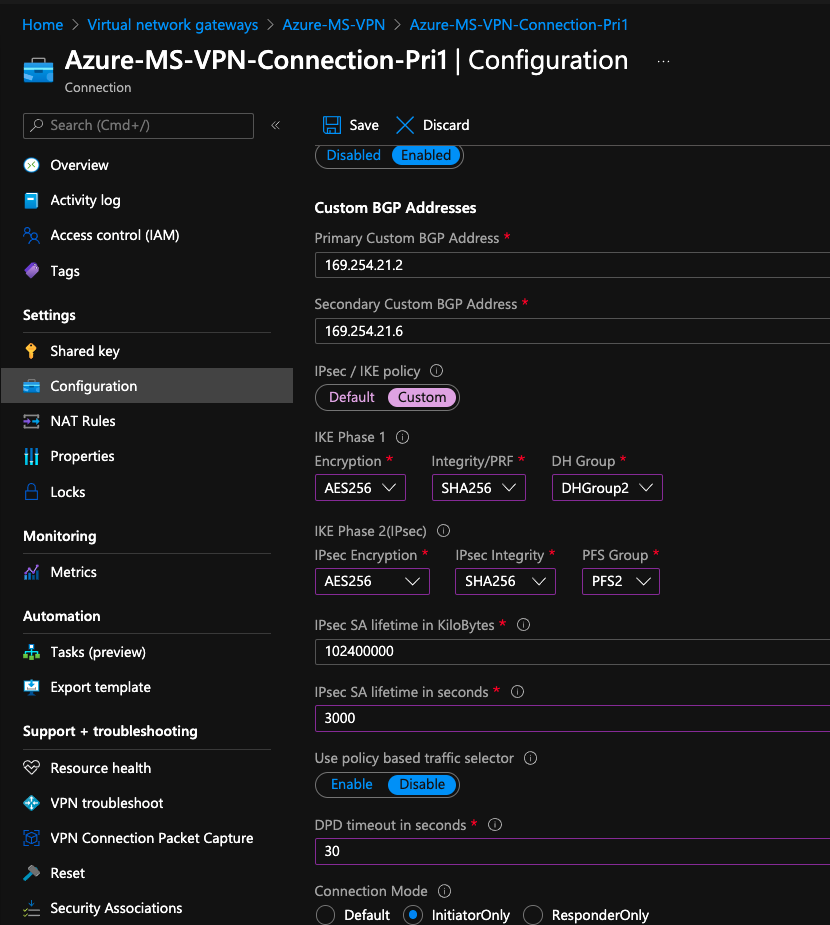
- IPsec / IKE policy: Custom
- Complete the Phase 1 & 2 Policy (Supported values found here)
- PFS Group: A value MUST be selected
- IPsec SA lifetime in seconds: 3000 (You MUST use 3000 for IKEv2 and 3600 for IKEv1)
- DPD: 30
- Connection Mode: InitiatorOnly
- Click [Save]
- Repeat for the remaining tunnel/s
Part 6: Testing
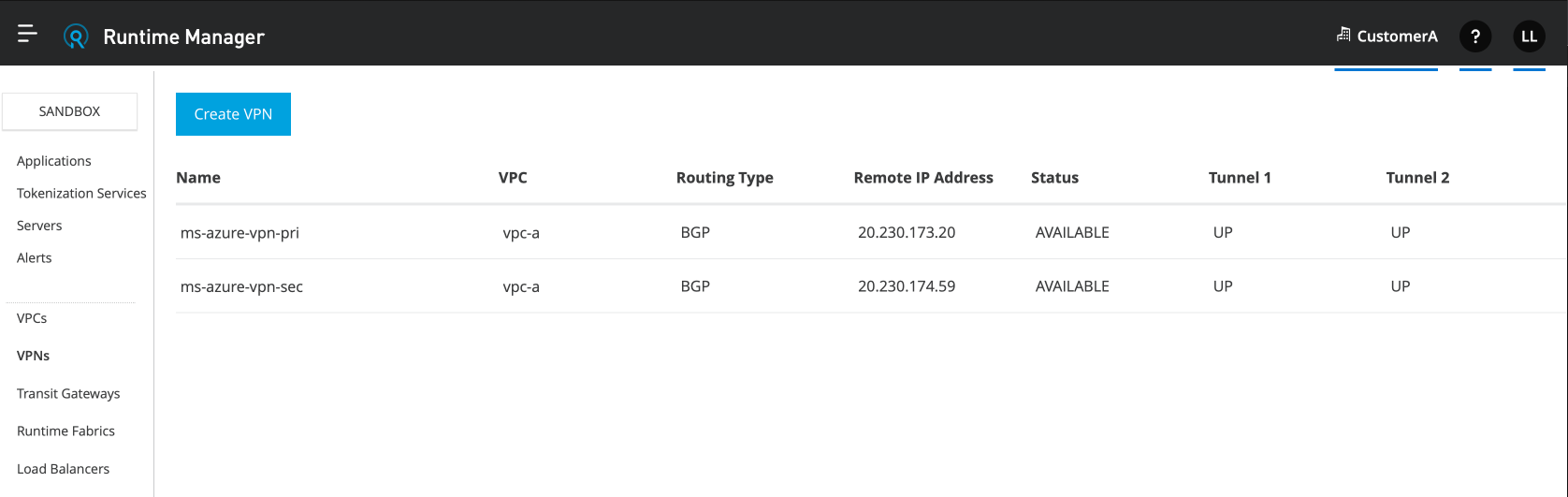
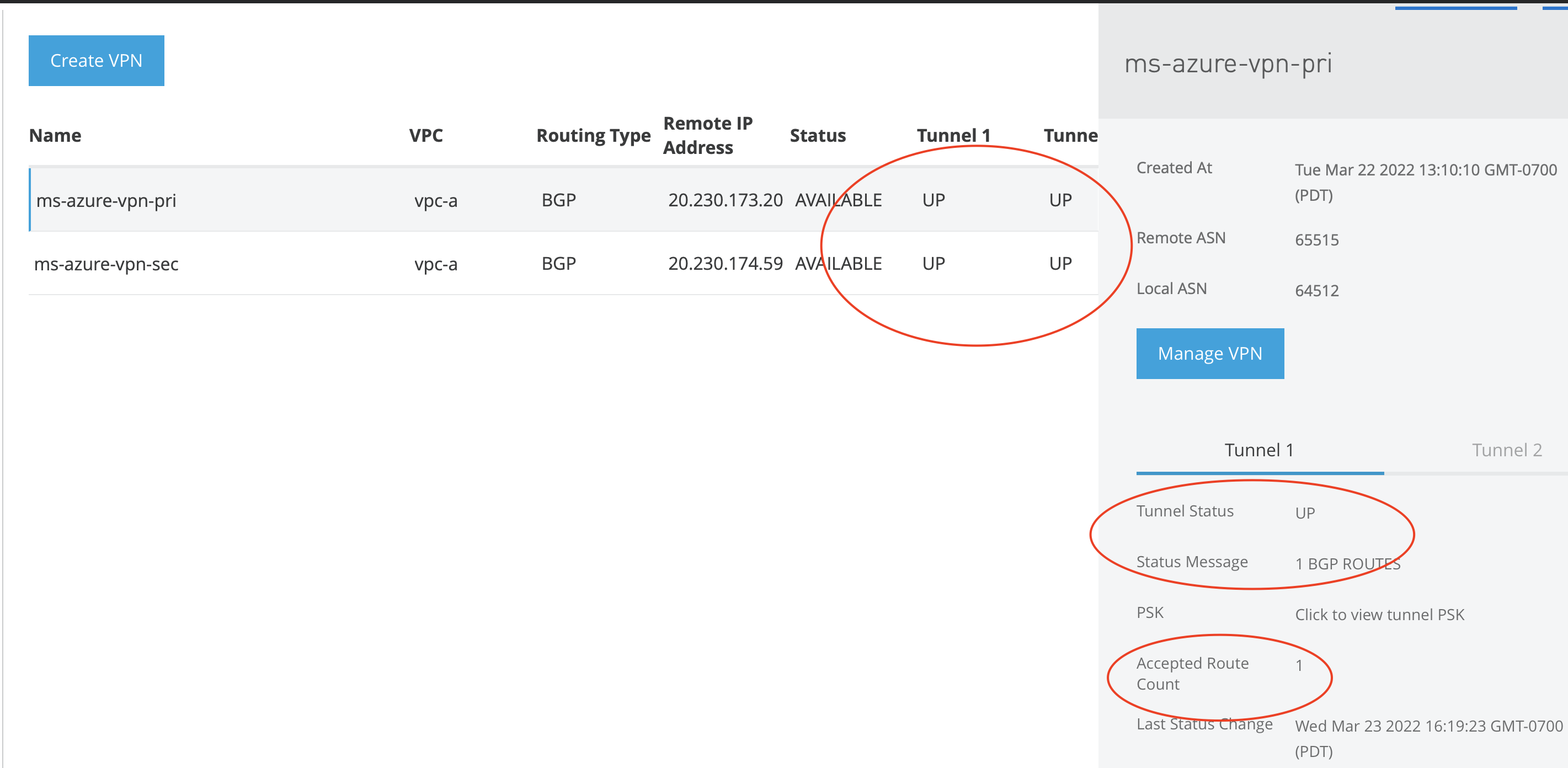
IMPORTANT: Check the Anypoint VPN status page that all tunnels are UP and that EACH tunnel has 1 accepted Route. If any tunnel has 0 route you may need to go back to "Custom BGP Mapping" and select the correct inside secondary tunnel IP. You can use the net-tool application below to send traffic from Anypoint Cloudhub to your Azure hosts. You may need to allow the traffic inbound on your Azure VNet.
https://support.mulesoft.com/s/article/How-To-Use-Network-Tools-Application
Knowledge-artikkelin numero
001115667
Ratkaisiko tämä artikkeli ongelmasi?
Anna palautetta, jotta voimme kehittyä!
