組織を選択
Sharepoint Connector | How to configure OAuth v2.0 Authorization Code connection
公開日: Oct 23, 2025
タスク
GOAL
Detailed steps to configure the "OAuth v2.0 Authorization Code" connection in the Microsoft Sharepoint Connector.ステップ
The MuleSoft documentation on the Microsoft Sharepoint Connector provides details about each field that is required to be updated. Please refer to the documentation here. Before configuring the Sharepoint Connector, please make sure that the App used for the OAuth connection is registered on the Azure Platform. Once this is done please refer to the below steps for performing a successful connection.
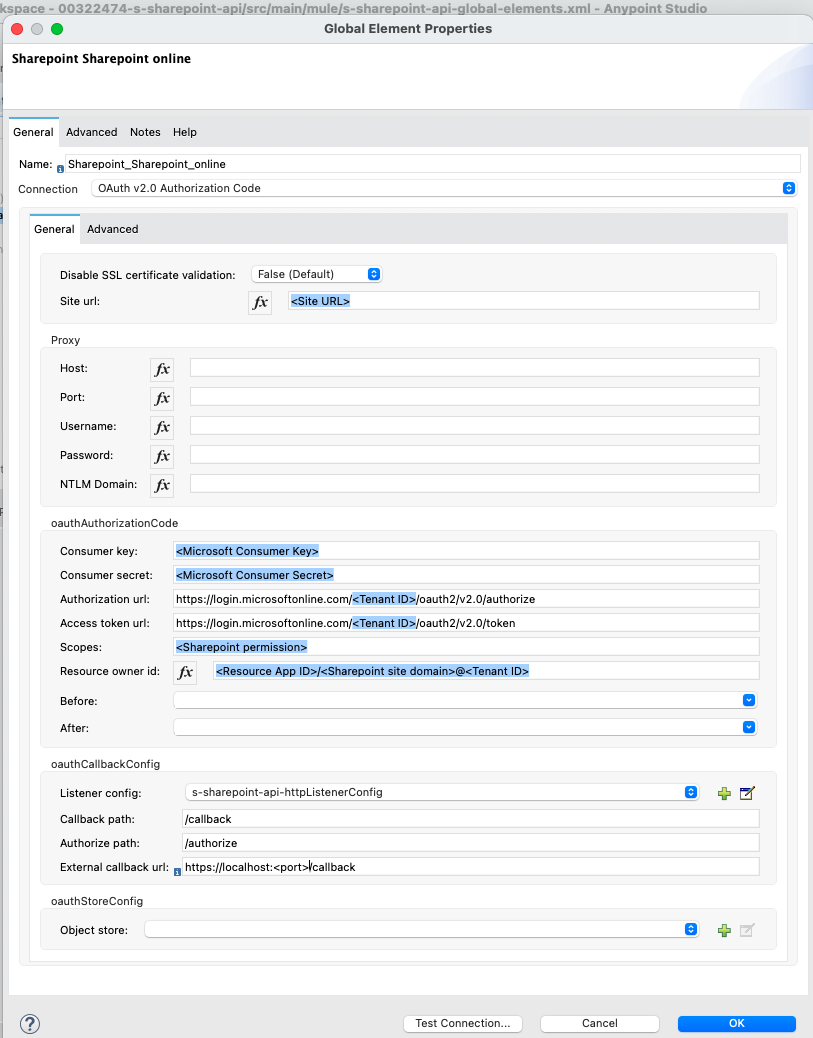
- In the Global configuration, select "Sharepoint Sharepoint online".
- In the Site URL field, provide the Sharepoint Site URL for the target SharePoint instance.
- In the "oauthAuthorizationCode" section, provide the Consumer Key and the Consumer Secret from the Azure platform where the App was registered.
- In the Authorization URL field, provide the value as "https://login.microsoftonline.com/{tenant_id}/oauth2/v2.0/authorize". (Refer to the "Additional Information" section for more details on Tenant ID. You have to check with your Microsoft team about this.)
- In the Access Token URL field, provide the value as "https://login.microsoftonline.com/{tenant_id}/oauth2/v2.0/token". (Refer to the "Additional Information" section for more details on Tenant ID. You have to check with your Microsoft team about this.)
- After that define the Listener Config (HTTP Listener Config). Please note that you have to use the same listener in the HTTP listener that initiates the flow.
- In the CallBack path field, provide the value "/callback".
- In the Authorize path field, provide the value "/authorize".
- In the External Call Back URL field, provide the value "https://<HTTP-listener-host>:<HTTP-listener-port>/callback". Ex: For Anypoint Studio: https://localhost:8082/callback. For Cloudhub/On-Premise: https://<app_name>/callback. NOTE: Reach out to your Microsoft team to configure this URL in your Azure platform under the "Redirect URI" field.
- NOTE: If you are using the APIKit Router then please do not pass the APIKit router path to the "Authorize" and "Callback" URLs. For Example, https://<mule-app>/v1/authorize will be passed to the APIKit router and it will fail with an error "The specified resource was not found.". Remove "v1" from the URL path to fix this.
- In the Scopes field, provide the Scope URI for your Sharepoint. You have to check with your Microsoft team about this. (Refer to the "Additional Information" section for more details on Scope)
- For most cases the following Scope will work if you have the FullControl permission provided on the Azure Portal for your Sharepoint: https://{tenant_name}.sharepoint.com/.default
- If you have an expiration set on your Access Token then add "offline_access" to the Scope field to generate a Refresh Token: https://{tenant_name}.sharepoint.com/.default offline_access
- FullControl permission should be provided in the Azure portal for the Sharepoint API. Note: site.Selected permission is not supported by the Sharepoint API so FullControl must be provided. This can be reviewed with your Sharepoint Admin.
<AppPermissionRequests AllowAppOnlyPolicy="true">
<AppPermissionRequest Scope="http://sharepoint/content/tenant" Right="FullControl"/>
</AppPermissionRequests>
- Based on your requirement you either provide the Resource Owner ID field or leave this blank. Format: <Resource_App_ID>/<Sharepoint_site_domain>@<Tenant_ID>. You have to check with your Microsoft team about this.
- Please note that if you perform a test connection at this point you will receive an error as "OAuth authorization dance not yet performed for resourceOwnerId". Please ignore this error because the OAuth dance should be performed only after deploying the application.
- After providing all the values, deploy the application. (In Anypoint Studio, Run the application)
- Once the deployment is successful, perform OAuth Dance by following the below steps:
- Open a browser window and launch the URL: https://<HTTP-listener-host>:<HTTP-listener-port>/authorize?resourceOwnerId=<Resource_Owner_ID>. Ex: https://localhost:8082/authorize?resourceOwnerId=<Resource_App_ID>/<Sharepoint_site_domain>@<Tenant_ID>
- If you receive permission asking to proceed further then click on Proceed.
- The URL will be redirected to the callback URL by Microsoft and you must receive a message that says that the access token was retrieved successfully.
- This is a manual authentication process that is required only for the first time whenever your application is started/restarted. This process cannot be automated.
- If the above steps are completed successfully then you can execute your Sharepoint flow successfully.
Below are some common errors with solutions when performing OAuth dance.
- Error: No endpoint listening on /callback
Solution: Verify that your CallBack path field has the value "/callback". This error occurs if you provide a different value.
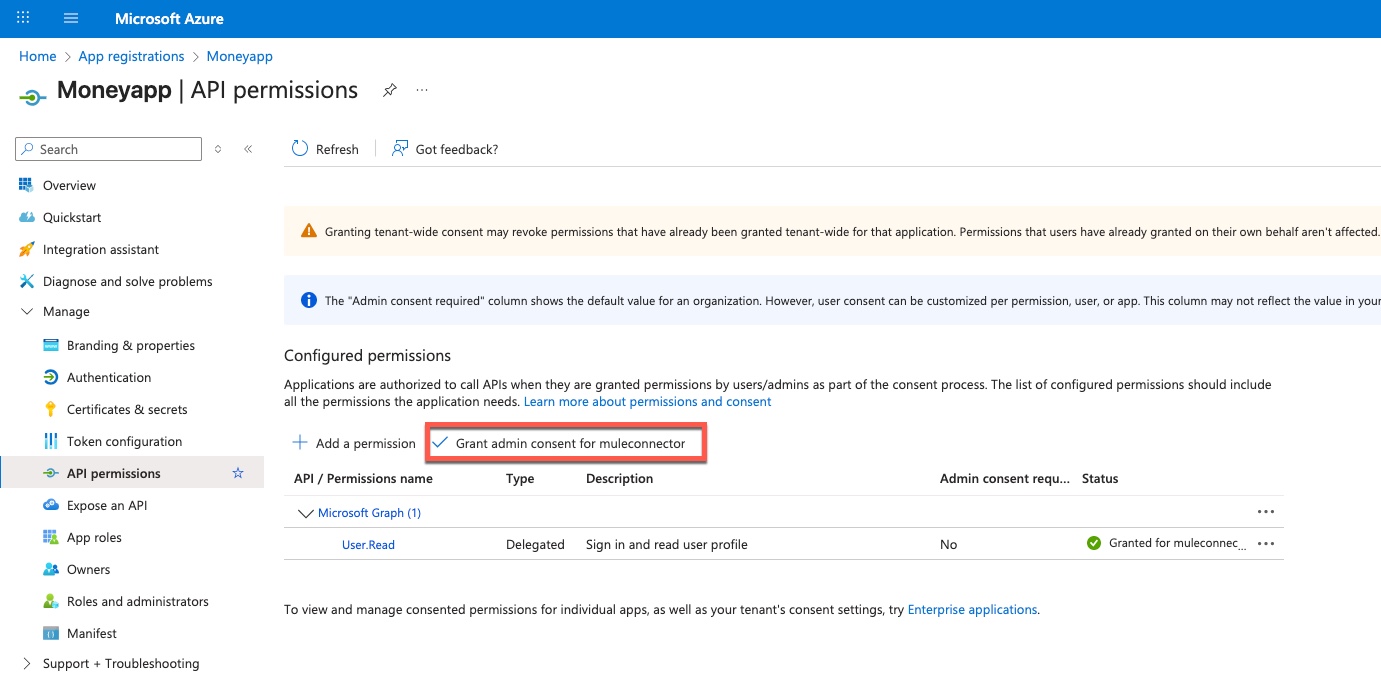
- Error: Failure retrieving access token. AADSTS650057: Invalid resource. The client has requested access to a resource which is not listed in the requested permissions in the client's application registration
Solution: This is a permission issue. Ensure you click the "Grant admin consent for {tennant}" button:
- Error: OAuth authorization dance not yet performed for resourceOwnerId
Solution: Ensure you performed step 15 above. Also, review if the Resource Owner ID is provided correctly in the connector configuration and in the Authorize URL.
You can also try removing Resource Owner ID completely to check if this resolves the issue.
- Error: Access token expired
Solution: If you have an expiration set on your Access Token then add "offline_access" to the Scope field to generate a Refresh Token: https://{tenant_name}.sharepoint.com/.default offline_access
ADDITIONAL INFORMATION
Refer to the following article that contains details on OAuth configuration for Sharepoint: https://global-sharepoint.com/sharepoint-online/in-4-steps-access-sharepoint-online-data-using-postman-tool/
Below are some additional articles that you can refer to:
For Tenant ID: https://www.sharepointdiary.com/2019/04/how-to-get-tenant-id-in-sharepoint-online.html
For Scope: https://docs.microsoft.com/en-us/sharepoint/dev/sp-add-ins/authorization-code-oauth-flow-for-sharepoint-add-ins#table-1-sharepoint-add-in-permission-request-scope-uris-and-their-corresponding-aliases
For Redirect URI: https://docs.microsoft.com/en-us/sharepoint/dev/sp-add-ins/register-sharepoint-add-ins
Disclaimer: This article involves products and technologies which do not form part of the MuleSoft product set. Technical assistance for such products is limited to this article.
ナレッジ記事番号
001115669
この記事で問題は解決されましたか?
ご意見をお待ちしております。
