組織を選択
How to enable logging for Hikari Databases - Mule 4
公開日: Jul 1, 2024
タスク
GOAL
This article goes over how to enable verbose debug logging for Hikari databases in Mule 4 for Anypoint Studio & CloudHub.ステップ
1.) Within Anypoint Studio, open your log4j2.xml file located within your src/main/resources directory.
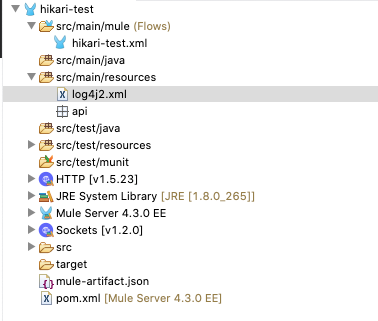
2.) By default, the log4j2.xml file will contain code similar to below:
<?xml version="1.0" encoding="utf-8"?>
<Configuration>

    <!--These are some of the loggers you can enable.
        There are several more you can find in the documentation.
        Besides this log4j configuration, you can also use Java VM environment variables
        to enable other logs like network (-Djavax.net.debug=ssl or all) and
        Garbage Collector (-XX:+PrintGC). These will be append to the console, so you will
        see them in the mule_ee.log file. -->

    <Appenders>
        <RollingFile name="file" fileName="${sys:mule.home}${sys:file.separator}logs${sys:file.separator}hikari-test.log"
                 filePattern="${sys:mule.home}${sys:file.separator}logs${sys:file.separator}hikari-test-%i.log">
            <PatternLayout pattern="%-5p %d [%t] [processor: %X{processorPath}; event: %X{correlationId}] %c: %m%n" />
            <SizeBasedTriggeringPolicy size="10 MB" />
            <DefaultRolloverStrategy max="10"/>
        </RollingFile>
    </Appenders>
    <Loggers>

        <!-- Http Logger shows wire traffic on DEBUG. -->
        <!--AsyncLogger name="org.mule.service.http.impl.service.HttpMessageLogger" level="DEBUG" /-->
        <AsyncLogger name="org.mule.service.http" level="WARN"/>
        <AsyncLogger name="org.mule.extension.http" level="WARN"/>

		<!-- Mule logger -->
        <AsyncLogger name="org.mule.runtime.core.internal.processor.LoggerMessageProcessor" level="INFO"/>

        <AsyncRoot level="INFO">
            <AppenderRef ref="file" />
        </AsyncRoot>
    </Loggers>
</Configuration>
3.) To enable DEBUG logging for Hikari, simply add a line within the <Loggers></Loggers> tag as such:
<AsyncLogger name="com.zaxxer.hikari.HikariConfig" level="DEBUG" />
4.) Save your log4j2.xml file and run your application. You should now see Hikari logs in the Console Logs.
CloudHub
1.) Within Anypoint Platform, navigate to Runtime Manager, click next to your application's name and select 'Manage Application' on the right-hand side of the screen.
2.) In the new screen that appears, click the Logging tab.
3.) Set the Log Level to DEBUG and set the package.name value to be com.zaxxer.hikari.HikariConfig

4.) Click Apply Changes and now you should see Hikari debug logs in CloudHub
ナレッジ記事番号
001115752
この記事で問題は解決されましたか?
ご意見をお待ちしております。
