Välj en organisation
How to Update the Asset Version of an Existing API Instance in API Manager
Publiceringsdatum: Aug 5, 2025
Uppgift
GOAL
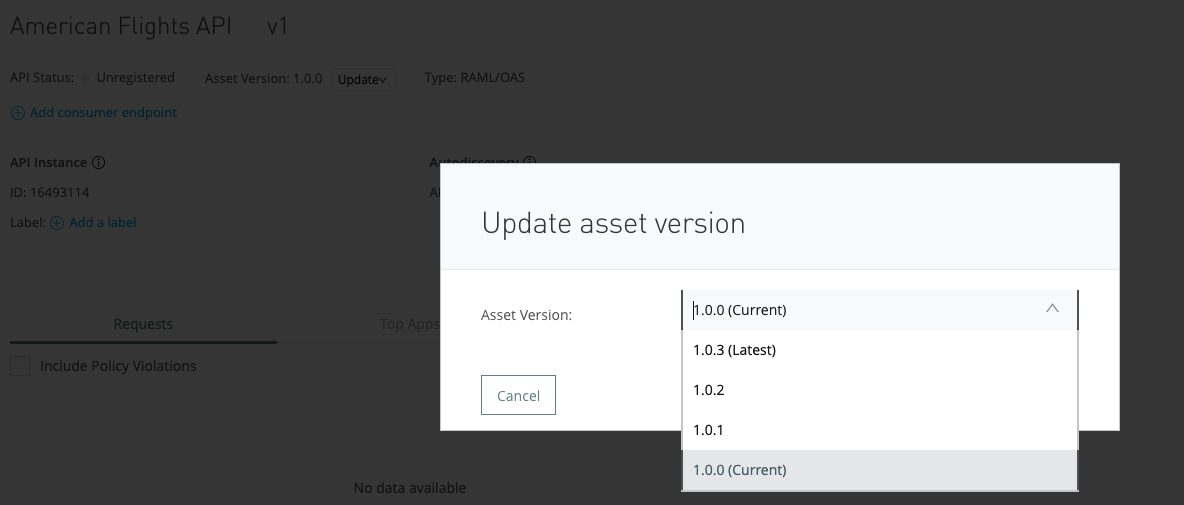
The goal of this KB is to show you how to use Anypoint Platform's API Manager API to update the Asset Version of an existing API within API Manager. This can be done easily in the API Manager's UI on Anypoint Platform, but here we will show how to do this using the API Manager's Platform API.To do this through Anypoint Platform's UI, first go to API Manager, then select the API instance you would like to update. At the top of the API instance's detail screen you will see an Update button next to the Asset Version label. Click on Update and you will be able to update to a different Asset Version as depicted below:
Let's get into how to replicate this behavior using the API Manager Platform API!
Steg
You will need the following:
- Your Organization Id (this can be found in your browser's Address Bar in the current URL as /organizations/<organization_id>)
- The Environment Id of the environment in which your API Instance lives (this can also be found in your browser's Address Bar in the current URL as /environments/<environment_id>)
- Your API ID (this can be found in your API Manager UI under the API Autodiscovery header)
- The Asset Version which you would like to change your API to reflect.
- A valid Authorization Token which will be used to make your request to the API Manager Platform API.
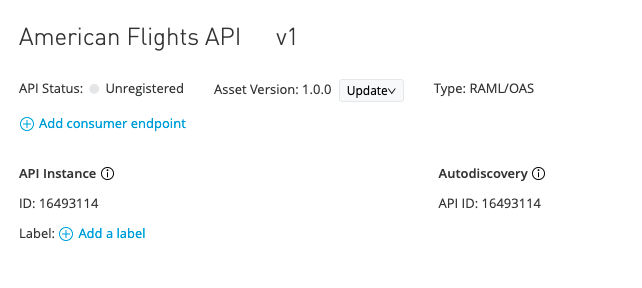
Once you have gathered all of this information, you are ready to use the API Manager Platform API to update your Asset Version.
Start by opening Postman, ARC, or any other tool you would use to make an HTTP request (e.g. cURL, JavaScript editor, Anypoint Studio w/ an HTTP Request component, etc..).
Once you have opened Postman, you can configure a request with the following setup:
Method: PATCH
Request URL: https://anypoint.mulesoft.com/apimanager/api/v1/organizations/<your_org_id>/environments/<your_environment_id>/apis/<your_autodiscovery_api_id>
Headers:
- Content-Type = application/json
- Authorization = Bearer <your_valid_platform_token>
Body:
{
    "assetVersion" : "<your_new_asset_version>"
}
That's it, you will receive a response similar to below if the request is successful:
{
    "audit": {
        "created": {},
        "updated": {
            "date": "2020-11-24T18:16:08.317Z"
        }
    },
    "masterOrganizationId": "<organization_id>",
    "organizationId": "<organization_id>",
    "id": <api_id>,
    "assetVersion": "<new_asset_version>",
    "environmentId": "<organization_id>",
    "endpoint": {
        "audit": {
            "created": {
                "date": "2020-11-24T18:09:52.590Z"
            },
            "updated": {}
        },
        "masterOrganizationId": "<organization_id>",
        "organizationId": "<organization_id>",
        "id": <api_spec_id>,
        "type": "raml",
        "uri": null,
        "apiGatewayVersion": null,
        "proxyUri": null,
        "proxyRegistrationUri": null,
        "lastActiveDate": null,
        "isCloudHub": null,
        "deploymentType": "CH",
        "policiesVersion": null,
        "referencesUserDomain": null,
        "muleVersion4OrAbove": true,
        "responseTimeout": null,
        "wsdlConfig": null,
        "apiId": <api_id>
    }
}
Additionally, you can now go to API Manager in Anypoint Platform and you should see the updated API Asset Version!
Knowledge-artikelnummer
001115859
Löste denna artikel ditt problem?
Berätta för oss vad vi kan förbättra!
