Organisation auswählen
Keycloak OpenID Connect as Client Provider for Anypoint Organization
Veröffentlichungsdatum: Aug 5, 2025
Aufgabe
GOAL
This article provides the basics of how to configure Keycloak as Client Provider in Anypoint Platform, using the using OpenID Dynamic Client Registration protocol.Schritte
1. In Anypoint Platform, go to Access Management → Client Providers → Add Client Provider → OpenID
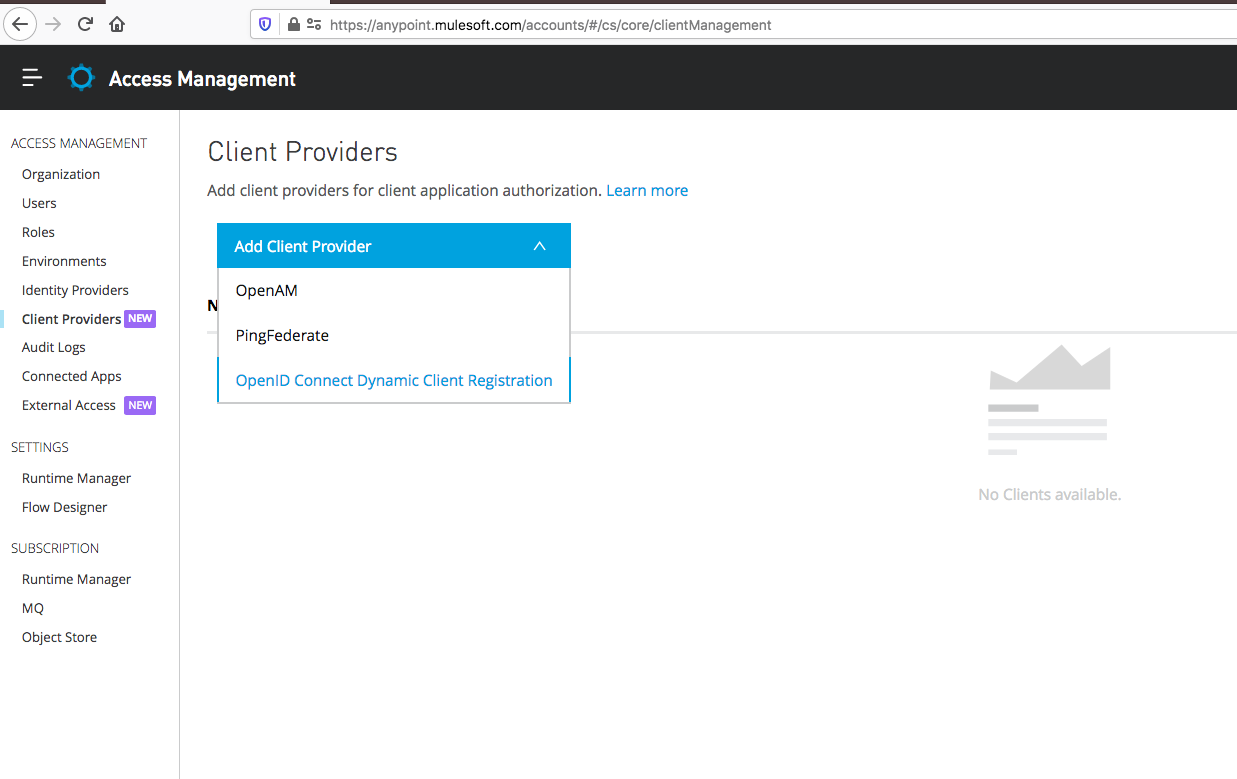
2. Go to the IP address or domain of your Keycloak OpenID instance and look at the "well-known" OpenID configuration discovery endpoint. This is a standard JSON returned that tells you how everything should be configured. You just need to plug and chug the values. For instance:
https://18.144.21.165:8443/auth/realms/oidc/.well-known/openid-configuration.
You can also go to the realm you created in your Keycloak and click on the "OpenID Endpoint Configuration" (screenshot below).
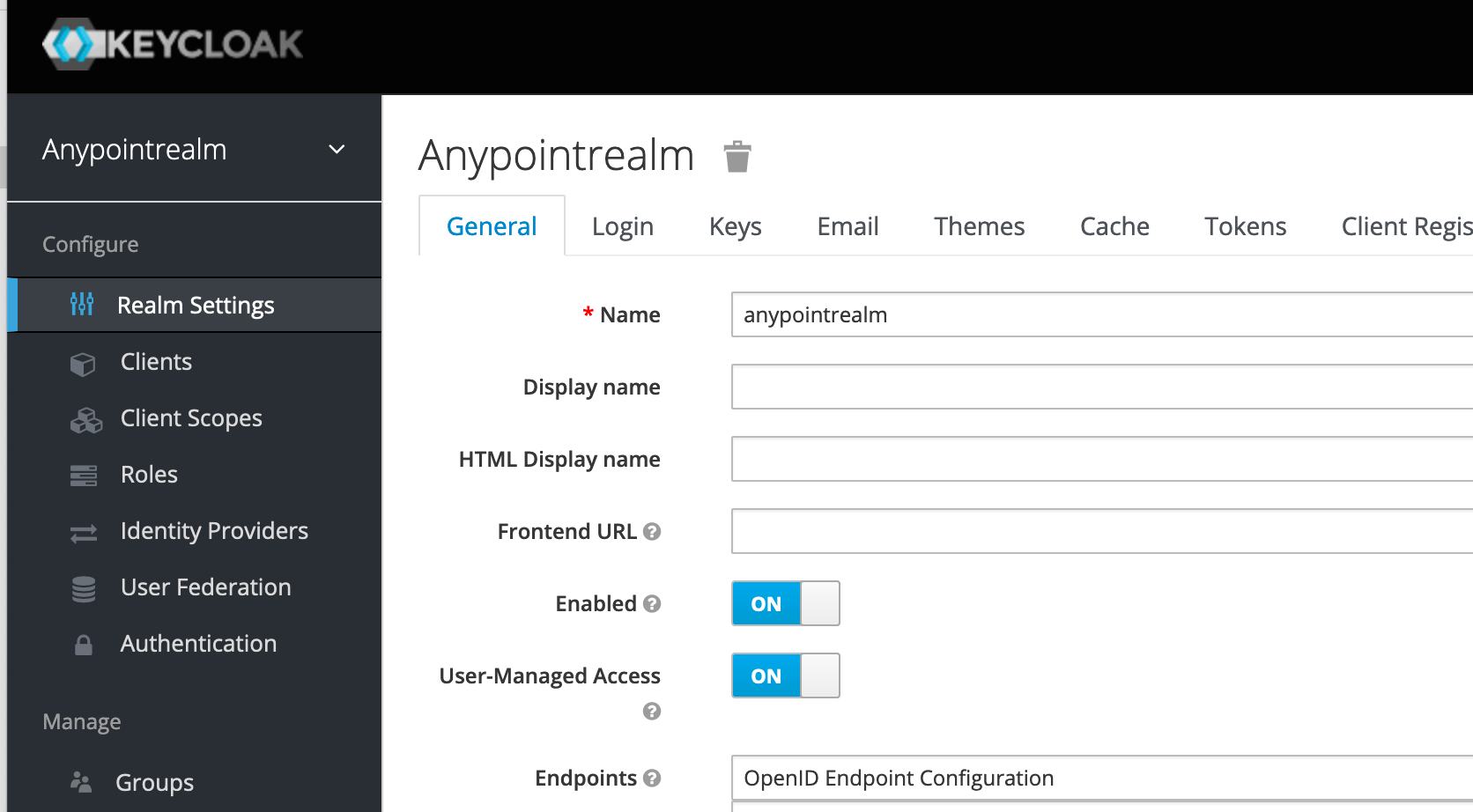
You can also go to the realm you created in your Keycloak and click on the "OpenID Endpoint Configuration" (screenshot below).
3. Copy and paste the JSON into JSONformatter website.
The equivalency table should be the following:
| Anypoint | Keycloak JSON attribute |
|---|---|
| Issuer | Issuer |
| Client Registration URL | registration_endpoint |
| Client ID | (explained in step 4) |
| Client Secret | (explained in step 4) |
| Authorize URL | authorization_endpoint |
| Token URL | token_endpoint |
| Token Introspection URL | introspection_endpoint |
And the additional checkboxes:
- Disable server certificate validation = checked
- Enable client deletion in Anypoint Platform = checked
- Enable client deletion and updates in IdP = checked
4. For client_id and client_secret, go to the following screen in Oidc Realm → Realm Settings → Client Registration.
Click on "create with 0 days expiration". You will be given a long string. Copy this as this is your secret. Next, copy the ID from the "Initial Access Token" tab, in the row from the recently created key (screenshot below). This is your Client ID. Fill this in on your Anypoint page and click "Save".
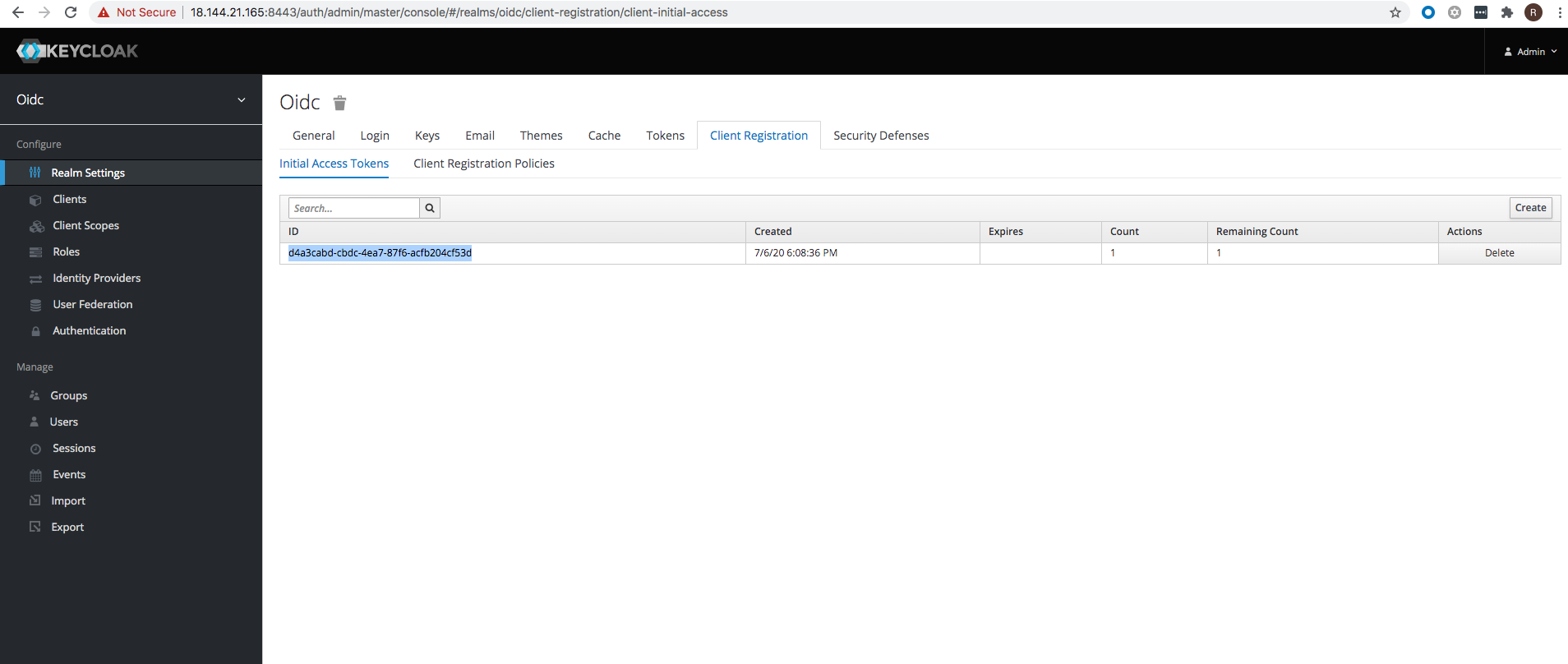
Click on "create with 0 days expiration". You will be given a long string. Copy this as this is your secret. Next, copy the ID from the "Initial Access Token" tab, in the row from the recently created key (screenshot below). This is your Client ID. Fill this in on your Anypoint page and click "Save".
---
This basically sets up Keycloak as a Client Provider, using OpenID Dynamic Client Registration protocol.
Disclaimer: This article involves products and technologies which do not form part of the MuleSoft product set. Technical assistance for such products is limited to this article.
This basically sets up Keycloak as a Client Provider, using OpenID Dynamic Client Registration protocol.
Disclaimer: This article involves products and technologies which do not form part of the MuleSoft product set. Technical assistance for such products is limited to this article.
Nummer des Knowledge-Artikels
001115908
Konnten Sie Ihr Problem mithilfe dieses Artikels lösen?
Geben Sie uns Feedback, damit wir uns verbessern können.
