Välj en organisation
How to write a Connected Apps Token into Settings.xml and pom.xml for Maven CI/CD
Publiceringsdatum: Mar 2, 2024
Uppgift
GOAL
To automate writing the connected app's token into the settings.xml each time for Maven CI/CD.
Steg
- About connected apps refer to documentation
- https://docs.mulesoft.com/access-management/connected-apps-overview
- https://docs.mulesoft.com/access-management/connected-apps-developers#create-an-app
- https://docs.mulesoft.com/release-notes/mule-maven-plugin/mule-maven-plugin-3.4.0-release-notes#features-and-functionality
- Deployment documentation https://docs.mulesoft.com/mule-runtime/4.3/deploy-to-cloudhub
- Connected apps can be used solely for authentication and can be used for automation / Jenkins / CICD/ maven deployment
- Create a connected app by using below article
- Creating connected app and getting the bearer token example
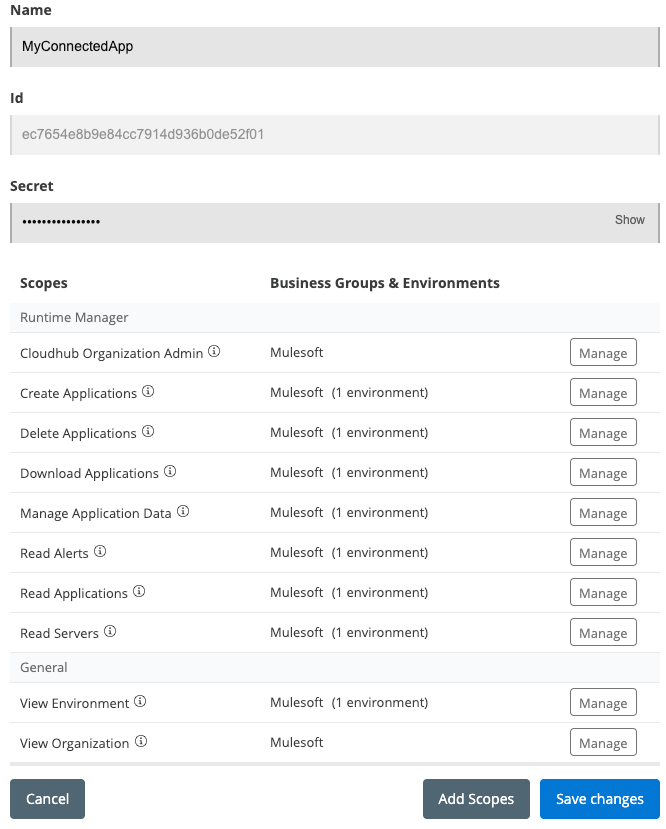
- You need to add all the scopes listed in the below screenshot which includes Cloudhub Organization Admin, Read Servers, View Environment and View Organization permissions as seen below.
- Update your Mule application if you are deploying to Cloudhub
- Make changes to your application pom.xml by following this doc for authentication method "Connected Apps".
<mule.maven.plugin.version>3.5.4</mule.maven.plugin.version>
...
<plugins>
    <plugin>
        <groupId>org.mule.tools.maven</groupId>
        <artifactId>mule-maven-plugin</artifactId>
        <version>${mule.maven.plugin.version}</version>
        <extensions>true</extensions>
        <configuration>
            <cloudHubDeployment>
                <uri>https://anypoint.mulesoft.com</uri>
                <muleVersion>${app.runtime}</muleVersion>
                <businessGroup>PATH_TO_BG</businessGroup>
                <applicationName>APP_NAME</applicationName>
                <environment>ENVIRONMENT</environment>
                <region>REGION</region>
                <workers>1</workers>
                <workerType>MICRO</workerType>
                <properties>
                    <key>value</key>
                </properties>
                <connectedAppClientId>CONN_APP_CLIENT_ID</connectedAppClientId>
                <connectedAppClientSecret>CONN_APP_CLIENT_SECRET</connectedAppClientSecret>
                <connectedAppGrantType>client_credentials</connectedAppGrantType>
                <objectStoreV2>true</objectStoreV2>
            </cloudHubDeployment>
        </configuration>
    </plugin>
    ...
</plugins>
...
- Get the client_id and client_secret values from the connected app you created earlier.
- Change the format for all your Mulesoft <server> entries such as "Repository" and "anypoint-exchange-v2" The format should be changed from:
<server>
      <id>Repository</id>
      <username>yourUserName</username>
      <password>yourPassword</password>
</server>
to:
<server>
      <id>Repository</id>
      <username>~~~Client~~~</username>
      <password>clientID~?~clientSecret</password>
 </server>
So that:
<username> is ~~~Client~~~
<password> is <clientID>~?~<clientSecret>
where:
1. <clientID> is the client ID from the connected app2. <clientSecret> is the client secret from the connected app
Knowledge-artikelnummer
001116144
Löste denna artikel ditt problem?
Berätta för oss vad vi kan förbättra!
