Seleziona un'organizzazione
How to connect to Salesforce with OAuth v2.0 using Mulesoft Salesforce Connector
Data pubblicazione: Jan 12, 2026
Operazione
GOAL
- Configuration on Salesforce side to connect with OAuth v2.0
- Configuration on Mulesoft Side to connect with OAuth v2.0
Fasi
- OAuth v2.0 uses grant type Authorization Code. You can refer to the RFC for more details - https://tools.ietf.org/html/rfc6749#section-4.1
- A connected app is a framework that enables an external application to integrate with Salesforce using APIs and standard protocols, such as SAML, OAuth, and OpenID Connect. - https://help.salesforce.com/articleView?id=connected_app_overview.htm&type=5
- Create connected applications in salesforce
- Log in to your Salesforce account.
- Classic UI:
- From your account menu (your account is labeled with your name), select Setup.
- In the left navigation bar, under the Build heading, click to expand the Create folder.
- Click Apps. Under Connected Apps, click New.
- Lightning UI:
- Under PLATFORM TOOLS, expand Apps and click App Manager.
- Click the New Connected App button in the top right corner.
- Classic UI:
- Log in to your Salesforce account.
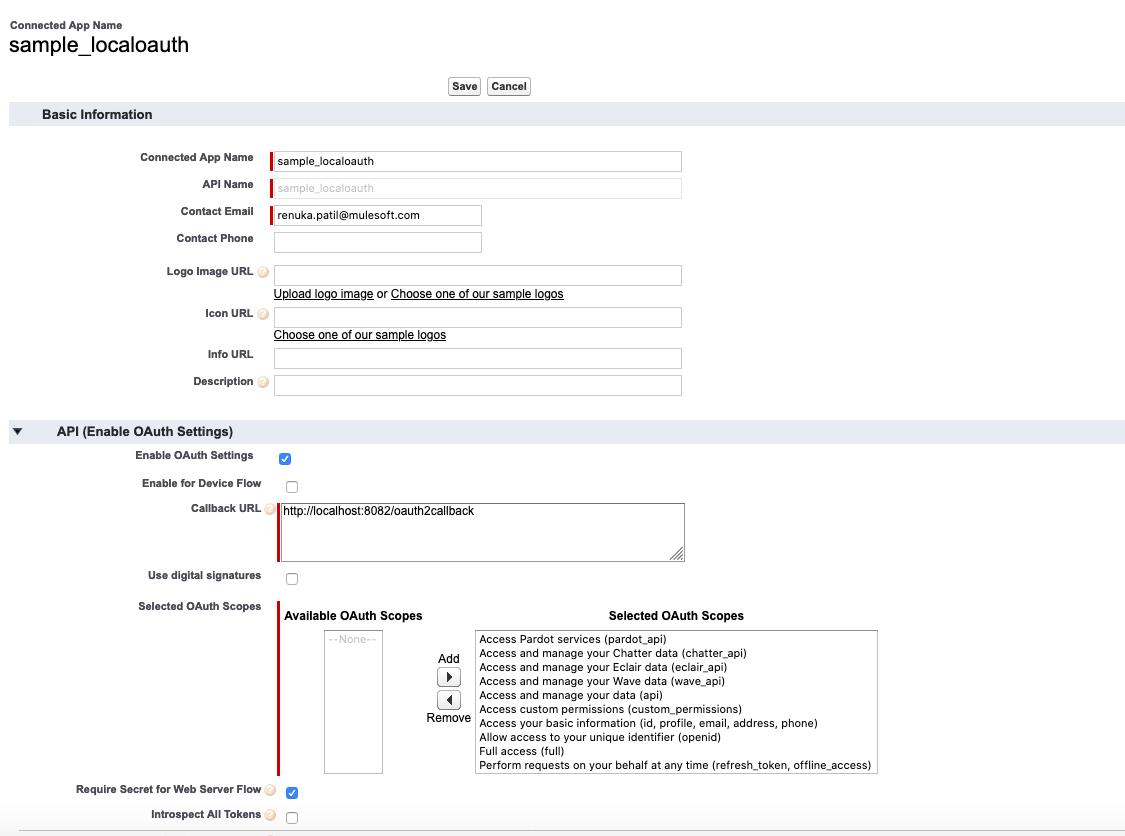
- Set callback url as http://localhost:8082/oauth2callback
- Save the connected application
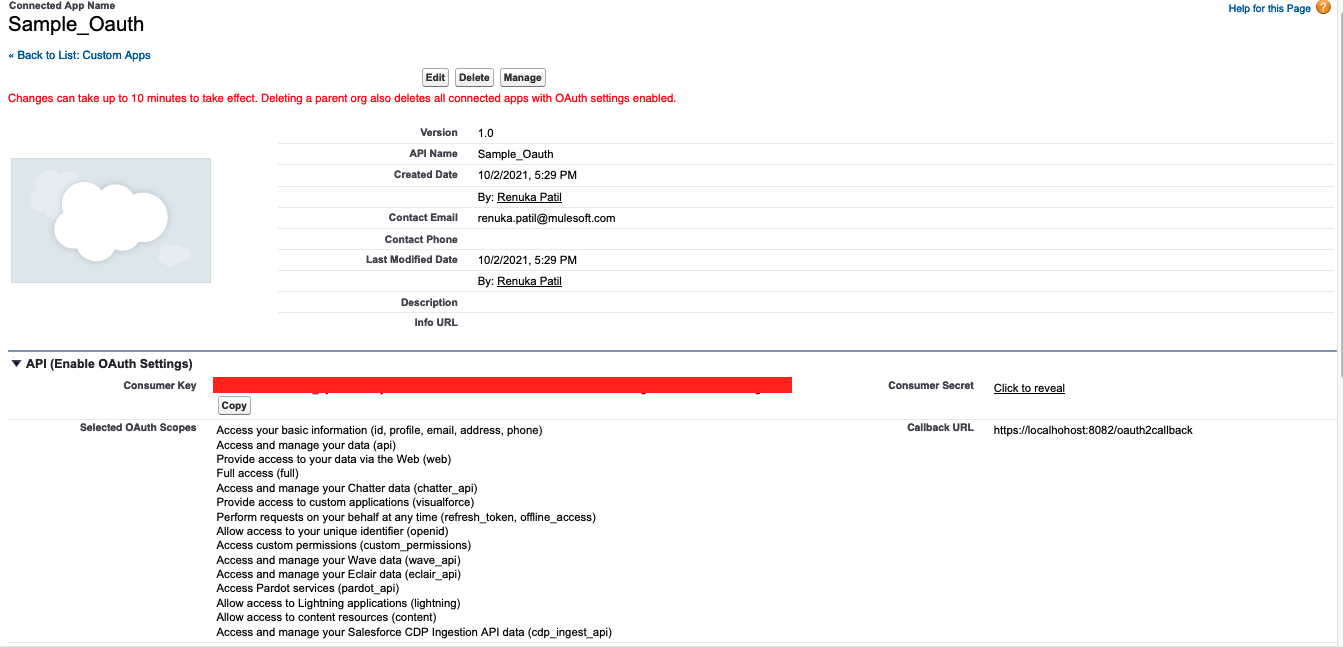
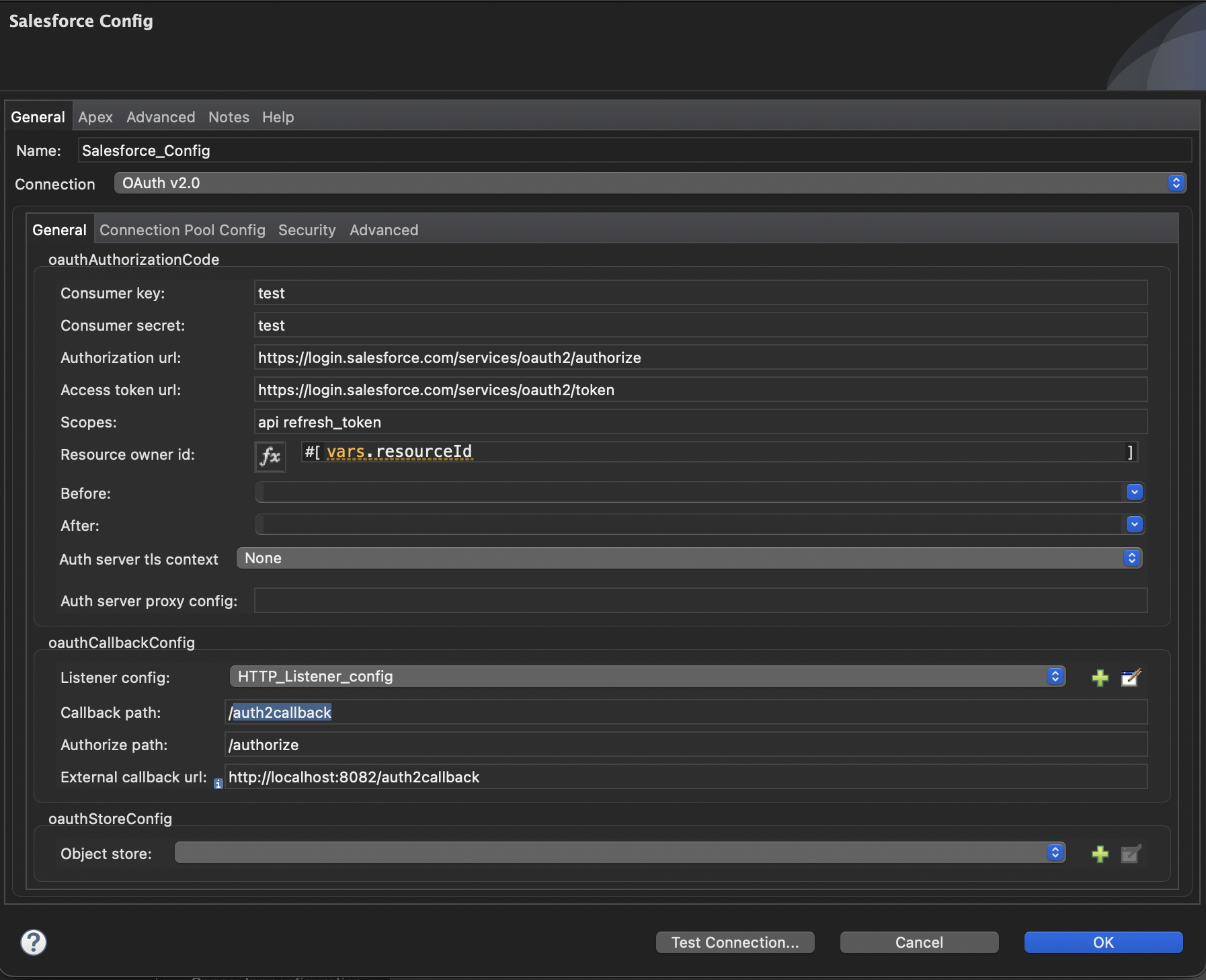
- Launch Anypoint Studio and import the application attached to this knowledge article. Edit the Salesforce configuration and change -
- Consumer key and secret with the connected application's consumer key and secret
- Add the scopes as : 'api refresh_token'
- Please note that the External call back URL is the one configured in the connected application
- Save the config
- Run application
- Open your browser and put http://localhost:8082/authorize?resourceOwnerId=demo in the address bar. You will be redirected to the Salesforce Login page and asked for your credentials. Allow access for this app.
- Once the OAuth dance is performed, you can send a request to perform any other operation.
- Now, change the URL in the browser to http://localhost:8082/test?resourceOwnerId=demo to trigger the Salesforce Query request. The query parameter will be retrieved by the "Set Variable" operation in the sampleoauthtestFlow in the attached sample application. Its value is assigned to the variable "resourceId", which is used by the Salesforce Config (see the "Resource owner id" in the screenshot above) to perform the Salesforce Query.
Notes:
- You can use a different callback url, but it must be configured the same on both Salesforce and MuleSoft sides.
- Authorization code is sent back to the callback url. It is needed for the subsequent requests to Salesforce.
- The authorization request is identified with a Resource Owner Id.
- The subsequent request to Salesforce should be done with the same Resource Owner Id.
Risorse aggiuntive
Numero articolo Knowledge
001116177
Questo articolo ha risolto il problema?
Facci sapere, così possiamo migliorare!
