Seleziona un'organizzazione
ACM: Enable Salesforce Debug Logs for Specific Users
Data pubblicazione: Jul 25, 2025
Operazione
GOAL
Firstly, there are two related KB.- If you want to enable Debug for your user: ACM Troubleshooting: Use Salesforce Developer Console
- If you want to enable Debug for another user (as an SFDC Admin): ACM: Enable Salesforce Debug Logs for Specific Users
Scenario)
As an ACM administrator, sometimes you should perform trouble-shooting that is happening only on a particular user.
Since you cannot reproduce the problem, you would like to collect detailed logs when the user is seeing the problem.
While trouble-shooting ACM, you can enable Debug log for desired Salesforce users.
To activate debug logging for users, Apex classes, and Apex triggers, configure trace flags and debug levels in the Salesforce Developer Console or in Salesforce Setup.
This article will explain how to enable Debug for the desired Salesforce user, via Salesforce Setup
For more detail, please check the Salesforce document Set Up Debug Logging
Fasi
The steps are based on the Salesforce document Set Up Debug Logging
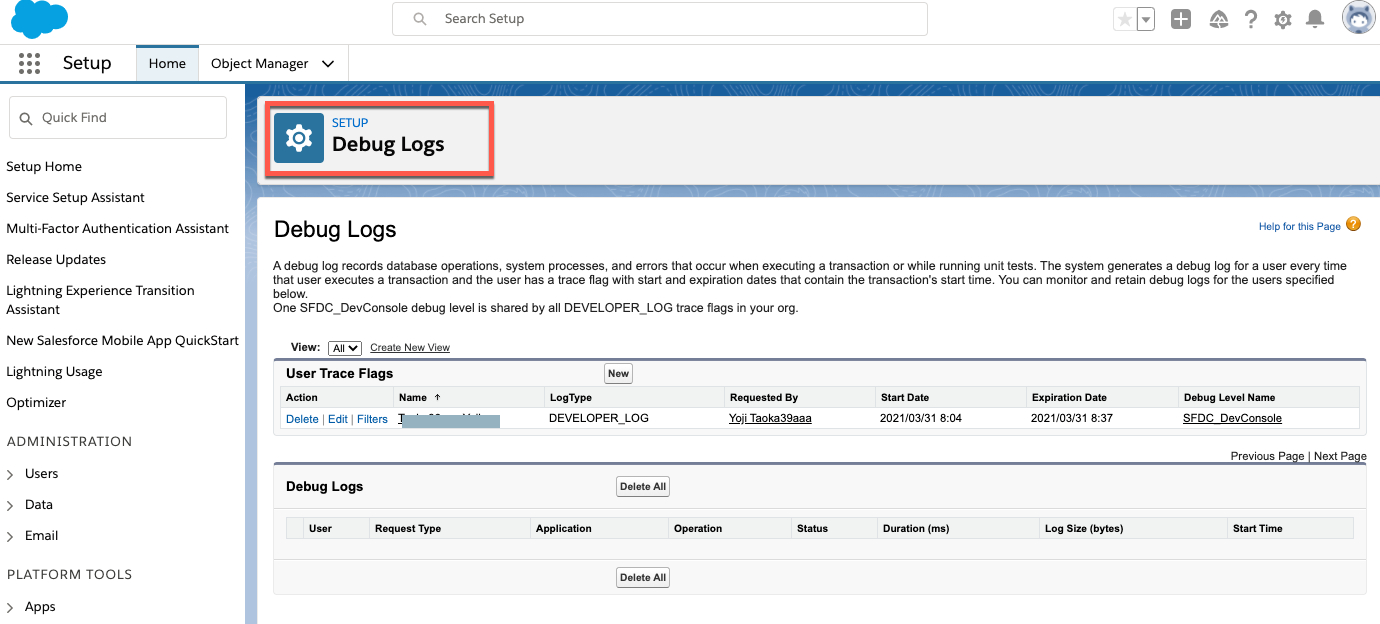
1) Login Salesforce, Setup => Debug Logs, click "New"
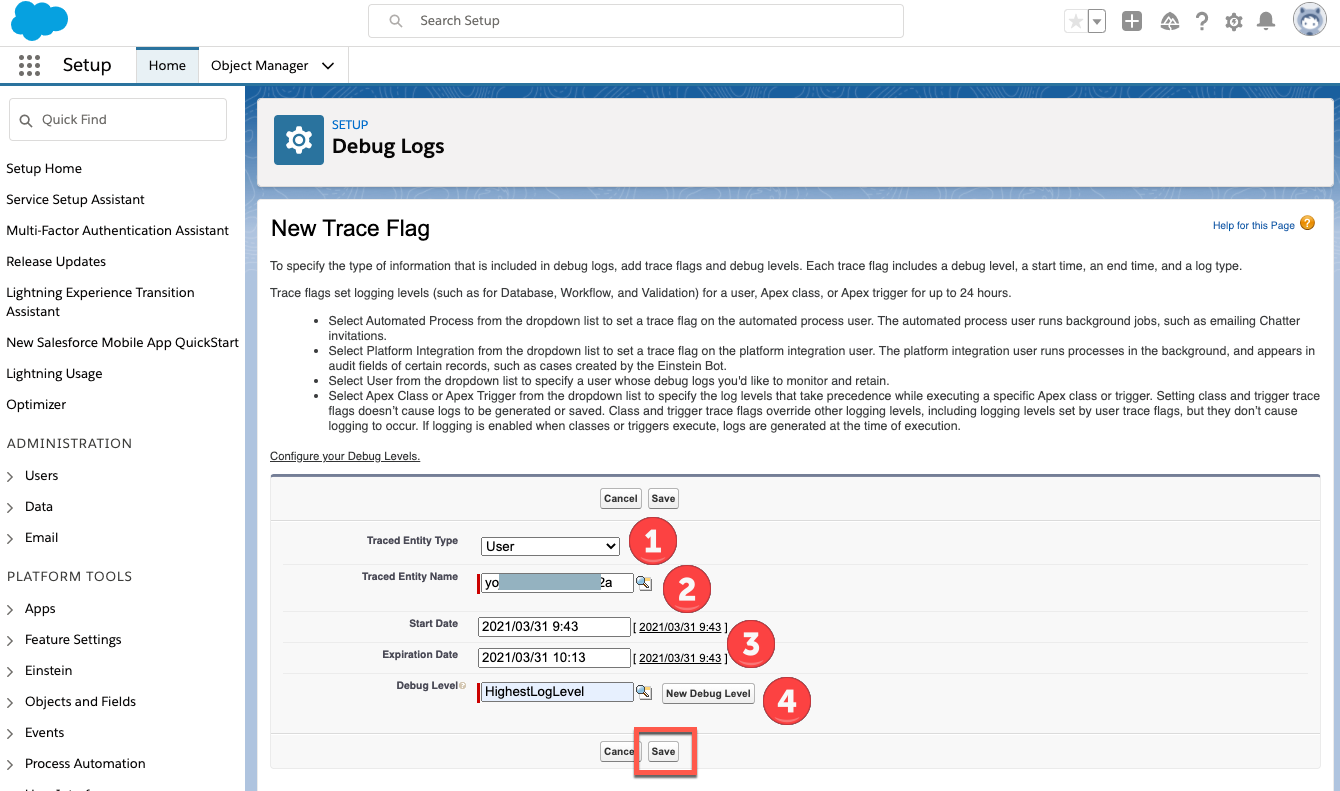
2) Set required values then click "Save"
2-1) Traced Entity Type: User
2-2) Traced Entity Name: <The target user name>
2-3) Start Date, Expiration Date: Date and time to start and end the debug log collection
2-4) Debug Level: Initially, you can only see a default level "SFDC_DevConsole". You can create a new set of Debug level which has higher log level. For more detail, please check the Salesforce document Set Up Debug Logging
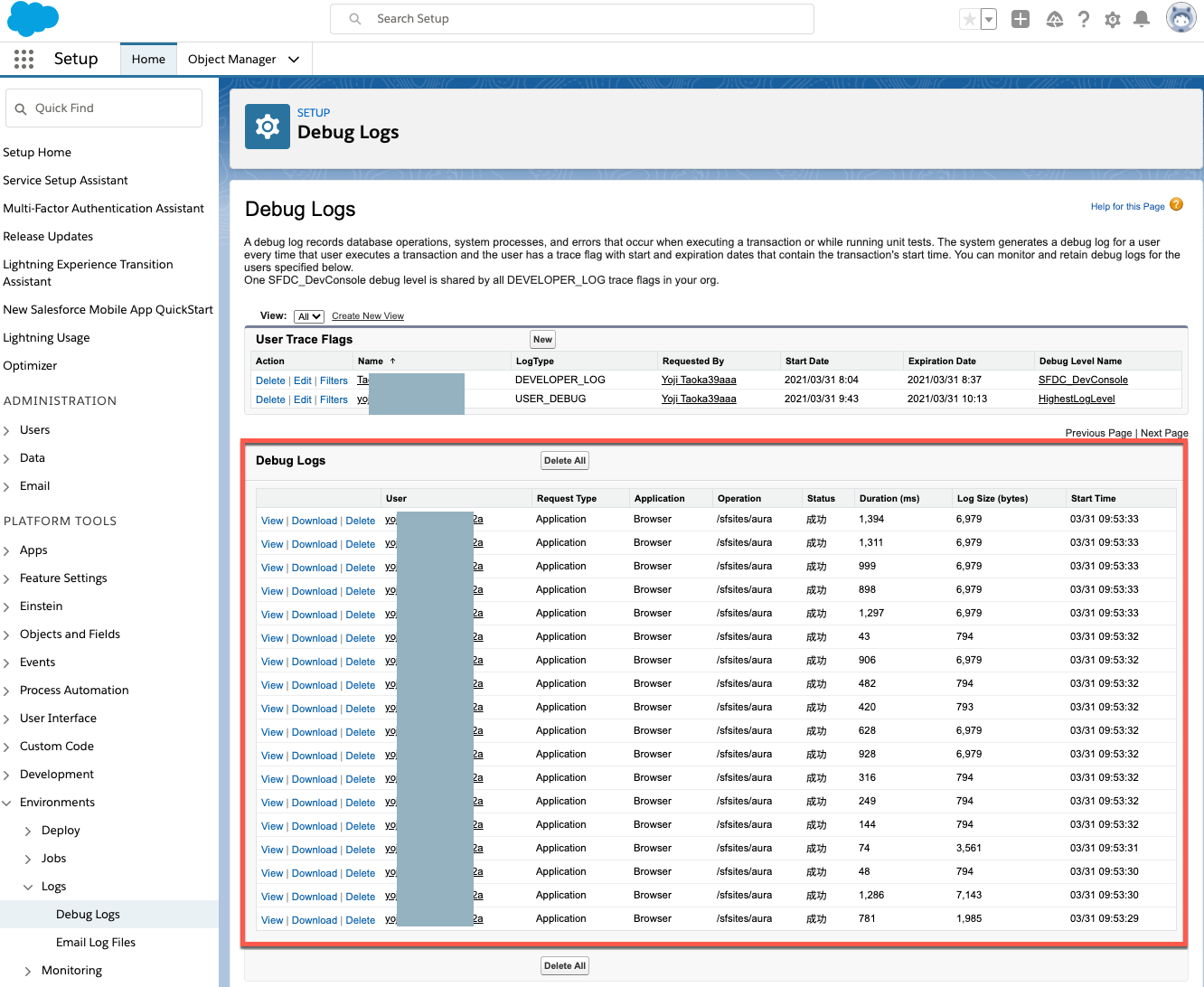
3) Now if the target user performs something on Salesforce, you will see the generated debug log on the Setup => Debug Logs screen.
Numero articolo Knowledge
001116304
Questo articolo ha risolto il problema?
Facci sapere, così possiamo migliorare!
