Select An Org
How to Set Object Permissions and Field-Level Permissions for ACM
Publish Date: Jul 21, 2025
Task
GOAL
I am setting up ACM and referring to the document Configure Profiles and Permissions.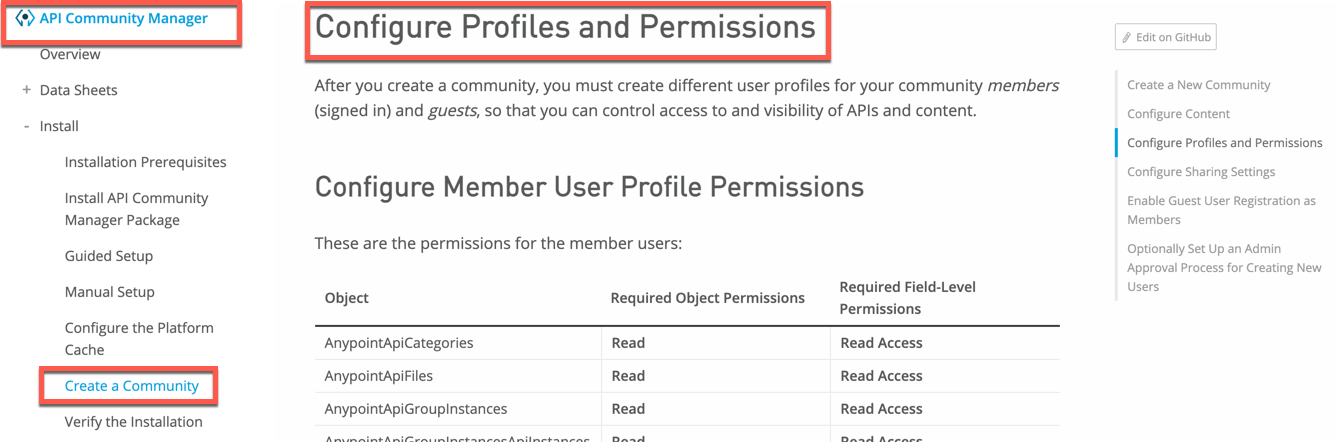
I would like to understand the detailed steps for how to set Object Permissions and Field-Level Permissions.
Steps
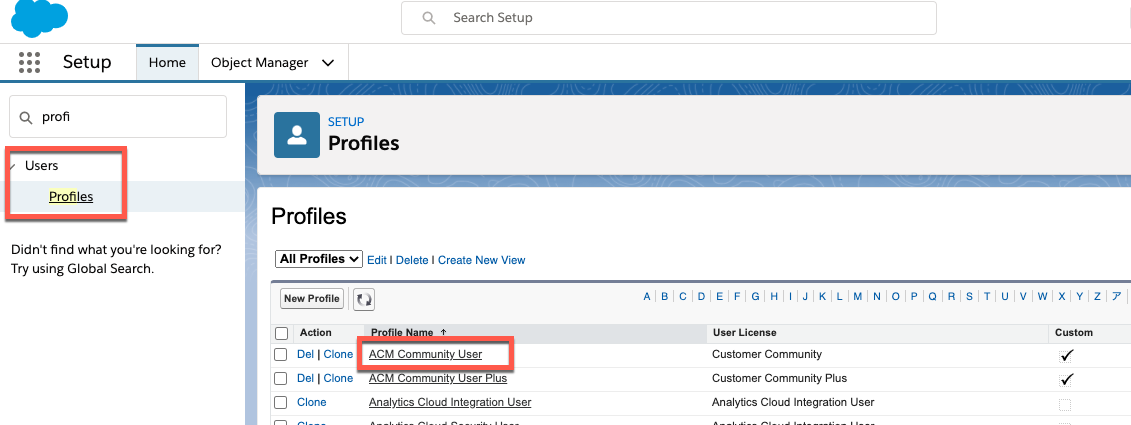
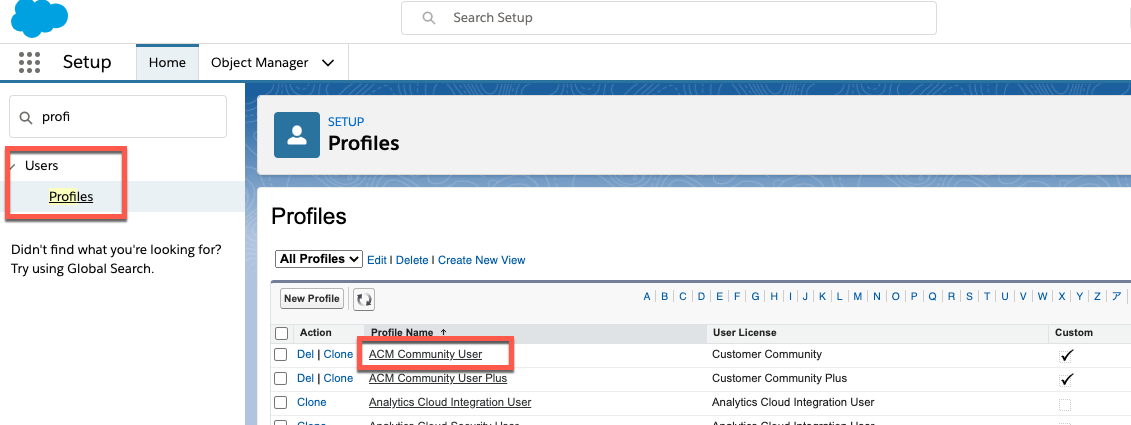
1-1. Login Salesforce, go to Setup => In Setup, search for Users using the Quick Find box and click Profiles. Click "[Site Name] Member User"
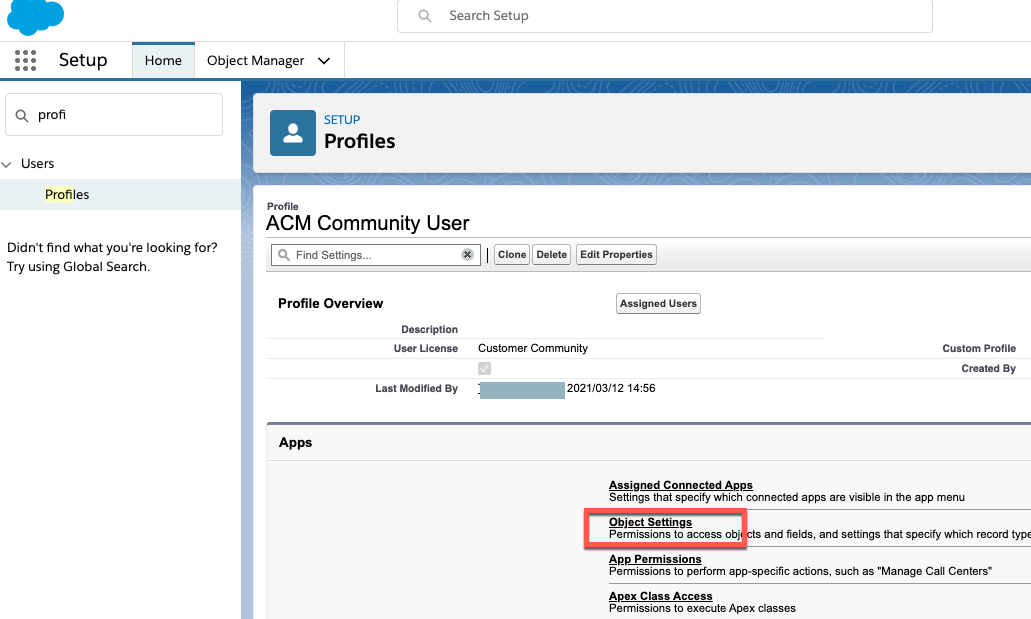
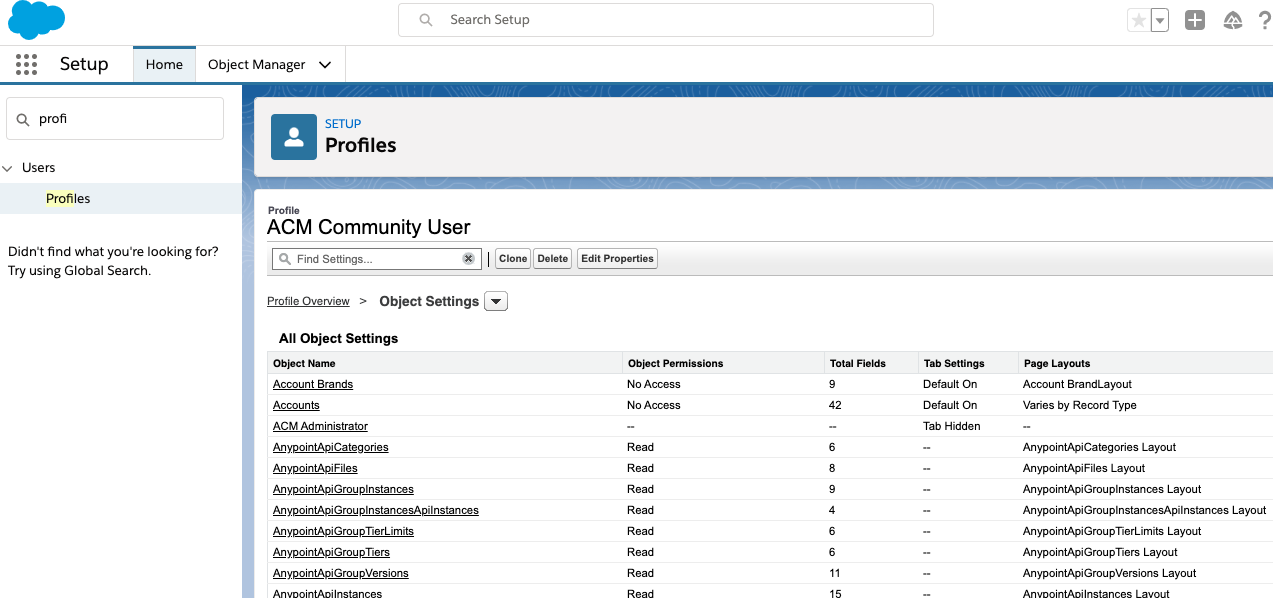
1-2. In the [Site Name] Member User profile page, click "Object Settings".
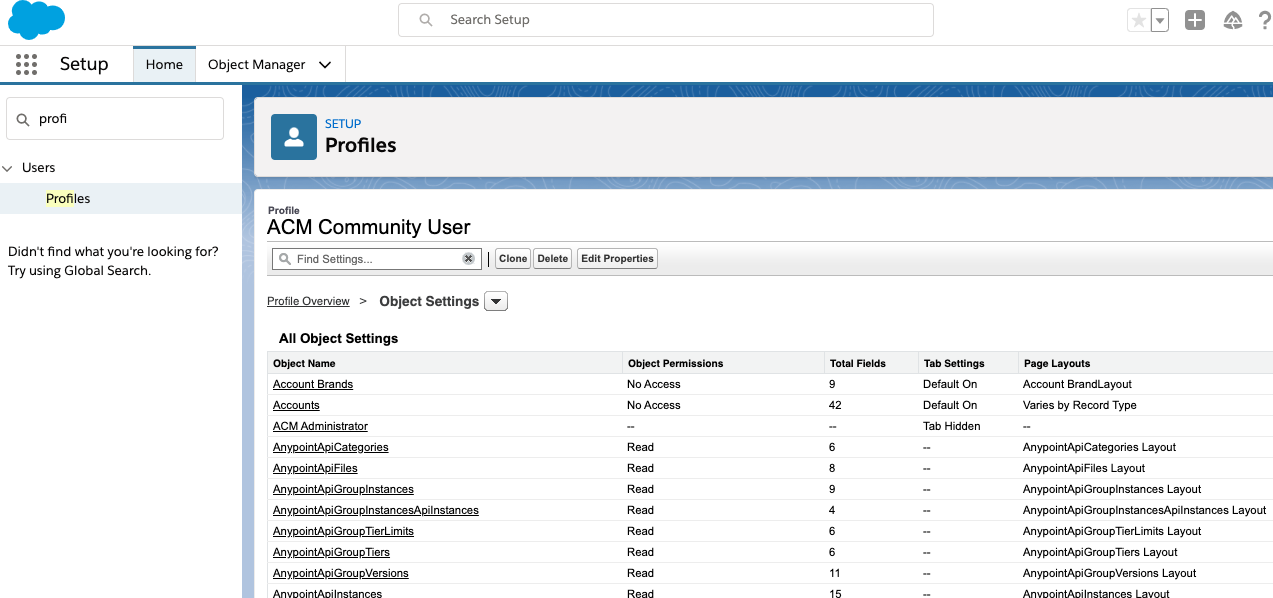
1-3. Click each object and set required permissions as written in the document Configure Profiles and Permissions.
Example1)
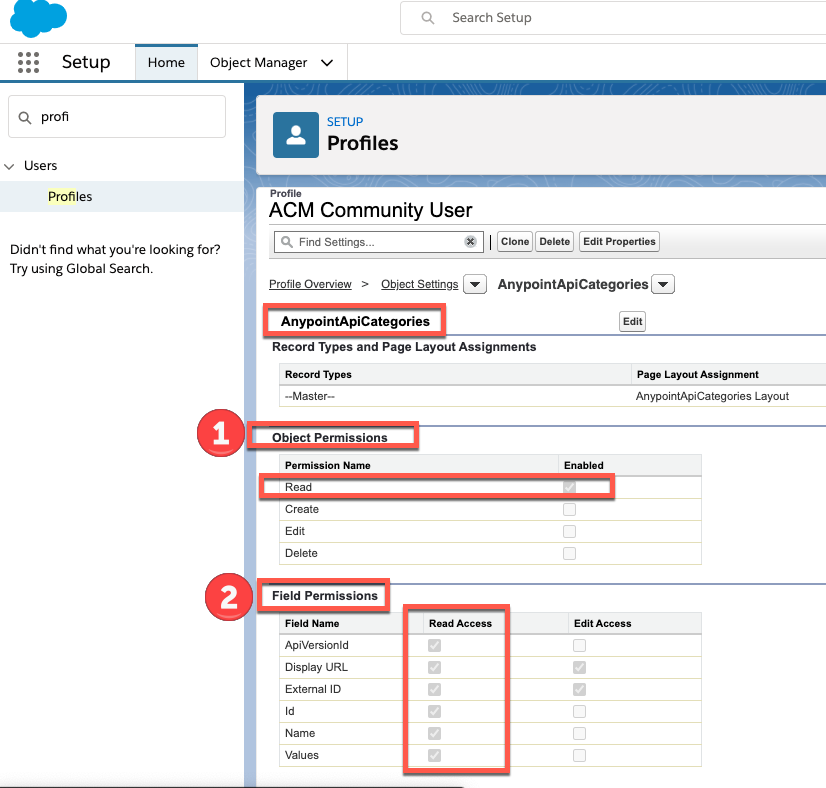
The following screen is setting permissions for "AnypointApiCategories". As per the above document, the object requires only Read, so it is setting Read permission to (1) Object Permissions (2) Field Permissions(all fields).
Example2)
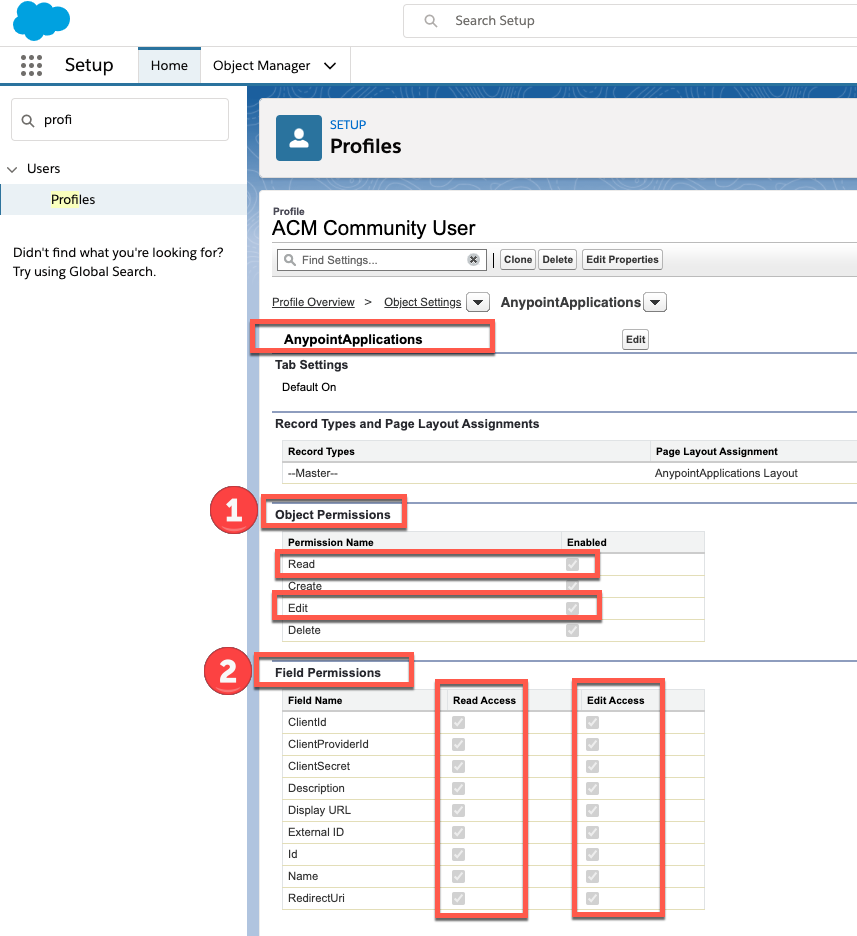
The following screen is setting permissions for "AnypointApplications". As per the above document, the object requires both Read and Edit, so it is setting both Read and Edit permission to (1) Object Permissions (2) Field Permissions(all fields).
1-4. Go back to the document Configure Profiles and Permissions and continue steps for other configurations(for example, Enabled Apex Class Access, Sharing Settings, etc)
2. "Guest User Profile" - Set Object Permissions and Field-Level Permissions
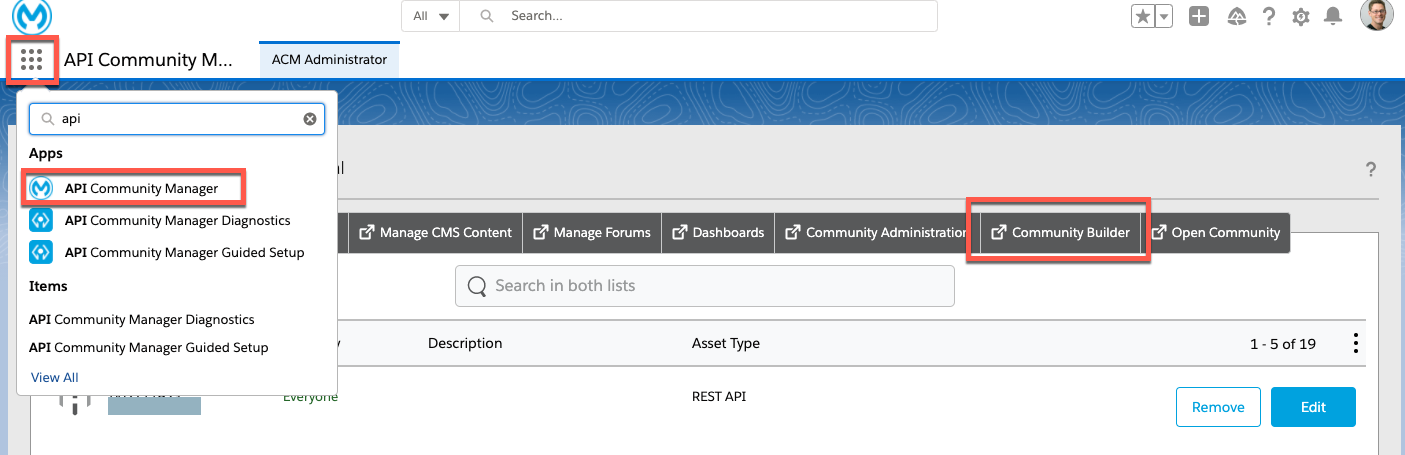
2-1. Login Salesforce. On the top left screen, click "API Community Manager" then click "Community Builder"
2-2. Click Settings(gear icon on the left) => General. In the Guest User Profile section, click [Site Name] Profile.
2-3. In the [Site Name] Profile page, click "Object Settings".
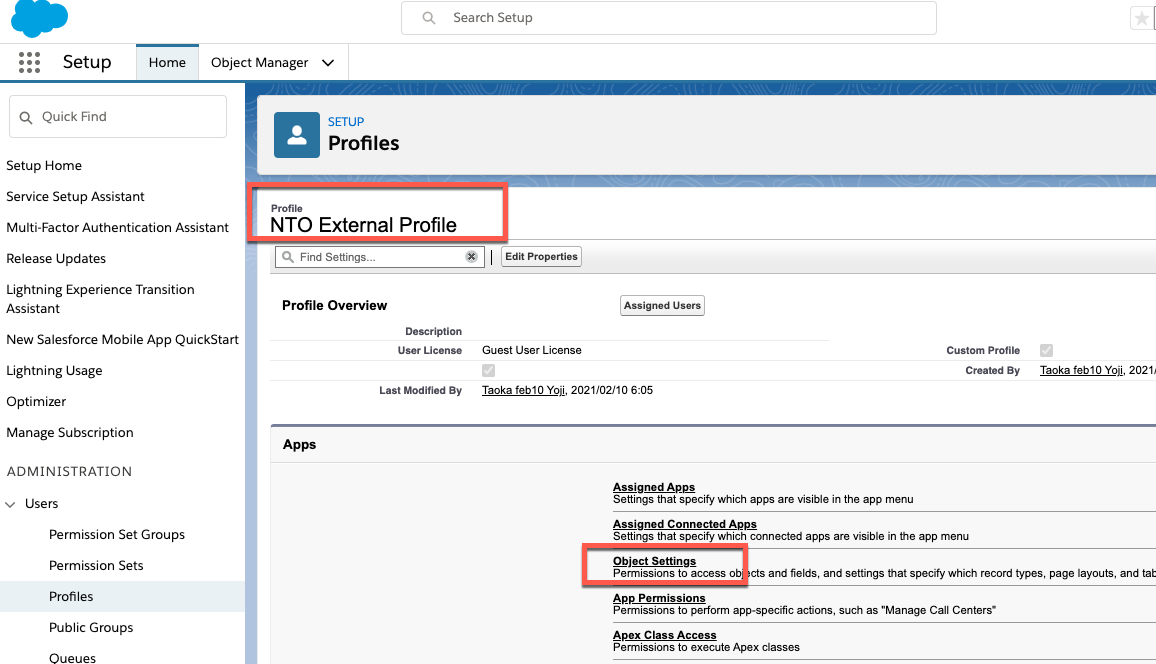
2-4. Click each object and set required permissions as written in the document Configure Profiles and Permissions. Note, the required permissions for "Member Profile" and "Guest Profile" are different. In general, "Guest Profile" requires weaker permissions.
2-5. Go back to the document Configure Profiles and Permissions and continue steps for other configurations(for example, Enabled Apex Class Access, Sharing Settings, etc)
Knowledge Article Number
001116332
Did this article solve your issue?
Let us know so we can improve!
