組織を選択
How to retrieve the MULE_HOME and logs folder in Anypoint Studio
公開日: Jul 21, 2025
ステップ
CONTENTS
In this article, we will show you how to retrieve the Mule logs path for applications running in Anypoint StudioSTEPS TO FOLLOW
1. Getting the "logs" path from the project1.1 Under the project you are working on in Studio expand the contents of "Mule Server" you have configured
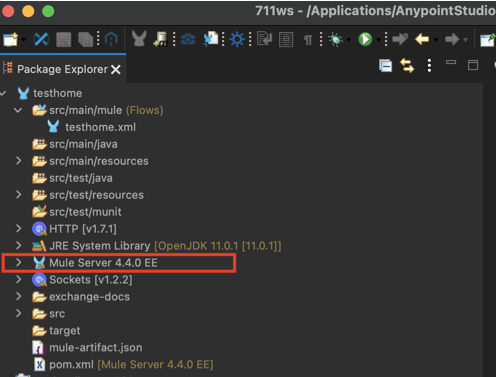
1.2. Scroll down until the "conf" folder
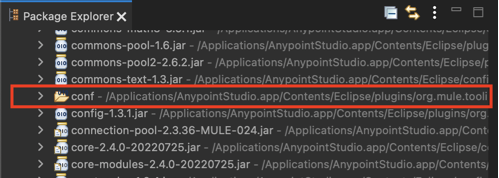
1.3. Right-click over the "conf" folder and Copy Qualified Name
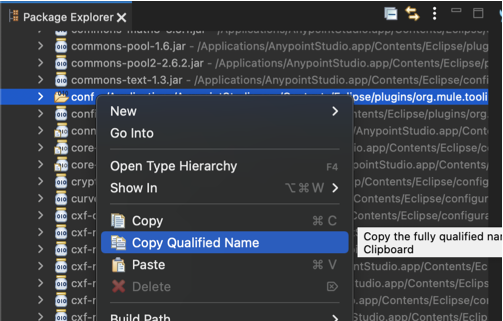
You will get a path like the below:
/Applications/AnypointStudio.app/Contents/Eclipse/plugins/org.mule.tooling.server.4.4.0.ee_7.11.0.202207261356/mule/conf
MULE_HOME path for the server you set is the same removing conf at the end:
/Applications/AnypointStudio.app/Contents/Eclipse/plugins/org.mule.tooling.server.4.4.0.ee_7.11.0.202207261356/mule
Under the MULE_HOME you will find the "logs" folder:
/Applications/AnypointStudio.app/Contents/Eclipse/plugins/org.mule.tooling.server.4.4.0.ee_7.11.0.202207261356/mule/logs
2. Getting the "logs" path from the Studio console
When you are running a Mule application in the console you will see the MULE_HOME in the first lines, click there to stop the scroll down and copy the path:

ナレッジ記事番号
001116391
この記事で問題は解決されましたか?
ご意見をお待ちしております。
