Vælg en organisation
How to use the Anypoint Studio's Troubleshooting Export Tool
Udgivelsesdato: Aug 5, 2025
Trin
DESCRIPTION
This article explains how to use Anypoint Studio's Troubleshooting tool. The purpose of its usage is to collect relevant information for troubleshooting issues in Anypoint Studio and/or Mule applications running in the Studio. It provides an easy way to collect information about your Studio installation to share with MuleSoft Support.
NOTE: This feature is only available since Studio 7.6.0
STEPS TO FOLLOW
- Go to Anypoint Studio's Help menu and select the Troubleshoot Export Tool
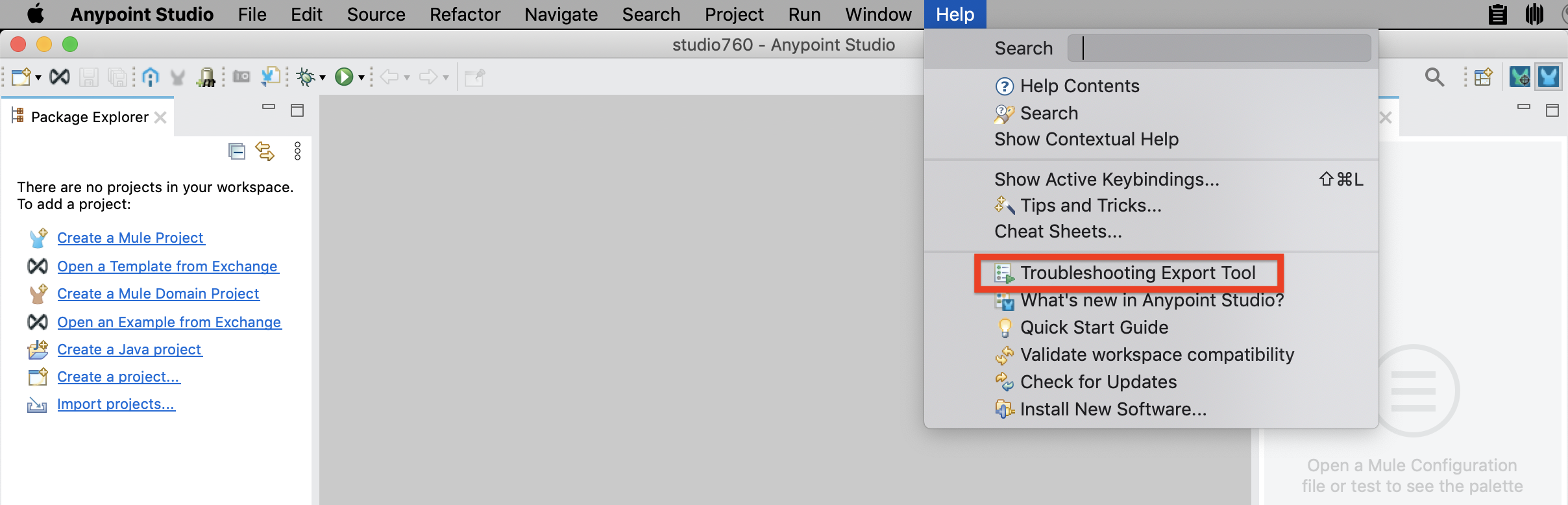
- Select the information you would like to export. The options available for selection are the following:
- Tooling - Runtime - Workspace logs: It will collect the last execution logs from your mule application, and Studio error logs.
- Studio .ini: it will collect a copy of your AnypointStudio.ini file. It provides initialization settings used by Studio.
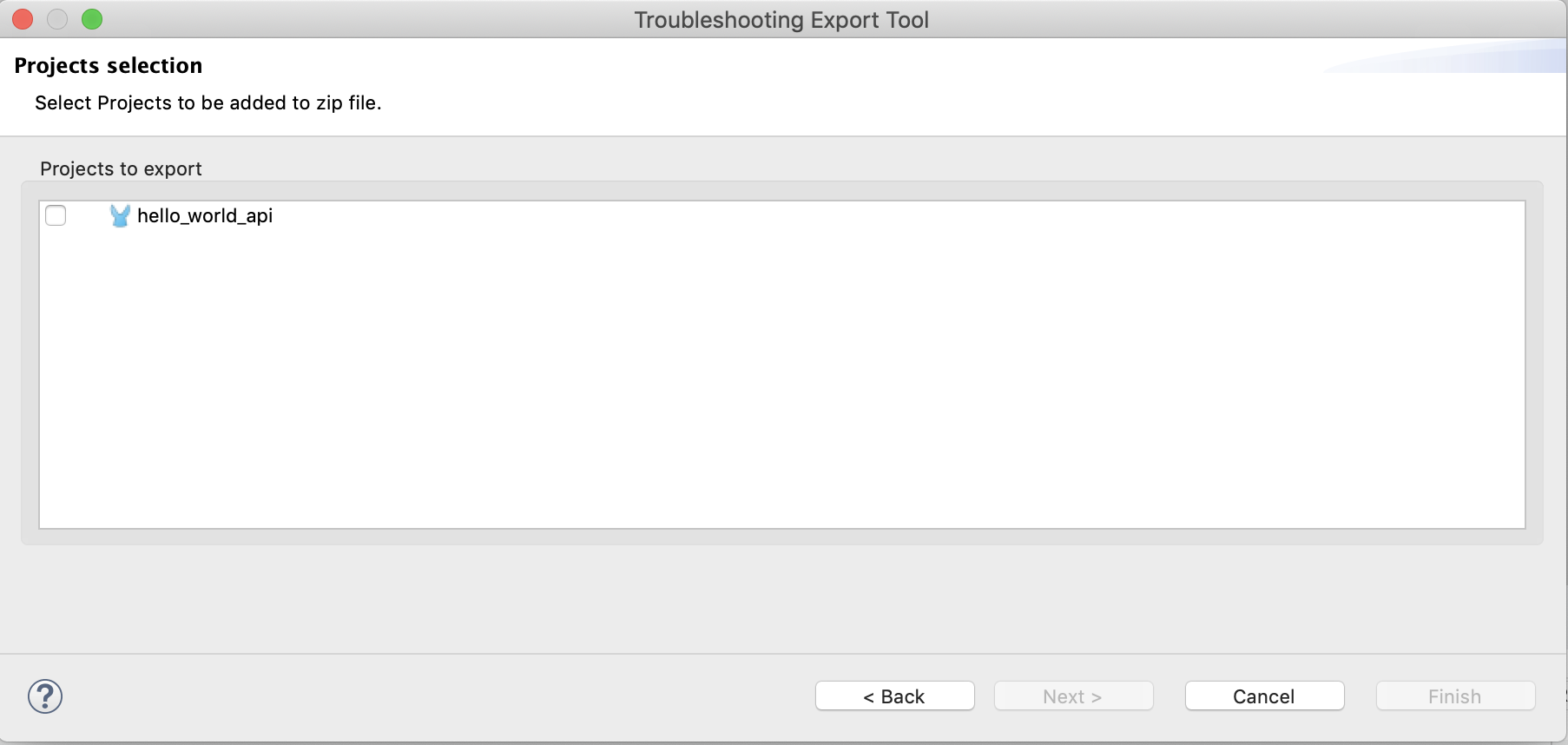
- Mule Project: It will export a copy of your Mule Project. Make sure to select this option to be able to select the projects you want to export in Step 3.
- Thread dump: it will collect a thread dump that are part of the Studio process.
- System Properties: is a summarized version of Studio's configuration file
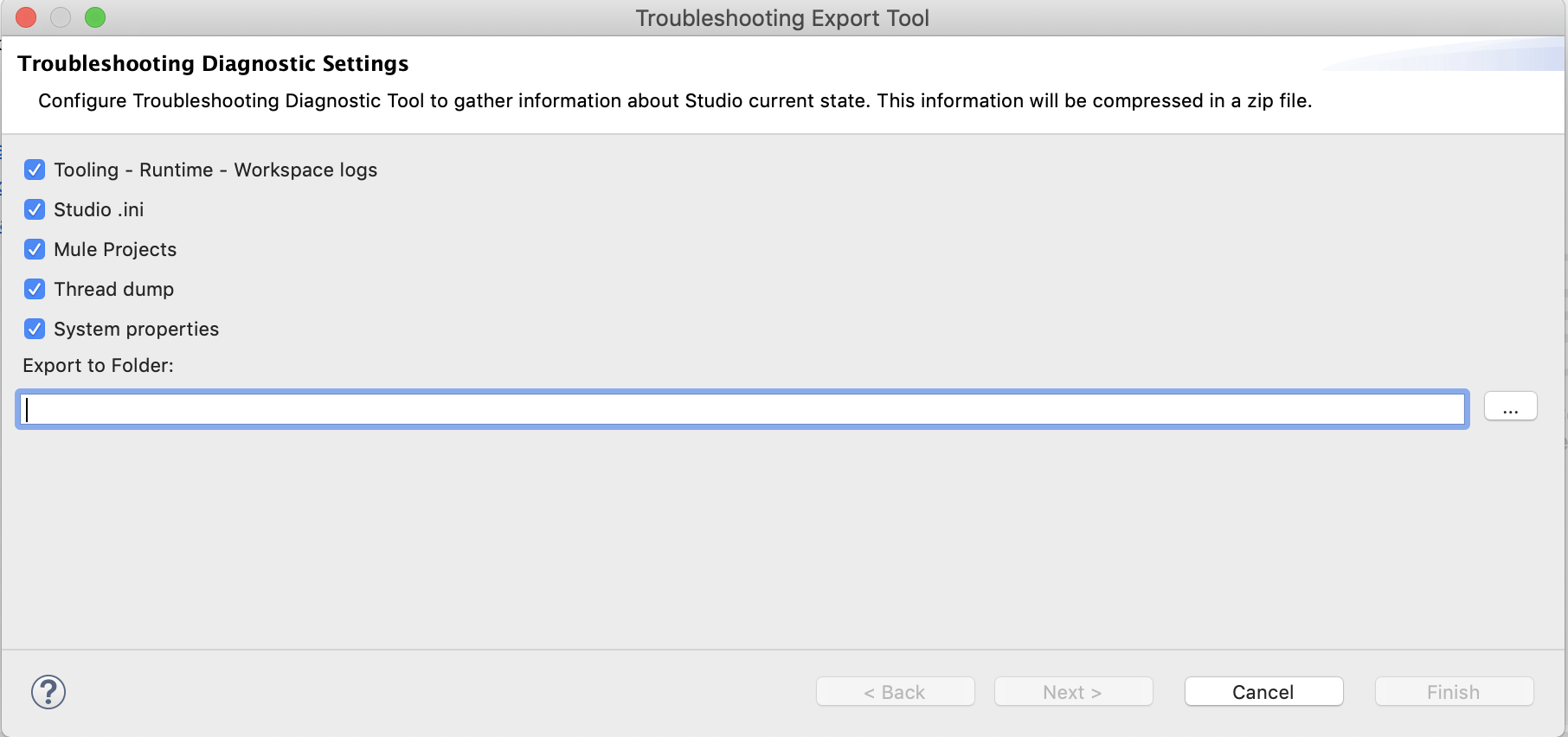
Then select the folder were this content will be placed as zip a file, and click Next
- Optional - If you have selected the option to export Mule Projects, check the projects you would like to export and click Finish
- You will see the following notification once the export is completed.
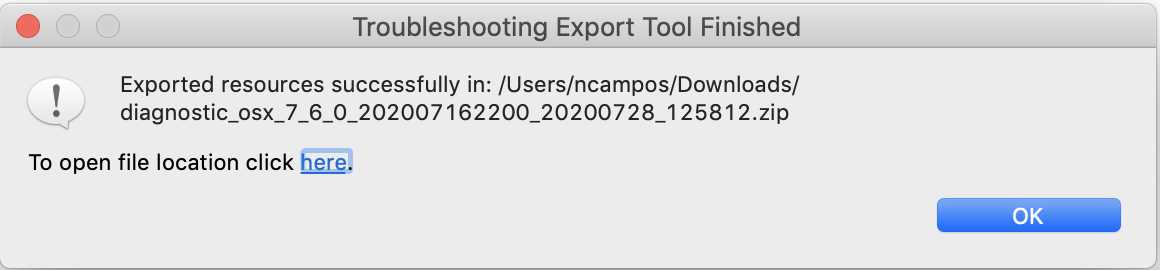
Once you locate the exported file in your disk you can attach it to a Support case.
Vidensartikelnummer
001116587
Løste denne artikel dit problem?
Giv os besked, så vi kan forbedre os!
