조직 선택
How to migrate between VPN and Direct Connect connections
게시 일자: Mar 2, 2024
과업
GOAL
The Anypoint Virtual Private Cloud (VPC) offering allows you to create a virtual, private, and isolated network segment in the cloud to host your CloudHub workers. Connecting to your Anypoint VPC extends your network and allows CloudHub workers to access resources behind your corporate firewall, or hosted in another provider network.
You can connect to a private AWS VPC through VPC peering. For on-premise data centers and other remote locations, you can connect through a secured VPN tunnel, or by using AWS Direct Connect.
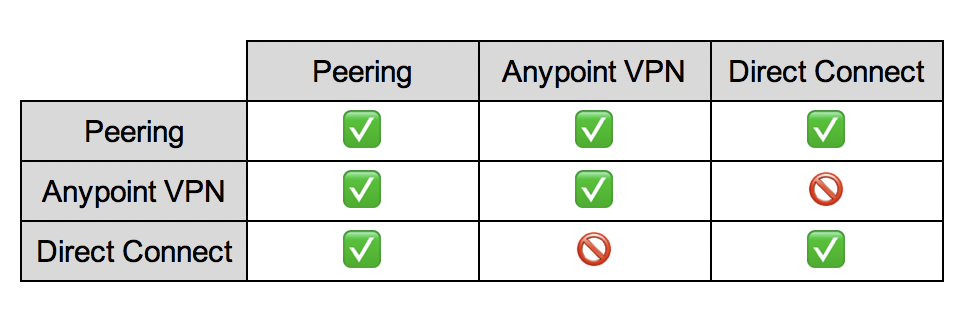
Each VPC can support multiple connections, but VPN and DX connections cannot co-exist for a single VPC. This article explains how to migrate from Anypoint VPN to DX connectivity, or vice-versa.
단계
Important: Before making any changes to VPC connectivity, review the documentation for the new connectivity method, and familiarise yourself with the configuration steps. Removing a VPC connection is a permanent action. That is, there is no option to rollback, other than recreating the connection from scratch.
Migrate from Anypoint VPN to DX
1. Provision DX connectivity
a) You must establish DX connectivity in your own (or your partner's) AWS account. For help on this step, please refer to the AWS documentation or engage the AWS support.- DO NOT create a Direct Connect request to the MuleSoft AWS account
- Direct Connect MUST be in the same region as the CloudHub VPC
c) Open a new support case, and attach the completed provisioning form.
d) MuleSoft Support will review the request, and prepare the VPC for the changes.
2. Schedule a Change Window
a) Work with MuleSoft Support to identify a suitable day and time to make the changes.
b) Provide advance notice of at least 2 business days.
Note: These change requests carry a 5-business-day SLA, but will be completed sooner, where possible.
3. Perform the Cutover
a) During the change window, you will need to delete the VPN connection via Runtime Manager.
b) MuleSoft Support will make the necessary changes to the VPC to enable the new DX connection. This can only be done AFTER the VPN is deleted.
c) Next, you need to bring up the BGP session. Instructions may differ, please consult the AWS documentation for further guidance.
d) Follow How to View the VPC Route Table via the UI to confirm the routes are being advertised to the MuleSoft peer as expected.
e) Follow How to Verify VPC Connectivity using Direct Connect to validate the new connection.
Migrate from DX to Anypoint VPN
1. Remove the DX Configuration
a) Open a new support case and request removal of the DX configuration. Note: This change can only be performed by MuleSoft Support.b) Remove the configuration from your own AWS account.
2. Configure the VPN
a) Follow the instructions to create a new VPN connection in Runtime Manager. This can only be done AFTER the DX configurations is removed.
b) Use the downloaded configuration file to configure your VPN endpoint.
c) Follow How to Generate Interesting Traffic for Anypoint VPN to test and validate the connection.
Knowledge 기사 번호
001116599
이 기사를 통해 문제를 해결했습니까?
개선을 위한 의견을 보내주세요.
