Vælg en organisation
How to Connect to Google Drive connector with OAuth2.0
Udgivelsesdato: Aug 6, 2025
Opgave
GOAL
- Configuration on Google Cloud Platform for OAuth2.0
- Configuration on Mulesoft Side to connect with OAuth2.0 to google Drive
Trin
- Go to the Google API Console: https://console.developers.google.com/
- Enable Google Drive API with the instructions: https://developers.google.com/drive/api/v3/enable-drive-api
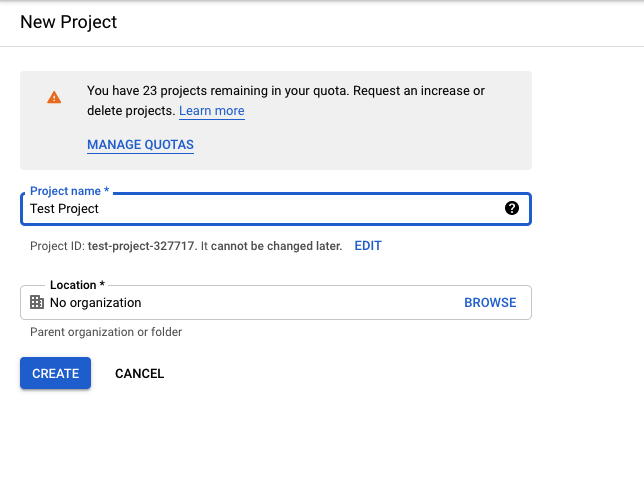
- Create New Project
- Go to Credentials and click on Create Credentials
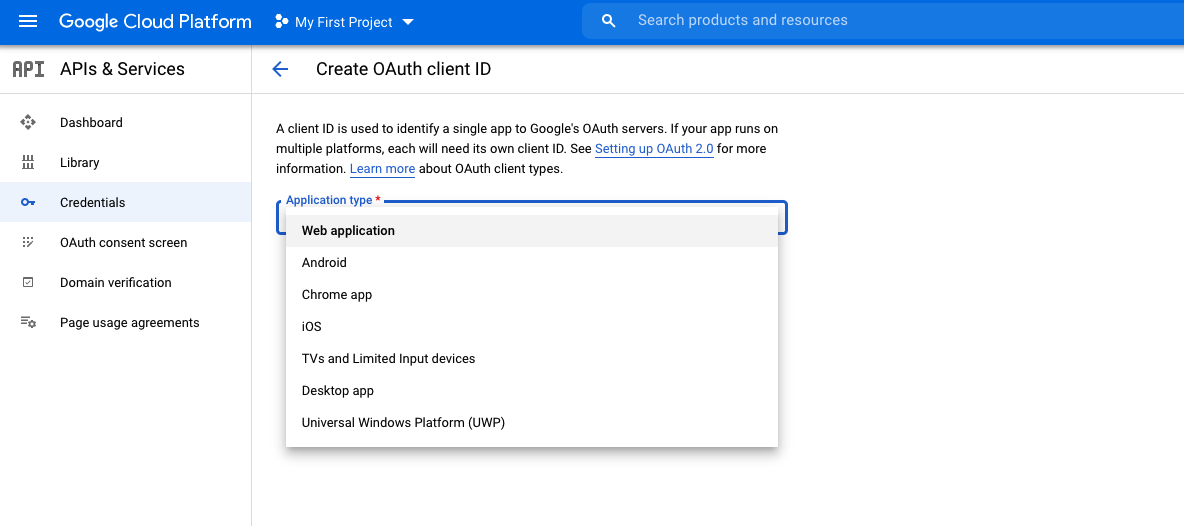
- Create OAuth Client Id With application type as a Web application
- Please set the callback URL in Authorized redirect URIs
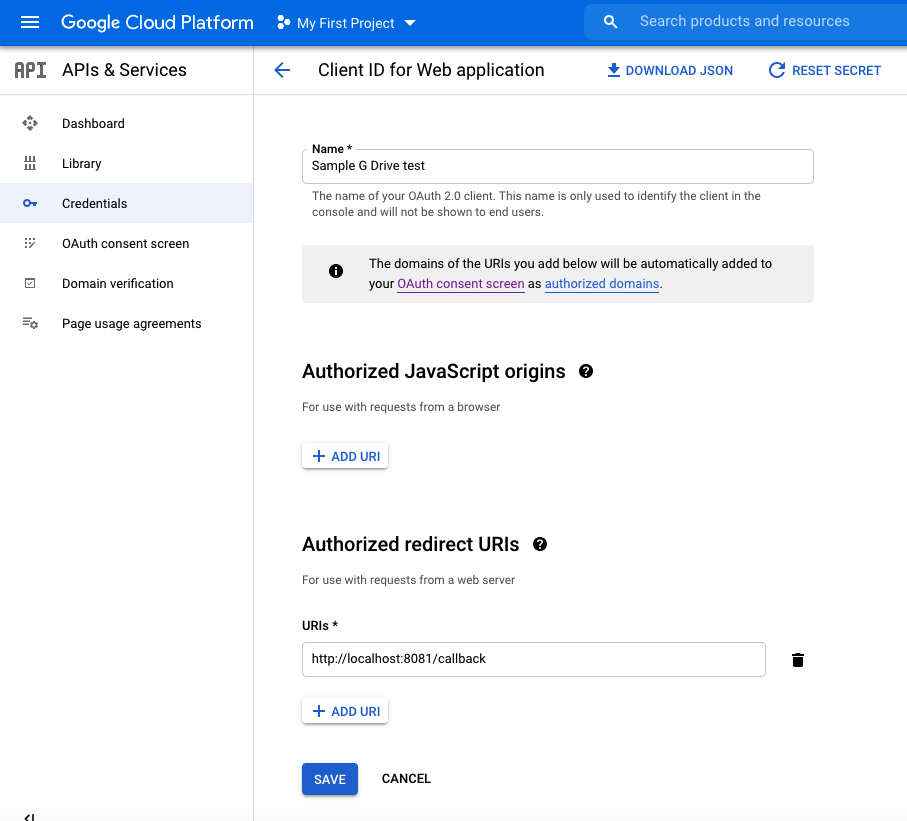
- Save the application it will provide Client Id and Secrete
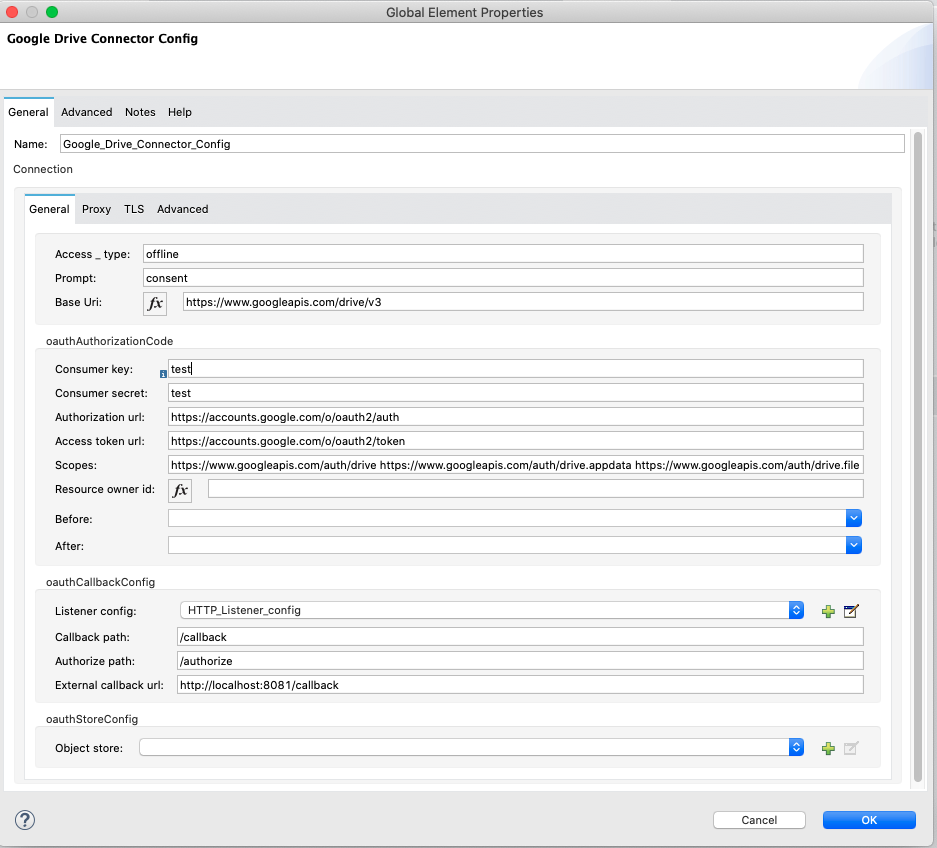
- In the Mulesoft Google Drive connector configuration please add Client id and Secrete from the application.
- Make sure that the External Callback URL is the same as that of the Authorized redirect URL
- Once the application is deployed please go to the browser and send authorize request first
- In this case, as a authorize path is /authorize and HTTP listener is listening on 8081 below is the authorize request
- http://localhost:8081/authorize
- Once the authorization is done successfully you can see a message - Successfully retrieved access token
- Request to the google drive can be made now
Vidensartikelnummer
001116757
Løste denne artikel dit problem?
Giv os besked, så vi kan forbedre os!
