Sélectionner une organisation
How to connect to Smartsheet with Smartsheet Connector using Oauth
Date de publication: Mar 2, 2024
Tâche
GOAL
- Configuration on Smartsheet side to connect with OAuth2.0
- Configuration on Mulesoft Side to connect with OAuth2.0
Étapes
- Create a Connected application on the Smartsheet side.
- Create a Smartsheet Developer Account
- In Smartsheet, select Account → Developer Tools → Create New App and fill out the details to confirm your app registration.
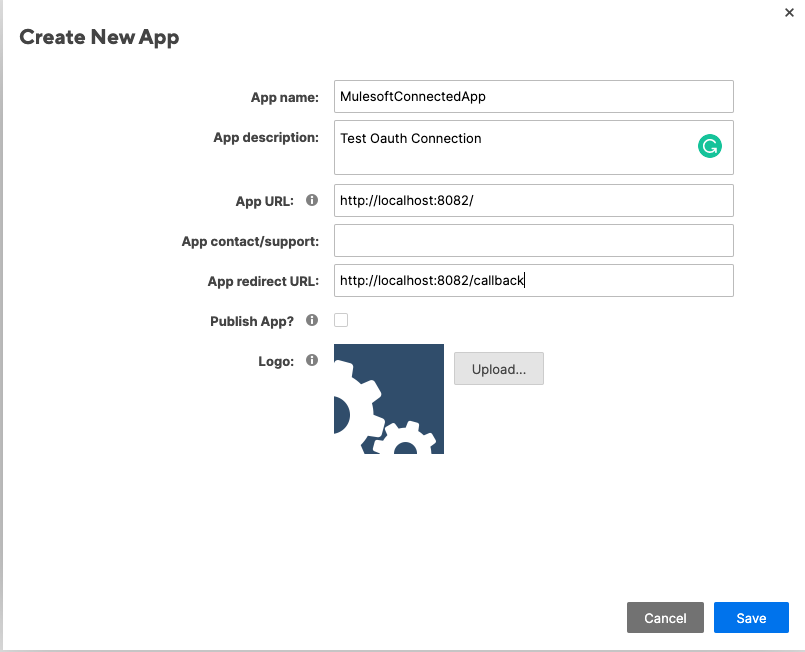
- When registering your app, the app redirect URL is the specific address that is used to send the authorization code.
- In this sample, we’re using localhost:8082/callback.
- When configuring a Smartsheet connector same call-back URL should be used.
- When the application is created on the Smartsheet side it will provide client id and secrete.
- Please note the client id and secrete.
- Below is the configuration for the Smartsheet connector :
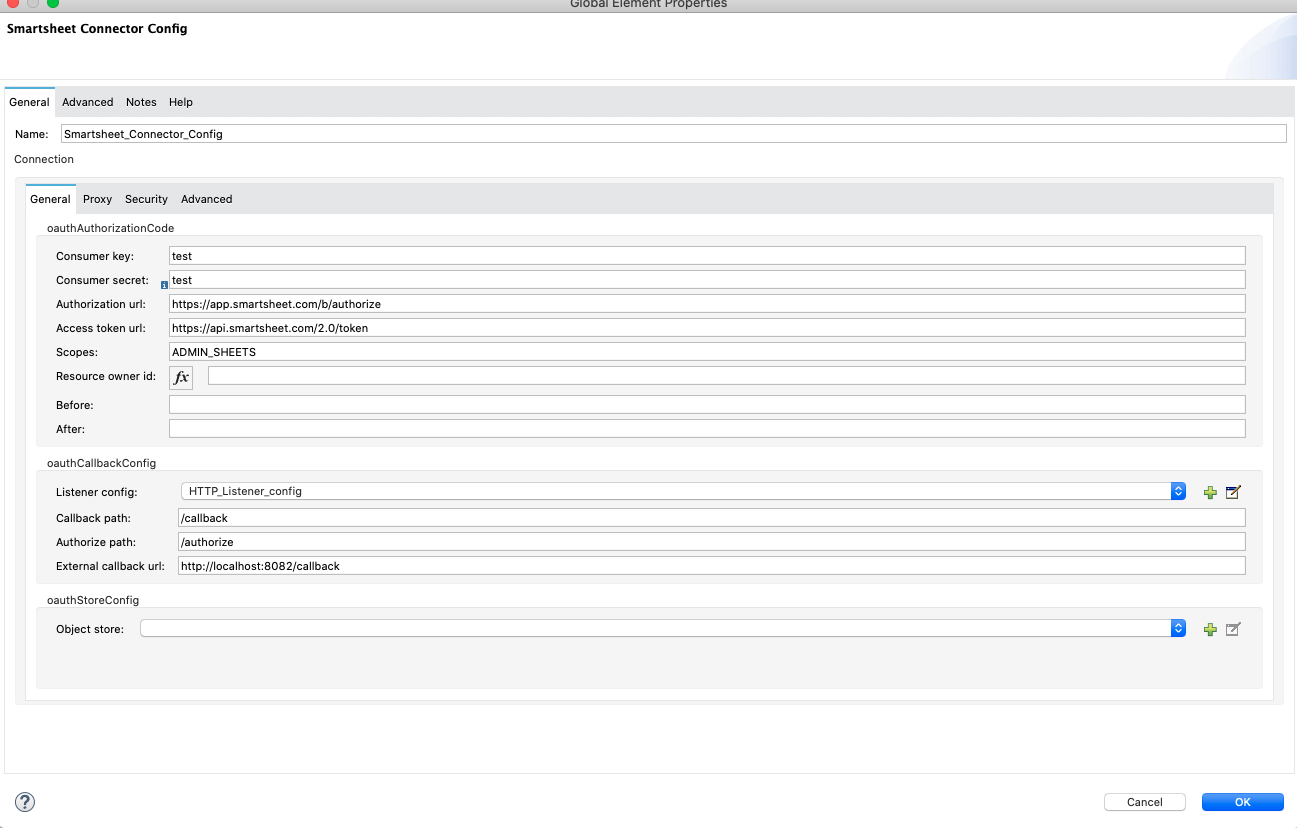
<smartsheet:config name="Smartsheet_Connector_Config" doc:name="Smartsheet Connector Config">
<smartsheet:oauth2-0-connection >
<smartsheet:oauth-authorization-code consumerKey="test" consumerSecret="test"/>
<smartsheet:oauth-callback-config listenerConfig="HTTP_Listener_config" callbackPath="/callback"
authorizePath="/authorize" externalCallbackUrl="http://localhost:8082/callback" />
</smartsheet:oauth2-0-connection>
</smartsheet:config>
- Consumer Key and Secrete is the one generated after creating the application on Smartsheet
- External Call back URL should be same as that of the defined on Smartsheet side
- To send a request we need to perform Oauth Dance first
- Go to the browser and send a request - http://localhost:8082/authorize
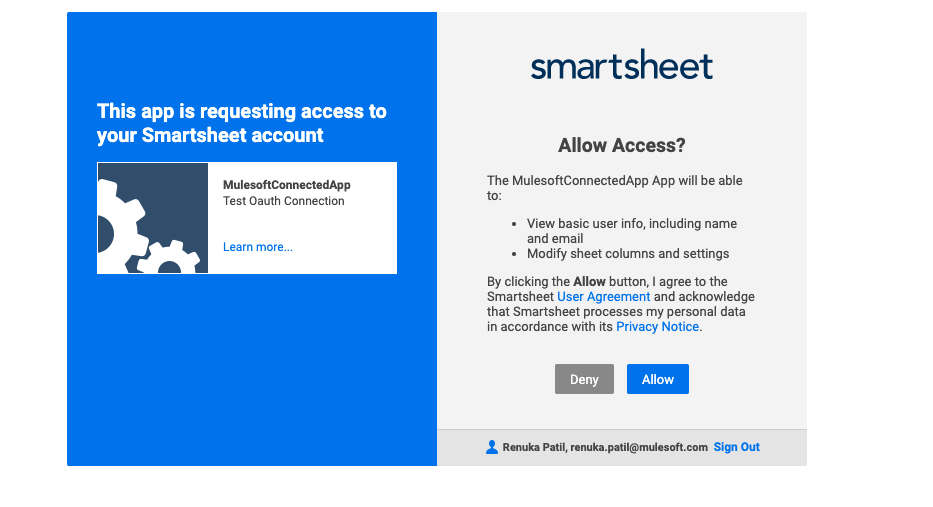
- Once the OAuth dance is performed we can send a request to perform any other operation
Numéro d’article de la base de connaissances
001116802
Cet article a-t-il résolu votre problème ?
Dites-nous ce que nous pouvons améliorer !
