Välj en organisation
How to Connect to PostgreSQL Database using User Credentials
Publiceringsdatum: Jul 28, 2025
Uppgift
GOAL
How to connect to PostgreSQL Database in MulesoftSteg
1. Drag a database widget on to the flow
2. Add a new Connector configuration
3. Select Connection type as “Generic Connection”
4. Click on Configure to add the JDBC driver and select Add Maven dependency (pre-requisite: Download the latest JDBC driver from the website:
https://jdbc.postgresql.org/download/
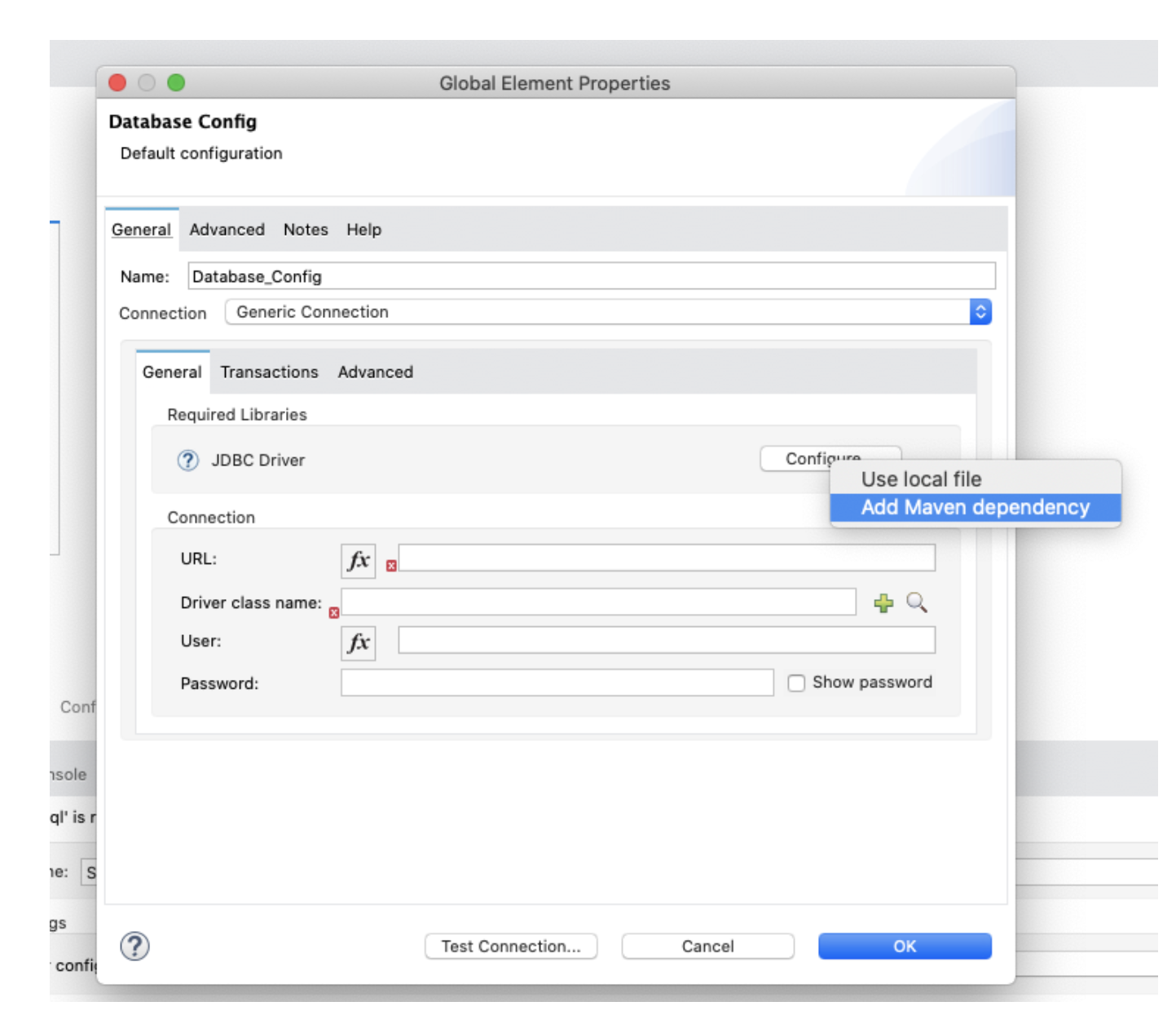
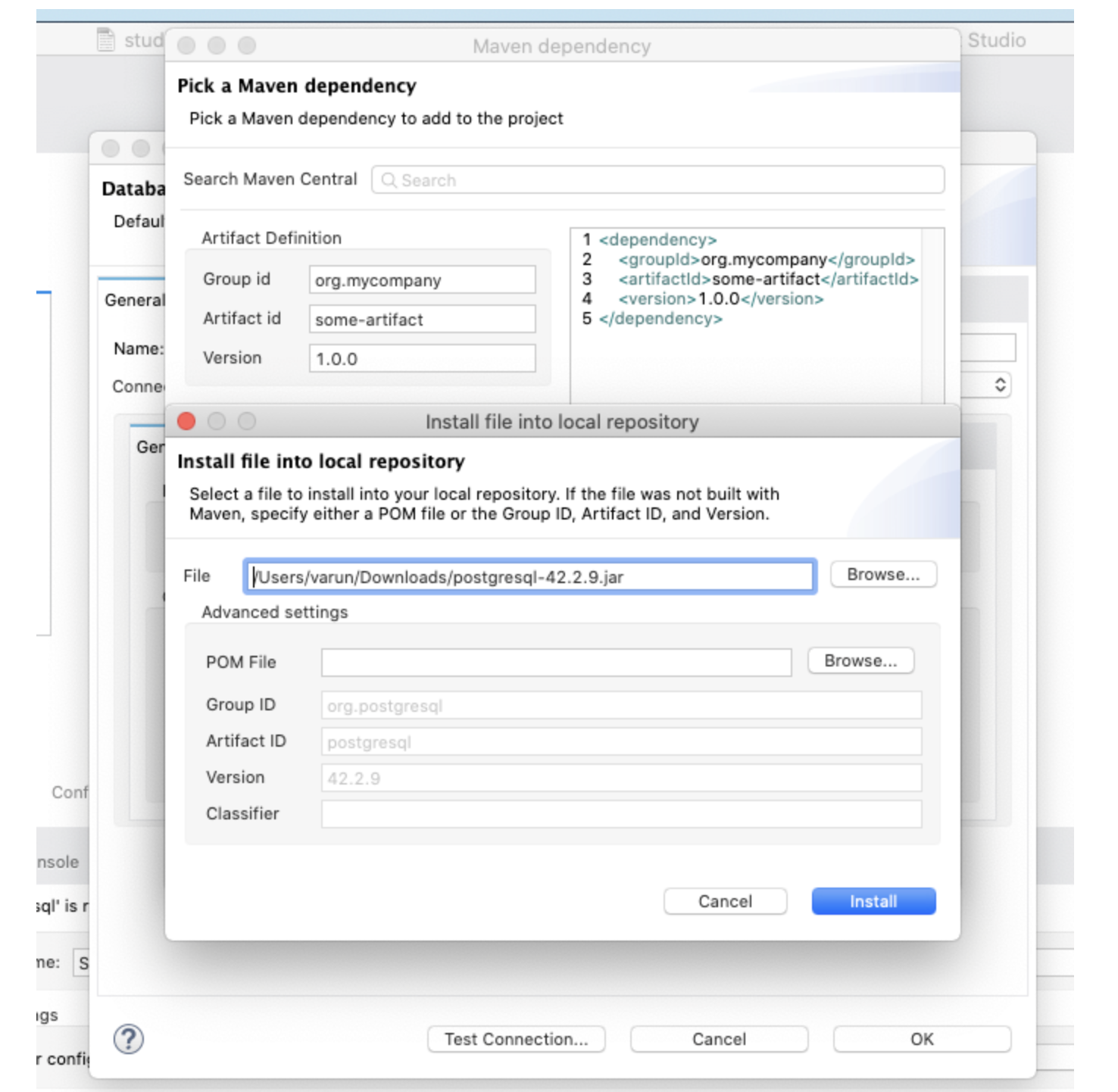
5. Click on Install
6. Click on Browse and select the JDBC driver that was downloaded. This will be imported into the project, so doesn’t matter where the downloaded file lives.
Click Install. You’ll get a notification that the driver was successfully imported.
7. Click on Finish
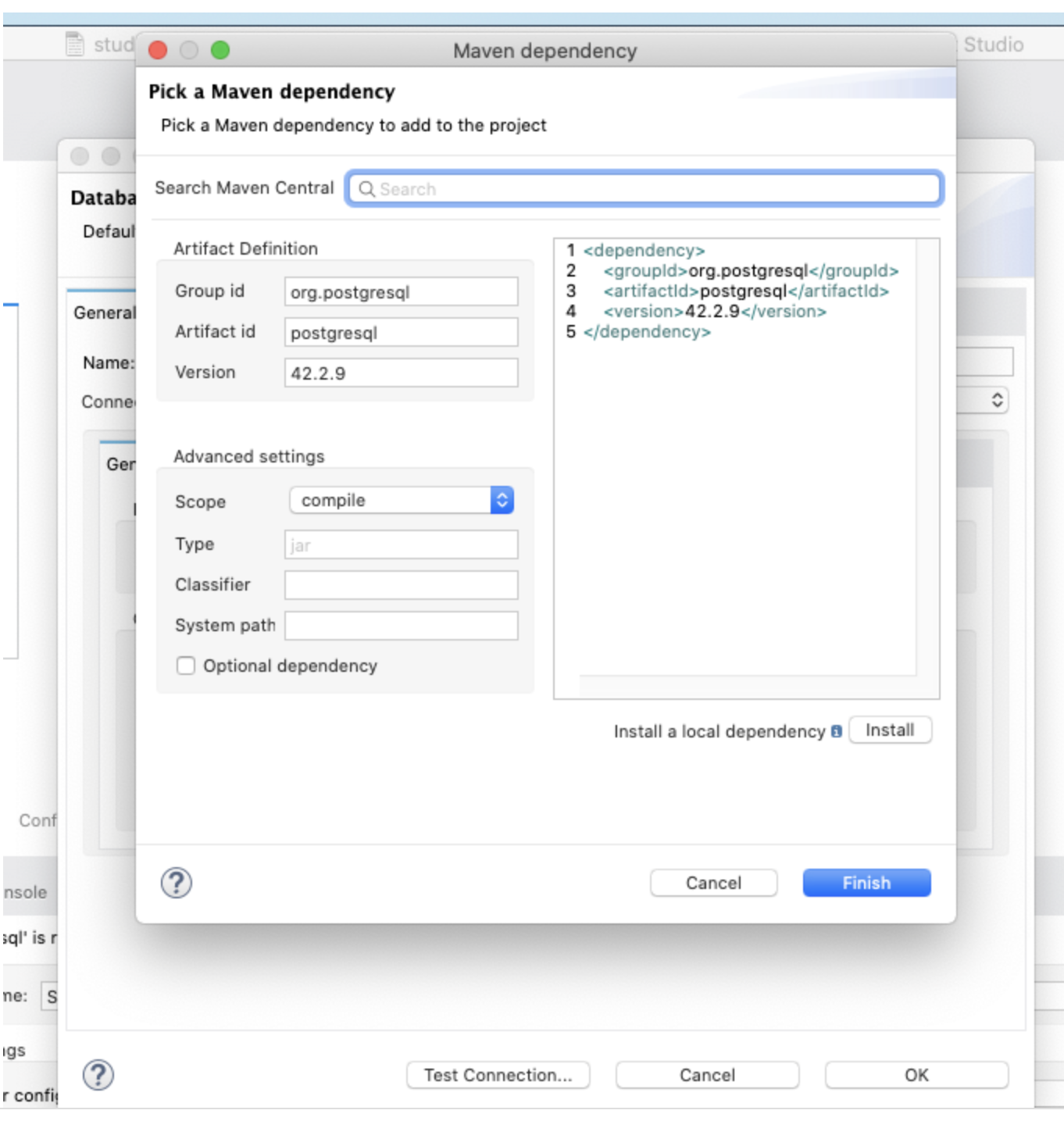
8. Back on the config screen, set the following values on the screen:
URL: The URL should be in the following format below. The sslmode field is required.
jdbc:postgresql://:/?sslmode=require
Driver class name: org.postgresql.Driver
User: your_database_user
Password: your_database_password
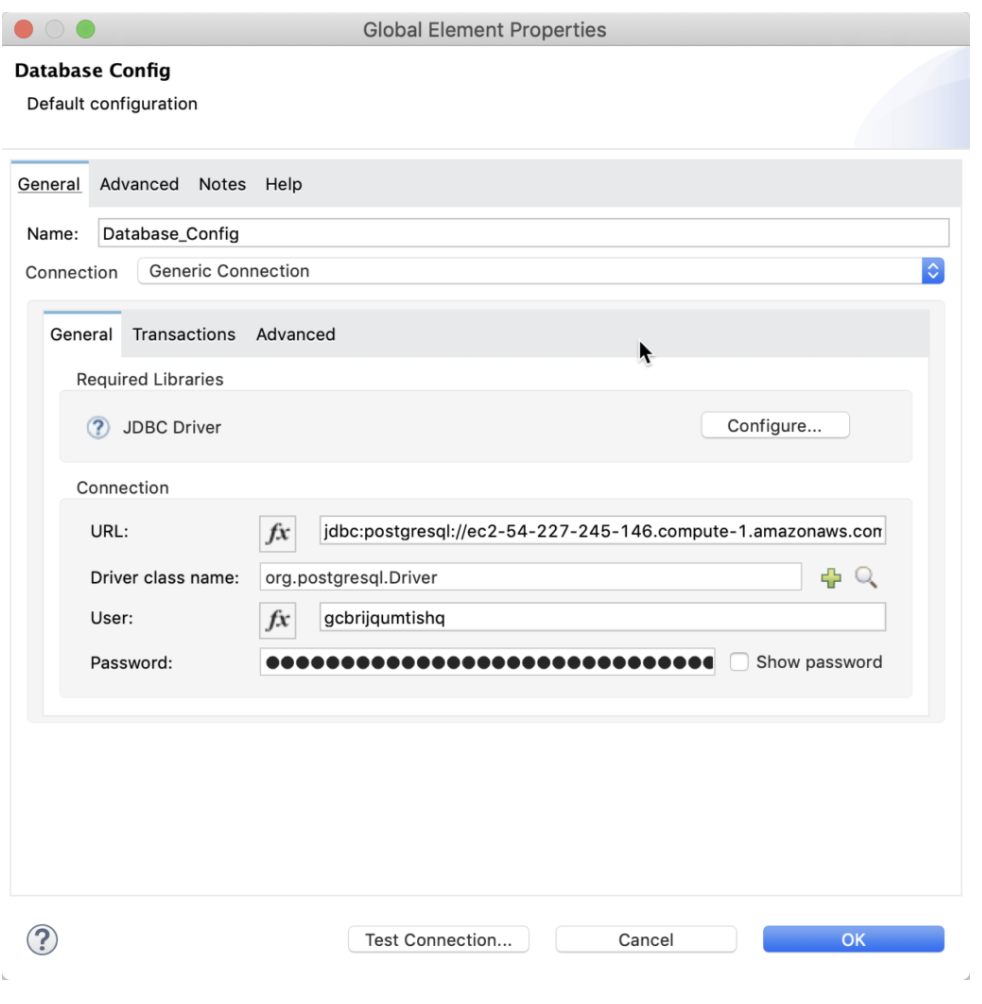
9. Click on Test connection.. and if you’re successful, you should be all set.
REFERENCE
Please refer to the Postgres SQL database Documentation for any additional properties/details of the JDBC URL for Postgres SQL.
Knowledge-artikelnummer
001116826
Löste denna artikel ditt problem?
Berätta för oss vad vi kan förbättra!
