Seleziona un'organizzazione
How to add JSON Logger 2.0.1 for Mule 4 to your Exchange for Maven Dependencies Options
Data pubblicazione: May 26, 2025
Operazione
GOAL
You want to configure JSON Logger to correctly display logs when deploying an application and upload it to your Anytpoint Exchange for easy reference in applications.
Disclaimer - The JSON Logger is developed by the MuleSoft Professional Services team, to output the logs in a "human readable" JSON format. The repository and set-up instructions can be found in the GitHub repository. Please note that the JSON logger is not an official MuleSoft product and therefore there is NO support available for it.
For any questions or support related to the JSON logger, please contact MuleSoft Services Team through the GitHub repository
For GovCloud, please follow this article.
Fasi
Heads up: Mule 4 JSON Logger & Java 17 Compatibility
The JSON logger referenced in the MuleSoft blog post (https://blogs.mulesoft.com/dev/anypoint-platform-dev/json-logging-mule-4/) is outdated. It does not support Java 17, and the original repository is no longer maintained.
For a Java 17 compatible JSON logger, please use the solution provided here: https://github.com/salesforce-misc/mulesoft-json-logger
As the JSON logger is not an official Mule product, you have the following options to use this logger in your app:
A. You can deploy JSON logger with a connected app:
How to publish json-logger to Exchange using a connected app
B. You may download the asset from MuleSoft Service Exchange Account using the credentials provided in the blog post, and then install it to your own local Maven repository.
C. You may download the asset from GitHub, and then upload it into your own Exchange, following the steps and running the script deploy.sh described in https://blogs.mulesoft.com/dev/anypoint-platform-dev/json-logging-mule-4.
D. Upload the asset to your own Exchange but without using the script:
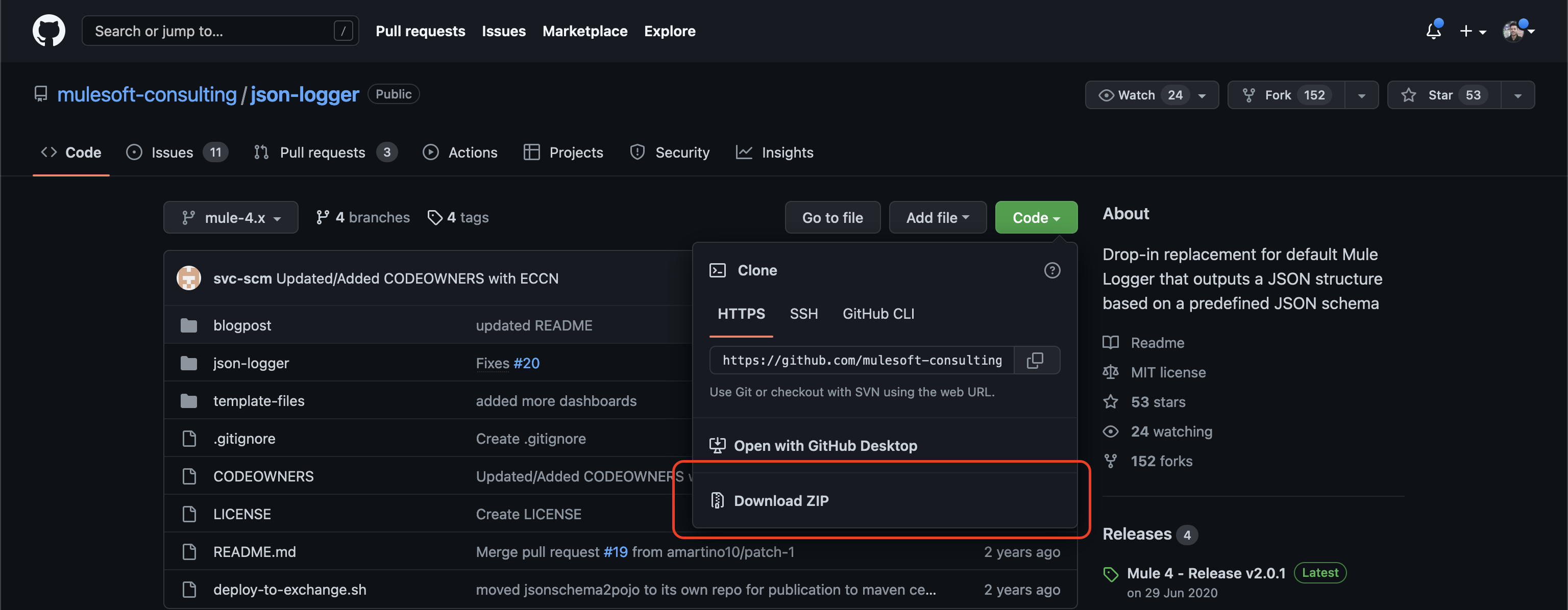
1. Download "JSON logger v.2.0.1" from its GitHub repository.
2. Unzip the downloaded "json-logger-mule-4.x.zip" file
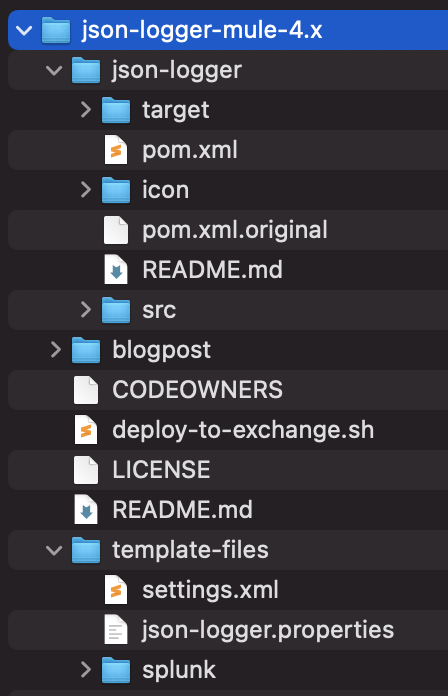
3. Open the json-logger -> pom.xml file with a text editor.
4. Replace the ORG_ID_TOKEN value inside the <groupId> tag with the Organization ID of the Business Group where you are going to publish the asset. To obtain it, please refer to the following article: How to know my Organization ID (Org ID) on the Anypoint Platform
5. Open the template-files -> settings.xml file with a text editor.
6. In the server section, replace the MuleRepository information with your Nexus credentials and the Exchange2 information with the credentials you use to login into Anypoint Platform, or the Connected App clientID and clientSecret.
</servers>

	<!-- MuleSoft Nexus EE Repository -->
	<server>
		<id>MuleRepository</id>
		<!-- Provided by Support -->
		<username>CUSTOMER_EE_REPO_USER</username>
		<password>CUSTOMER_EE_REPO_PASS</password>
	</server>

	<!-- Customer Exchange Repository -->
	<server>
		<id>Exchange2</id>
		<!-- NOTE: In order to be able to publish assets to exchange, this user will need Exchange Contributor Role -->
		<username>ANYPOINT_PLATFORM_USER</username>
		<password>ANYPOINT_PLATFORM_PASS</password>
	</server>

</servers>
7. Regardless of the comment in the settings.xml file of JSON Logger, ensure that your user or Connected App has assigned the Exchange Administrator permission in Access Management as per documentation.
8. Open the folder where the pom is in the terminal
➜ cd json-logger-mule-4.x/json-logger

➜ ls
README.md   icon  pom.xml   pom.xml.original   src
9. Run the following command to deploy to Exchange using the settings.xml previously edited from the template-files folder"
➜ mvn deploy --settings ../template-files/settings.xml
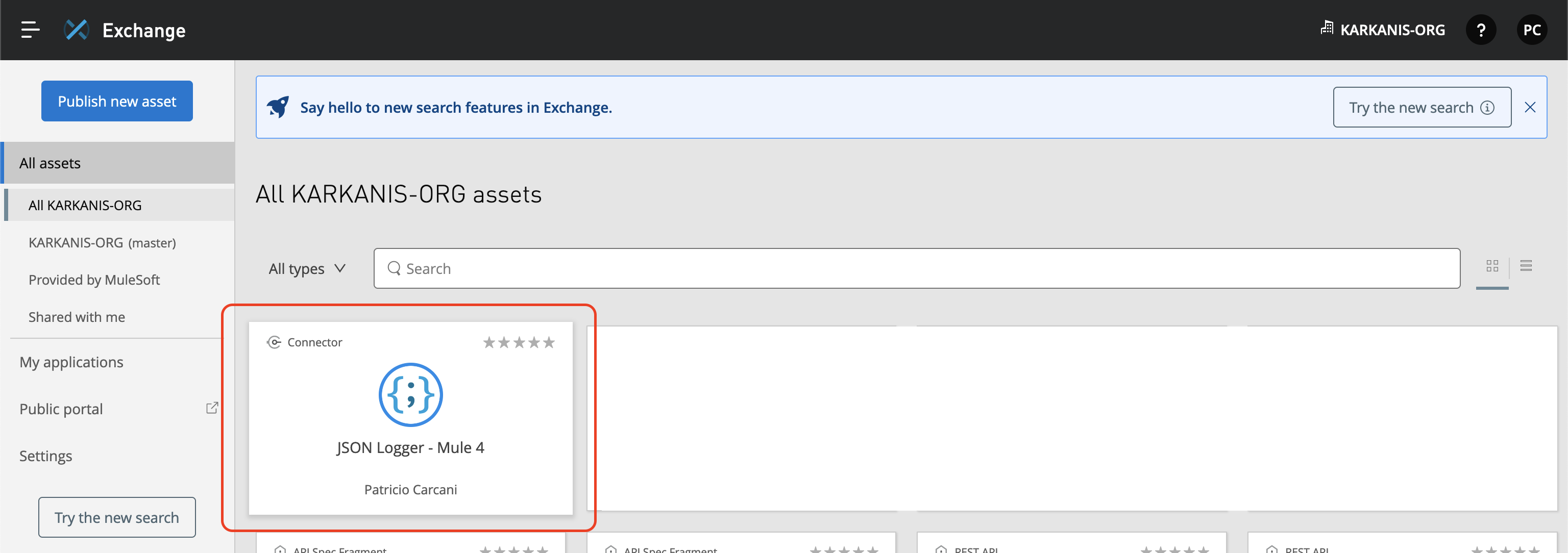
10. Login into Anypoint Platform and go to Exchange. The JSON Logger asset will be visible in the UI.
Numero articolo Knowledge
001116864
Questo articolo ha risolto il problema?
Facci sapere, così possiamo migliorare!
