Выбрать организацию
How to Verify VPC Connectivity using Direct Connect
Дата публикации: Aug 6, 2025
Задача
GOAL
Verify connectivity between a MuleSoft VPC and a remote location when using Direct Connect (DX) connections.Действия
1. Deploy an Application
a) Follow the How To Use Network Tools Application knowledge article to configure and deploy the application to the MuleSoft VPC.b) Deploy the application to each VPC where you wish to verify connectivity.
2. Access the Application
a) Using a shared load balancer:When you use the application URL, it resolves to the public IP addresses of the shared load balancer, which listens on ports 80 and 443 (depending on the port configured in the application’s HTTP listener). E.g.
$ dig +short vpc-test-net-tools.us-w2.cloudhub.io
us-w2.cloudhub.io.
54.69.148.89
34.218.197.120
52.40.131.60

$ nc -z vpc-test-net-tools.us-w2.cloudhub.io 80
Connection to vpc-test-net-tools.us-w2.cloudhub.io port 80 [tcp/http] succeeded!

$ nc -z vpc-test-net-tools.us-w2.cloudhub.io 443
Connection to vpc-test-net-tools.us-w2.cloudhub.io port 443 [tcp/https] succeeded!
b) Direct to the worker using a public connection:
When you prefix the URL with mule-worker, it resolves to the public IP address of the worker. E.g.
$ dig +short mule-worker-vpc-test-net-tools.us-w2.cloudhub.io
52.36.163.55
The worker must listen on either the HTTP port (8081) or the HTTPS port (8082). The application in this example is listening on the HTTP port.
NOTE: When using a Dedicated Load balancer, the worker must listen on the HTTP port (8091) or the HTTPS port (8092).
$ nc -z mule-worker-vpc-test-net-tools.us-w2.cloudhub.io 8081
Connection to mule-worker-vpc-test-net-tools.us-w2.cloudhub.io port 8081 [tcp/sunproxyadmin] succeeded!
c) Direct to the worker using a private connection:
When you prefix the application URL with mule-worker-internal, it resolves to the private IP address of the worker. The worker is listening on the HTTP or HTTPS port as mentioned above. E.g.
$ dig +short mule-worker-internal-vpc-test-net-tools.us-w2.cloudhub.io
10.1.2.44

$ nc -z mule-worker-internal-vpc-test-net-tools.us-w2.cloudhub.io 8081
Connection to mule-worker-internal-vpc-test-net-tools.us-w2.cloudhub.io port 8081 [tcp/sunproxyadmin] succeeded!
NOTE: Both the public and private IP of an application are dynamic by default. You can assign a static public IP to an application, but the private IP will always be dynamically assigned from the VPC CIDR block.
3. Verify the Deployment
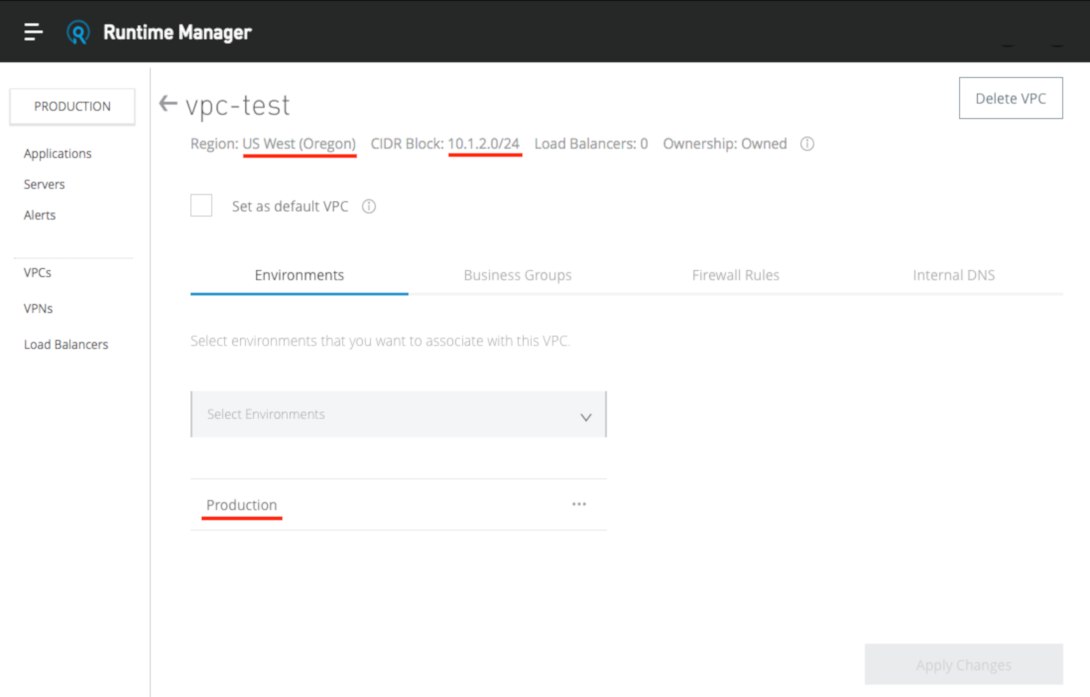
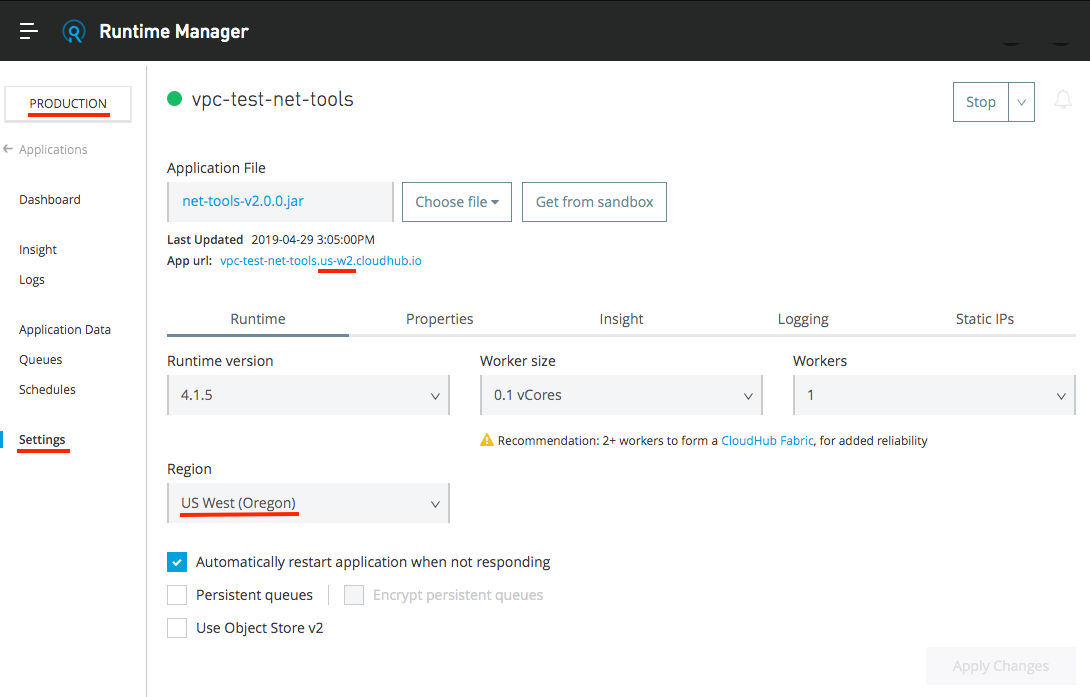
a) Perform a lookup against the internal URL (see step 2c above) to confirm the private IP address is part of the VPC CIDR block.b) If the private IP is not part of the VPC CIDR block, ensure the application is deployed to an environment that is already associated with the VPC, and that the deployment region matches the VPC region.
4. Update the VPC Firewall Rules
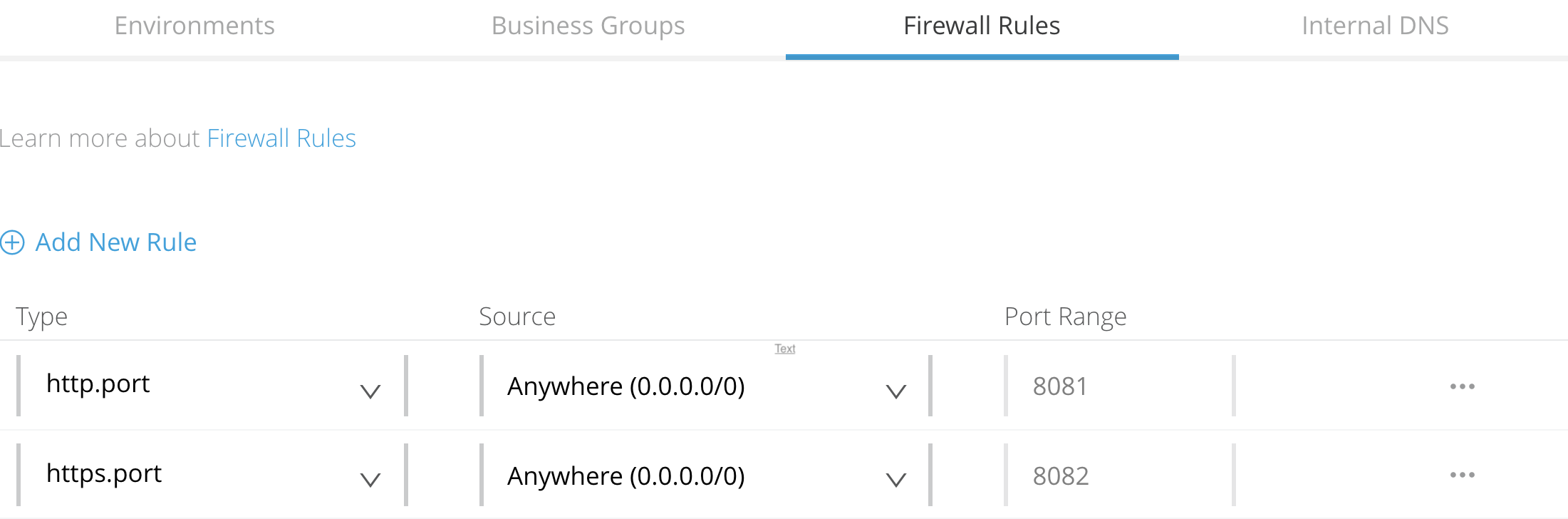
When connecting to a CloudHub application, the VPC firewall rules must be configured to allow inbound traffic. By default, the firewall contains an Anywhere rule (0.0.0.0/0) for TCP ports 8081 and 8082. This allows access to CloudHub applications from any source on those ports, and is required for access via the shared load balancers.
If you wish to remove access via the shared load balancer, you need to create additional rules for your specific source IPs, and access the worker directly (as described in steps 2c above). Refer to Add or Edit Firewall Rules for instructions.
5. Check the VPC Route Table
Direct Connect uses Border gateway Protocol (BGP) routing, meaning all routing information must be advertised from your side, in order to appear in the VPC route table.
Follow How to View the VPC Route Table via the UI to confirm that the required routes are present.
If the required routes are not present, please update the BGP configuration on your side of the connection.
6. Generate Traffic
If your corporate firewalls do not permit ICMP traffic, Ping and Traceroute tests may not work as expected. In these scenarios you can use the Socket test to verify connectivity to a TCP port instead.NOTE: If you are not sure whether ICMP traffic is permitted, or if Ping tests fail, use the Socket test.
a) Inbound to CloudHub:
From a host in your own network, you should be able to access the worker directly using the private URL (as described in step 2c above). By default, the application is configured to listen on TCP port 8081.
$ telnet mule-worker-internal-vpc-test-net-tools.us-w2.cloudhub.io 8081
Trying 10.1.2.44...
Connected to mule-worker-internal-test-vpc-net-tools.us-w2.cloudhub.io.
Escape character is '^]'.
b) Outbound from CloudHub:
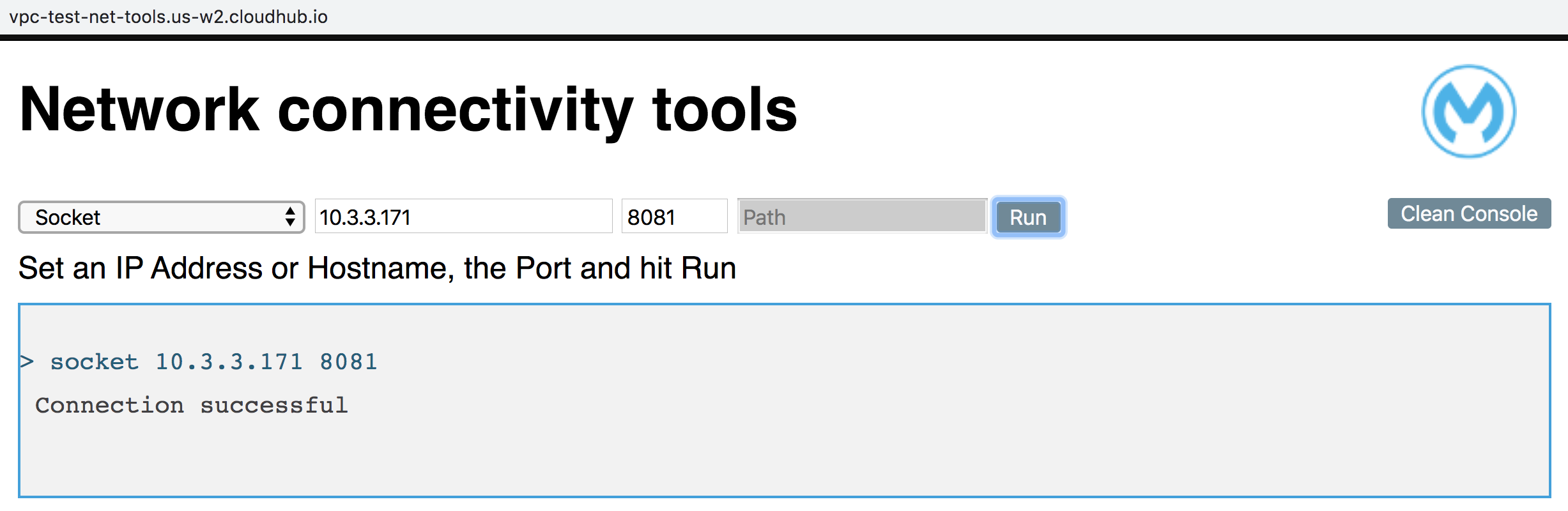
In the example below, the destination IP address 10.3.3.171 is assigned to a host in the remote location, which is listening on TCP port 8081.
The destination must be:
- A host in one of the networks advertised via BGP
- Listening on the port specified.
Номер статьи базы знаний
001116868
Эта статья решила вашу проблему?
Оставьте свой отзыв, чтобы мы могли стать лучше!
