Velg en organisasjon
How To Upsert With Salesforce Connector With Mule 4
Publiseringsdato: Mar 2, 2024
Oppgave
GOAL
This article explains how to perform Upsert by the Salesforce Connector with Mule 4.
Trinn
1) To perform Upsert, an External ID is required on the target object (refer to Salesforce help Differences between the 'External ID' field and the 'Unique ID' field setting).
If the object does not have an External ID, please follow the below steps to create it.
1-1. Login to Salesforce
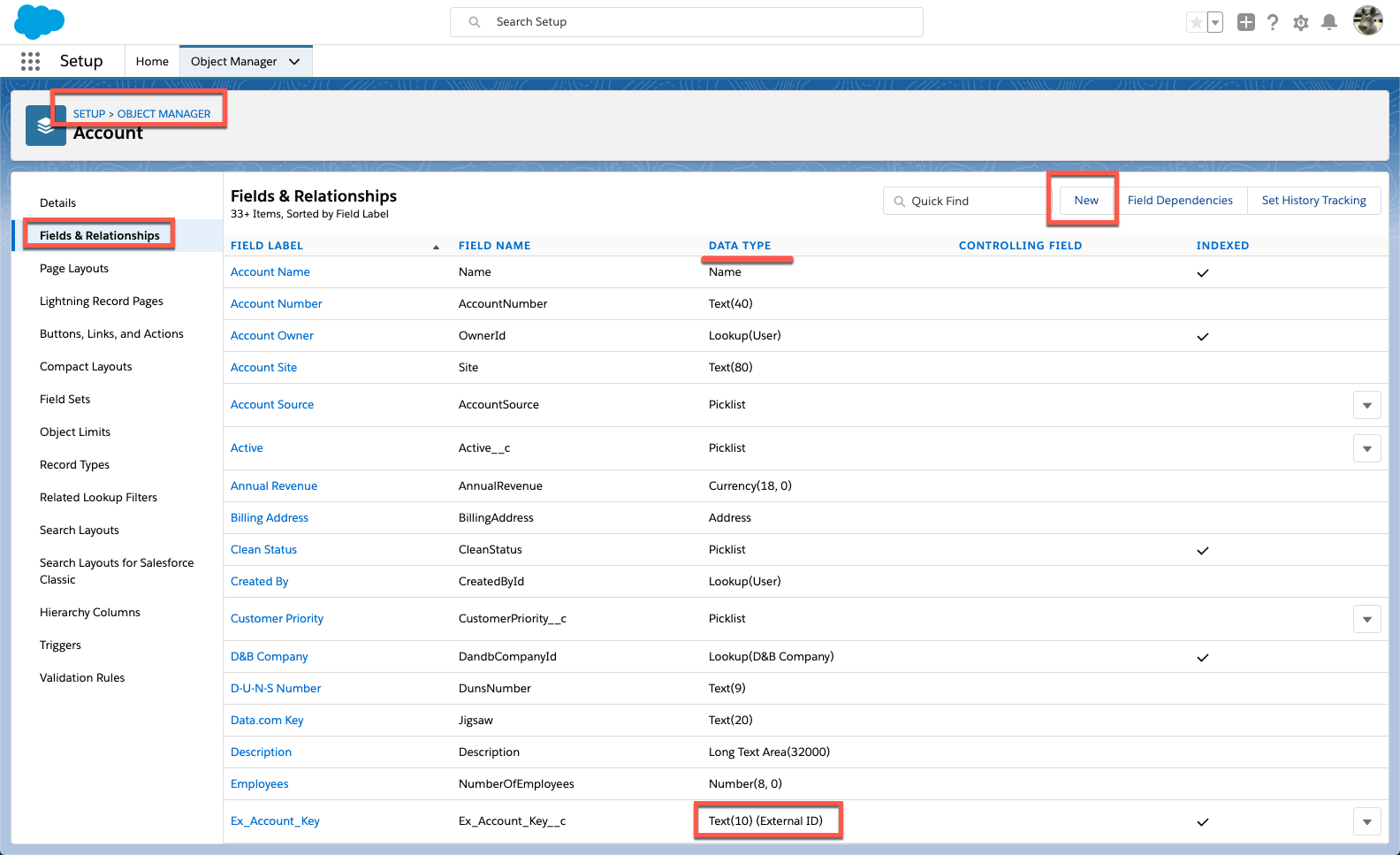
1-2. Go to Setup => Object Manager => choose target object then select [Fields & Relationships]. If there is a column with DATA TYPE "Text(xx) (External ID), you can use it. If not, click button [New] to create it.
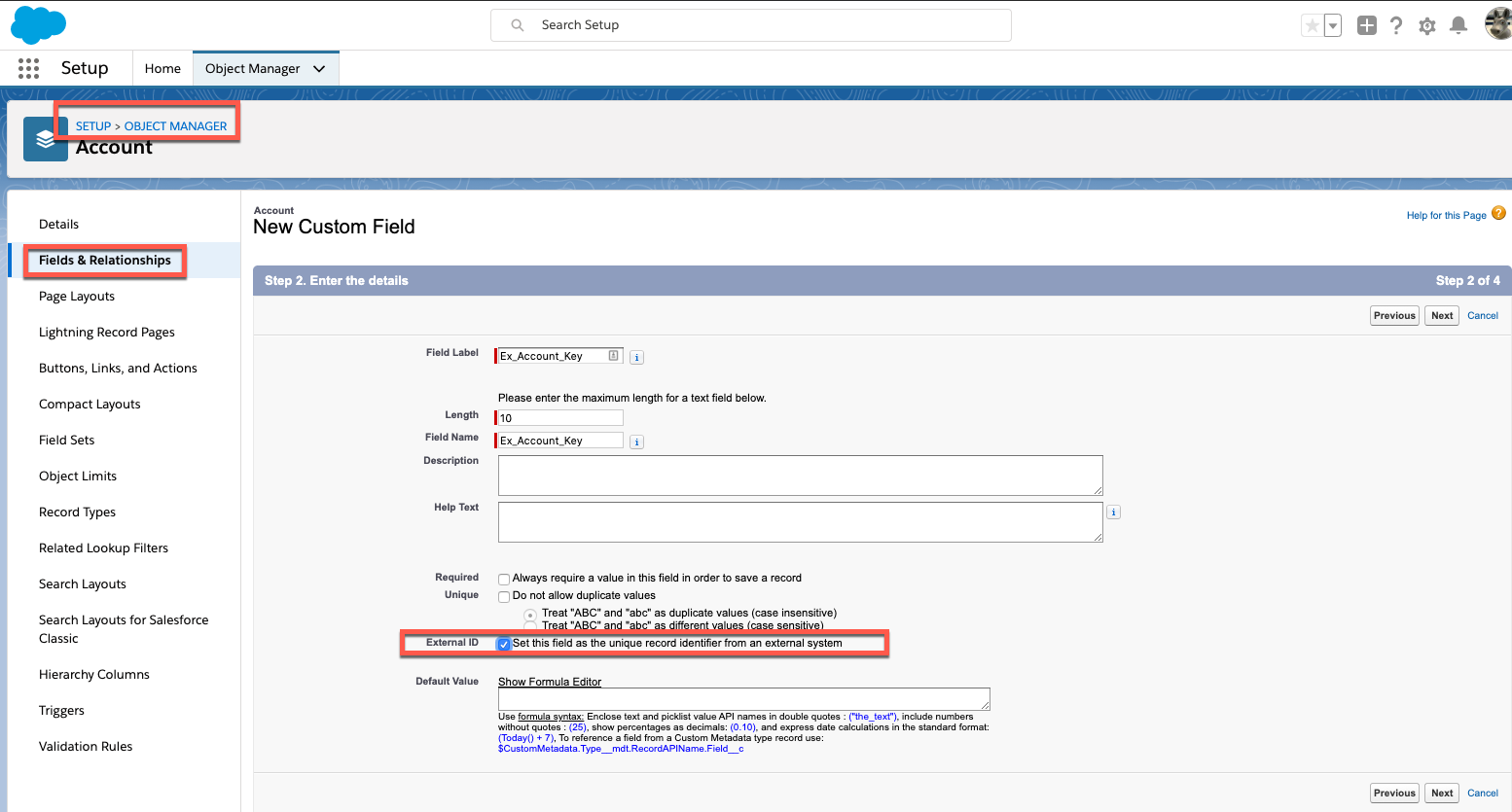
1-3. Set Data Type as "Text" then checkbox [External ID] ON. In this example, the column name is "Ex_Account_Key". Other fields and configurations are depending on each use case, so complete the column creation.
2) Create a flow.
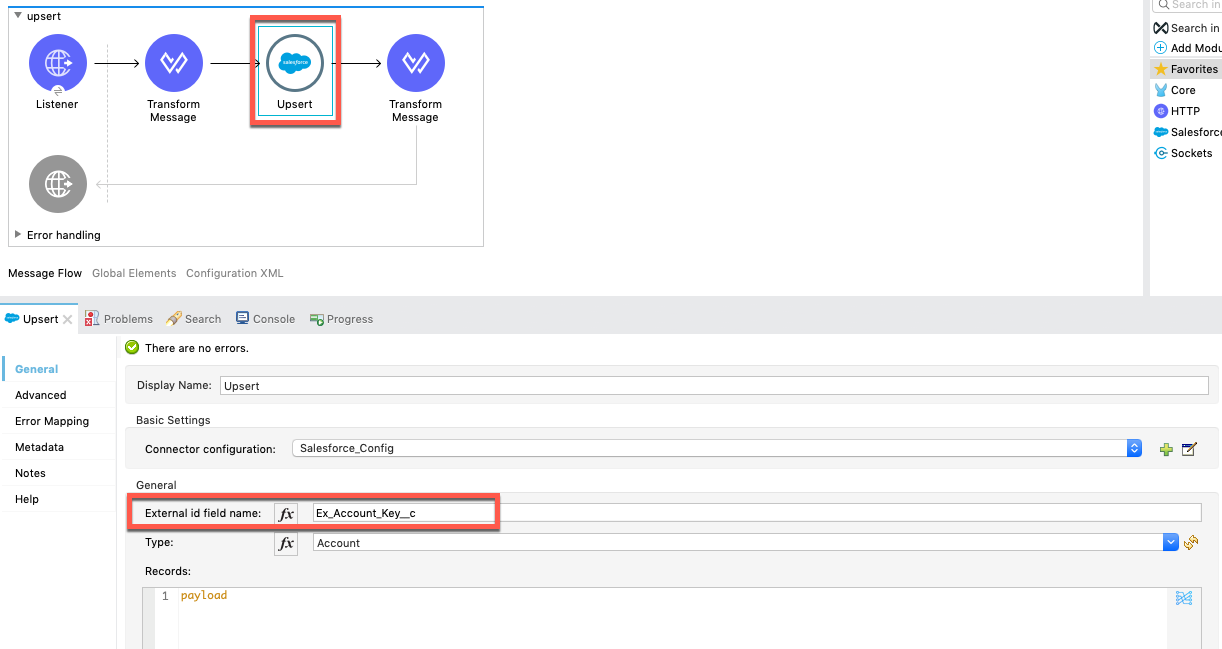
2-1. Set the External ID to the Upsert component.
This is a sample flow. It is using the External ID.
<flow name="upsert" doc:id="b70a6055-8130-4a2e-a2cf-199a83e7d86e" >
		<http:listener doc:name="Listener" doc:id="f6848dac-9cbc-4b7c-8ae8-d20c8f54a08d" config-ref="HTTP_Listener_config" path="/upsert"/>
		<ee:transform doc:name="Transform Message" doc:id="acbc26ad-4b77-4c4d-ab29-dc5e2685d4bf" >
			<ee:message >
				<ee:set-payload ><![CDATA[%dw 2.0
output application/java
---
[{
  Id: payload.Id,
  Ex_Account_Key__c: payload.Ex_Account_Key__c,
  Name: payload.Name,
  NumberOfEmployees: payload.NumberOfEmployees
}]]]></ee:set-payload>
			</ee:message>
		</ee:transform>
		<salesforce:upsert type="Account" doc:name="Upsert" doc:id="54421550-ca61-4099-bf79-fddd602a875d" config-ref="Salesforce_Config" externalIdFieldName="Ex_Account_Key__c"/>
		<ee:transform doc:name="Transform Message" doc:id="31a93d48-7d08-4ff6-95b4-9472cbfb9009" >
			<ee:message >
				<ee:set-payload ><![CDATA[%dw 2.0
output application/json
---
payload map {
  id:$.id,
  errors:$.errors,
  success:$.success

}]]></ee:set-payload>
			</ee:message>
		</ee:transform>
	</flow>
3) Test the sample. Since this is an Upsert operation, the 1st request will insert (create) a record. Then requesting the same cURL for the 2nd time, it will now update the existing record.
$ curl -X POST 'http://localhost:8081/upsert' \
-H 'Content-type: application/json' \
--data '{"Ex_Account_Key__c":"ext2", "Name": "Name3", "NumberOfEmployees": 100}'

[
  {
    "id": "0012v00002lP6tSAAS",
    "errors": [

    ],
    "success": true
  }
]
Disclaimer: This example is provided as a reference for your own usage and is not to be considered a MuleSoft product. This example should be considered as a custom solution. The custom solution is not a Supported MuleSoft product.
Flere ressurser
Knowledge-artikkelnummer
001116916
Hjalp denne artikkelen med å løse problemet ditt?
La oss få vite det slik at vi kan forbedre!
